語言 🇹🇼 繁體中文
🇺🇸
English
🇧🇬
Български
🇨🇳
简体中文
🇹🇼
繁體中文
🇭🇷
Hrvatski
🇩🇰
Dansk
🇳🇱
Nederlands
🇺🇸
English (US)
🇨🇦
Français (Canada)
🇫🇷
Français (France)
🇩🇪
Deutsch
🇨🇾
Ελληνικά (Κύπρος)
🇬🇷
Ελληνικά
🇮🇱
עברית
🇮🇹
Italiano
🇯🇵
日本語
🇰🇷
한국어
🇵🇱
Polski
🇧🇷
Português (Brasil)
🇷🇺
Русский
🇺🇦
Русский (Украина)
🇧🇦
Српски (БиХ)
🇷🇸
Srpski (Latinica)
🇲🇪
Српски (Црна Гора)
🇷🇸
Српски
🇸🇮
Slovenščina
🇪🇸
Español
🇺🇦
Українська
🇹🇷
Türkçe
安裝
undefined
Add Live Commenting to Bubble.io Sites
本指南涵蓋的內容
本指南說明如何在 Bubble.io 上使用 FastComments 設定即時評論功能。
1. 新增 HTML 區塊 
首先,導航到您想要新增 FastComments 的頁面/版面。在 Bubble 編輯器中,從「Visual Elements」側邊欄將一個 HTML 元素拖放到您的頁面上。
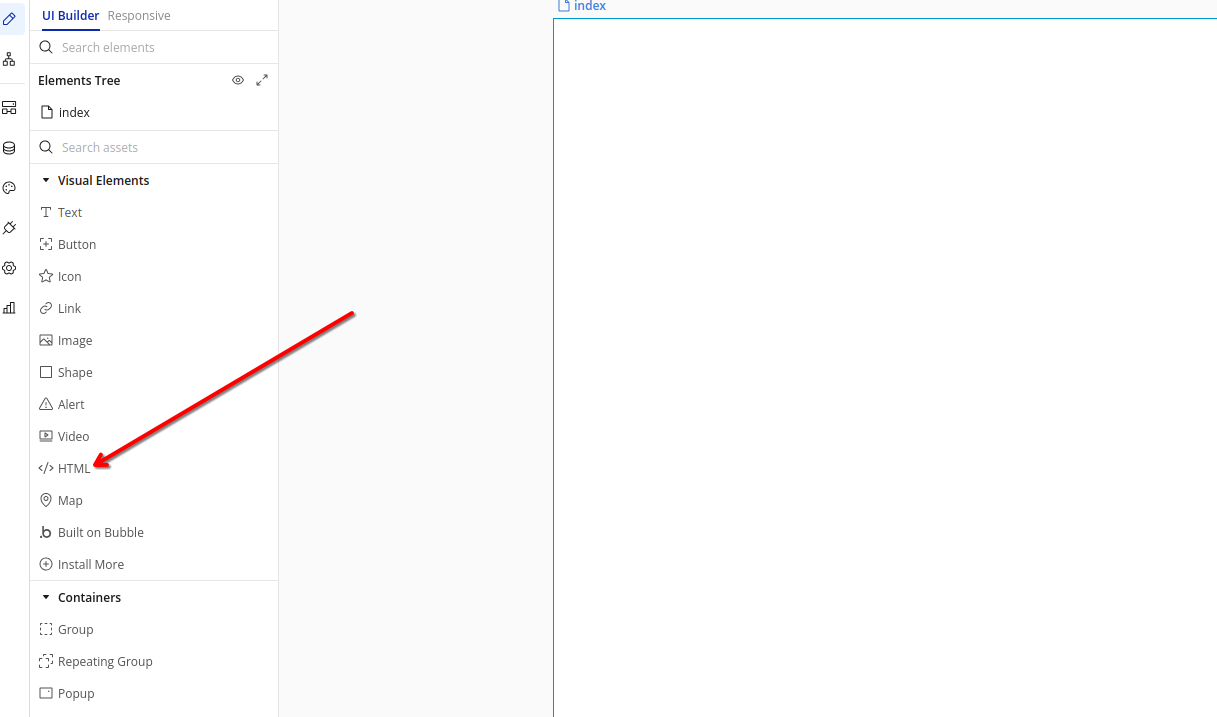
新增 HTML 元素
HTML 元素將允許我們將 FastComments 小工具直接嵌入您的 Bubble 應用程式中。
2. 插入程式碼 
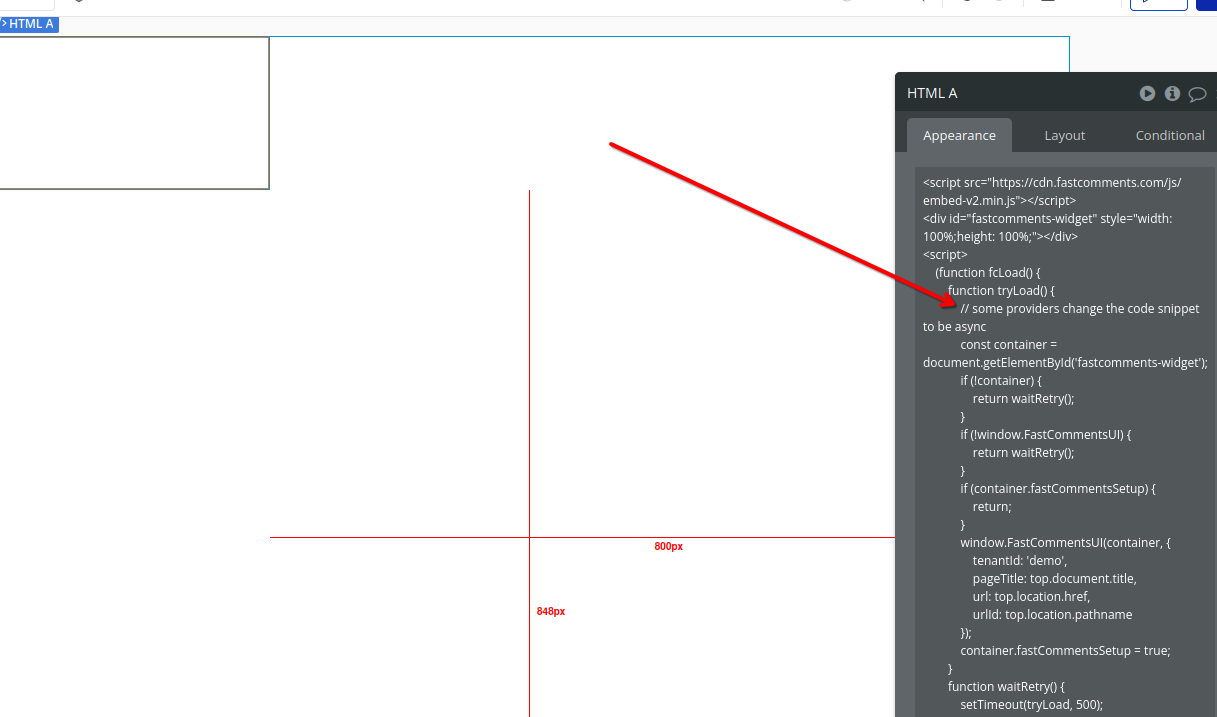
點擊您剛新增的 HTML 元素。在出現的屬性編輯器中,將以下程式碼貼到 HTML 欄位:
Bubble.io 即時留言程式碼片段
Copy 

1
2<script src="https://cdn.fastcomments.com/js/embed-v2.min.js"></script>
3<div id="fastcomments-widget" style="width: 100%;height: 100%;"></div>
4<script>
5 (function fcLoad() {
6 function tryLoad() {
7 // Bubble 通常會將程式碼片段改為 async
8 const container = document.getElementById('fastcomments-widget');
9 if (!container) {
10 return waitRetry();
11 }
12 if (!window.FastCommentsUI) {
13 return waitRetry();
14 }
15 if (container.fastCommentsSetup) {
16 return;
17 }
18 window.FastCommentsUI(container, {
19 tenantId: 'demo',
20 pageTitle: top.document.title,
21 url: top.location.href,
22 urlId: top.location.pathname
23 });
24 container.fastCommentsSetup = true;
25 }
26 function waitRetry() {
27 setTimeout(tryLoad, 500);
28 }
29 tryLoad();
30 })();
31</script>
32
插入 FastComments 程式碼
注意:此程式碼包含重新嘗試機制,以確保 FastComments 在 Bubble 的動態環境中正確載入。其他程式碼片段將無法使用。
請記得在註冊後將 'demo' 替換為您實際的 FastComments 租戶 ID。如果您已登入 FastComments.com,應該會自動替換好。
3. 找到寬度設定 
為確保評論小工具正確顯示,我們需要調整 HTML 元素的寬度。請在該元素的屬性編輯器中尋找 Layout 標籤。
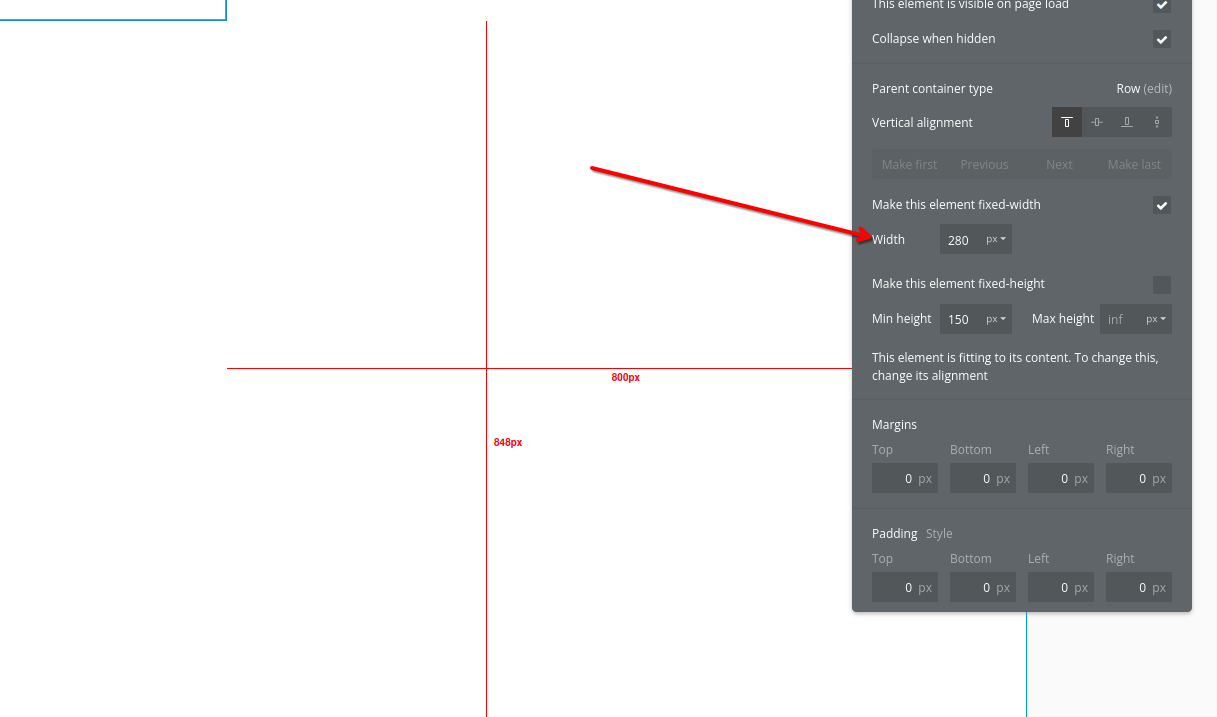
尋找寬度設定
Layout 標籤包含重要的尺寸選項,能幫助我們的評論小工具在不同螢幕尺寸上正確顯示。
4. 調整佈局 
在 Layout 標籤中,將寬度設為 100%。這會確保評論小工具佔滿其容器的整個寬度,並能對不同螢幕尺寸正確響應。
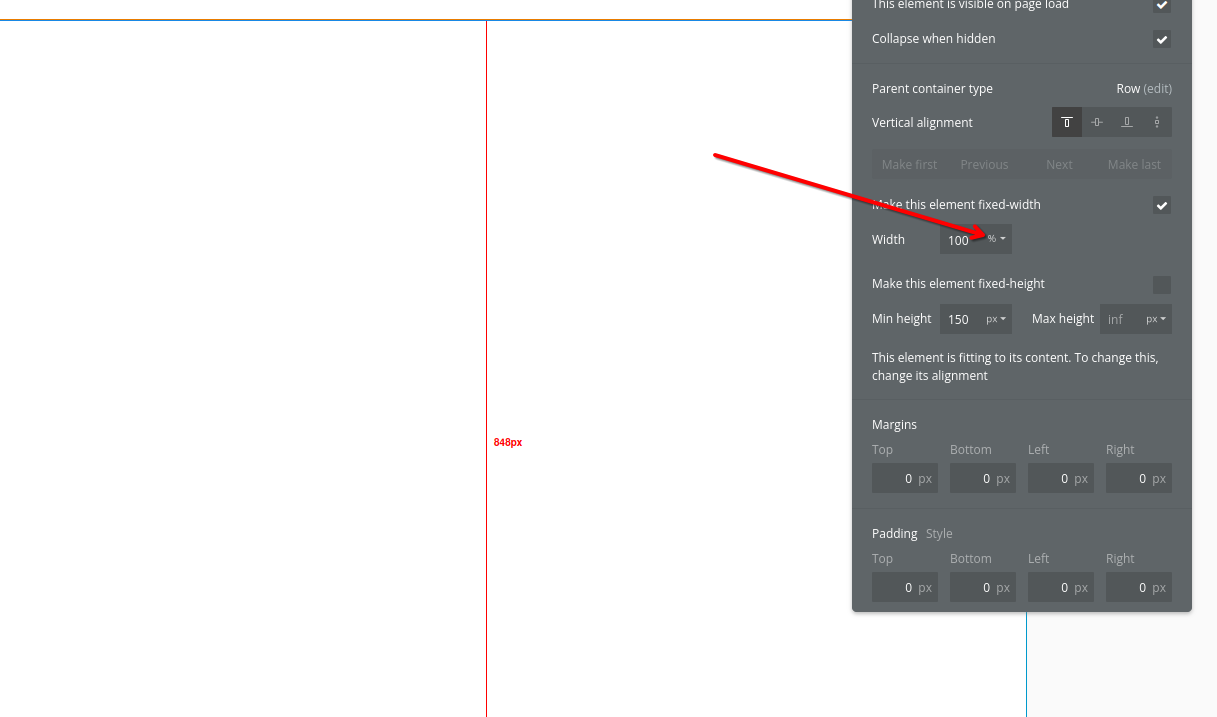
將寬度設為 100%
在將輸入值改為 100(或所需百分比)之後,你需要點擊數字旁邊的下拉選單,將單位從
像素改為百分比。
另外,設定最小高度 (例如 400px) 以確保評論小工具有足夠的空間能正確顯示。
完成這些更改後,點擊 預覽 按鈕以查看你的 FastComments 小工具的運作情況!