FastComments.com

Add Comments to GoHighLevel Sites

使用 FastComments,我們可以輕鬆地為任何使用 GoHighLevel 建置的網站新增即時留言功能。

請注意,本教學需要 FastComments 帳戶。建議您先註冊,然後再回到這裡。您可以在此建立帳戶。

先登入可以確保產生的程式碼片段已與您的帳戶關聯。

GoHighLevel 會員網站與其他網站

本教學分為兩類:會員網站與一般 GoHighLevel 網站。

我們從會員網站的說明開始。


步驟 1:編輯課程 Internal Link


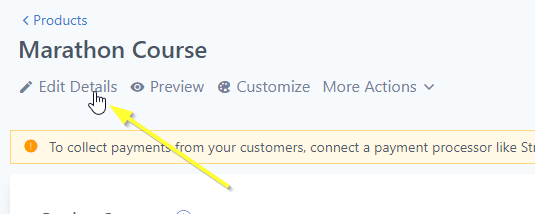
首先,我們要編輯課程的設定。

為此,打開該課程,然後點擊 Edit Details

編輯課程詳細資料
編輯課程詳細資料

步驟 2:開啟進階設定 Internal Link

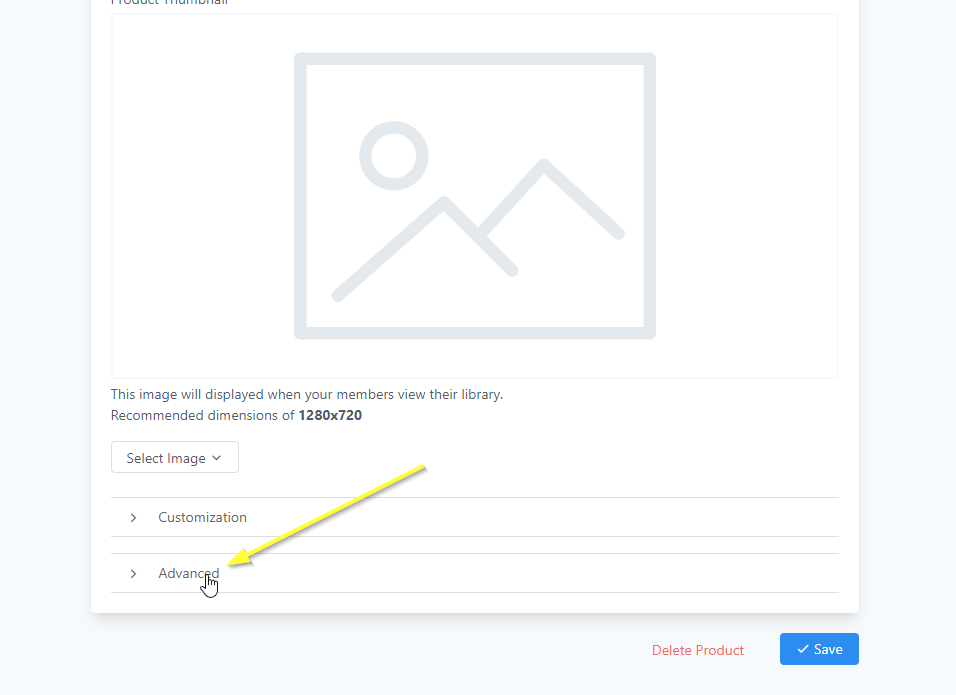
接下來,我們需要打開 Advanced 設定:

開啟進階設定
開啟進階設定

我們會將程式碼加入 Tracking Code 區段。前往該區段並點選 Footer Code

步驟 3:複製程式碼 Internal Link

現在我們要為你產生自訂的 FastComments 程式碼。使用下面的精靈來設定 FastComments 在你的 GoHighLevel 網站上的運作方式:

FastComments Configuration Wizard

Choose the type of commenting experience you want
How should the widget be placed on your pages?
Comma-separated URL patterns (leave empty for all pages)
Your FastComments tenant ID (use "demo" for testing)

不同的留言框類型

你可以設定 TYPE = 'commenting' 這一行來切換所使用的產品(例如你可以改成 live 用於串流聊天,或 collab 用於協作聊天)。

將留言框放在你想要的位置

假設你想把留言框放在頁面中特定的位置,而不是預設位置。
將這一行改成:

const TARGET_ELEMENT_ID = ''; // 設為使用目標 div 模式

改成:

const TARGET_ELEMENT_ID = 'fc_box'; // 設為使用目標 div 模式

接著在 GHL 編輯器中,點選 "code" 按鈕,並加入你想要放置留言的位置:

GoHighLevel FastComments Div 元素
Copy Copy
1
2<div
3 id="fc_box"
4 type="commenting"
5 urlid="custom-chat-id"
6></div>
7

每頁不同的留言框類型

假設你想讓使用者標註並討論部分文字,或改用串流聊天 UI。

首先請依照上面「將留言框放在你想要的位置」的步驟。

注意在那個小程式碼片段中有 type="commenting"

例如若你想啟用 collab 聊天,將 type 改為 type="collab"

僅在特定頁面顯示

如果你沒有設定 TARGET_ELEMENT_ID,你可以改為設定 VALID_PATTERNS 變數,用以設定留言應該顯示的 URL 路徑。預設情況下,它會在 URL 中包含 /post 的頁面顯示。

設定 Collab 聊天

你可以設定 collab 聊天僅在特定區域內的 HTML 周圍加入協作功能。例如,假設你在 footer 加上上述程式碼,然後在文章/頁面內容中加入此 div 來啟用 collab 聊天:

對指定內容的 Collab 聊天
Copy Copy
1
2<div
3 id="fc_box"
4 type="collab"
5 urlid="custom-chat-id"
6><p>This content will have collab chat!</p></div>
7

那麼 <div> 內的段落元素就會啟用 collab 聊天,而頁面上的其他部分則不會。如果你沒有在 <div> 中放任何內容,它就會在整個文章主體上啟用 collab 聊天。


步驟 4:貼上程式碼 Internal Link

現在我們已經複製了程式碼片段,請如圖所示將其貼到 Footer Code 區段:
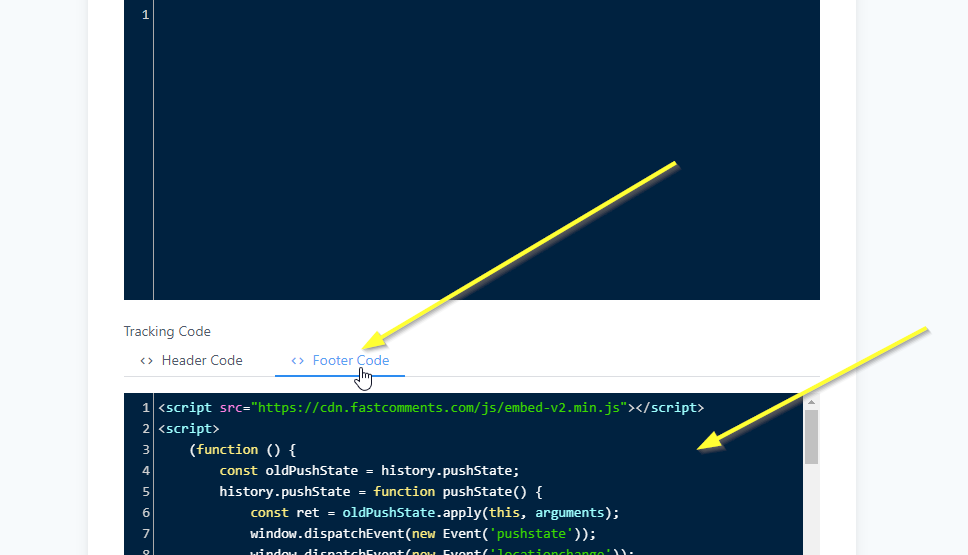
貼上程式碼
貼上程式碼

會員網站安裝成功 Internal Link


就是這樣!現在您應該已經在您的 GoHighLevel 課程中新增了即時評論功能。
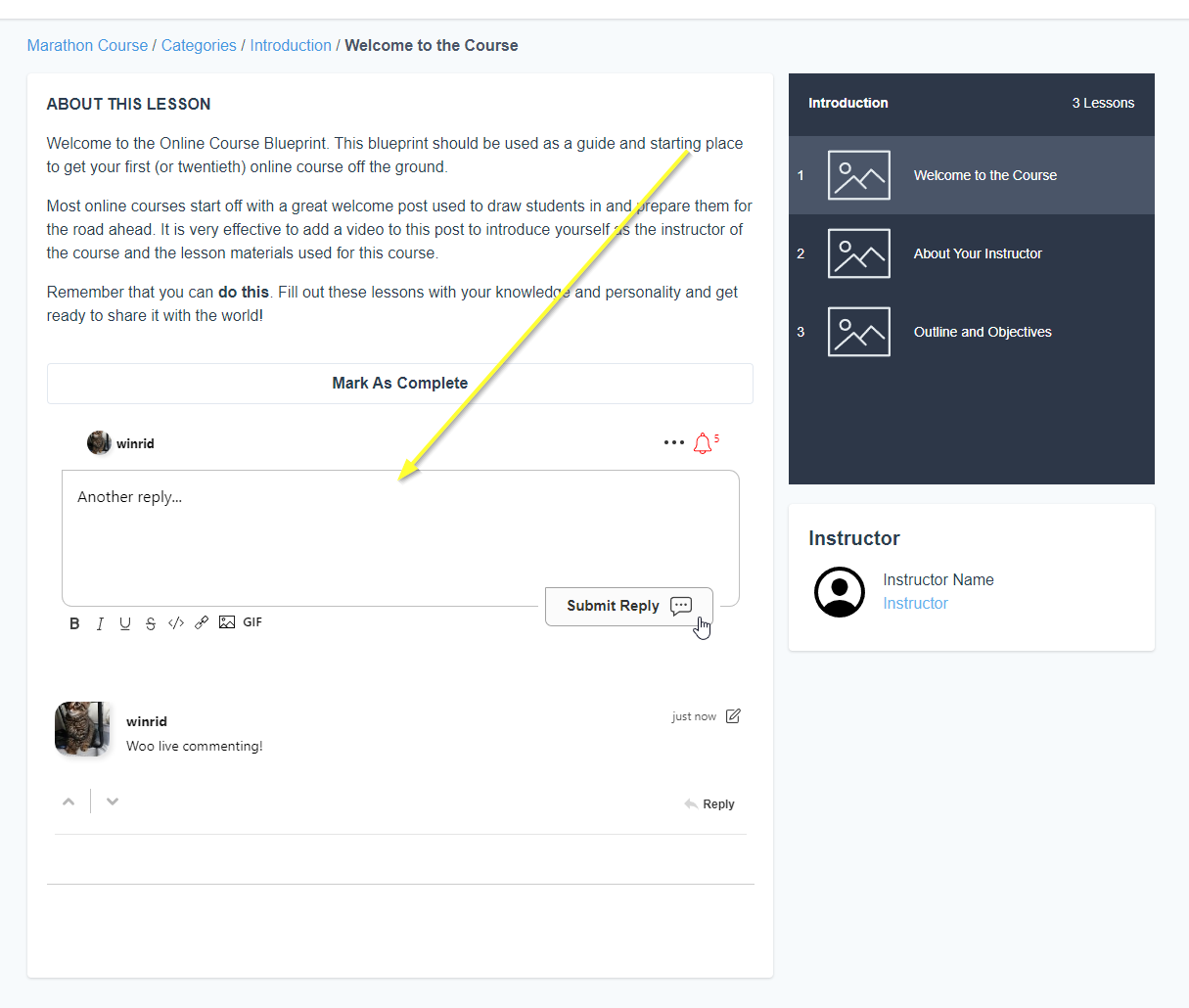
成功
Success

如果您遇到「permission denied」權限錯誤,或想要自訂 FastComments,請繼續閱讀。


會員網站客製化 Internal Link


FastComments 設計上可進行自訂以符合您的網站。

如果您想新增自訂樣式,或調整設定,請查看我們的自訂化文件以了解如何操作。


步驟 1:新增自訂程式碼元件 Internal Link

First, we're going to open the editor for the page of our site we want to add comments to.
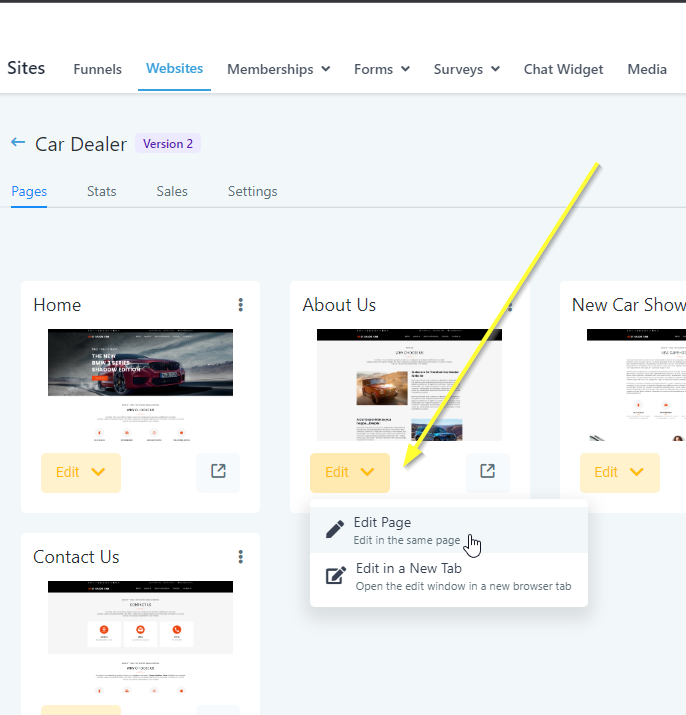
開啟編輯器
開啟編輯器

Now find the place on the page where you want to add comments. Move your mouse toward the end of that area. A + icon will appear:
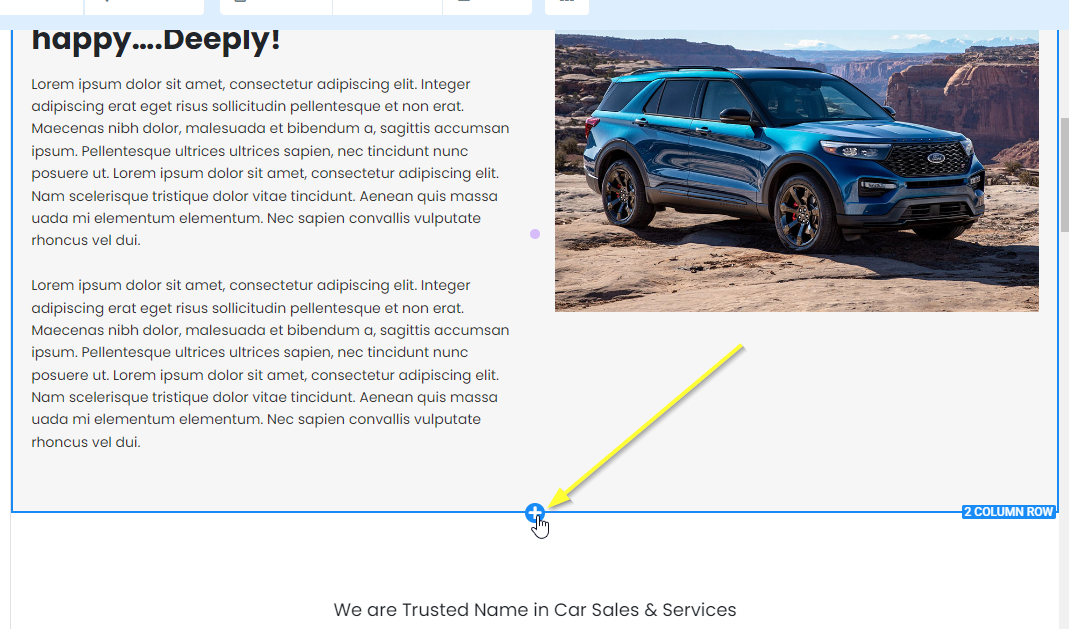
新增區段
新增區段

If we click that it asks us how many columns should the new section be. We'll select 1 COLUMN:
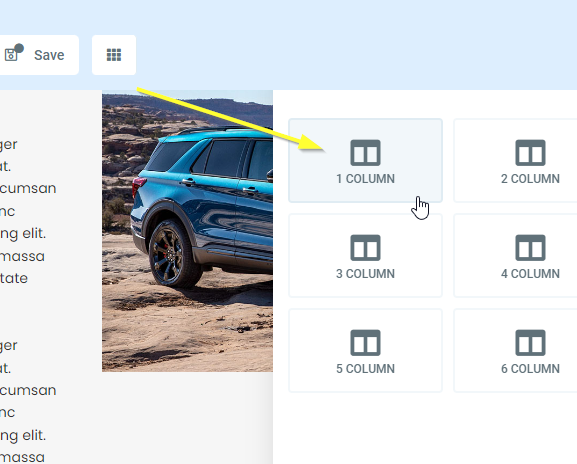
新增一欄
新增一欄

Now if you move your mouse over the new 1-column-row you'll have the option to add an element. Click that:
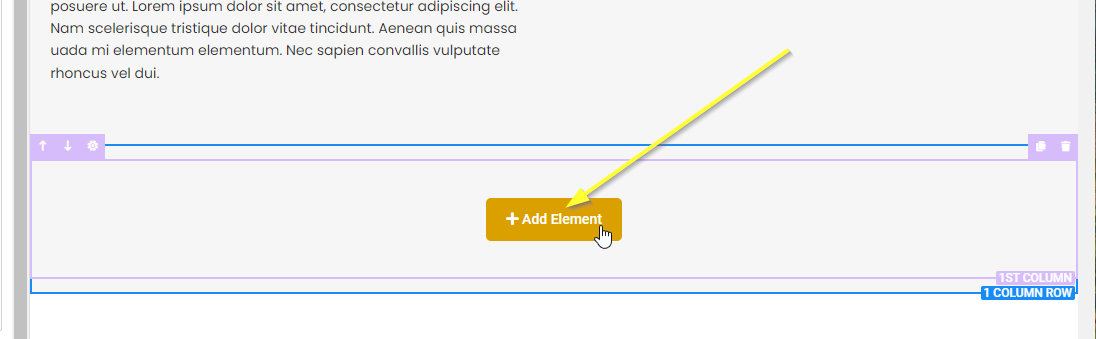
新增元素
新增元素

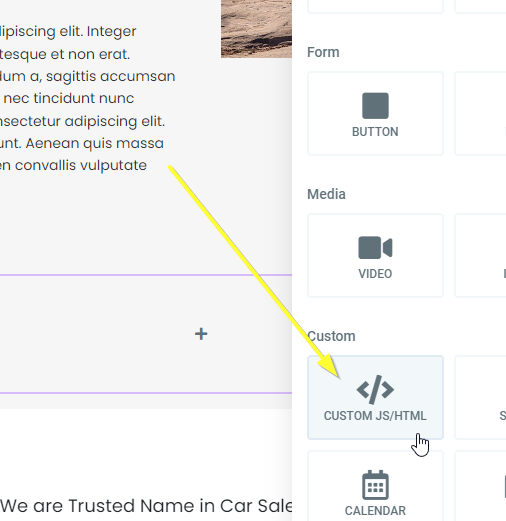
Scroll down and pick CUSTOM JS/HTML:

選擇 CUSTOM JS/HTML
選擇 CUSTOM JS/HTML

Now select our new element and click Open Code Editor on the left:
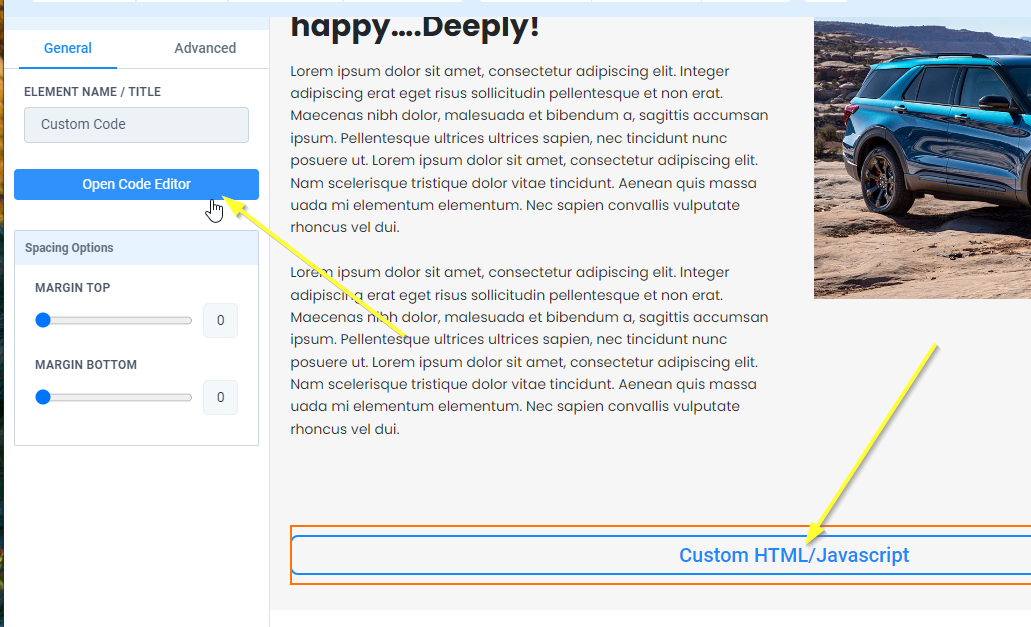
開啟程式碼編輯器
開啟程式碼編輯器

步驟 2:複製並貼上程式碼 Internal Link

是時候複製我們的程式碼。複製以下程式碼:

GoHighLevel 網站留言程式碼
Copy Copy
1
2<script src="https://cdn.fastcomments.com/js/embed-v2.min.js"></script>
3<div id="fastcomments-widget"></div>
4<script>
5 (function () {
6 const tenantId = 'demo';
7 const SCRIPT_ID = 'fastcomments-embed';
8 const WIDGET_ID = 'fastcomments-widget';
9
10 let lastInstance;
11 let currentUrlId;
12 let rendered = false;
13
14 // 更新 History API 以支援單頁應用程式 (SPA)
15 const oldPushState = history.pushState;
16 history.pushState = function pushState() {
17 const ret = oldPushState.apply(this, arguments);
18 window.dispatchEvent(new Event('pushstate'));
19 window.dispatchEvent(new Event('locationchange'));
20 return ret;
21 };
22
23 const oldReplaceState = history.replaceState;
24 history.replaceState = function replaceState() {
25 const ret = oldReplaceState.apply(this, arguments);
26 window.dispatchEvent(new Event('replacestate'));
27 window.dispatchEvent(new Event('locationchange'));
28 return ret;
29 };
30
31 window.addEventListener('popstate', () => {
32 window.dispatchEvent(new Event('locationchange'));
33 });
34
35 function getContainer() {
36 return document.getElementById(WIDGET_ID);
37 }
38
39 // 確保腳本已載入的函式
40 function ensureScriptLoaded() {
41 return new Promise((resolve) => {
42 // 檢查腳本標籤是否已存在
43 let scriptTag = document.getElementById(SCRIPT_ID);
44
45 if (!scriptTag) {
46 console.log('FastComments: Script tag not found, adding dynamically...');
47 scriptTag = document.createElement('script');
48 scriptTag.id = SCRIPT_ID;
49 scriptTag.src = 'https://cdn.fastcomments.com/js/embed-v2.min.js';
50 scriptTag.async = true;
51
52 scriptTag.onload = () => {
53 console.log('FastComments: Script loaded successfully');
54 resolve();
55 };
56
57 scriptTag.onerror = () => {
58 console.error('FastComments: Failed to load script');
59 resolve(); // Resolve anyway to prevent hanging
60 };
61
62 document.head.appendChild(scriptTag);
63 } else if (window.FastCommentsUI) {
64 // 腳本標籤存在且已載入
65 console.log('FastComments: Script already loaded');
66 resolve();
67 } else {
68 // 腳本標籤存在但尚未準備好
69 console.log('FastComments: Waiting for script to initialize...');
70 scriptTag.addEventListener('load', () => {
71 resolve();
72 });
73
74 // 如果腳本已在載入時的備援檢查
75 const checkInterval = setInterval(() => {
76 if (window.FastCommentsUI) {
77 clearInterval(checkInterval);
78 resolve();
79 }
80 }, 100);
81
82 // 10 秒後逾時
83 setTimeout(() => {
84 clearInterval(checkInterval);
85 console.warn('FastComments: Script load timeout');
86 resolve();
87 }, 10000);
88 }
89 });
90 }
91
92 // 主要渲染函式
93 async function render() {
94 rendered = false;
95
96 // 在繼續之前確保腳本已載入
97 await ensureScriptLoaded();
98
99 function tryNext() {
100 if (rendered) {
101 return;
102 }
103
104 const container = getContainer();
105
106 if (container) {
107 // 再次確認 FastCommentsUI 是否可用
108 if (!window.FastCommentsUI) {
109 console.log('FastComments: not ready, waiting...');
110 setTimeout(tryNext, 300);
111 return;
112 }
113
114 console.log('FastComments: Target element found, initializing...');
115
116 // 取得當前 URL 作為 urlId
117 const newUrlId = window.location.pathname;
118
119 // 檢查是否需要重新渲染(urlId 變更或首次渲染)
120 if (currentUrlId !== newUrlId || !lastInstance) {
121 currentUrlId = newUrlId;
122
123 // 如果有先前的實例則銷毀它
124 if (lastInstance) {
125 lastInstance.destroy();
126 // 清空容器內容
127 container.innerHTML = '';
128 }
129
130 // 準備設定
131 const config = {
132 tenantId: tenantId,
133 urlId: newUrlId
134 };
135
136 console.log('FastComments: Using urlId:', newUrlId);
137
138 // 初始化 FastComments
139 lastInstance = window.FastCommentsUI(container, config);
140 rendered = true;
141 } else {
142 console.log('FastComments: Already rendered with same urlId');
143 rendered = true;
144 }
145
146 // 監控容器是否被移除或 URL 是否變更
147 const interval = setInterval(function () {
148 const currentContainer = getContainer();
149 if (!currentContainer) {
150 console.log('FastComments: Container removed, will retry...');
151 rendered = false;
152 currentUrlId = null;
153 tryNext();
154 clearInterval(interval);
155 } else {
156 const newUrlId = window.location.pathname;
157 if (newUrlId !== currentUrlId) {
158 console.log('FastComments: URL changed, re-rendering...');
159 rendered = false;
160 tryNext();
161 clearInterval(interval);
162 }
163 }
164 }, 1000);
165 } else {
166 console.log('FastComments: Target element not found, waiting...');
167 setTimeout(tryNext, 300);
168 }
169 }
170
171 tryNext();
172 }
173
174 // 在 DOM 準備好時進行初始渲染
175 if (document.readyState === 'loading') {
176 document.addEventListener('DOMContentLoaded', render);
177 } else {
178 render();
179 }
180
181 // 在 location 改變時重新渲染(用於 SPA)
182 window.addEventListener('locationchange', function () {
183 console.log('FastComments: Location changed, updating...');
184 render();
185 });
186 })();
187</script>
188

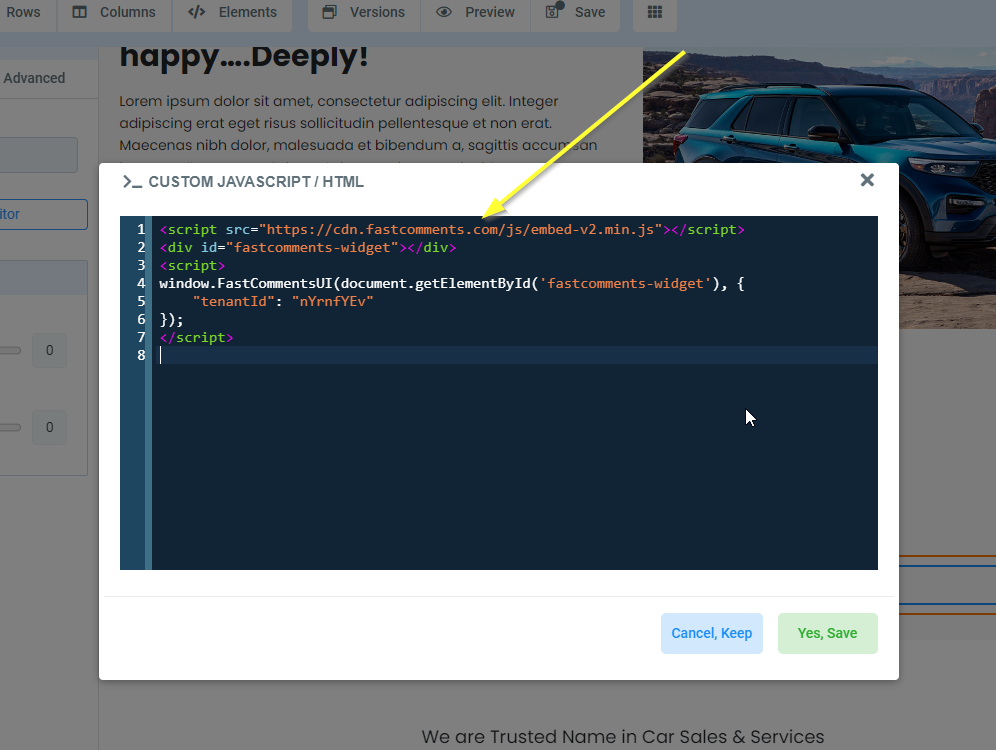
將其貼到我們打開的編輯器視窗中:

貼上程式碼
貼上程式碼

現在我們可以在該視窗的右下角點擊 Yes, Save

在頁面頂端現在點擊 Save,然後 Preview

站點安裝成功 Internal Link


就這樣!您現在應該已經在 GoHighLevel 網站上加入了即時評論功能。
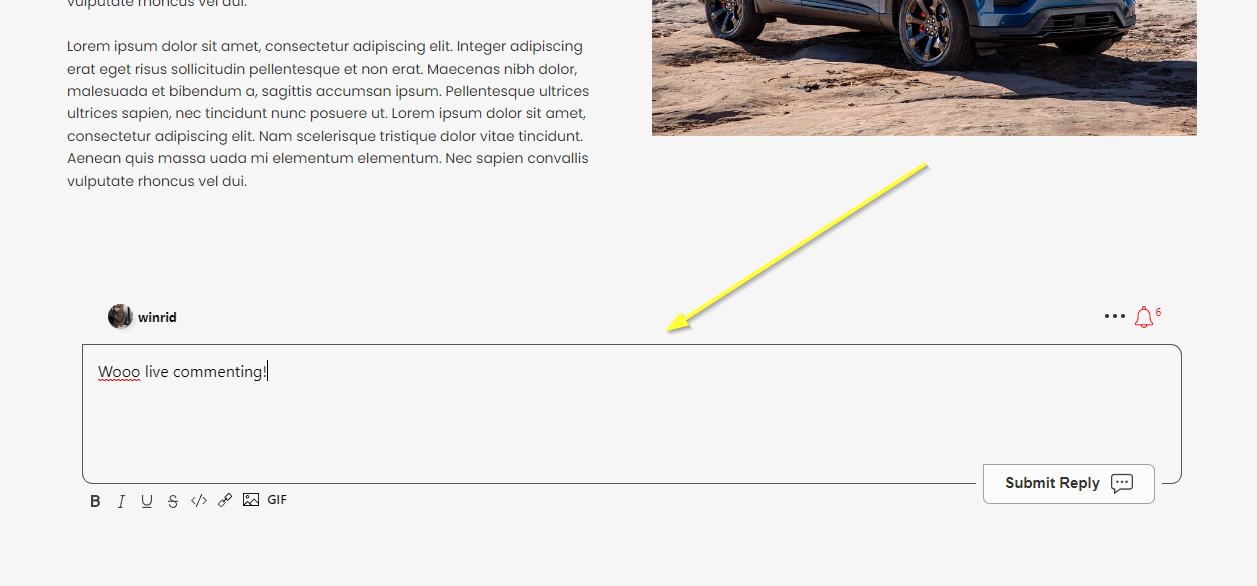
成功
成功

如果您遇到權限拒絕的錯誤,或想要自訂 FastComments,請繼續閱讀。


站點客製化 Internal Link


FastComments 設計為可自訂以符合您的網站。

如果您想新增自訂樣式或微調設定,查看我們的自訂與設定文件 以了解如何操作。


結論

如果提供的步驟或程式碼在任何情況下無法運作,請 讓我們知道