
Add Comments to Webflow Sites
With FastComments, you can easily add live commenting to any Webflow site.
The instructions below are for a simple static site, but they also work for a dynamic one using Webflow Collections.
Note that this tutorial requires a FastComments account. It's recommended that you sign up first and then come back here. You can create an account here.
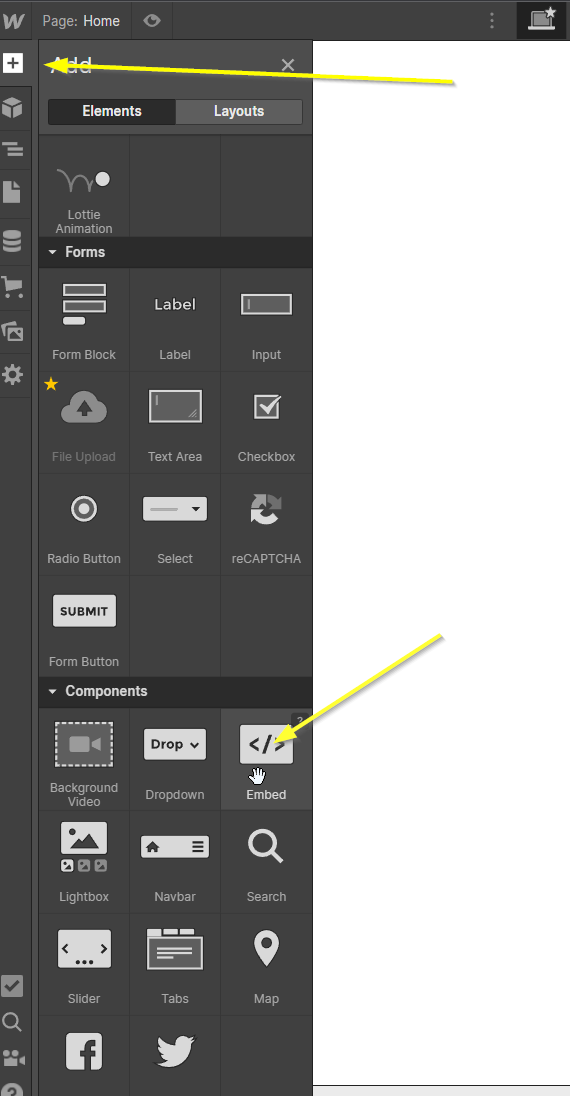
Step 1: Add an Embed Block 
First, we're going to add an Embed Block. This is what will show our Comment widget.
Step 2: Paste Your FastComments.com Code
Next, let's copy our FastComments.com widget code:

This code is for the Live Commenting widget. The code for other widgets can be found here.
Now we can paste this code in the Embed Block:
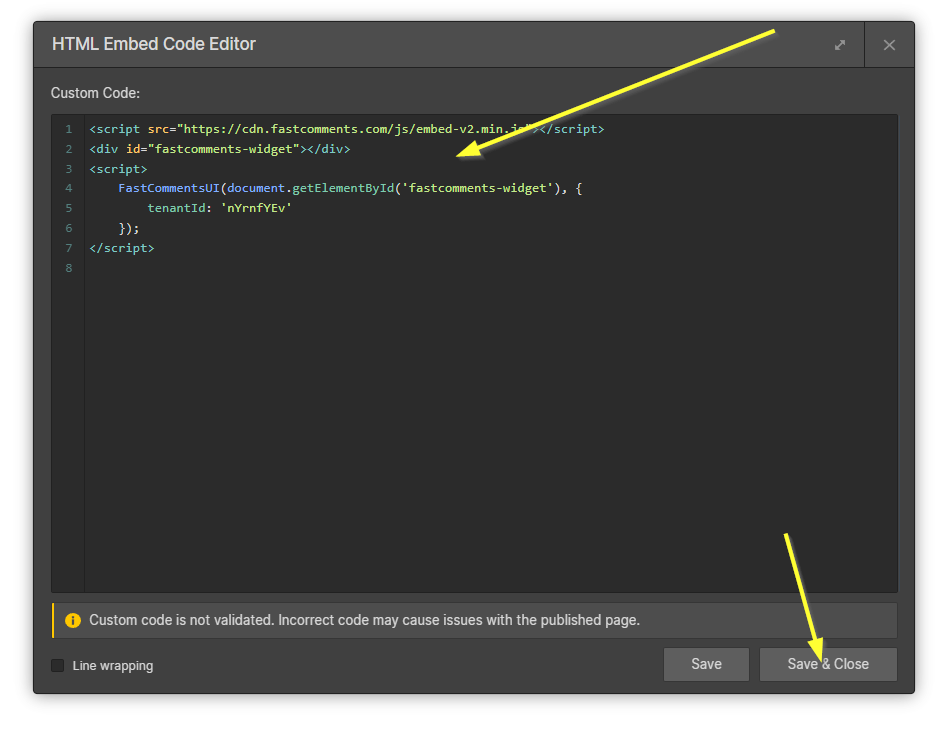
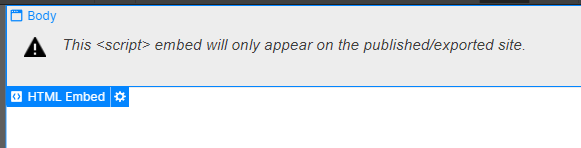
After adding the code, Webflow will inform you that the widget will not show in Edit or Preview mode. This is normal.
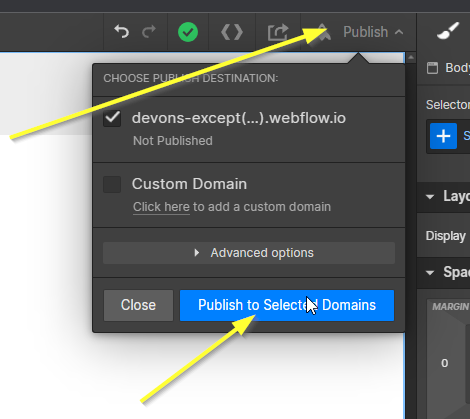
Step 3: Publish
Now we're ready to publish our site!
Success
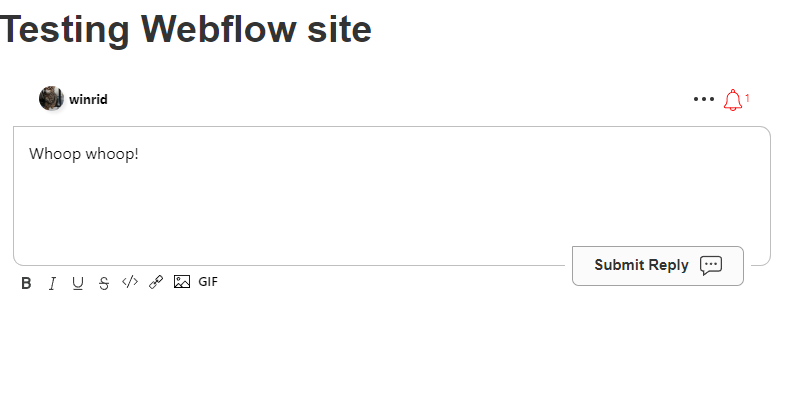
You should now see the FastComments.com Live Commenting widget:
Domain Errors
You may get an authorization error, like the following:

This happens because FastComments doesn't know it should allow your account to be used on this domain.
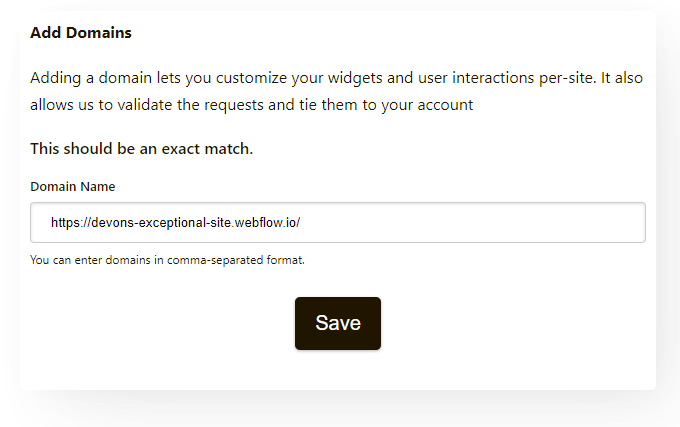
In this case, the fix is simple: just add your site to your FastComments.com account.
Go here to add your site to your account.
Add the domain as shown below:
Now you should have fast, live commenting added to your Webflow site!
Customization
FastComments is designed to be customized to match your site.
If you'd like to add custom styling or tweak configuration, Check out our Customization Documentation to learn how.