FastComments.com

Add Live Discussions to Super.So Sites

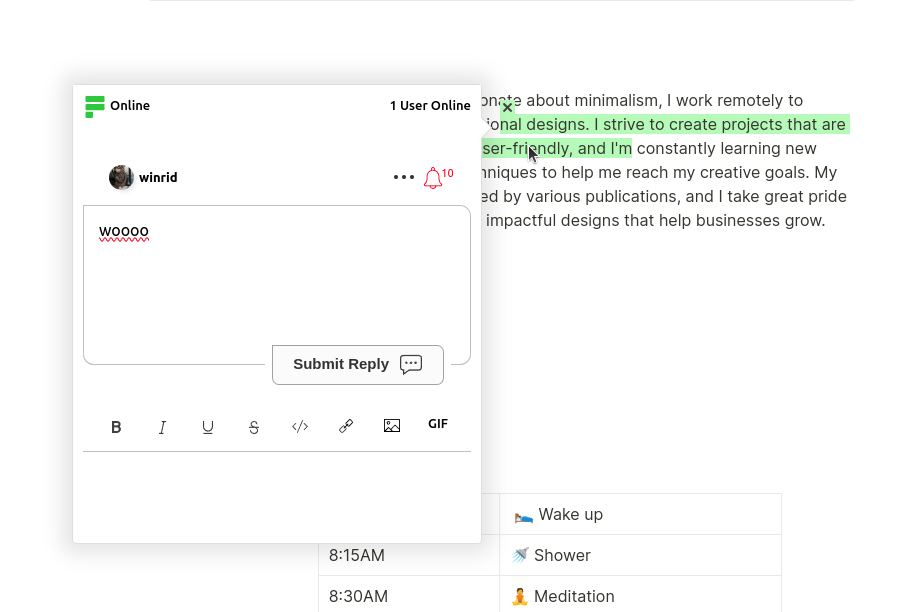
FastComments Collab Chat bringt Super.so-Seiten auf die nächste Stufe, indem es Live-Inline-Diskussionen hinzufügt. Benutzer können Textstellen hervorheben und kommentieren kooperativ, zusammen — live!

Hier behandeln wir die Installationsschritte, die nur wenige Minuten dauern sollten.

Schritt 1: Einstellungen öffnen Internal Link

Zuerst müssen wir den Code-Editor öffnen. Wenn Sie FastComments zu allen Seiten hinzufügen möchten, wählen Sie einfach unten links Code aus:
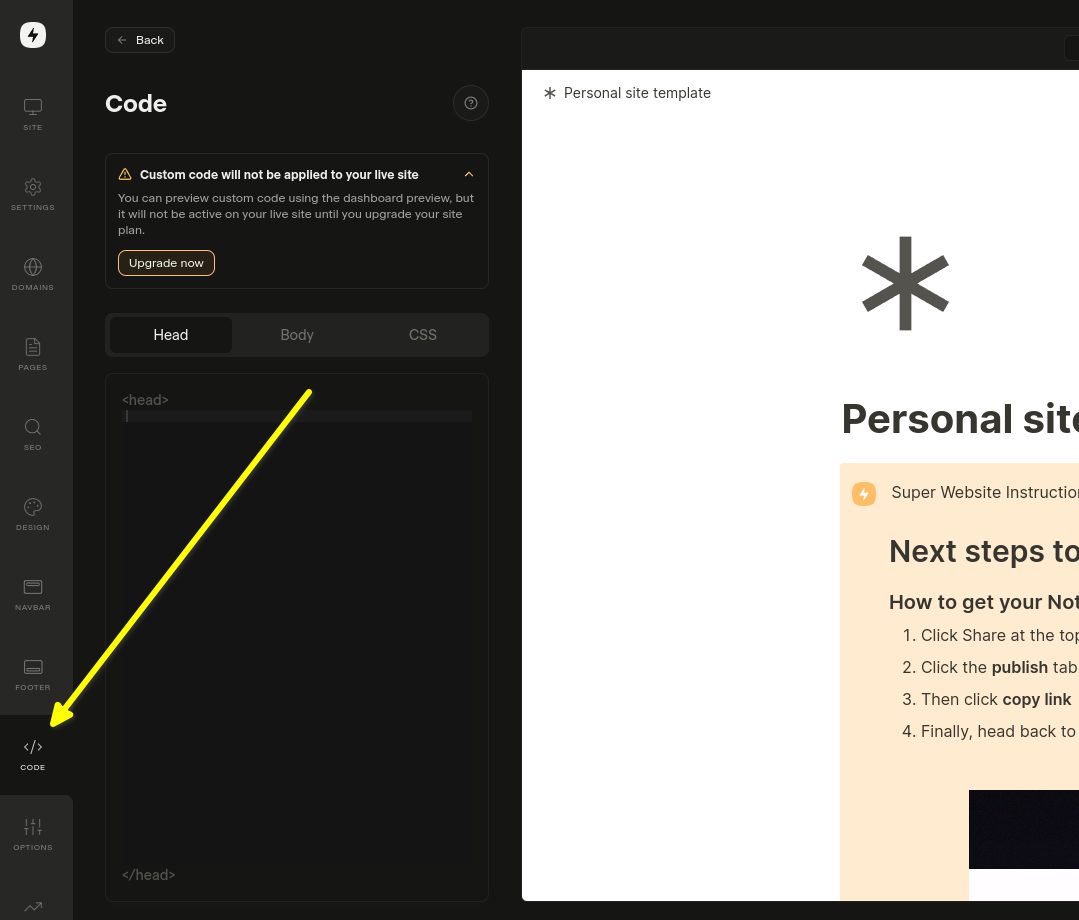
Code-Einstellungen öffnen

Wenn Sie es zu einer bestimmten Seite hinzufügen möchten, wählen Sie in den Einstellungen dieser Seite Edit Custom Code aus.

Wählen Sie nun die Registerkarte Body. Das ist wichtig!. Die Installation des Code-Snippets im Head funktioniert nicht.
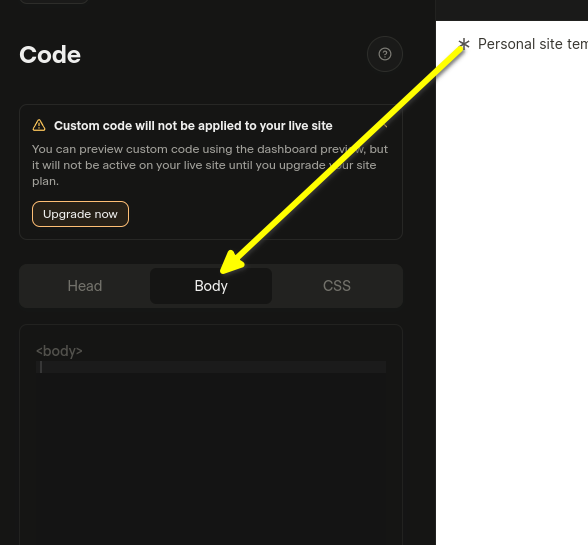
Body auswählen
Body auswählen

Jetzt sind Sie bereit für Schritt 2.

Schritt 2: Vorgefertigten Code hinzufügen Internal Link

Im nächsten Schritt müssen Sie den vorgefertigten Widget-Code unten kopieren.

Solange Sie bei FastComments.com eingeloggt sind, enthält der untenstehende Code-Snippet bereits Ihre Kontoinformationen. Kopieren Sie ihn:

Super.so FastComments Kollaborations-Chat-Code
Copy Copy
1
2<script src="https://cdn.fastcomments.com/js/embed-collab-chat.min.js"></script>
3<script>
4 (function () {
5 let currentPathname = window.location.pathname;
6 let currentWidget = null;
7 let currentTopBar = null;
8
9 function load() {
10 if (!window.FastCommentsCollabChat) {
11 console.log('...no script, trying again...');
12 return setTimeout(load, 100);
13 }
14
15 const target = document.querySelector('.super-content');
16 if (!target || !target.innerHTML || target.innerHTML.length < 100) {
17 console.log('...no content, trying again...');
18 return setTimeout(load, 100);
19 }
20
21 // Vorhandene Instanz bereinigen
22 if (target.fastCommentsInstance) {
23 target.fastCommentsInstance.destroy();
24 }
25
26 // Vorhandene Top-Leiste bereinigen, falls vorhanden
27 if (currentTopBar && currentTopBar.parentNode) {
28 currentTopBar.parentNode.removeChild(currentTopBar);
29 }
30
31 // Neue Top-Leiste erstellen
32 const topBarTarget = document.createElement('div');
33 target.parentNode.insertBefore(topBarTarget, target);
34 topBarTarget.style.maxWidth = 'var(--layout-max-width)';
35 topBarTarget.style.margin = '0 auto';
36 currentTopBar = topBarTarget;
37 currentWidget = target;
38
39 // FastComments Collab Chat initialisieren
40 target.fastCommentsInstance = FastCommentsCollabChat(target, {
41 tenantId: "demo",
42 topBarTarget: topBarTarget
43 });
44
45 // Aktuellen Pfad aktualisieren
46 currentPathname = window.location.pathname;
47 }
48
49 // Erstinitialisierung
50 load();
51
52 // Prüfe alle 500 ms auf Änderungen
53 setInterval(() => {
54 // Neu laden, wenn sich der Pfad geändert hat
55 if (window.location.pathname !== currentPathname) {
56 console.log('Pathname changed, reloading...');
57 load();
58 return;
59 }
60
61 // Neu laden, wenn das Widget entfernt wurde
62 if (currentWidget && !currentWidget.parentNode) {
63 console.log('Widget removed, reloading...');
64 load();
65 return;
66 }
67
68 // Neu laden, wenn der Container geleert wurde
69 const target = document.querySelector('.super-content');
70 if (target && target.innerHTML.length < 100) {
71 console.log('Container emptied, reloading...');
72 load();
73 }
74 }, 500);
75 })();
76</script>
77

Fügen Sie es jetzt im Bereich Body ein:
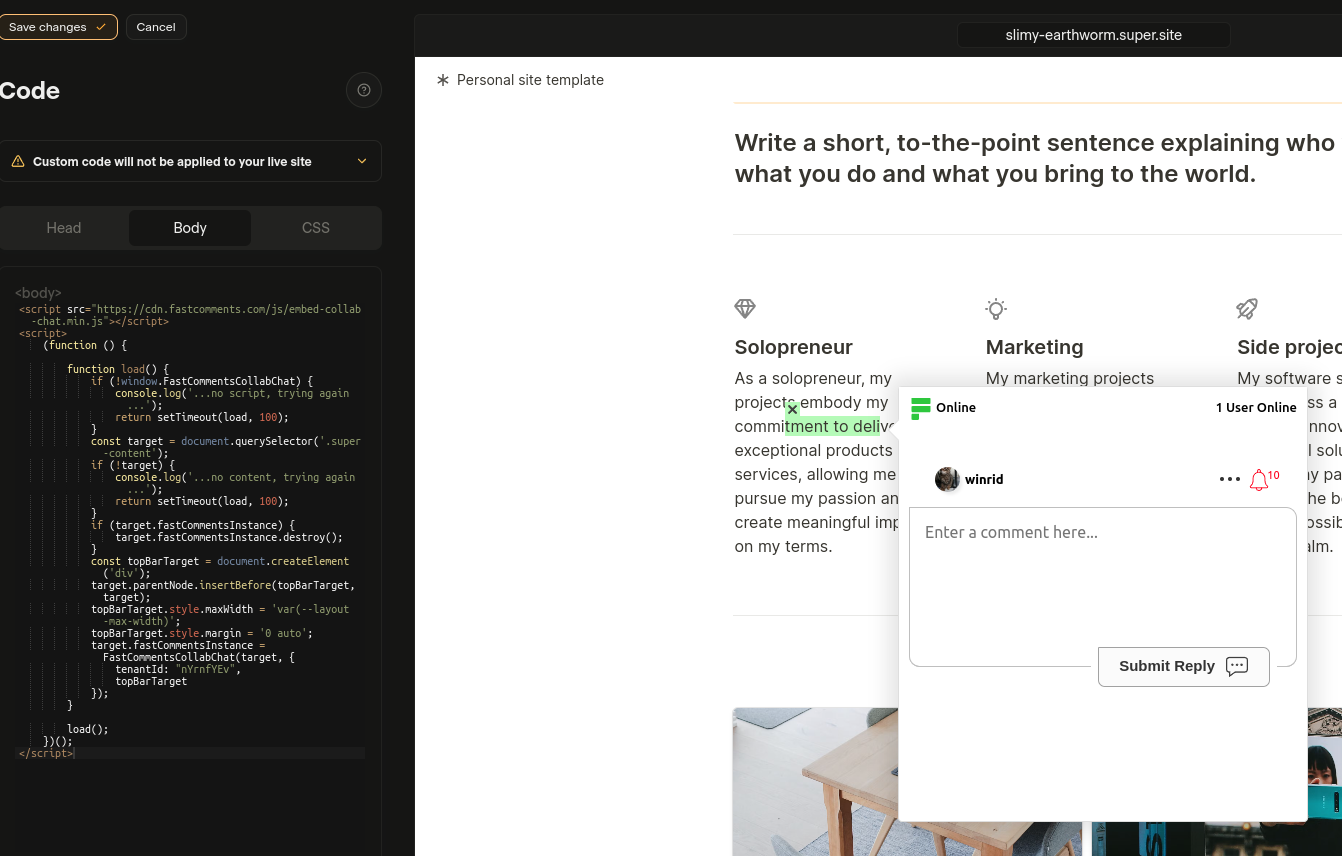
Eingefügter Code
Eingefügter Code

If you see a "this is a demo message" after pasting the code:

  • Stellen Sie sicher, dass Sie in Ihrem fastcomments.com-Konto eingeloggt sind.
  • Stellen Sie sicher, dass Drittanbieter-Cookies aktiviert sind.
  • Aktualisieren Sie dann diese Seite und kopieren Sie den Code-Snippet erneut. Es sollte tenantId mit der Kennung Ihres Tenants gefüllt sein.

Siehe auch: Standard-Kommentar-Widget Internal Link


Hinzufügen eines Live-Kommentar-Widgets zu Ihren Super.so Notion-Artikeln

Zusätzlich zum Collab Chat können Sie am Ende Ihrer Notion-Artikel ein klassisches Kommentar-Widget hinzufügen. Dadurch können Leser Kommentare hinterlassen und Diskussionen über den gesamten Artikel führen.

Installationsschritte

Kopieren Sie den folgenden Code und fügen Sie ihn in den Body-Abschnitt Ihrer Super.so-Site-Einstellungen ein:

Super.so FastComments Live-Kommentar-Widget
Copy Copy
1
2<script src="https://cdn.fastcomments.com/js/embed-v2.min.js"></script>
3<script>
4 (function () {
5 let currentPathname = window.location.pathname;
6 let currentWidget = null;
7
8 function load() {
9 if (!window.FastCommentsUI) {
10 console.log('...no script, trying again...');
11 return setTimeout(load, 100);
12 }
13
14 const contentArea = document.querySelector('.notion-root');
15 if (!contentArea || !contentArea.innerHTML || contentArea.innerHTML.length < 100) {
16 console.log('...no content, trying again...');
17 return setTimeout(load, 100);
18 }
19
20 // Vorhandene Instanz bereinigen
21 if (contentArea.fastCommentsInstance) {
22 contentArea.fastCommentsInstance.destroy();
23 }
24
25 // Neues Ziel erstellen
26 const target = document.createElement('div');
27 contentArea.append(target);
28 currentWidget = target;
29
30 // FastComments initialisieren
31 contentArea.fastCommentsInstance = FastCommentsUI(target, {
32 tenantId: "demo",
33 urlId: window.location.pathname
34 });
35
36 // Aktuellen Pfadnamen aktualisieren
37 currentPathname = window.location.pathname;
38 }
39
40 // Initiales Laden
41 load();
42
43 // Alle 500 ms auf Änderungen prüfen
44 setInterval(() => {
45 // Neu laden, wenn sich der Pfadname geändert hat
46 if (window.location.pathname !== currentPathname) {
47 console.log('Pathname changed, reloading...');
48 load();
49 return;
50 }
51
52 // Neu laden, wenn das Widget entfernt wurde
53 if (currentWidget && !currentWidget.parentNode) {
54 console.log('Widget removed, reloading...');
55 load();
56 return;
57 }
58
59 // Neu laden, wenn der Container geleert wurde
60 const contentArea = document.querySelector('.notion-root');
61 if (contentArea && contentArea.innerHTML.length < 100) {
62 console.log('Container emptied, reloading...');
63 load();
64 }
65 }, 500);
66 })();
67</script>
68

Wichtige Hinweise

  • Das Kommentar-Widget wird am Ende Ihrer Notion-Artikel angezeigt
  • Jede Seite erhält einen eigenen, eindeutigen Kommentar-Thread basierend auf dem URL-Pfad
  • Stellen Sie sicher, dass Sie "demo" durch Ihre tatsächliche Tenant-ID aus Ihrem FastComments-Konto ersetzen
  • Das Widget verarbeitet automatisch das dynamische Laden von Seiten bei Super.so

Anpassung Internal Link


FastComments wurde so konzipiert, dass es an Ihre Website angepasst werden kann.

Wenn Sie benutzerdefinierte Styles hinzufügen oder die Konfiguration anpassen möchten, Sehen Sie sich unsere Anpassungsdokumentation an, um zu erfahren, wie.