
為 Hostinger 網站新增即時留言
首先請注意,本教學僅適用於 Hostinger 網站建置器。
如果您在 Hostinger 上使用 WordPress,您可以直接安裝我們的 WordPress 外掛 該外掛有其 安裝說明。
本教學將繼續提供網站建置器的相關說明。
步驟 1:新增程式碼小工具 
首先,在網站建置器中打開您的網站。
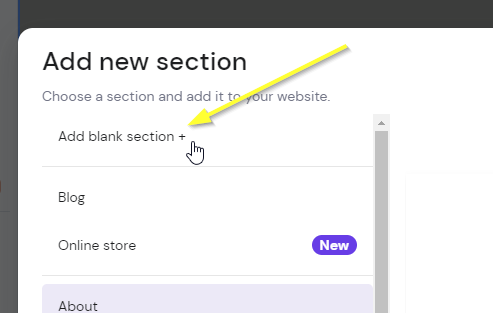
如果您尚未有想要放置留言的區段,請新增一個空白區段:

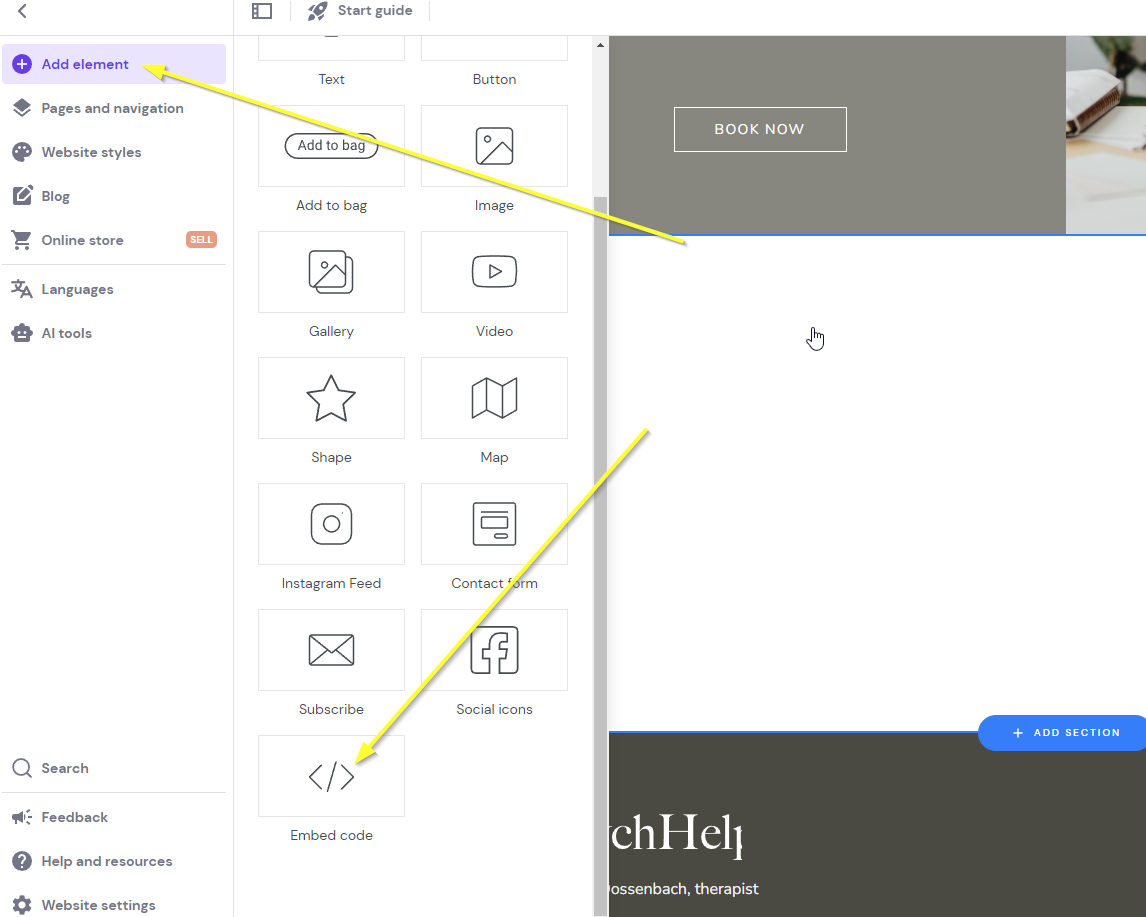
接著加入 Hostinger Embed 小工具:在新區段上點擊後,於頂端點選 Add element,然後選擇 Embed code:
您會看到類似如下:
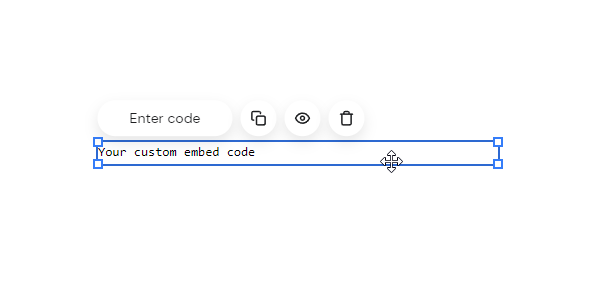
現在我們已準備好進行 Step 2。
步驟 2:加入程式碼
現在我們來新增小工具程式碼。
複製下面的程式碼。請確定你已登入 fastcomments.com 並在未登入時重新載入此頁面,這樣程式碼會自動填入你的帳戶資訊,否則會顯示範例程式碼。
現在複製程式碼:

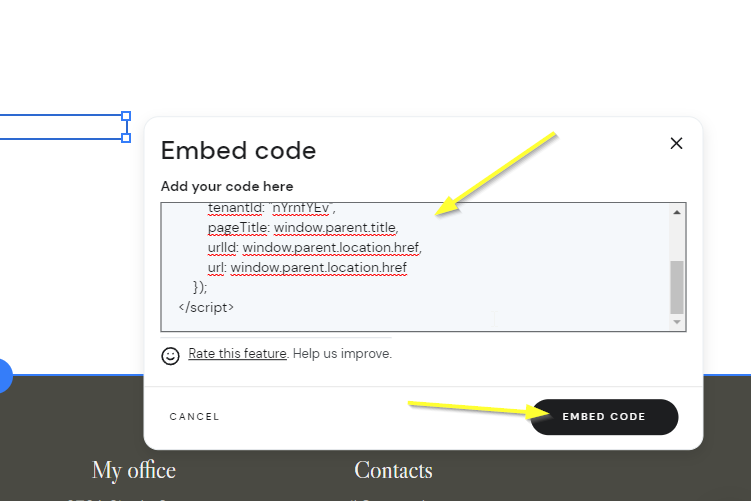
現在回到我們的網站編輯器並點選 Enter code:
注意!
使用上方程式碼非常重要,不要使用其他文件中的程式碼片段,因為此程式碼片段是專為 Hostinger 精心製作的。
你現在應該會看到類似下方的畫面,看起來是空白的。這是預期的。將滑鼠移到小工具應出現的區域上:
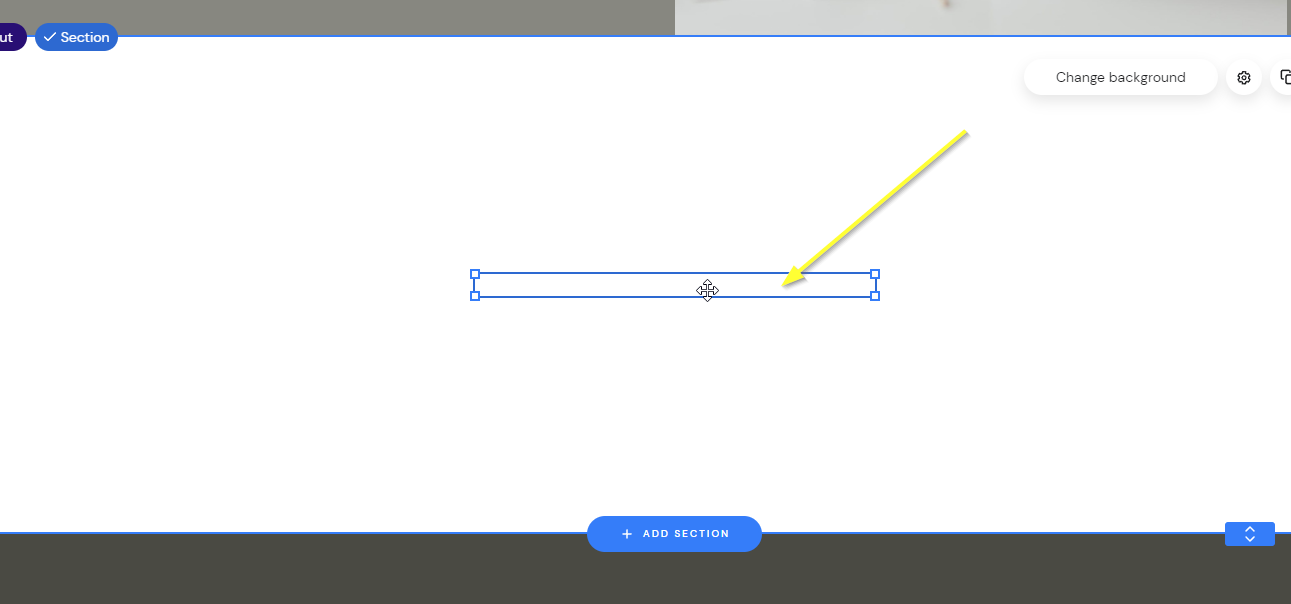
現在拖動小工具到想要的大小,你會看到它出現:
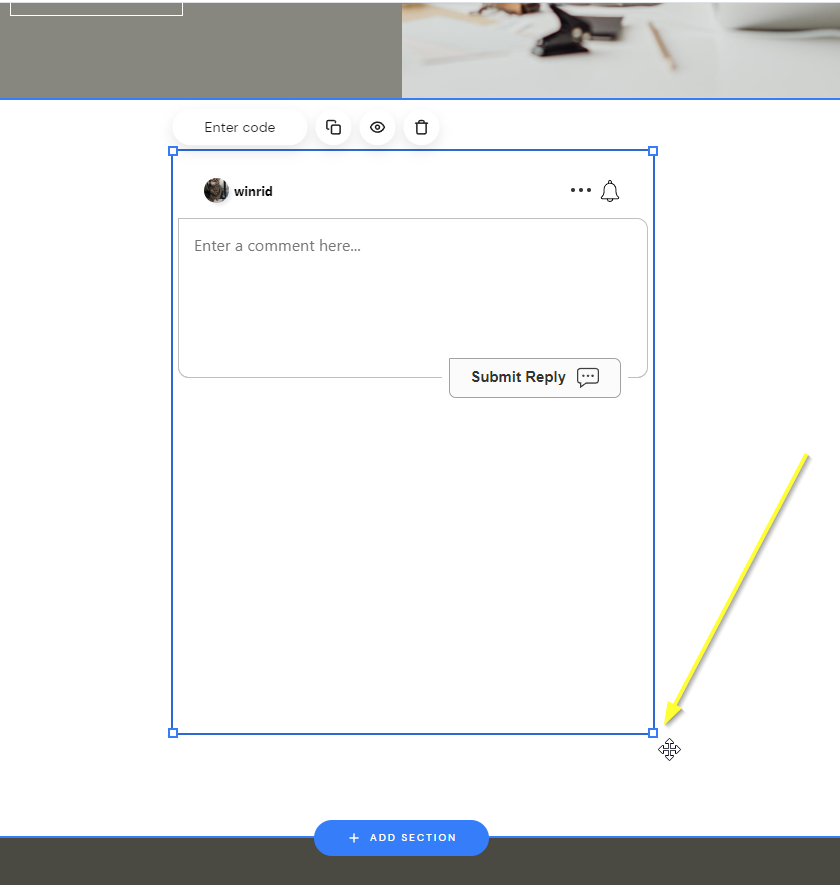
...然後預覽並儲存!
完成
就這樣!你現在應該已在你的 Hostinger 網站上新增了即時評論功能。
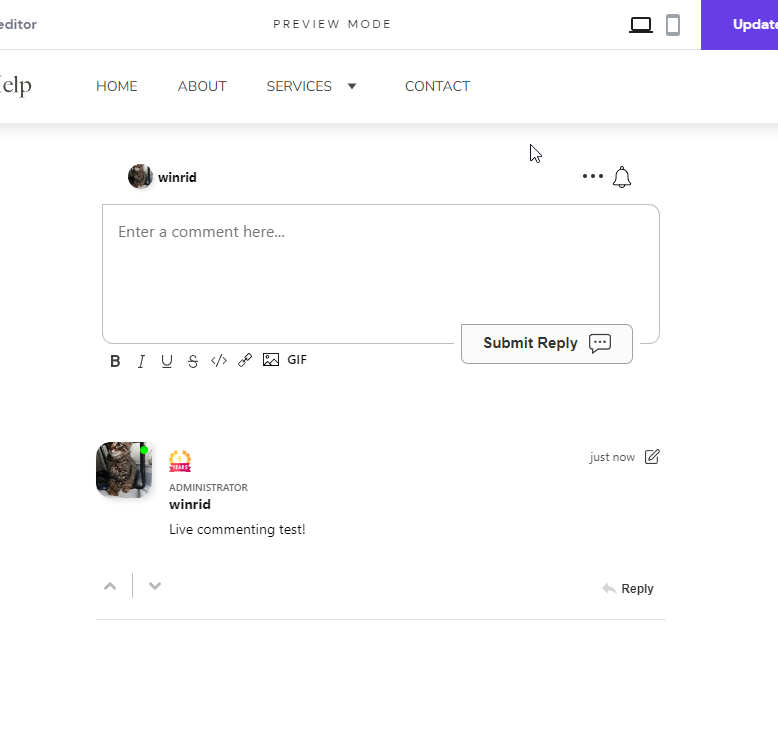
如果你遇到「權限被拒」錯誤,或想要自訂 FastComments,請繼續閱讀。
網站網域錯誤
您可能會遇到授權錯誤,如下所示:

這是因為 FastComments 不知道應該允許您的帳戶在此網域上使用。
在這種情況下,修正很簡單。您只需將您的網站新增到您的 FastComments.com 帳戶。
現在您應該已在網站上新增快速且即時的評論功能!
網站客製化
FastComments 設計為可客製化以符合您的網站。
如果您想新增自訂樣式或調整設定,請參閱自訂化與設定文件以了解如何。
浮動按讚按鈕
FastComments 也支援 Hostinger 的 Page Reacts(又稱浮動按讚按鈕)小工具。
你可以在本頁的右下角看到其運作!
注意!
這些說明適用於 Hostinger 網站建構器。如果你使用的是 Hostinger WordPress,只要取得下面的程式碼,並使用 WPCode(一個免費且簡單的外掛,用於在網站中加入小段程式碼)將其加入你的 WordPress 網站即可。
- 首先,取得程式碼:
- 接著,在 Hostinger 中打開網站建構器。
- 前往左下角的網站設定。
- 選擇整合。
- 將新程式碼新增到 末端 的
Custom code欄位,並發佈你的網站。 - 在預覽模式中你將看不到該小工具,但在發佈後的網站版本中它會顯示出來。