
Добавяне на коментиране в реално време към сайтове на Framer
С FastComments можем лесно да добавим коментари в реално време към всеки сайт, създаден с Framer.
В този урок ще разгледаме само инсталирането на уиджета Live Commenting. Ако се нуждаете от помощ при инсталирането на други уиджети, или при настройването на SSO, не се колебайте да създадете заявка за поддръжка.
Стъпка 1: Отворете редактора 
Първо, отворете редактора за вашия сайт.
В нашия пример ще добавим FastComments към страниците на нашия блог, но трябва да работи с всеки тип страница.
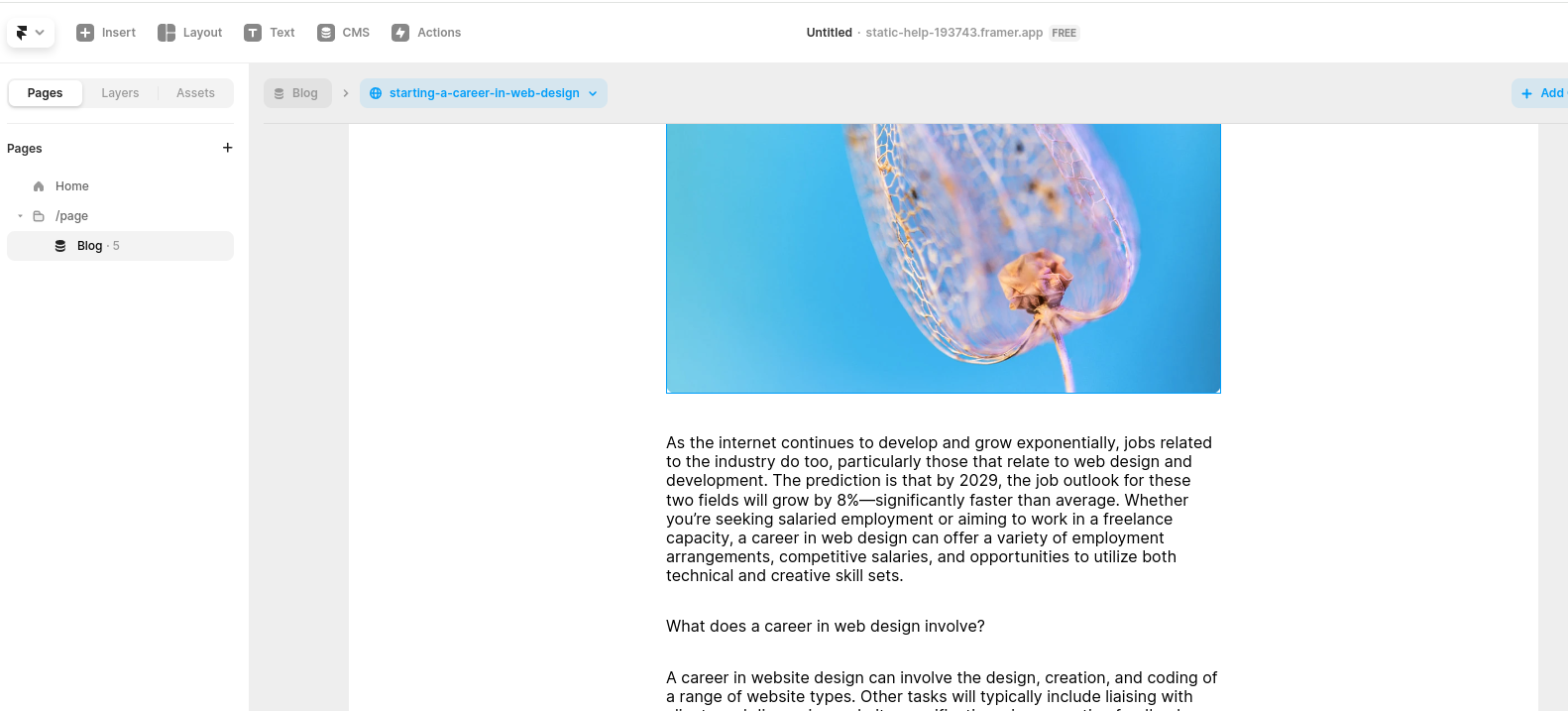
Стъпка 2: Добавете блок за вграждане
Сега нека добавим Embed блок.
Go to Insert in the top left:
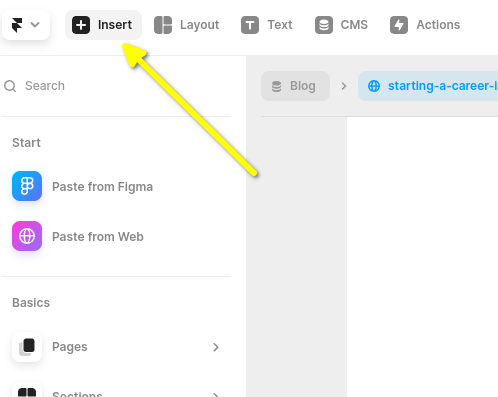
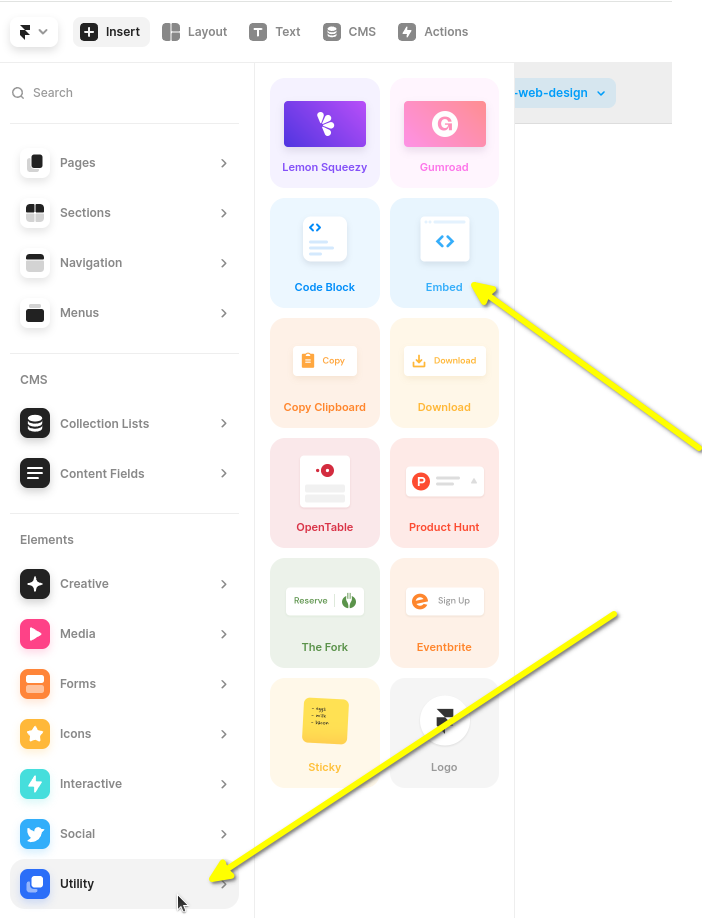
Then scroll the left hand sidebar down and mouse over Utility.
Next you'll want to click and drag the Embed block to the end of your blog.
It's important you click and drag as shown, and not just click it. If you just click it, then Framer will insert it извън вашия блог и ще трябва да го преместите по-късно.
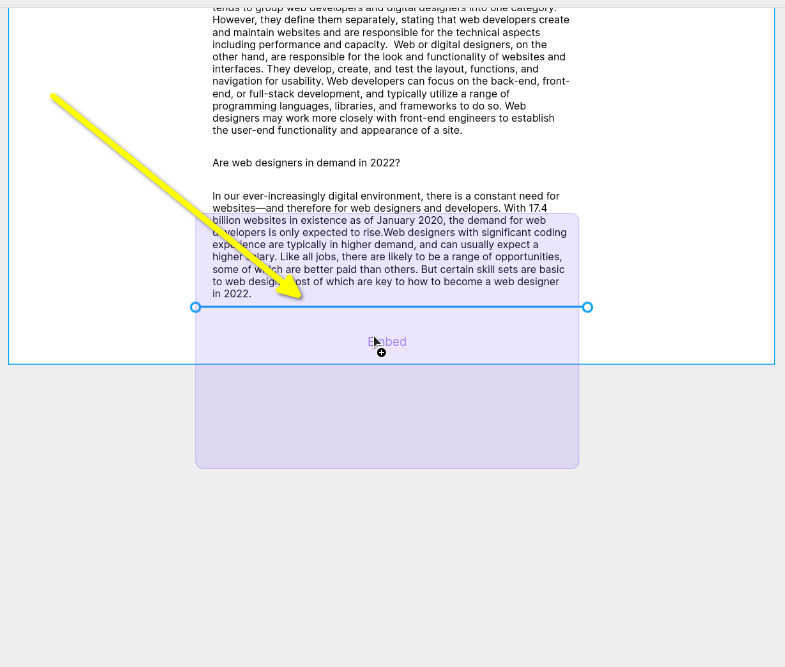
Now you'll have an empty Embed widget, and when you select it you'll get a sidebar on the right. You can expand the sidebar, and you'll see something like this:
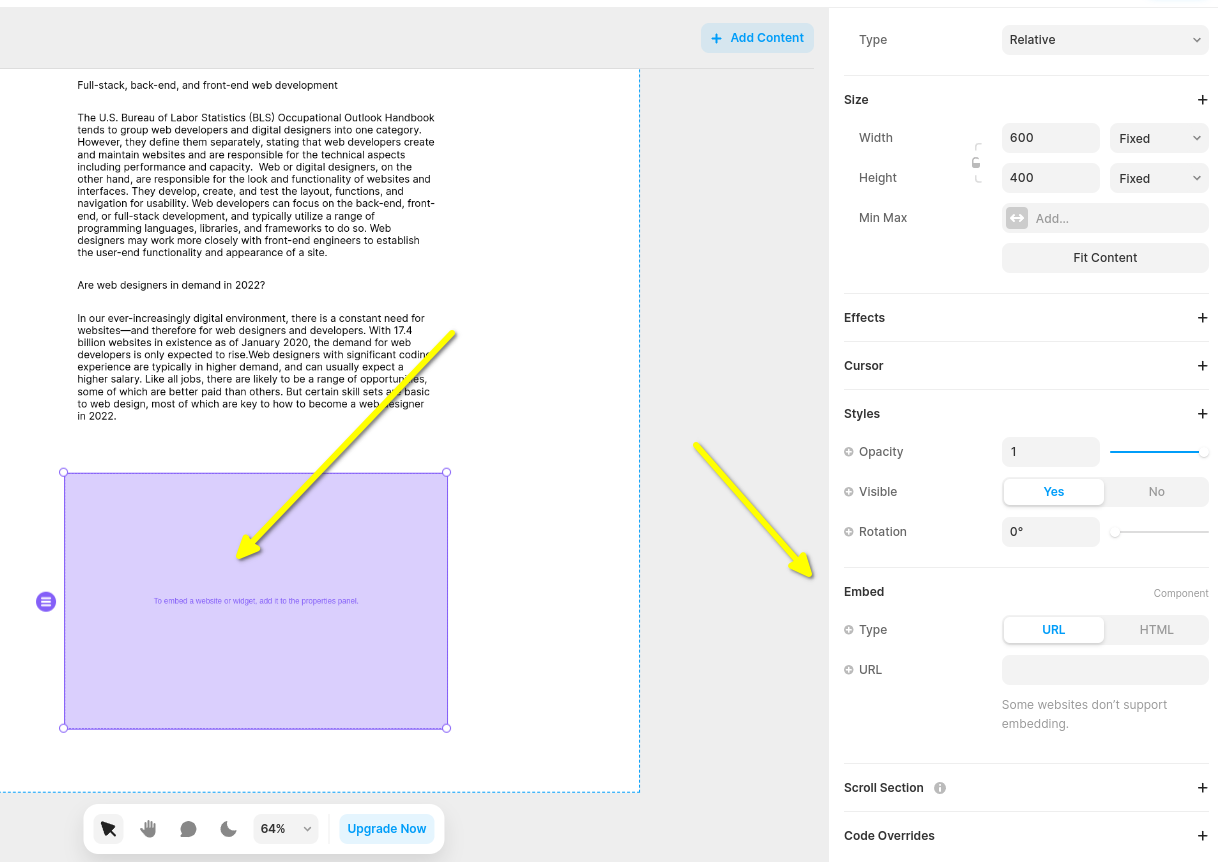
Now let's change the Embed widget type to HTML:
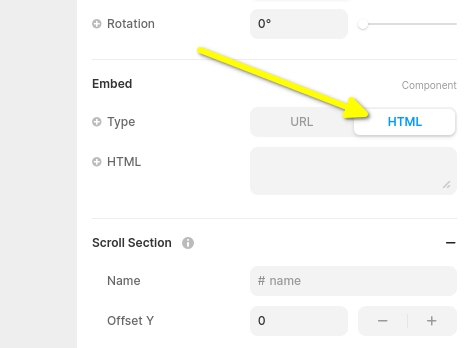
Now you're ready for the FastComments Framer Code snippet in the next step.
Стъпка 3: Копирайте и поставете кода на FastComments, специфичен за Framer
The Framer Live Comments FastComments snippet is below.

Or, alternatively, you can use the Streaming Chat widget. The Framer Streaming Chat FastComments snippet is:
FastComments supports the Framer editor, so you should see something like this once you paste the code in (you might have to click Publish):
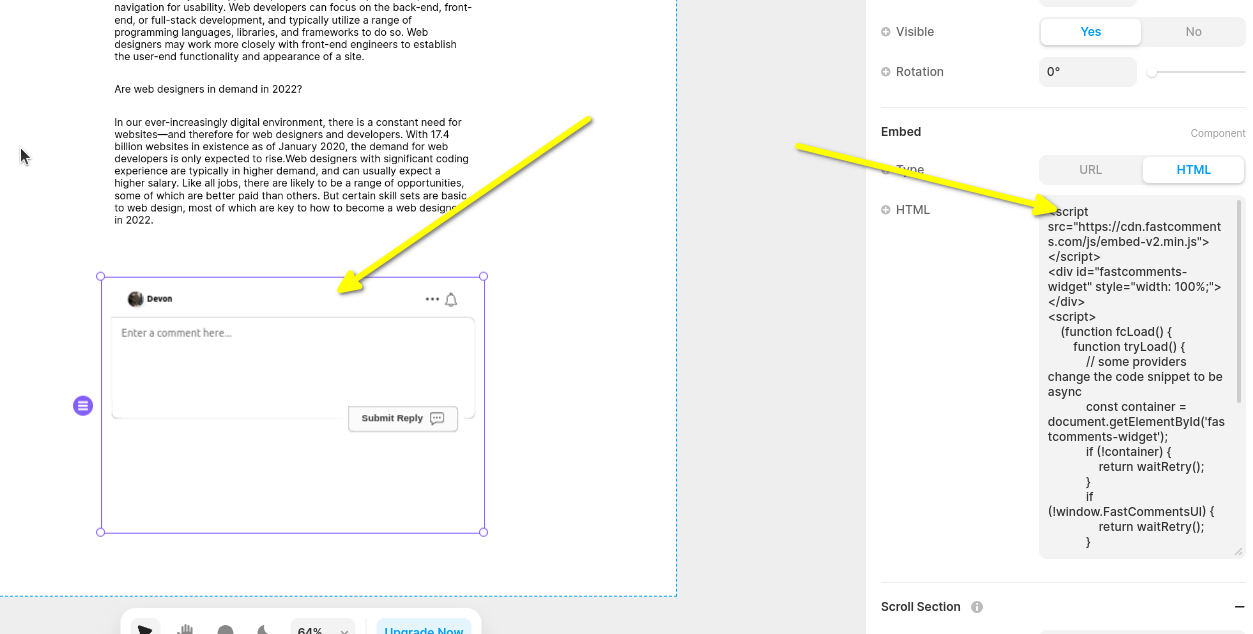
Now when you view your site you should see the comment area! In the sidebar of Framer you can set the widget as full width as well, if desired.
Note that Framer limits the height of widgets and does not support auto-resizing, so we've chosen the Live Chat widget here since it is fixed height.
Стъпка 4: Регулирайте височината на уиджета и на страницата
Можем да подобрим позиционирането на уиджета, като направим две неща.
Първо, в левия панел задайте височината на уиджета на fill и 1fr:
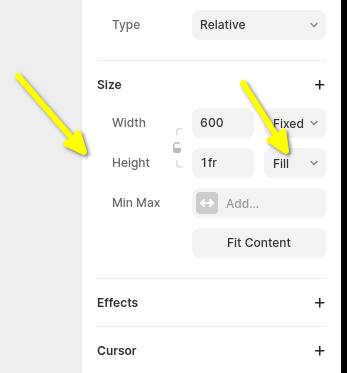
Next we need to fix the default Framer page config. By default it sets the page height to a fixed size, which can cut off
нишките с коментари. Затова нека зададем и това на fill.
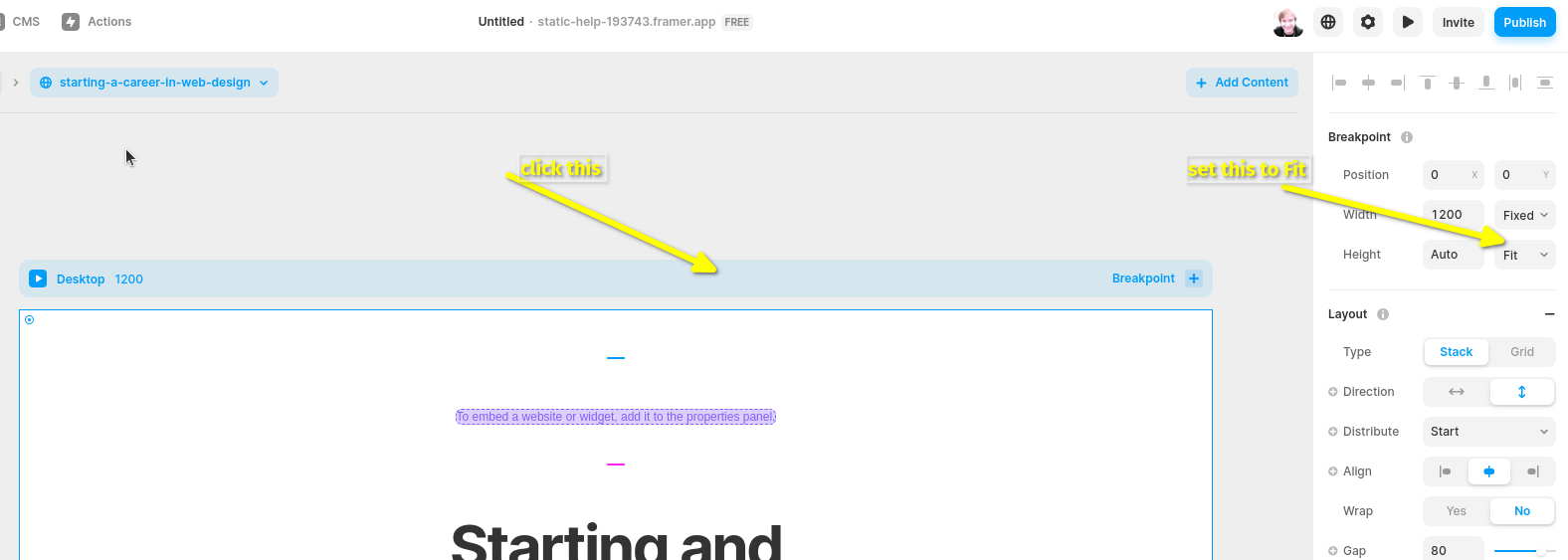
Може да се наложи да поиграете с височината на страницата, за да я настроите както желаете.
Грешки с домейна
Може да получите грешка за упълномощаване, подобна на следната:

Това е, защото FastComments не знае, че трябва да разреши използването на вашия акаунт в този домейн.
В този случай поправката е проста. Просто трябва да добавите своя сайт към вашия акаунт в FastComments.com.
Отидете тук, за да добавите сайта си към акаунта си.
Персонализиране
FastComments е проектиран да бъде персонализиран, за да съответства на вашия сайт.