
Aggiungi commenti in tempo reale ai siti Framer
Con FastComments possiamo aggiungere facilmente commenti in tempo reale a qualsiasi sito creato con Framer.
In questo tutorial copriremo soltanto l'installazione del widget Live Commenting. Se hai bisogno di assistenza per l'installazione di altri widget, o per la configurazione di SSO, sentiti libero di creare un ticket di supporto.
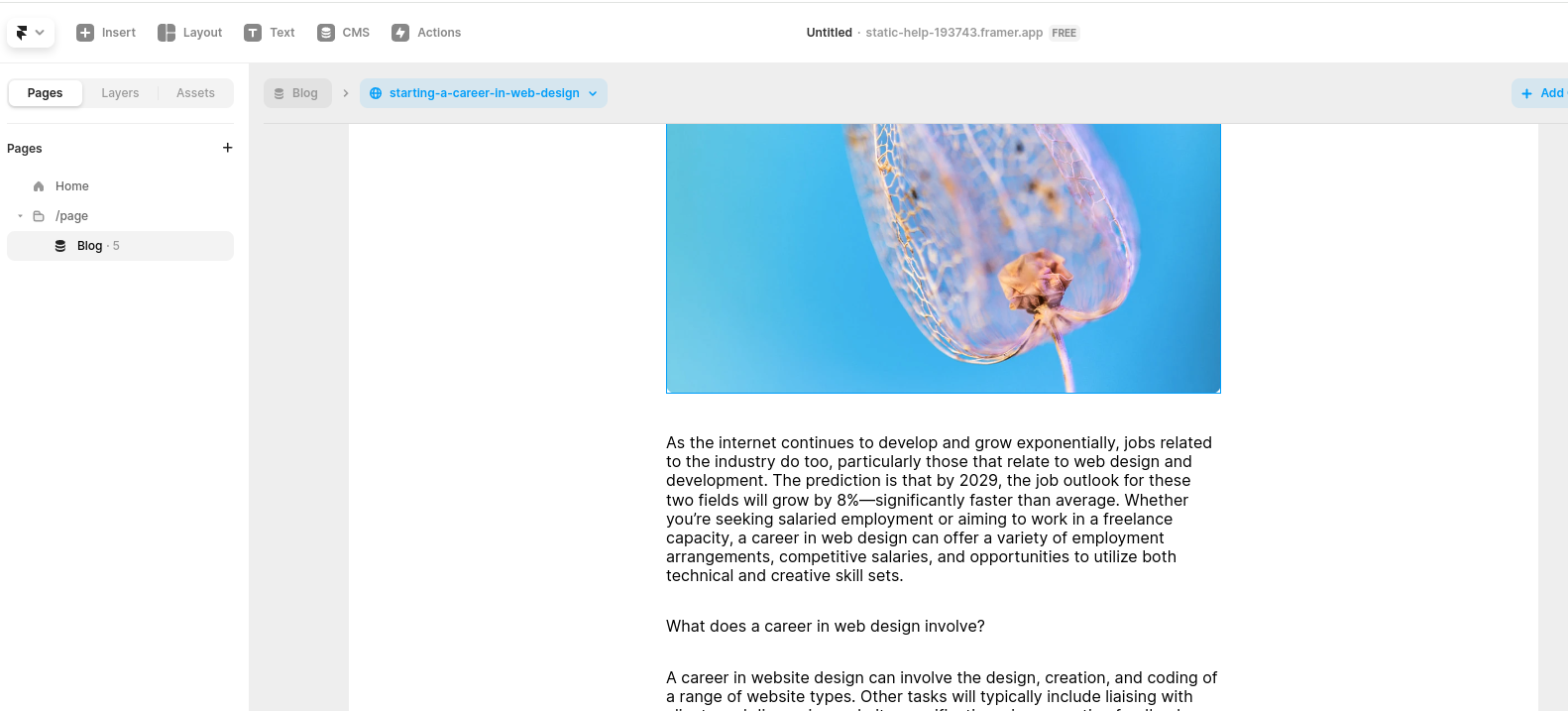
Passo 1: Apri l'editor 
Per prima cosa, apri l'editor del tuo sito.
Nel nostro esempio aggiungeremo FastComments alle pagine del nostro Blog, ma qualsiasi tipo di pagina dovrebbe funzionare.
Passo 2: Aggiungi un blocco incorporato
Ora aggiungiamo un blocco Embed.
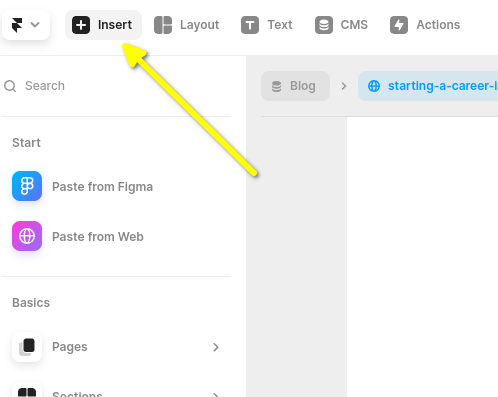
Vai su Insert in alto a sinistra:
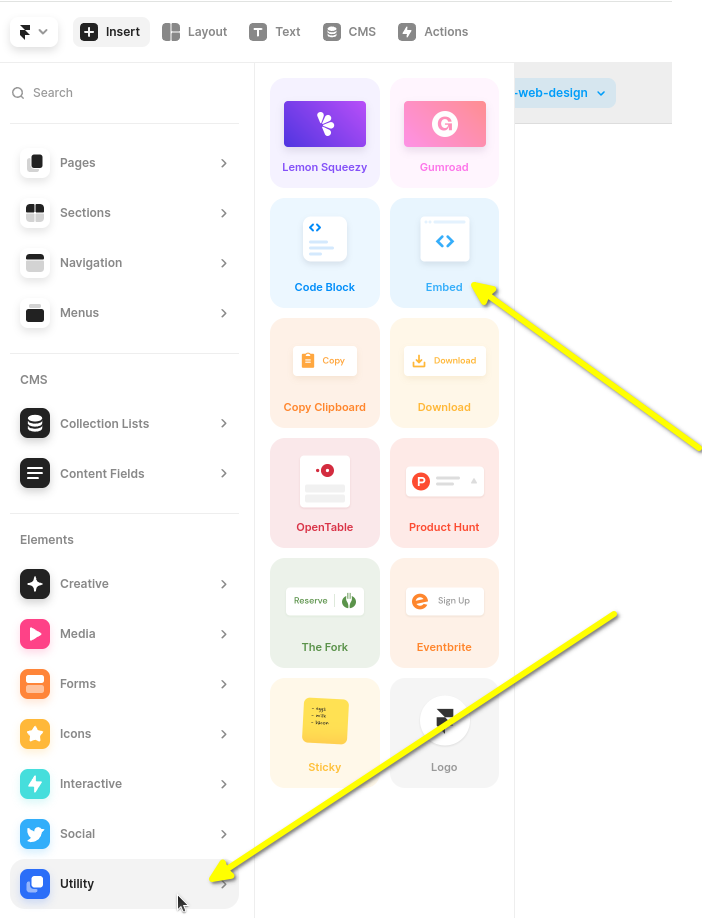
Poi scorri verso il basso la barra laterale sinistra e passa il mouse su Utility.
Ora dovrai fare clic e trascinare il blocco Embed fino alla fine del tuo blog.
È importante fare clic e trascinare come mostrato, e non limitarsi a cliccarlo. Se lo clicchi soltanto, Framer lo inserirà al di fuori del tuo blog e dovrai spostarlo manualmente in seguito.
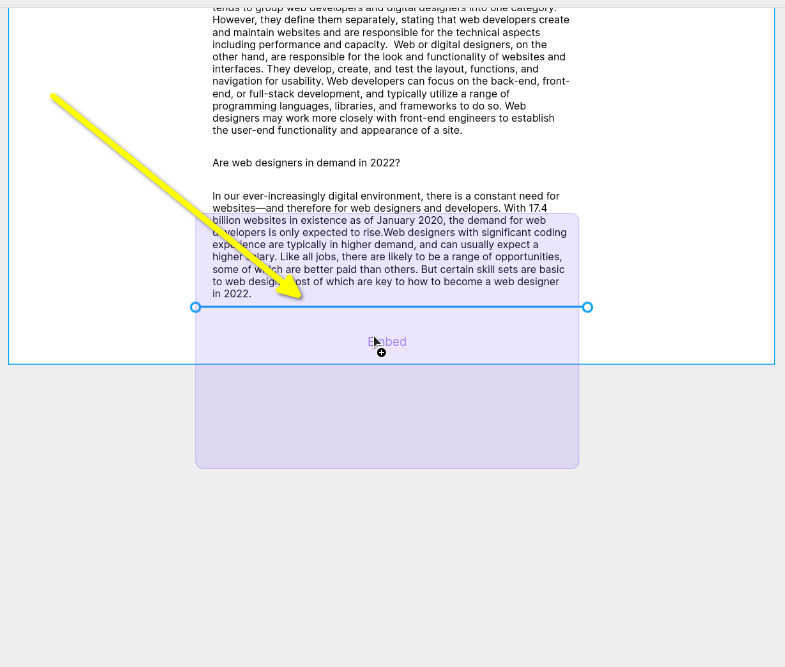
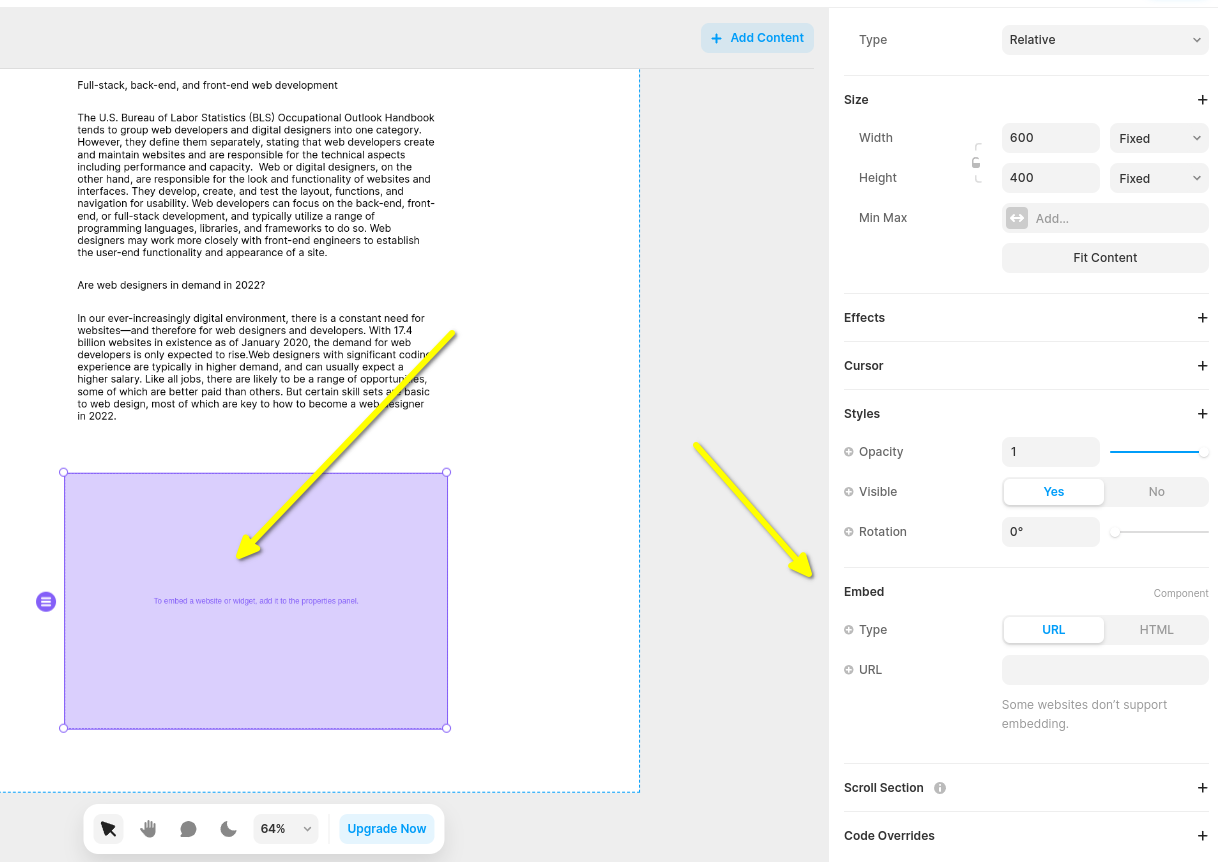
Ora avrai un widget Embed vuoto, e quando lo selezioni apparirà una barra laterale sulla destra. Puoi espandere la barra laterale e vedrai qualcosa del genere:
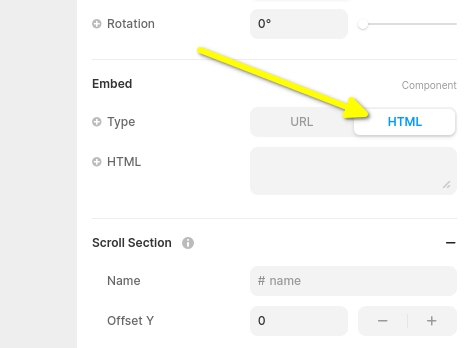
Ora cambiamo il tipo di widget Embed in HTML:
Ora sei pronto per lo snippet di codice FastComments per Framer nel passo successivo.
Passo 3: Copia e incolla il codice FastComments specifico per Framer
Lo snippet FastComments per i Live Comments di Framer è riportato qui sotto.

Or, alternatively, you can use the Streaming Chat widget. The Framer Streaming Chat FastComments snippet is:
FastComments supports the Framer editor, so you should see something like this once you paste the code in (you might have to click Publish):
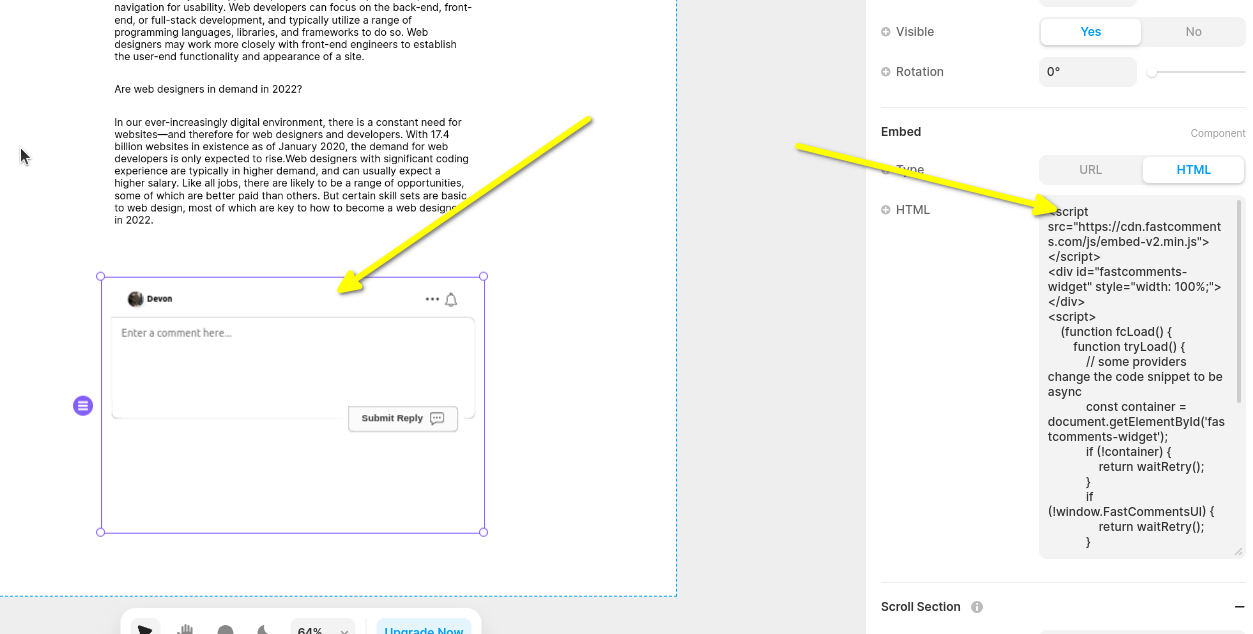
Now when you view your site you should see the comment area! In the sidebar of Framer you can set the widget as full width as well, if desired.
Note that Framer limits the height of widgets and does not support auto-resizing, so we've chosen the Live Chat widget here since it is fixed height.
Passo 4: Regola l'altezza del widget e della pagina
Possiamo migliorare il posizionamento del widget facendo due cose.
Per prima cosa, nel pannello a sinistra, imposta l'altezza del widget su fill e 1fr:
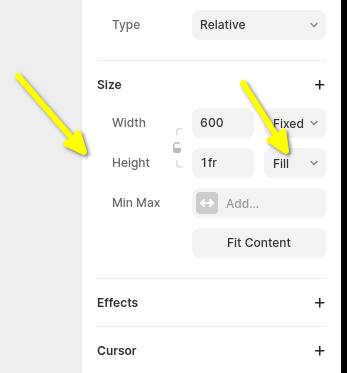
Successivamente dobbiamo correggere la configurazione predefinita della pagina di Framer. Per impostazione predefinita imposta l'altezza della pagina a una dimensione fissa, che può troncare i thread dei commenti. Quindi impostiamola anche su fill.
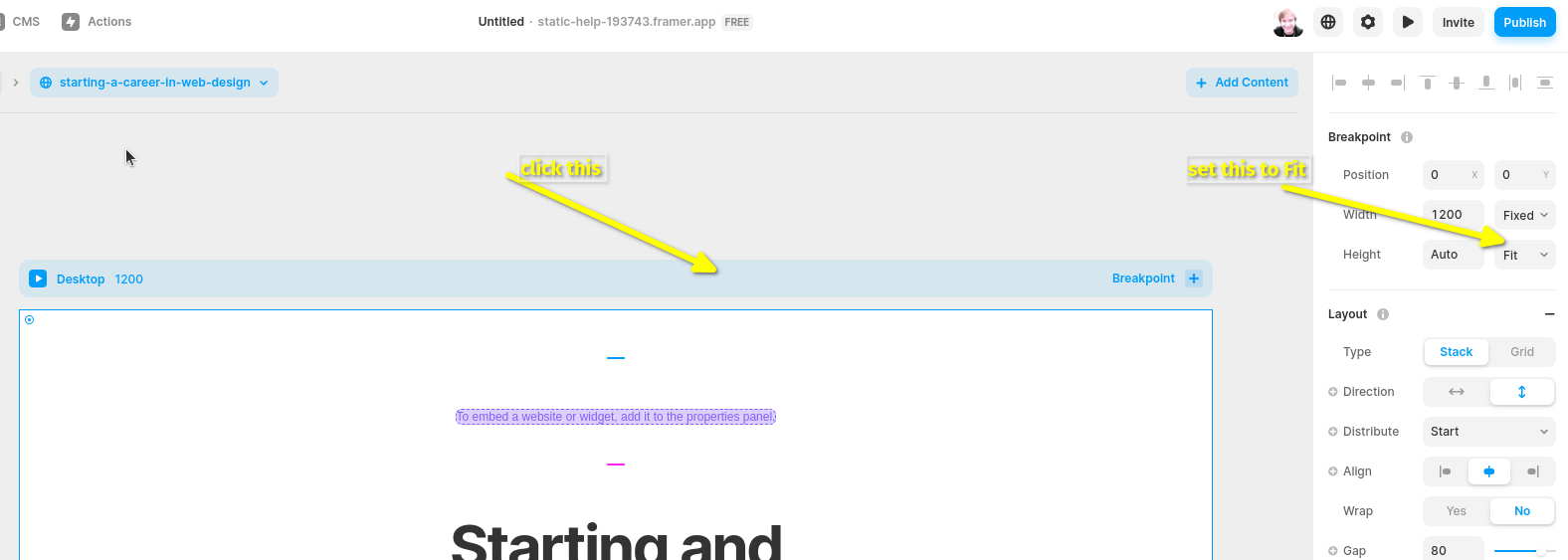
Potrebbe essere necessario regolare l'altezza della pagina per ottenerla come desideri.
Errori di dominio
Potresti ricevere un errore di autorizzazione, simile al seguente:

Questo perché FastComments non sa che dovrebbe autorizzare l'utilizzo del tuo account su questo dominio.
In questo caso, la soluzione è semplice. Devi solo aggiungere il tuo sito al tuo account FastComments.com.
Vai qui per aggiungere il tuo sito al tuo account.
Personalizzazione
FastComments è progettato per essere personalizzato per adattarsi al tuo sito.
Se desideri aggiungere stili personalizzati o modificare la configurazione, Consulta la nostra documentazione sulle personalizzazioni per scoprire come.