FastComments.com

Add Live Commenting to Framer Sites


使用 FastComments,我們可以輕鬆地在任何使用 Framer 建置的網站上新增即時留言功能。

在本教學中,我們將僅介紹如何安裝即時留言小工具。如果您需要協助安裝其他小工具或設定 SSO,請隨時 建立支援工單。


步驟 1:開啟編輯器 Internal Link


首先,為您的網站開啟編輯器。

在我們的範例中,我們會將 FastComments 新增到部落格頁面,但任何類型的頁面都應該可行。
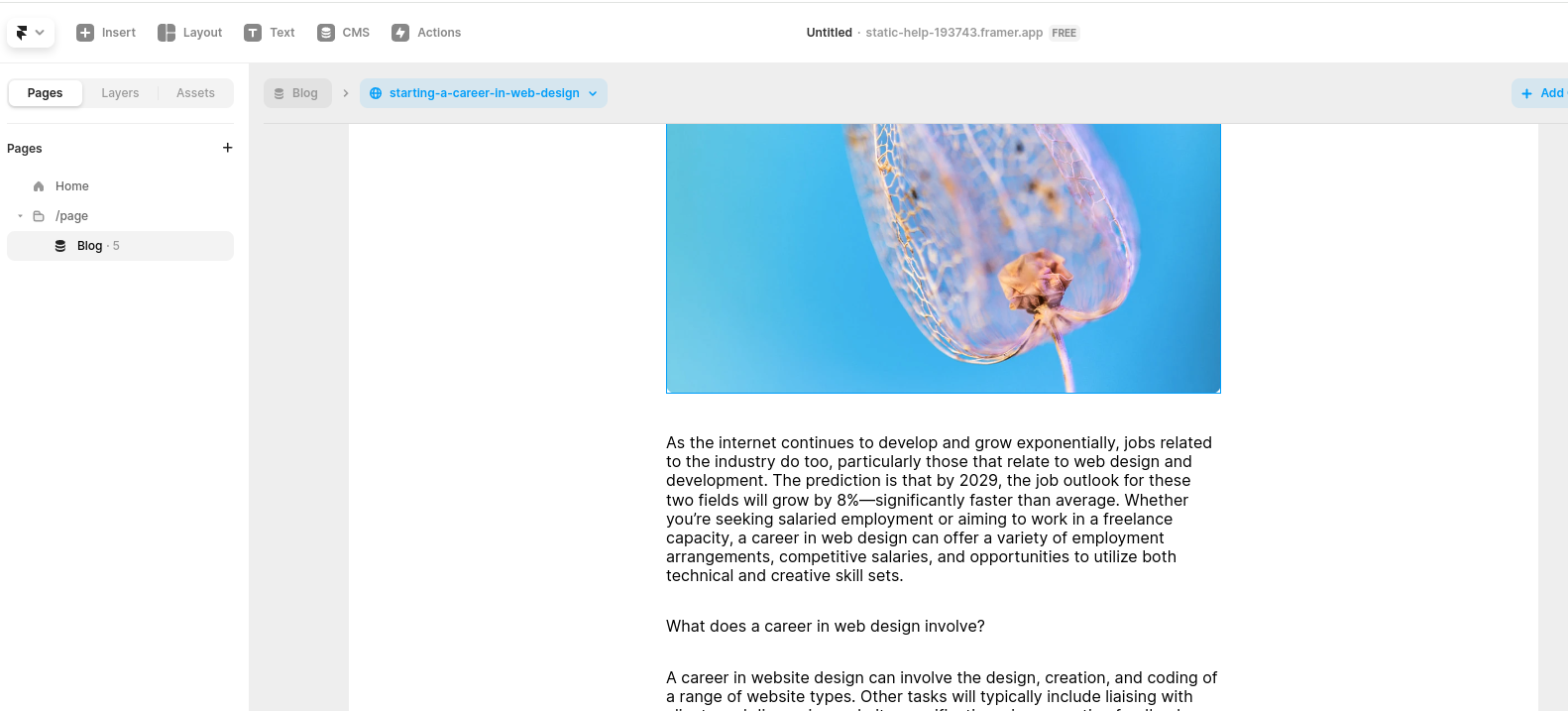
開啟編輯器
開啟編輯器

步驟 2:新增嵌入區塊 Internal Link

現在,我們來新增一個 Embed 區塊。

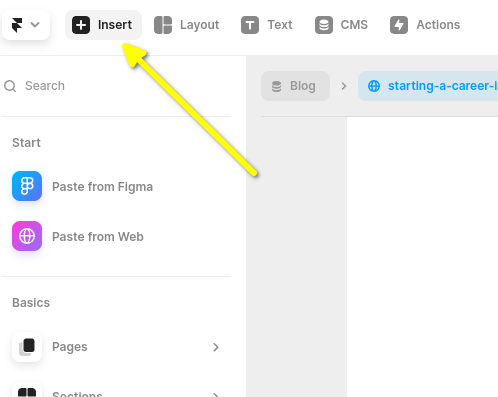
前往左上角的 Insert

點選 Insert
點選 Insert

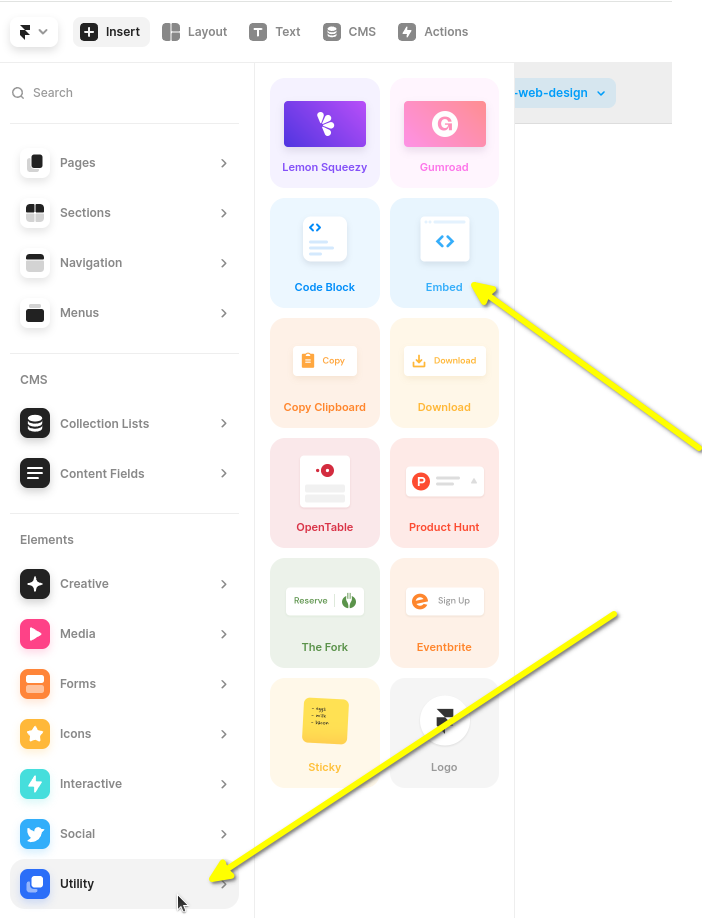
接著將左側邊欄向下捲動,並把滑鼠移到 Utility 上。

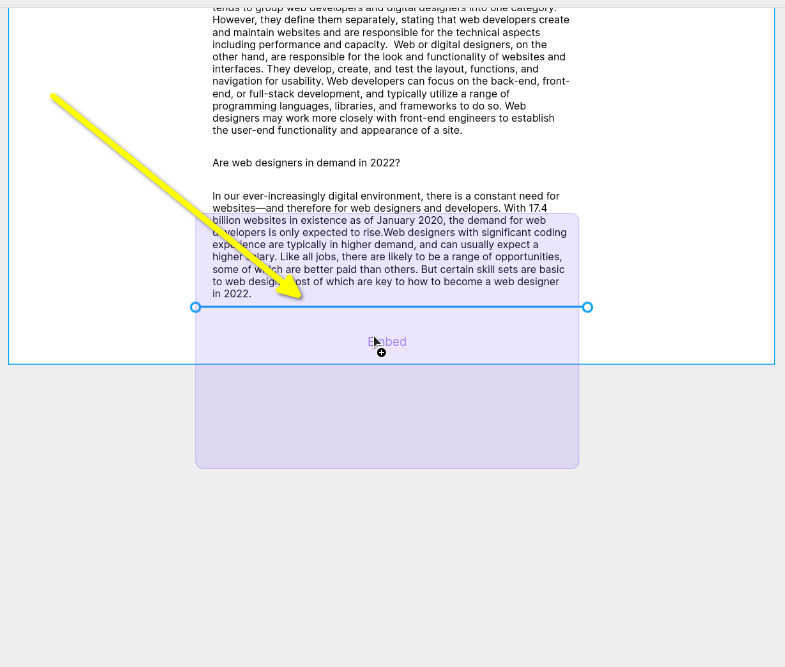
Next you'll want to click and drag the Utility block to the end of your blog.

重要的是要如圖示按下並拖曳,而不是僅僅點擊。如果你只是點擊,Framer 會把它插入到你的部落格外面,之後你還得再把它拖曳回來。

找到 Embed 小工具
找到 Embed 小工具
拖放 Embed 小工具
拖放 Embed 小工具

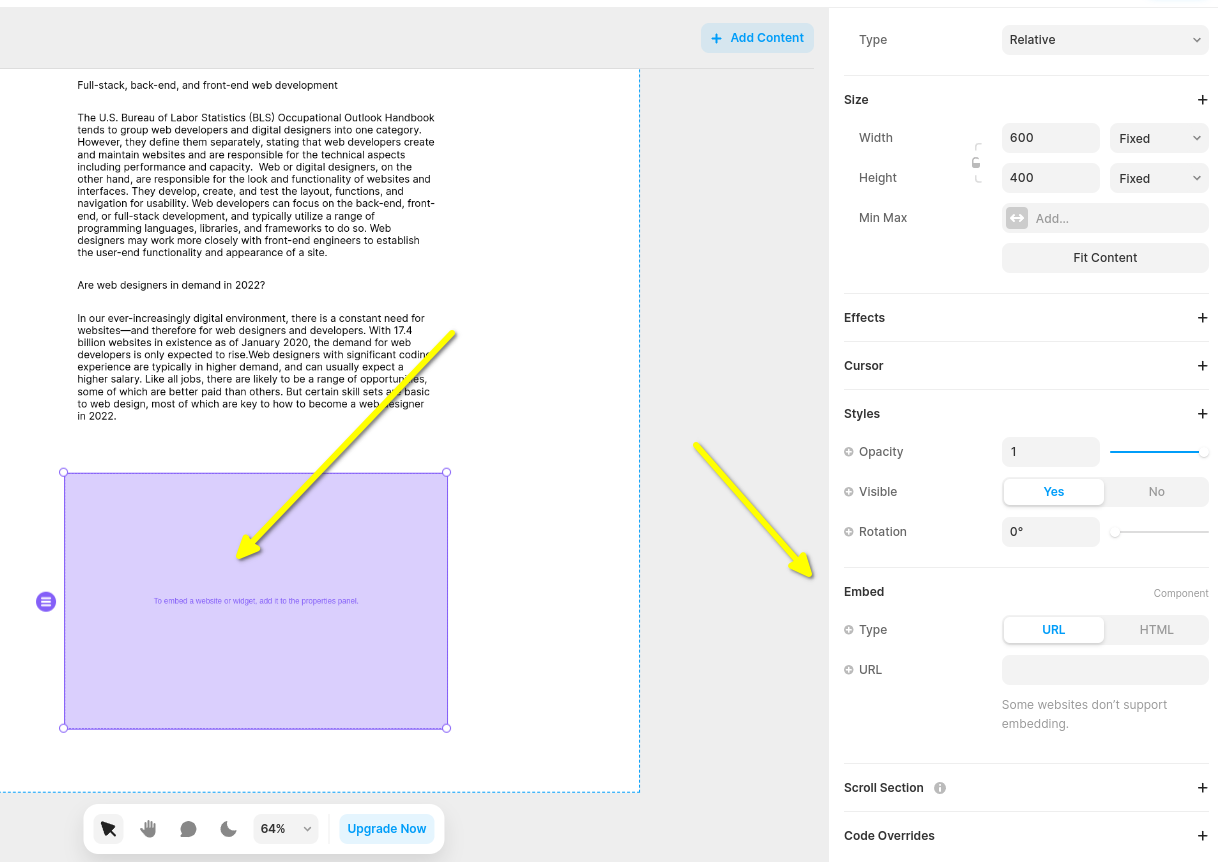
現在你會有一個空的 Embed 小工具,當你選取它時,右側會出現一個側邊欄。你可以展開側邊欄,然後你會看到 類似以下的畫面:

開啟 Embed 設定
開啟 Embed 設定

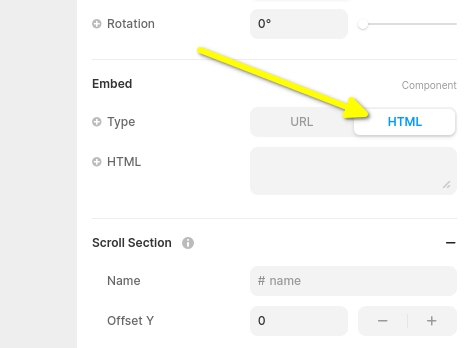
現在將 Embed 小工具類型改為 HTML

設為 HTML 小工具
設為 HTML 小工具

現在你已準備好在下一步加入 FastComments Framer 代碼片段。

步驟 3:複製並貼上 Framer 專用的 FastComments 程式碼 Internal Link

下面是 Framer Live Comments 的 FastComments 程式碼片段。

FastComments Framer 專用評論程式碼片段
Copy Copy
1
2<script src="https://cdn.fastcomments.com/js/embed-v2.min.js"></script>
3<div id="fastcomments-widget" style="width: 100%;height: 100%;"></div>
4<script>
5 (function fcLoad() {
6 function tryLoad() {
7 // 有些供應商會將程式碼片段改為非同步
8 const container = document.getElementById('fastcomments-widget');
9 if (!container) {
10 return waitRetry();
11 }
12 if (!window.FastCommentsUI) {
13 return waitRetry();
14 }
15 if (container.fastCommentsSetup) {
16 return;
17 }
18 window.FastCommentsUI(container, {
19 tenantId: 'demo',
20 pageTitle: top.document.title,
21 url: top.location.href,
22 urlId: top.location.pathname
23 });
24 container.fastCommentsSetup = true;
25 }
26 function waitRetry() {
27 setTimeout(tryLoad, 500);
28 }
29 tryLoad();
30 })();
31</script>
32

或者,您也可以使用 Streaming Chat 小工具。下面是 Framer Streaming Chat 的 FastComments 程式碼片段:

FastComments Framer 專用串流聊天程式碼片段
Copy Copy
1
2<script src="https://cdn.fastcomments.com/js/embed-live-chat.min.js"></script>
3<div id="fastcomments-live-chat-widget" style="width: 100%;height: 100%;"></div>
4<script>
5 (function fcLoad() {
6
7 function tryLoad() {
8 // 有些供應商會將程式碼片段改為非同步
9 const container = document.getElementById('fastcomments-live-chat-widget');
10 if (!container) {
11 return waitRetry();
12 }
13 if (!window.FastCommentsLiveChat) {
14 return waitRetry();
15 }
16 if (container.fastCommentsSetup) {
17 return;
18 }
19 window.FastCommentsLiveChat(container, {
20 tenantId: 'demo',
21 pageTitle: top.document.title,
22 url: top.location.href,
23 urlId: top.location.pathname
24 });
25 container.fastCommentsSetup = true;
26 }
27 function waitRetry() {
28 setTimeout(tryLoad, 500);
29 }
30 tryLoad();
31 })();
32</script>
33

FastComments 支援 Framer 編輯器,因此將程式碼貼上後您應該會看到類似的畫面(您可能需要點擊 Publish):
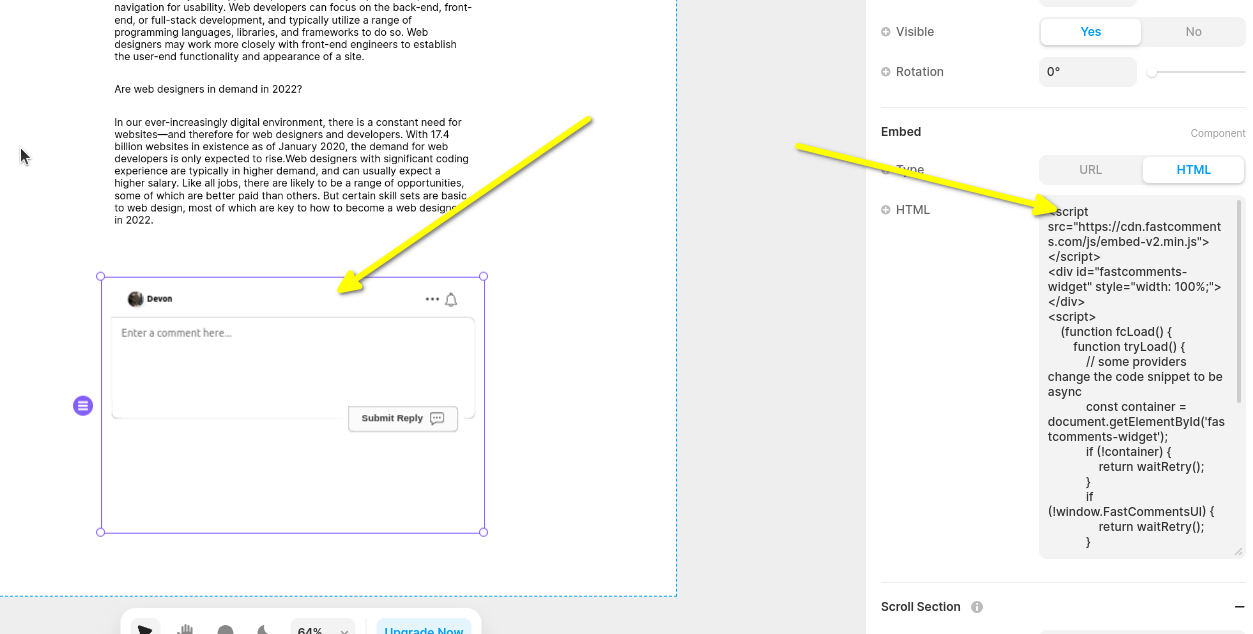
評論小工具預覽
評論小工具預覽

現在當您檢視網站時,應該會看到評論區!在 Framer 的側邊欄您也可以將小工具設為全寬(如有需要)。

請注意 Framer 限制小工具的高度且不支援自動調整大小,因此我們在此選擇了 Live Chat 小工具,因為它具有固定高度。

步驟 4:調整小工具與頁面高度 Internal Link

我們可以透過兩個步驟改善小工具的位置。

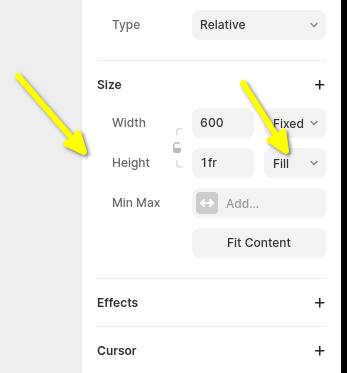
首先,在左側窗格中,將小工具的高度設為 fill1fr

留言小工具高度
留言小工具高度

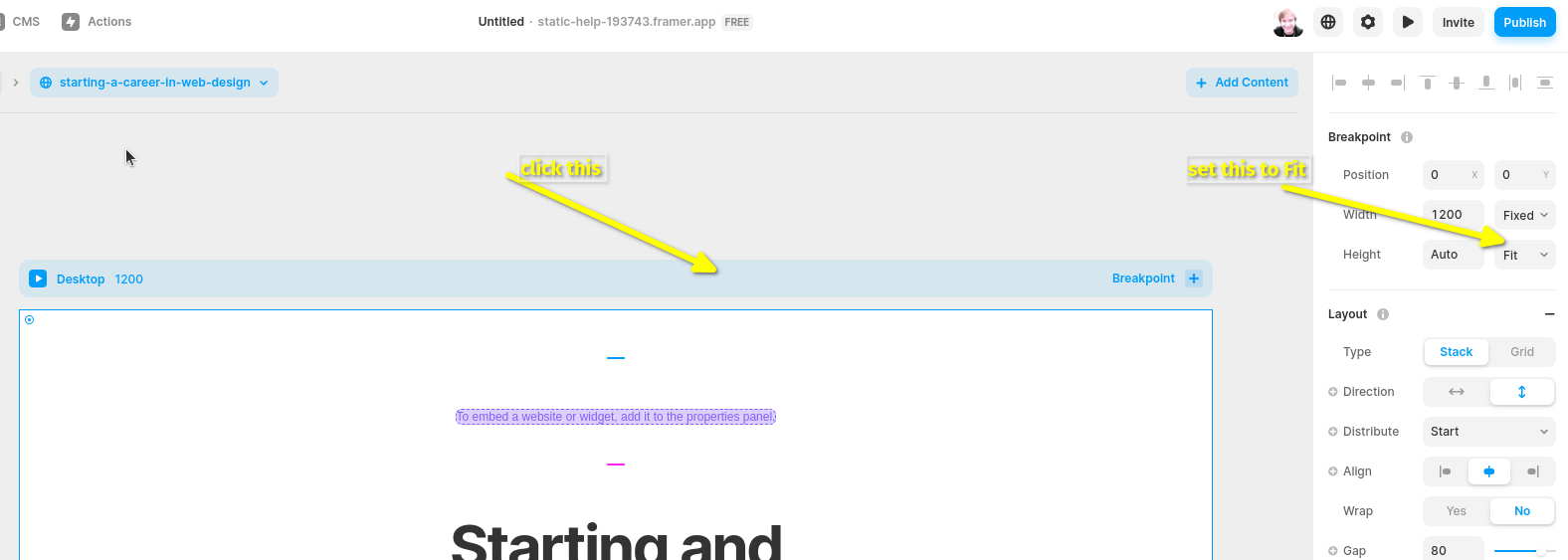
接著,我們需要修正 Framer 預設的頁面設定。預設會將頁面高度設為固定大小,可能會導致留言串被截斷。因此也將其設為 fill

設定頁面高度
設定頁面高度

您可能需要調整頁面高度以達到想要的效果。

自訂 Internal Link


FastComments 設計為可自訂以符合您的網站。

如果您想新增自訂樣式或調整設定,請 查看自訂與設定說明 以了解如何操作。