
Ajouter des commentaires en direct aux sites Framer
Avec FastComments, nous pouvons facilement ajouter live commenting à n'importe quel site construit avec Framer.
Dans ce tutoriel nous couvrirons uniquement l'installation du widget Live Commenting. Si vous avez besoin d'aide pour installer d'autres widgets, ou configurer le SSO, n'hésitez pas à créer un ticket de support.
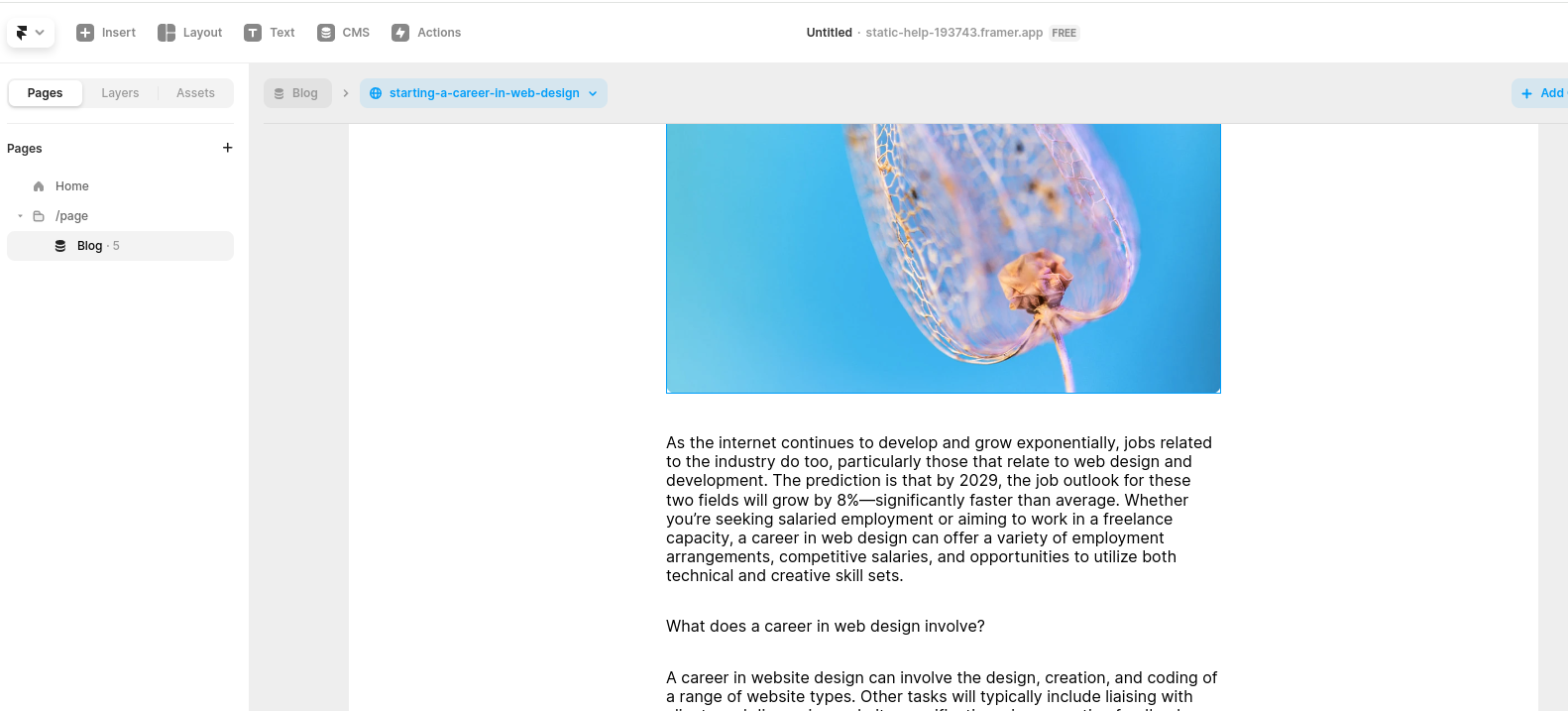
Étape 1 : Ouvrez l'éditeur 
Tout d'abord, ouvrez l'éditeur de votre site.
Dans notre exemple, nous allons ajouter FastComments aux pages de notre blog, mais tout type de page devrait fonctionner.
Étape 2 : Ajouter un bloc d'intégration
Now, ajoutons un bloc Embed.
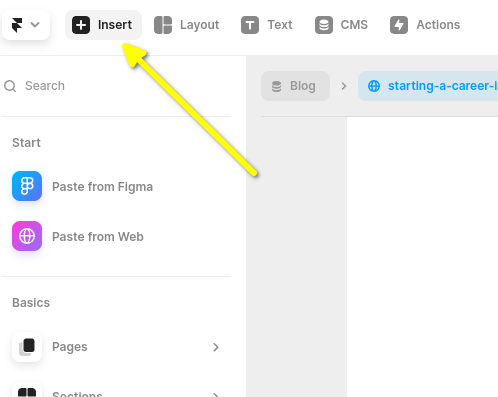
Allez dans Insert en haut à gauche:
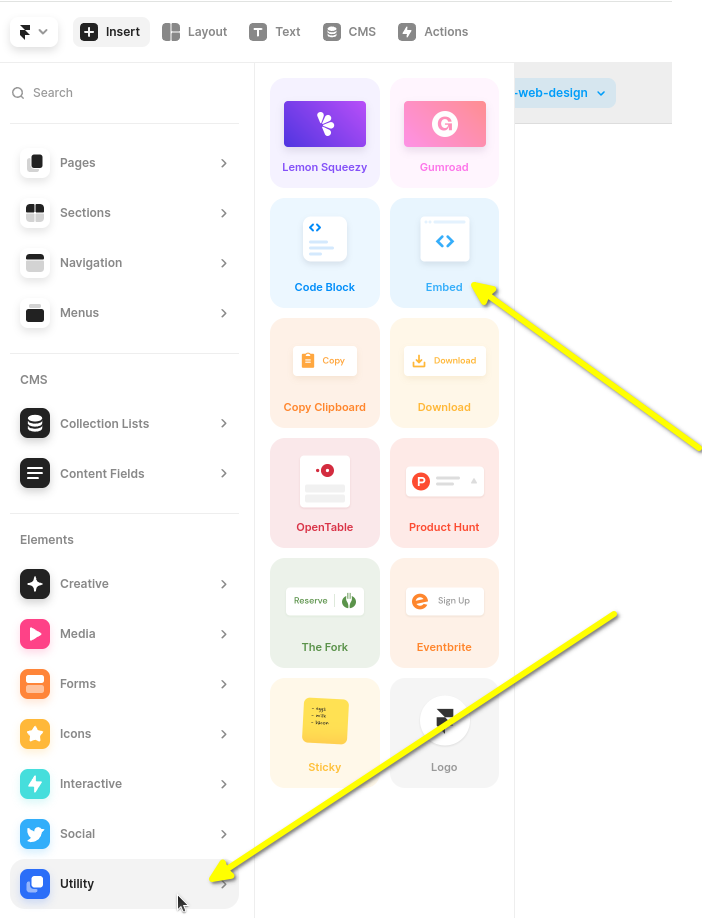
Ensuite, faites défiler la barre latérale gauche vers le bas et survolez Utility.
Ensuite, vous devrez cliquer et faire glisser le bloc Embed jusqu'à la fin de votre blog.
Il est important que vous cliquiez et fassiez glisser comme montré, et pas seulement que vous cliquiez dessus. Si vous vous contentez de cliquer, Framer l'insérera en dehors de votre blog et vous devrez le déplacer ensuite.
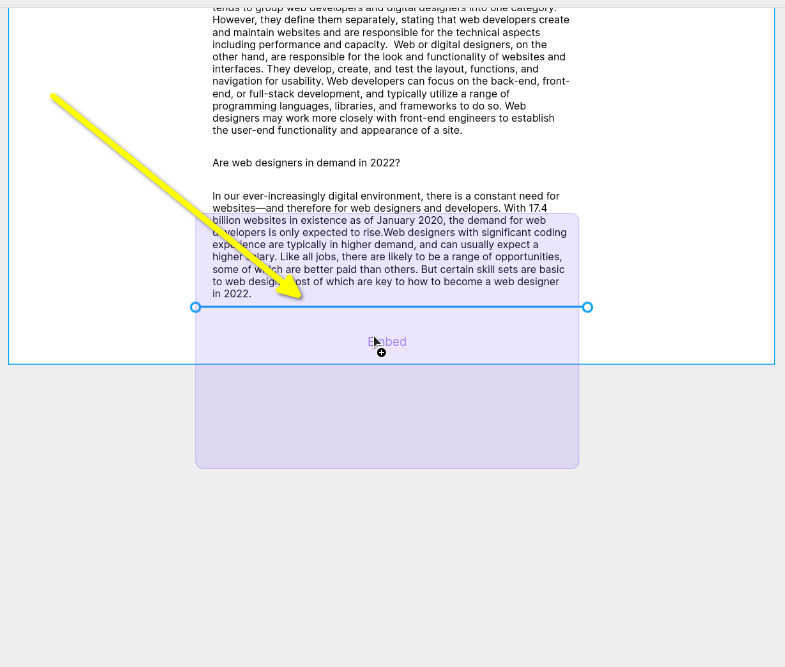
Vous aurez maintenant un widget Embed vide, et lorsque vous le sélectionnerez, une barre latérale s'affichera à droite. Vous pouvez développer la barre latérale, et vous verrez quelque chose comme ceci :
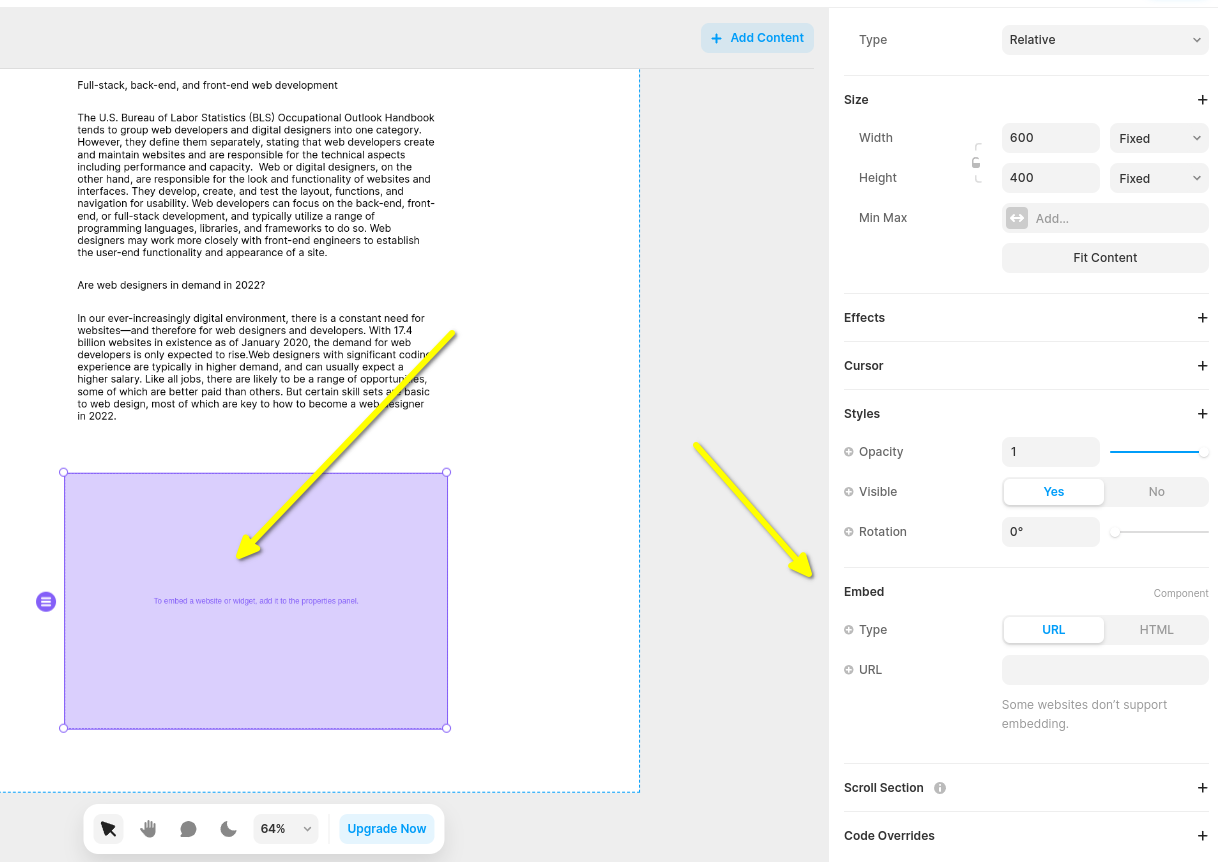
Changeons maintenant le type de widget Embed en HTML:
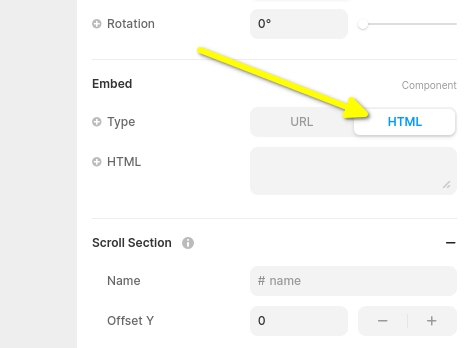
Vous êtes maintenant prêt pour l'extrait de code FastComments Framer à l'étape suivante.
Étape 3 : Copier et coller le code FastComments spécifique à Framer
L'extrait FastComments pour Framer Live Comments se trouve ci-dessous.

Or, alternatively, you can use the Streaming Chat widget. The Framer Streaming Chat FastComments snippet is:
FastComments prend en charge l'éditeur Framer, vous devriez donc voir quelque chose comme ceci une fois que vous aurez collé le code (il se peut que vous deviez cliquer sur Publish) :
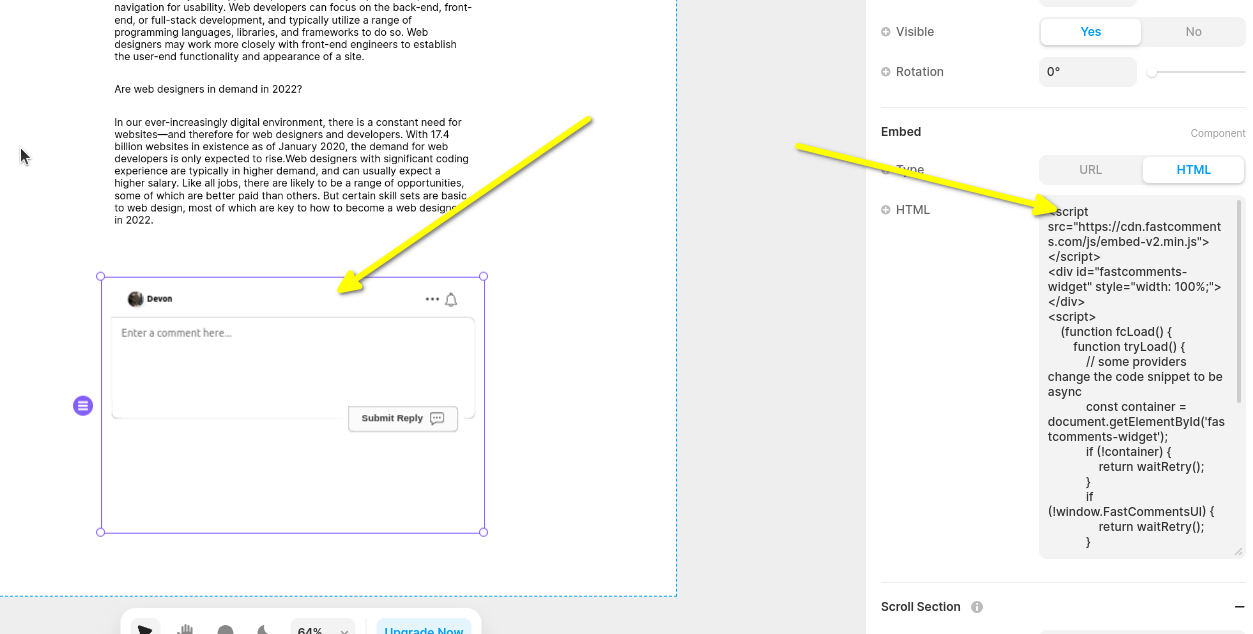
Maintenant, lorsque vous consultez votre site, vous devriez voir la zone de commentaires ! Dans la barre latérale de Framer, vous pouvez également définir le widget en pleine largeur, si vous le souhaitez.
Notez que Framer limite la hauteur des widgets et ne prend pas en charge le redimensionnement automatique, nous avons donc choisi le Live Chat widget ici car il a une hauteur fixe.
Étape 4 : Ajuster la hauteur du widget et de la page
Nous pouvons améliorer le positionnement du widget en faisant deux choses.
First, on the left pane, set the widget's height to fill and 1fr:
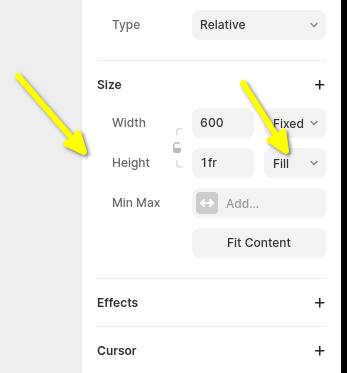
Next we need to fix the default Framer page config. By default it sets the page height to a fixed size, which can cut off
comment threads. So let's set this to fill, too.
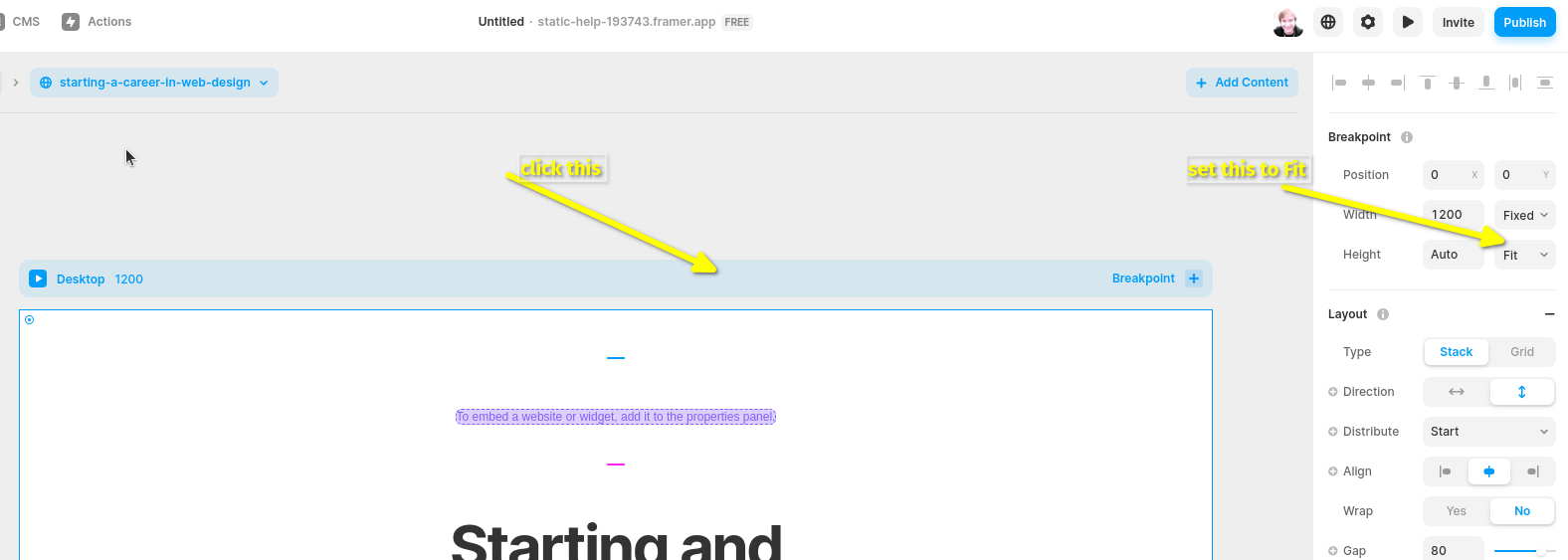
You may have to play with the page height to get it how you want it.
Erreurs de domaine
Vous pouvez rencontrer une erreur d'autorisation, comme l'exemple suivant :

Ceci est dû au fait que FastComments ne sait pas qu'il doit autoriser l'utilisation de votre compte sur ce domaine.
Dans ce cas, la solution est simple. Il vous suffit d'ajouter votre site à votre compte FastComments.com.
Accédez ici pour ajouter votre site à votre compte.
Personnalisation
FastComments est conçu pour être personnalisé afin de s'adapter à votre site.
Si vous souhaitez ajouter des styles personnalisés ou ajuster la configuration, Consultez notre documentation sur la personnalisation pour savoir comment.