FastComments.com

Add Live Commenting to Framer Sites


FastComments を使うと、Framer で構築された任意のサイトにライブコメント機能を簡単に追加できます。

このチュートリアルでは、ライブコメントウィジェットのインストールのみを扱います。他のウィジェットのインストールや SSO の設定についてサポートが必要な場合は、お気軽に サポートチケットを作成してください。


ステップ 1: エディタを開く Internal Link


まず、サイトのエディタを開きます。

この例では FastComments をブログページに追加しますが、どのタイプのページでも動作するはずです。
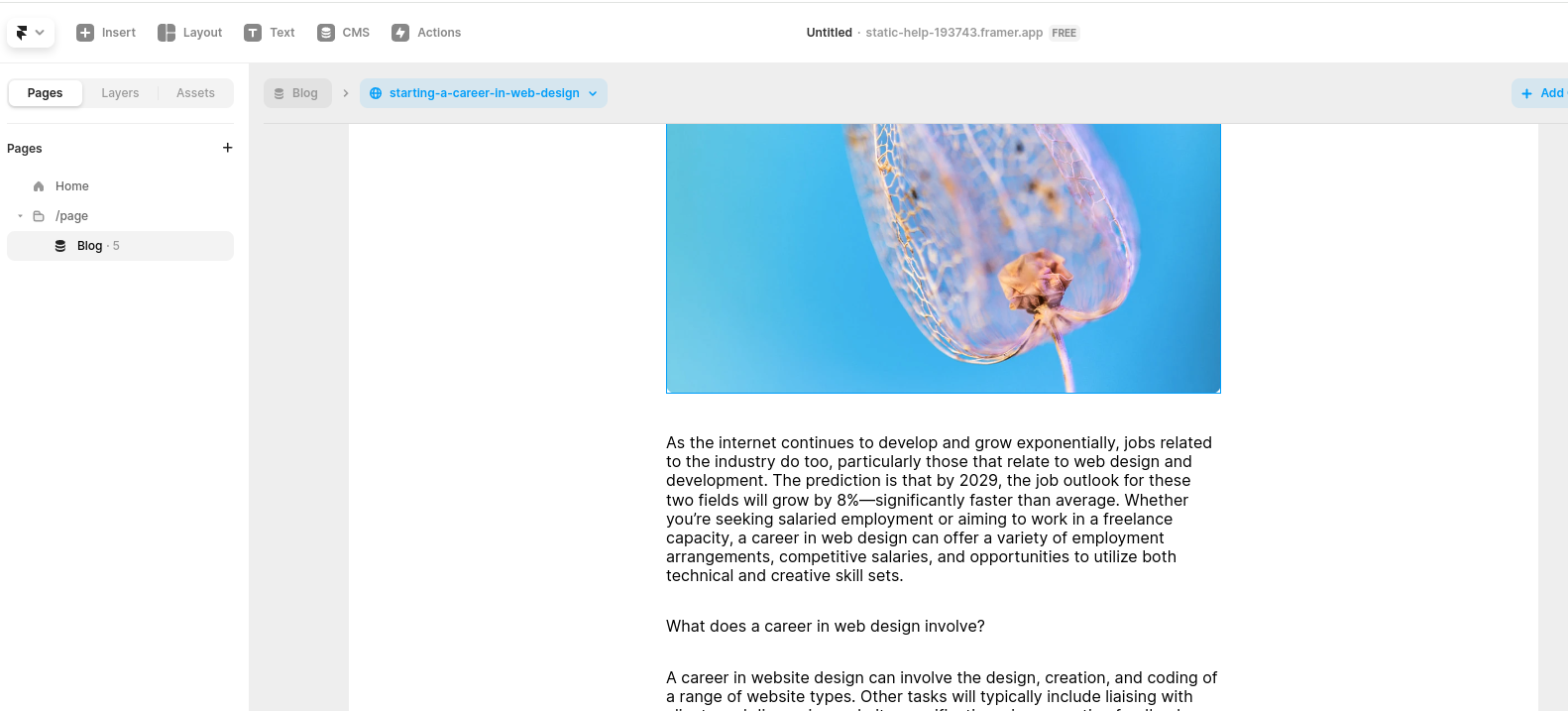
エディタを開く
エディタを開く

ステップ 2: 埋め込みブロックを追加する Internal Link

さて、Embed ブロックを追加しましょう。

左上の Insert に移動します:
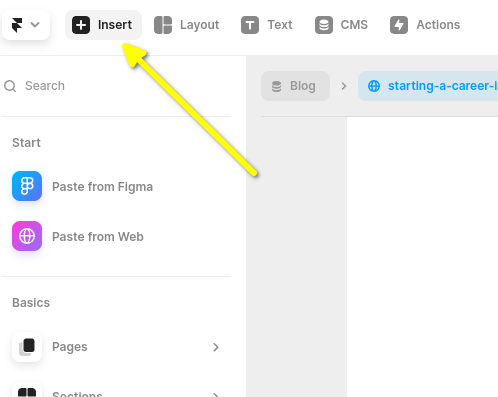
Insert をクリック
Click Insert

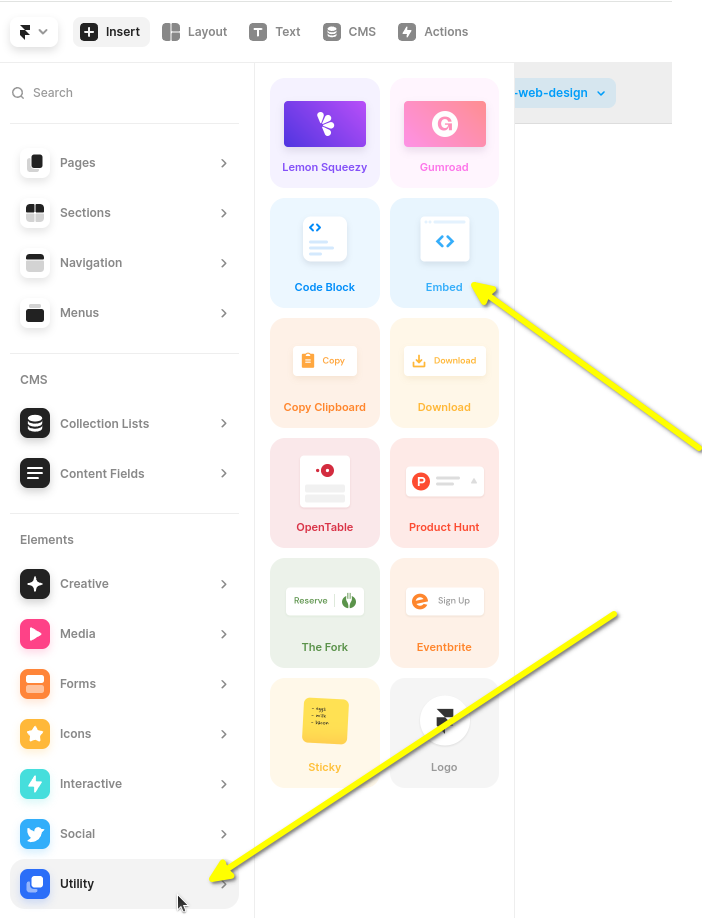
次に、左側のサイドバーを下にスクロールして、Utility にマウスを重ねます。

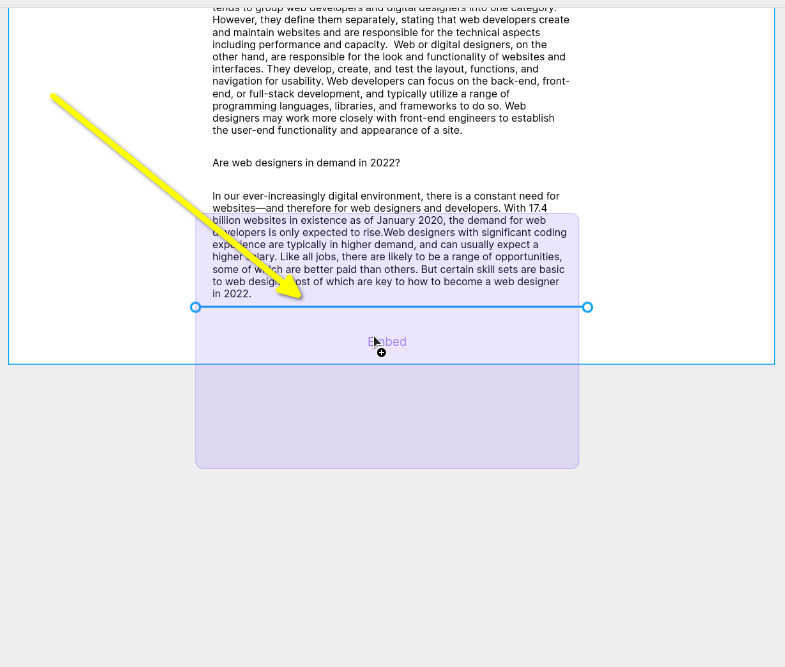
次に、ブログの末尾に Utility ブロックをクリックしてドラッグします。

重要なのは、示されているようにクリックしてドラッグすることで、単にクリックするだけにしないことです。もし単にクリックするだけだと、Framer はそれをブログの外側に挿入してしまい、後で移動させる必要が出てきます。

Locate Embed Widget
Locate Embed Widget
Drag and Drop Embed Widget

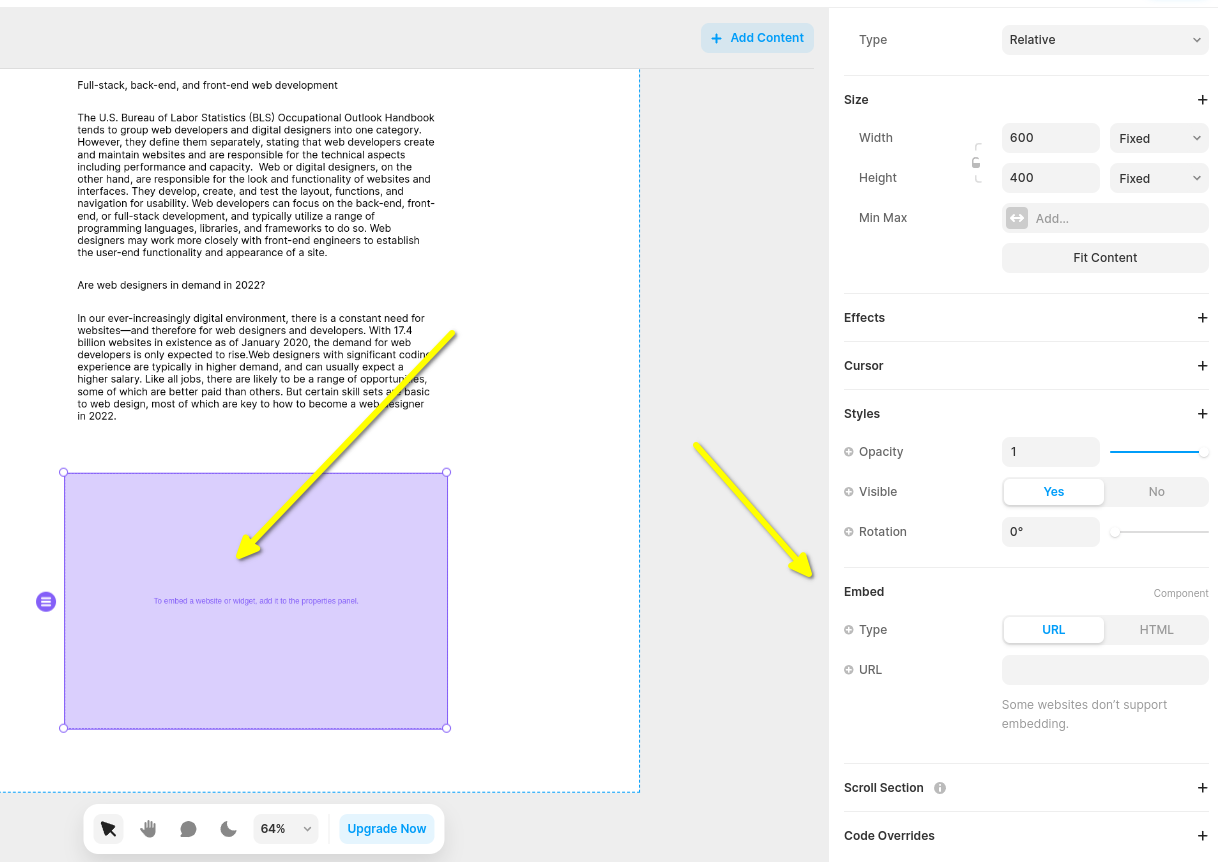
これで空の Embed ウィジェットができ、選択すると右側にサイドバーが表示されます。サイドバーを展開すると、次のような表示が見えます:

Open Embed Settings
Open Embed Settings

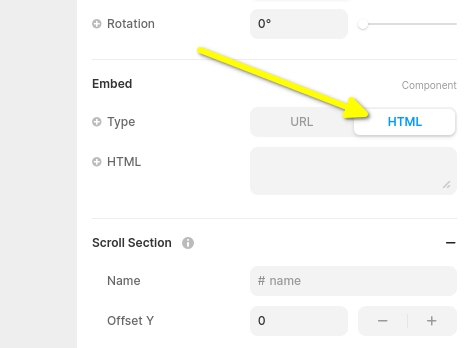
次に、Embed ウィジェットのタイプを HTML に変更しましょう:

Set as HTML Widget
Set as HTML Widget

これで次のステップで FastComments Framer のコードスニペットを挿入する準備ができました。

ステップ 3: Framer 用 FastComments コードをコピーして貼り付ける Internal Link

The Framer の Live Comments 用 FastComments スニペットは以下のとおりです。

FastComments Framer専用コメントスニペット
Copy Copy
1
2<script src="https://cdn.fastcomments.com/js/embed-v2.min.js"></script>
3<div id="fastcomments-widget" style="width: 100%;height: 100%;"></div>
4<script>
5 (function fcLoad() {
6 function tryLoad() {
7 // 一部のプロバイダはコードスニペットを async に変更します
8 const container = document.getElementById('fastcomments-widget');
9 if (!container) {
10 return waitRetry();
11 }
12 if (!window.FastCommentsUI) {
13 return waitRetry();
14 }
15 if (container.fastCommentsSetup) {
16 return;
17 }
18 window.FastCommentsUI(container, {
19 tenantId: 'demo',
20 pageTitle: top.document.title,
21 url: top.location.href,
22 urlId: top.location.pathname
23 });
24 container.fastCommentsSetup = true;
25 }
26 function waitRetry() {
27 setTimeout(tryLoad, 500);
28 }
29 tryLoad();
30 })();
31</script>
32

Or, alternatively, you can use the Streaming Chat widget. The Framer Streaming Chat FastComments snippet is:

FastComments Framer専用ストリーミングチャットスニペット
Copy Copy
1
2<script src="https://cdn.fastcomments.com/js/embed-live-chat.min.js"></script>
3<div id="fastcomments-live-chat-widget" style="width: 100%;height: 100%;"></div>
4<script>
5 (function fcLoad() {
6
7 function tryLoad() {
8 // 一部のプロバイダはコードスニペットを async に変更します
9 const container = document.getElementById('fastcomments-live-chat-widget');
10 if (!container) {
11 return waitRetry();
12 }
13 if (!window.FastCommentsLiveChat) {
14 return waitRetry();
15 }
16 if (container.fastCommentsSetup) {
17 return;
18 }
19 window.FastCommentsLiveChat(container, {
20 tenantId: 'demo',
21 pageTitle: top.document.title,
22 url: top.location.href,
23 urlId: top.location.pathname
24 });
25 container.fastCommentsSetup = true;
26 }
27 function waitRetry() {
28 setTimeout(tryLoad, 500);
29 }
30 tryLoad();
31 })();
32</script>
33

FastComments は Framer エディタをサポートしているため、コードを貼り付けると次のように表示されます(Publish をクリックする必要があるかもしれません):
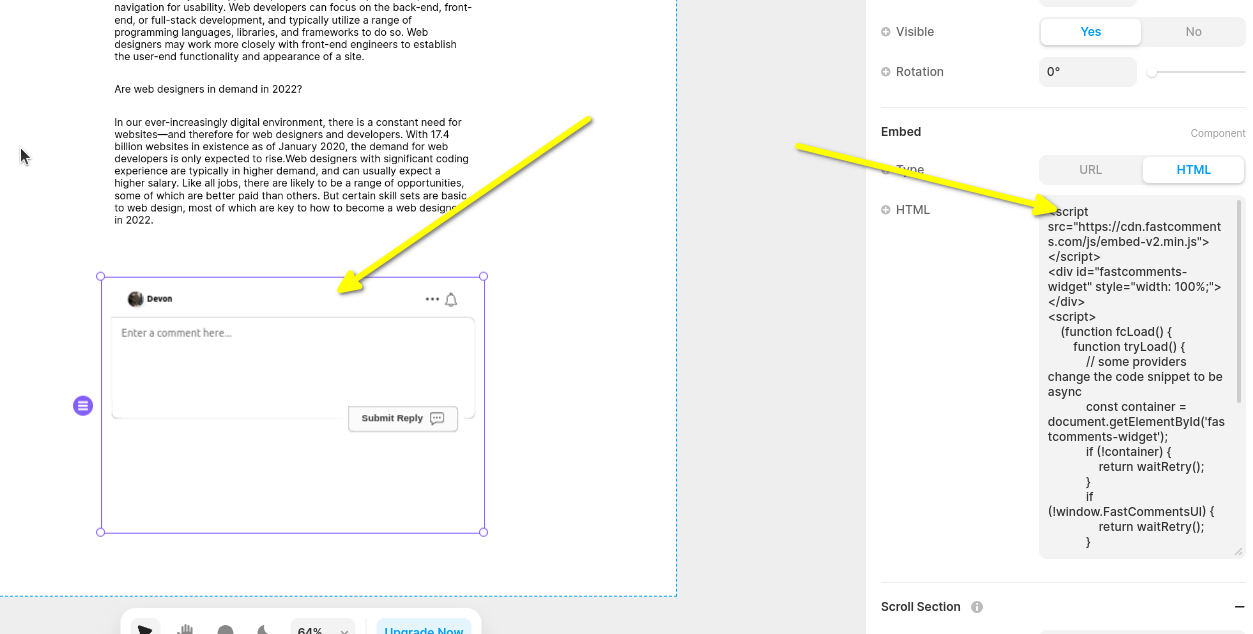
コメントウィジェットのプレビュー
コメントウィジェットのプレビュー

サイトを表示するとコメント領域が表示されます。必要に応じて、Framer のサイドバーでウィジェットをフル幅に設定することもできます。

Framer はウィジェットの高さに制限があり自動リサイズをサポートしていないため、ここでは高さが固定されている Live Chat ウィジェットを選択しています。

ステップ 4: ウィジェットとページの高さを調整する Internal Link


ウィジェットの配置は、次の2つの操作で改善できます。

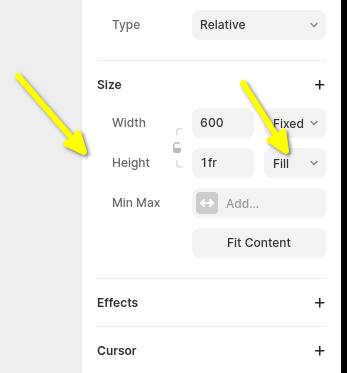
まず、左のペインでウィジェットの高さを fill1fr に設定します:

コメントウィジェットの高さ
コメントウィジェットの高さ

次に、デフォルトの Framer ページ設定を修正する必要があります。デフォルトではページの高さが固定サイズに設定されており、コメントスレッドが切れてしまうことがあります。そこで、これも fill に設定しましょう。
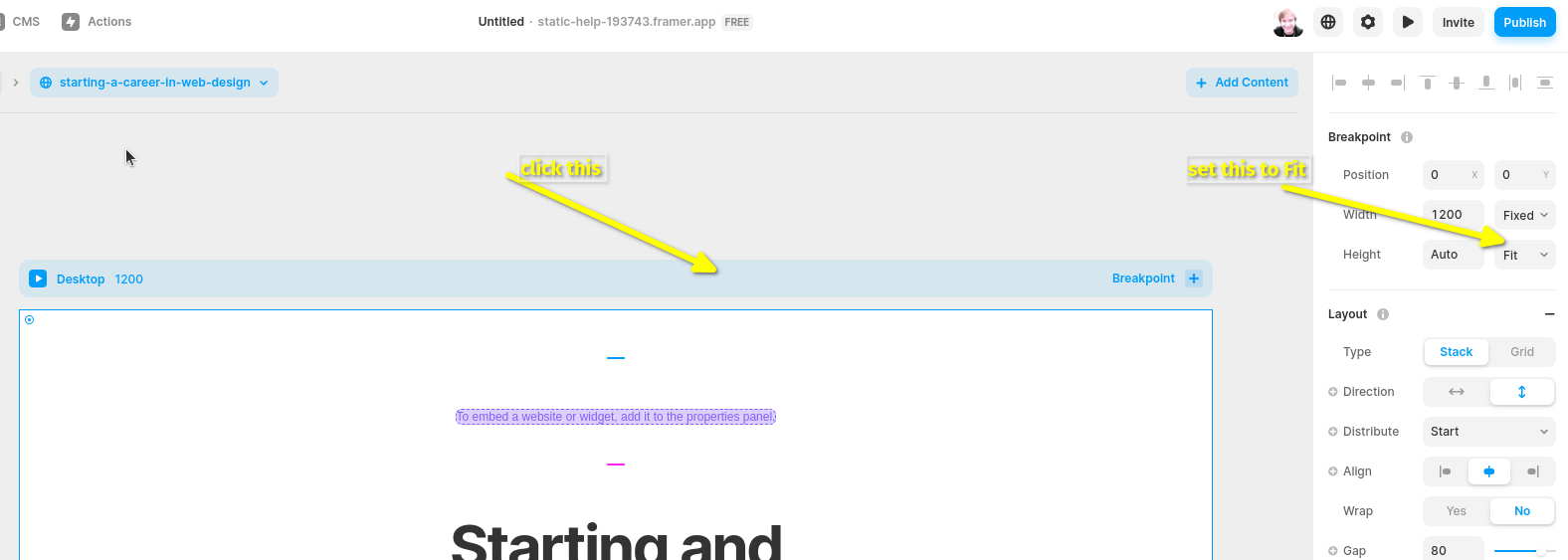
ページの高さを設定
ページの高さを設定

望みどおりの見た目にするために、ページの高さを調整する必要があるかもしれません。


カスタマイズ Internal Link


FastComments はあなたのサイトに合わせてカスタマイズできるように設計されています。

カスタムスタイリングを追加したり、設定を調整したい場合は、カスタマイズのドキュメントをご確認ください でその方法を学んでください。