FastComments.com

Add Live Commenting to Framer Sites

使用 FastComments,我们可以轻松地向任何使用 Framer 构建的网站添加实时评论。

在本教程中,我们仅介绍如何安装实时评论小部件。如果您在安装其他小部件或设置 SSO 时需要帮助,请随时 提交支持工单。

步骤 1:打开编辑器 Internal Link


首先,打开你网站的编辑器。

在我们的示例中,我们将在 Blog 页面添加 FastComments,但任何类型的页面都应同样适用。
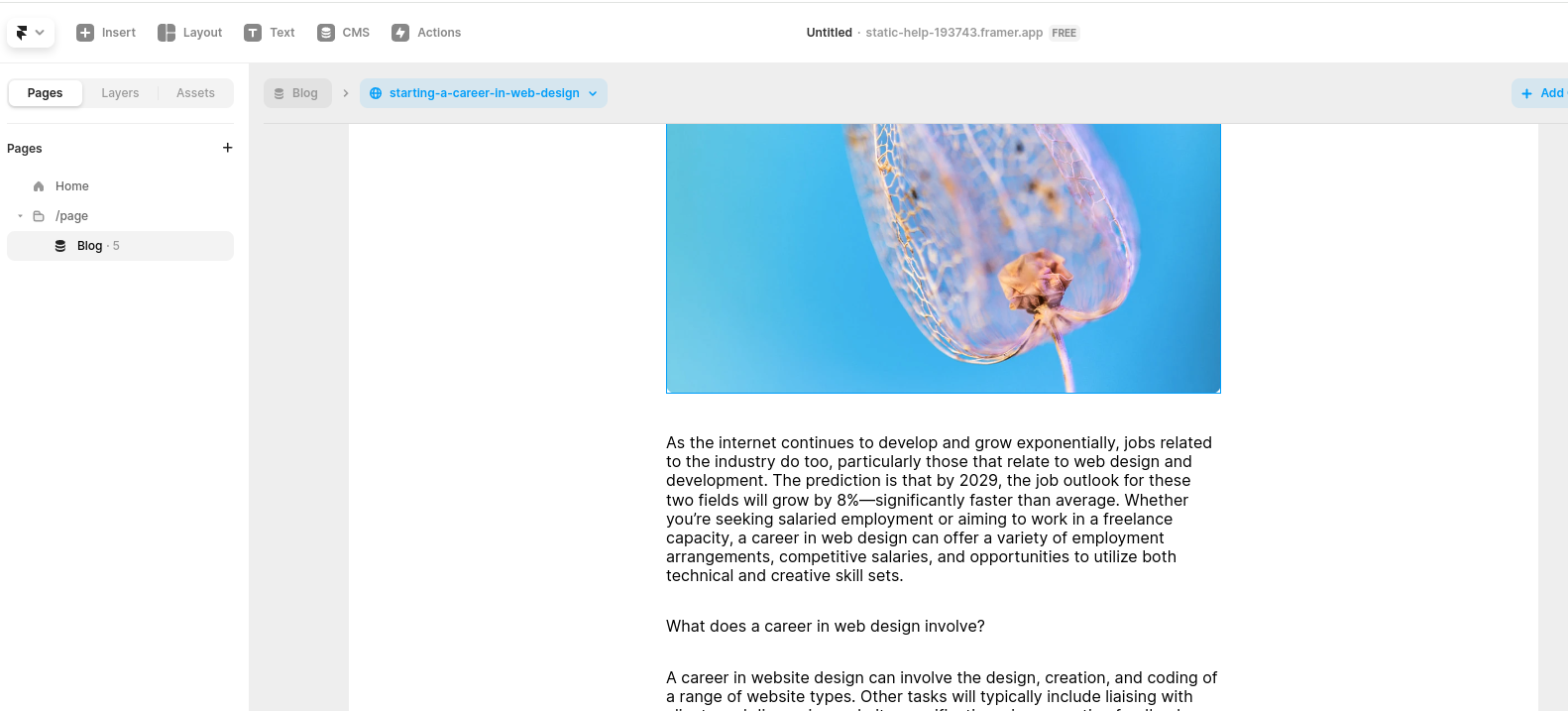
打开编辑器
打开编辑器

步骤 2:添加嵌入块 Internal Link

现在,让我们添加一个 Embed 块。

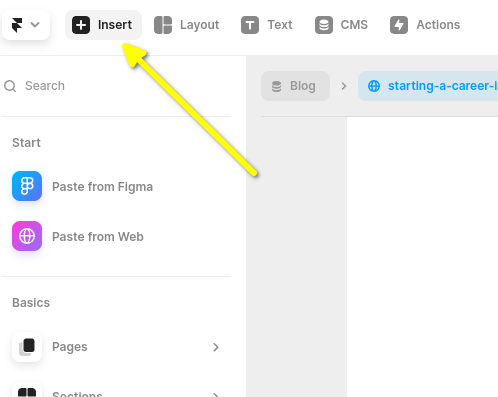
Go to Insert in the top left:

单击 Insert
单击 Insert

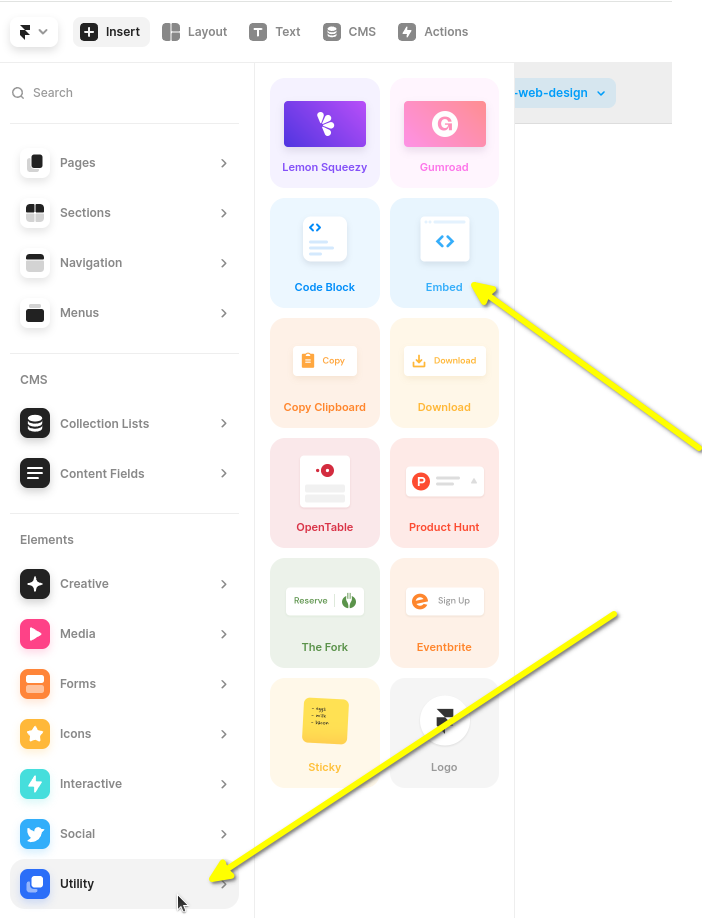
然后向下滚动左侧边栏并将鼠标移到 Utility 上。

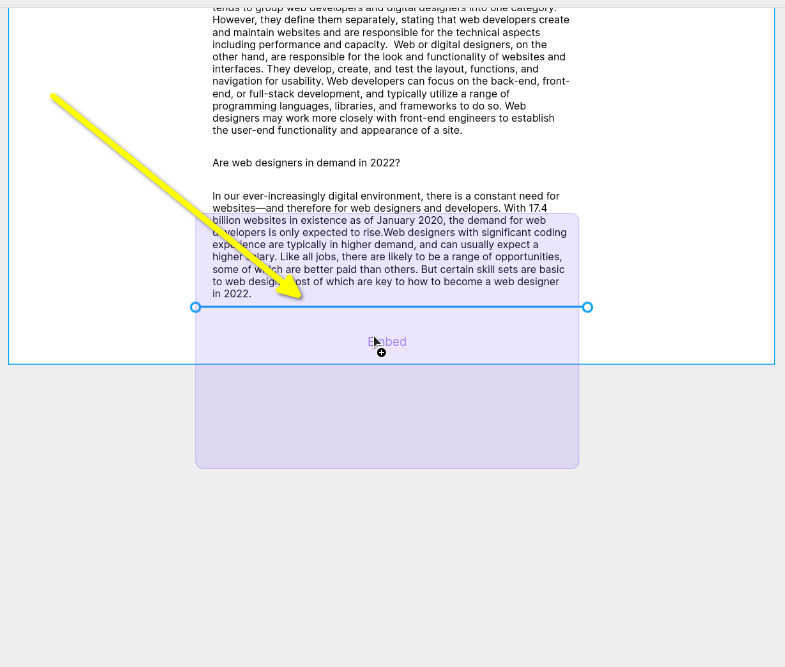
Next you'll want to click and drag the Utility block to the end of your blog.

重要的是要像示例那样点击并拖动,而不是只是点击。如果你只是点击,Framer 会把它插入到你的博客之外, 你之后就必须手动拖动它。

定位 Embed 小部件
定位 Embed 小部件
拖放 Embed 小部件
拖放 Embed 小部件

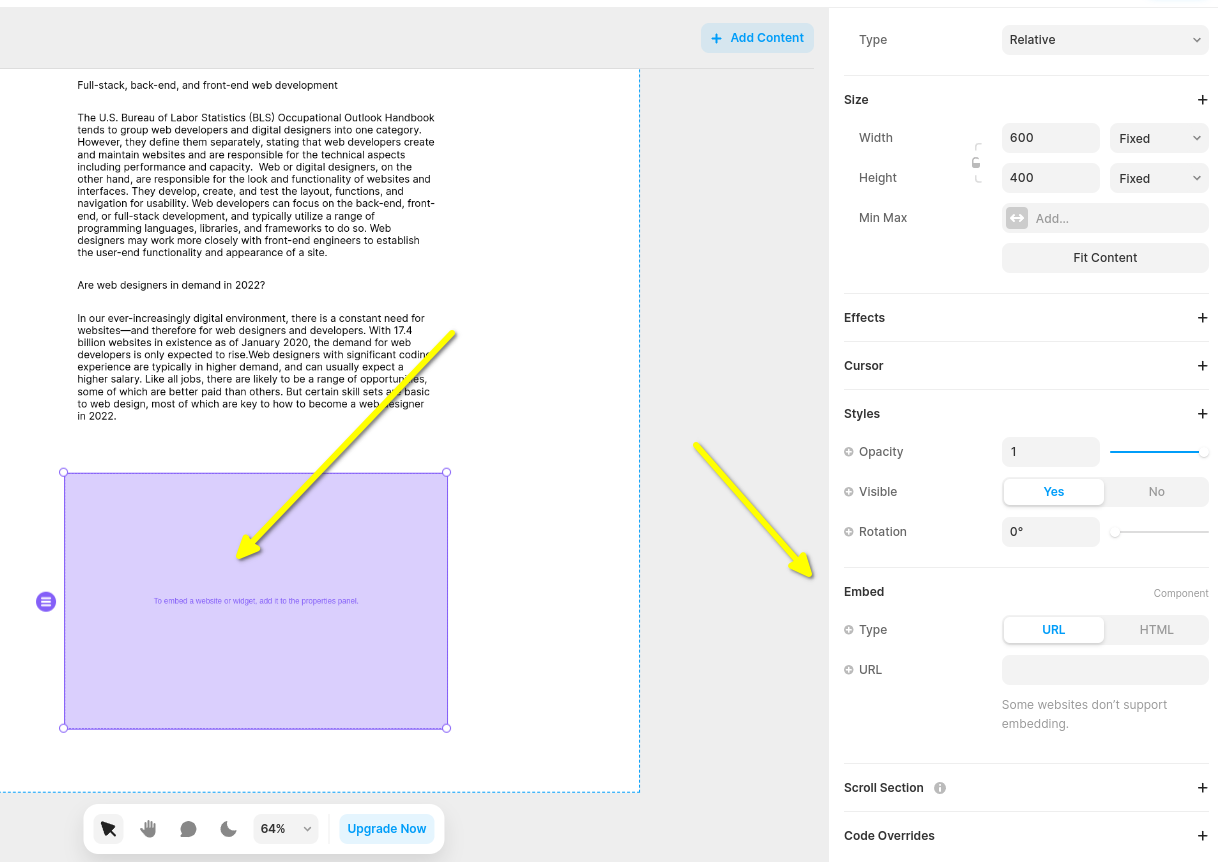
现在你会看到一个空的 Embed 小部件,当你选中它时,右侧会出现一个边栏。你可以展开该边栏,你会看到 类似这样的内容:

打开 Embed 设置
打开 Embed 设置

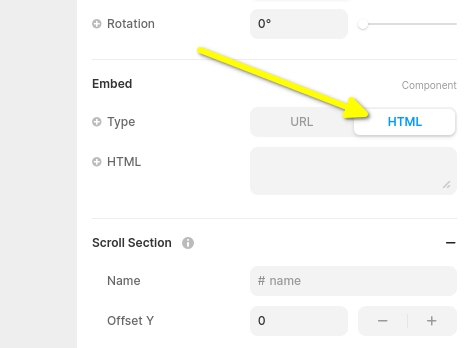
现在让我们将 Embed 小部件类型更改为 HTML

设置为 HTML 小部件
设置为 HTML 小部件

现在你已准备好进行下一步中的 FastComments Framer 代码片段。


步骤 3:复制并粘贴适用于 Framer 的 FastComments 代码 Internal Link

Framer 实时评论 (Live Comments) 的 FastComments 代码片段如下。

FastComments Framer 专用评论片段
Copy Copy
1
2<script src="https://cdn.fastcomments.com/js/embed-v2.min.js"></script>
3<div id="fastcomments-widget" style="width: 100%;height: 100%;"></div>
4<script>
5 (function fcLoad() {
6 function tryLoad() {
7 // 某些提供商会将代码片段改为异步
8 const container = document.getElementById('fastcomments-widget');
9 if (!container) {
10 return waitRetry();
11 }
12 if (!window.FastCommentsUI) {
13 return waitRetry();
14 }
15 if (container.fastCommentsSetup) {
16 return;
17 }
18 window.FastCommentsUI(container, {
19 tenantId: 'demo',
20 pageTitle: top.document.title,
21 url: top.location.href,
22 urlId: top.location.pathname
23 });
24 container.fastCommentsSetup = true;
25 }
26 function waitRetry() {
27 setTimeout(tryLoad, 500);
28 }
29 tryLoad();
30 })();
31</script>
32

或者,你也可以使用流式聊天(Streaming Chat)小部件。Framer 流式聊天的 FastComments 代码片段如下:

FastComments Framer 专用实时聊天片段
Copy Copy
1
2<script src="https://cdn.fastcomments.com/js/embed-live-chat.min.js"></script>
3<div id="fastcomments-live-chat-widget" style="width: 100%;height: 100%;"></div>
4<script>
5 (function fcLoad() {
6
7 function tryLoad() {
8 // 某些提供商会将代码片段改为异步
9 const container = document.getElementById('fastcomments-live-chat-widget');
10 if (!container) {
11 return waitRetry();
12 }
13 if (!window.FastCommentsLiveChat) {
14 return waitRetry();
15 }
16 if (container.fastCommentsSetup) {
17 return;
18 }
19 window.FastCommentsLiveChat(container, {
20 tenantId: 'demo',
21 pageTitle: top.document.title,
22 url: top.location.href,
23 urlId: top.location.pathname
24 });
25 container.fastCommentsSetup = true;
26 }
27 function waitRetry() {
28 setTimeout(tryLoad, 500);
29 }
30 tryLoad();
31 })();
32</script>
33

FastComments 支持 Framer 编辑器,因此在粘贴代码后你应该看到类似的效果(你可能需要点击 Publish):
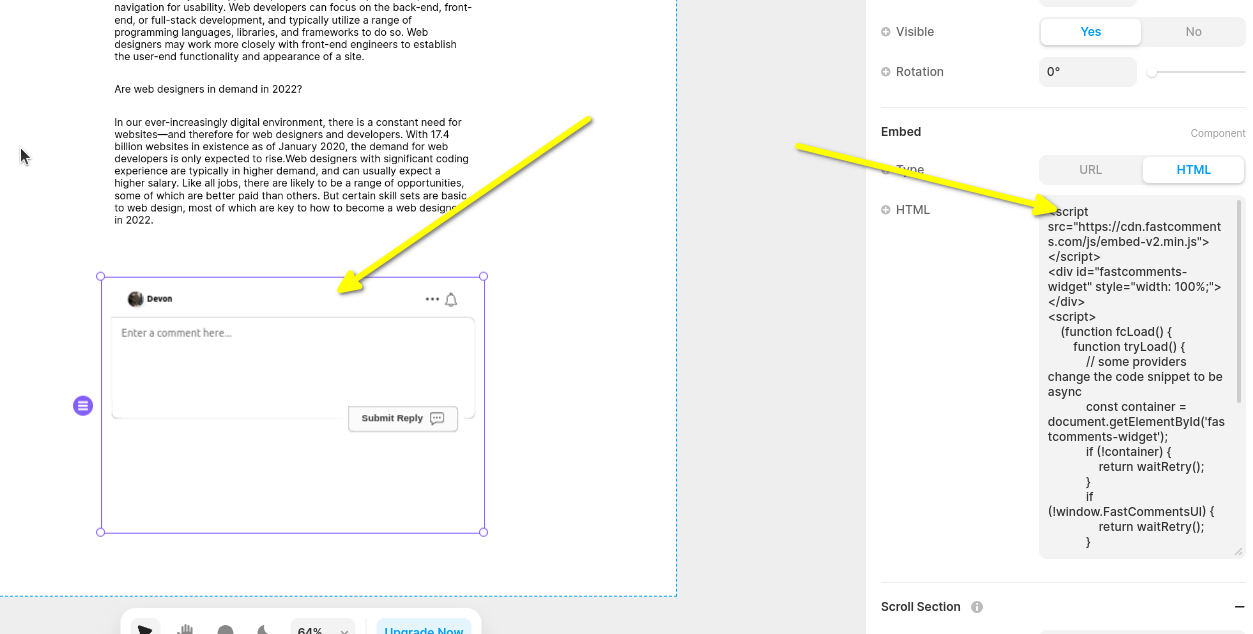
评论小部件预览
评论小部件预览

现在当你查看你的网站时应该能看到评论区域!在 Framer 的侧边栏中,你也可以根据需要将小部件设置为全宽。

请注意,Framer 限制小部件的高度并且不支持自动调整大小,因此我们在此选择了固定高度的 Live Chat widget。

步骤 4:调整小部件和页面高度 Internal Link


我们可以通过两件事来改进该小部件的位置。

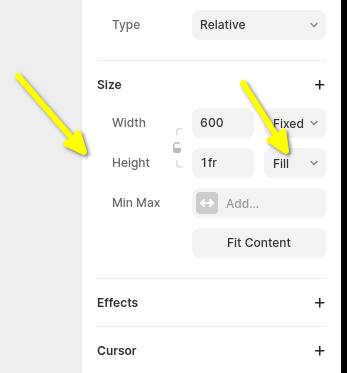
首先,在左侧面板上,将小部件的高度设置为 fill1fr

评论小部件高度
评论小部件高度

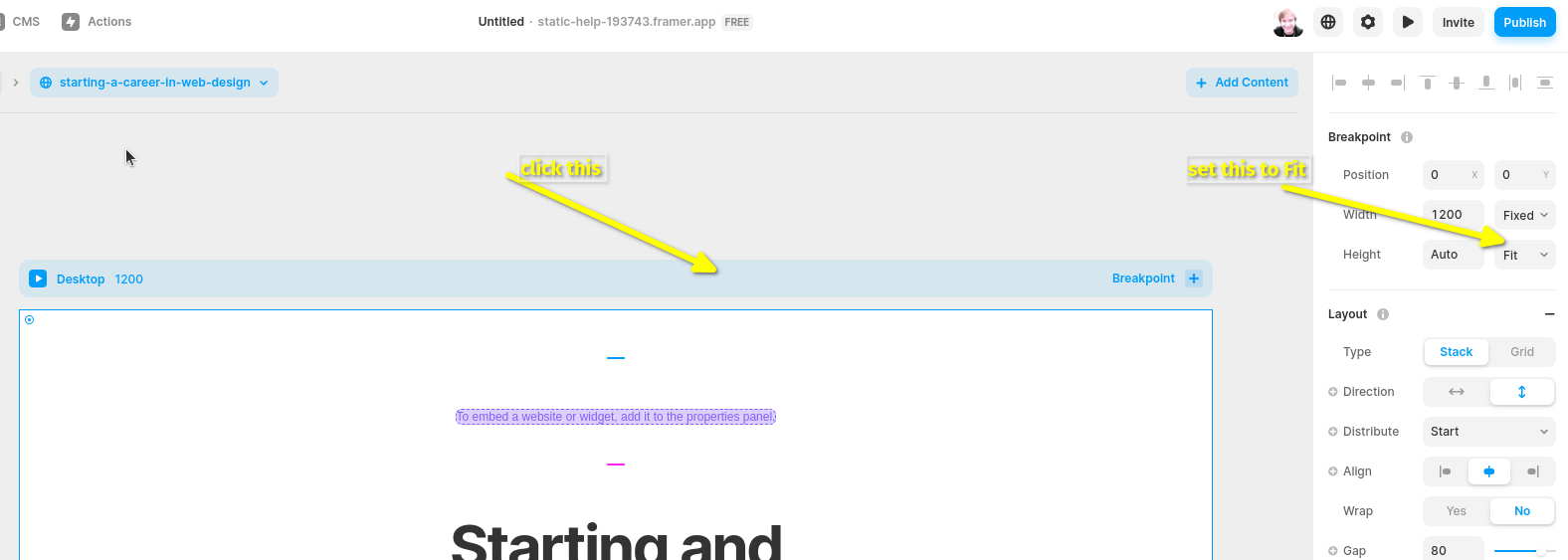
接下来我们需要修复默认的 Framer 页面配置。默认情况下,它会将页面高度设置为固定大小,这可能会截断评论线程。因此也将其设置为 fill

设置页面高度
设置页面高度

您可能需要调整页面高度以达到所需效果。


自定义 Internal Link


FastComments 旨在自定义以匹配您的网站。

如果您想添加自定义样式或调整配置,查看我们的自定义与配置文档以了解如何操作。