
Add Comments to BigCommerce Sites
With FastComments we can easily add live commenting to any BigCommerce site.
The instructions below are for a blog built on BigCommerce, but they would work well for any aspect of BigCommerce.
Note that this tutorial requires a FastComments account. It's recommended that you sign up first and then come back here. You can create an account here.
Step One: Prepare Your Theme 
First, let's create a custom theme that we're going to edit. If you already have a custom theme set up, you can skip this step.
To do this, we will go to Storefront and then Themes.
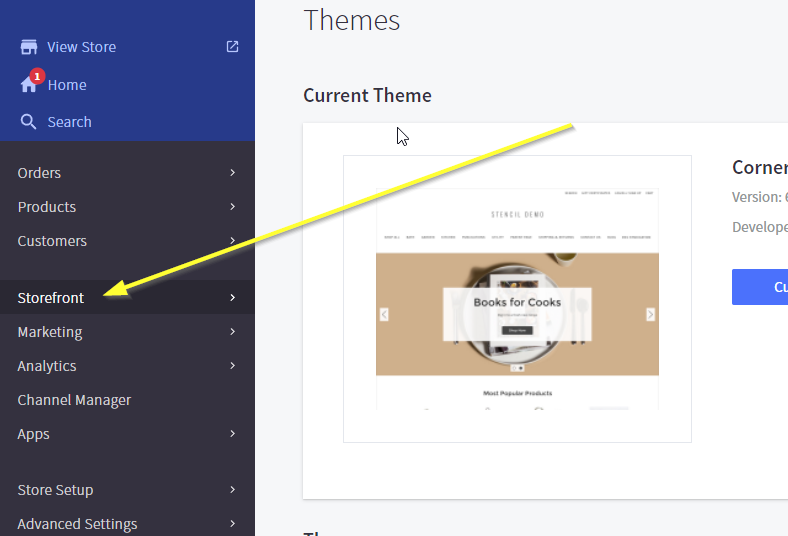
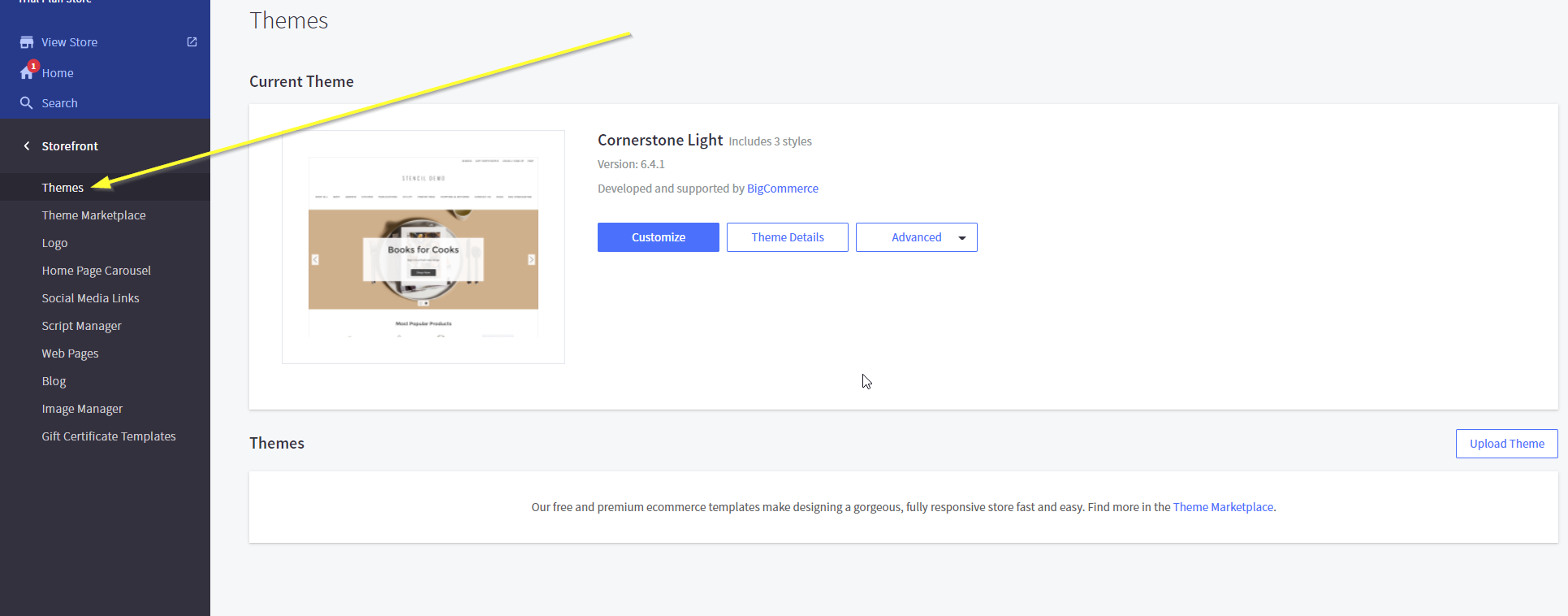
For this tutorial, we'll use the default theme, but the instructions are the same for all themes.
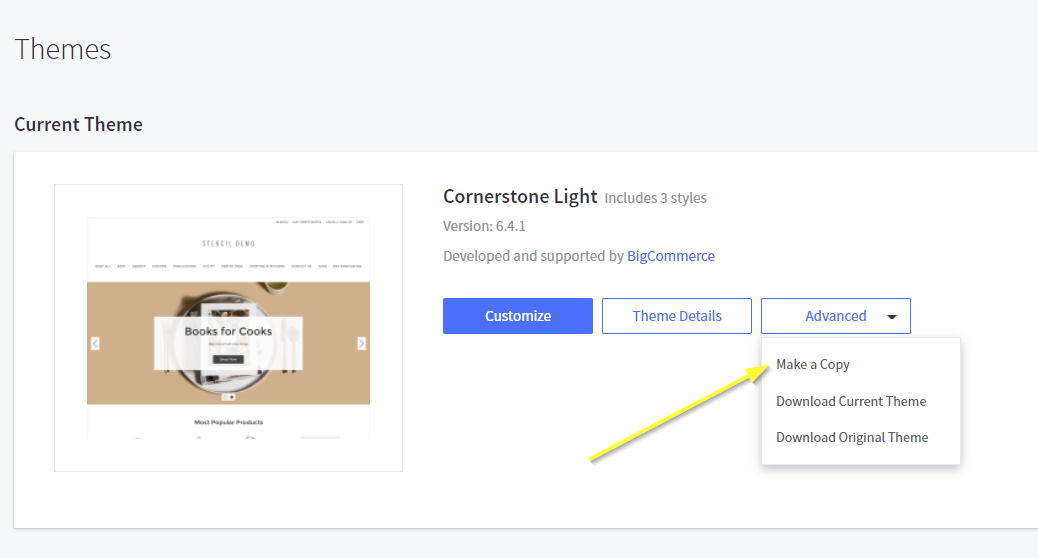
Next, we are not going to click Customize. Instead, click Advanced and Make a Copy.
Confirm copying the theme:
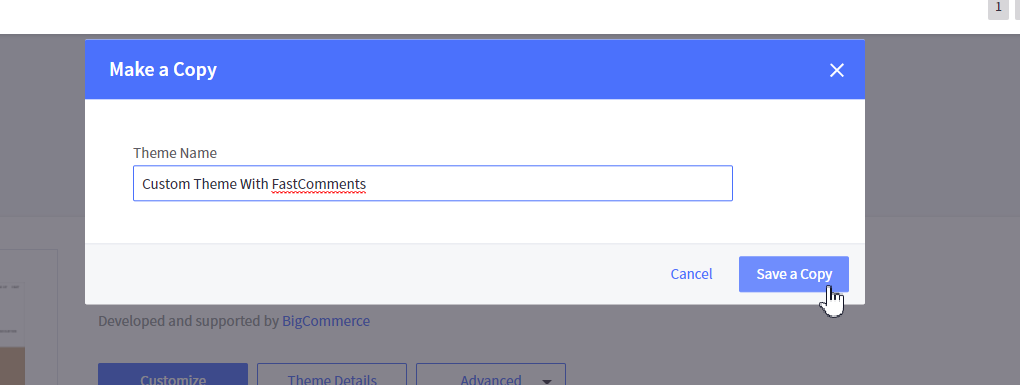
Once it's complete, you should see your theme listed under Themes at the bottom of the page, like this.
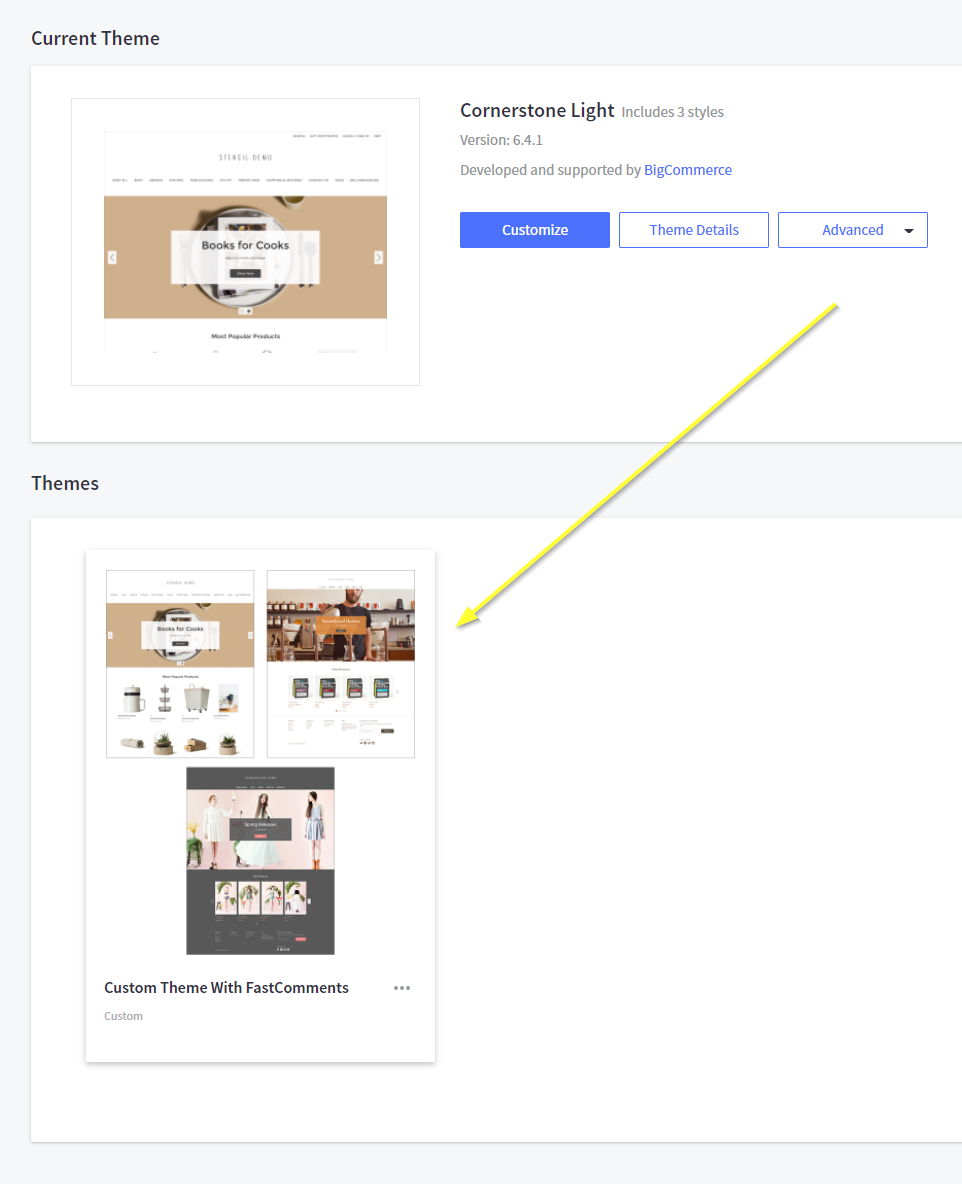
Now we can edit our new theme to add FastComments.
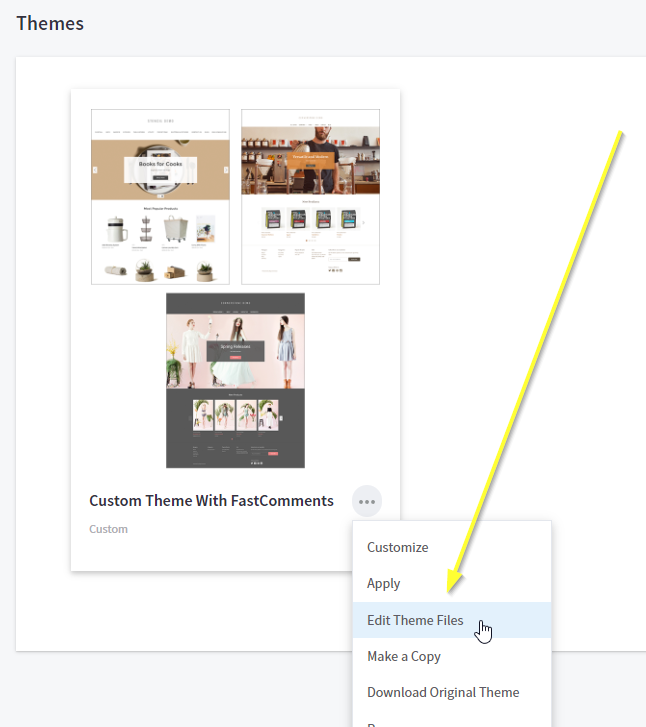
Step Two: Edit the Correct Template
The next step is to add the widget code that makes the integration work.
Once you're in the theme editor, as directed in the previous step, you'll see a file browser on the left and an editor on the right.
We will edit a template that represents our blog post pages.
In the left-hand navigation, go to templates->pages->blog-post.html.
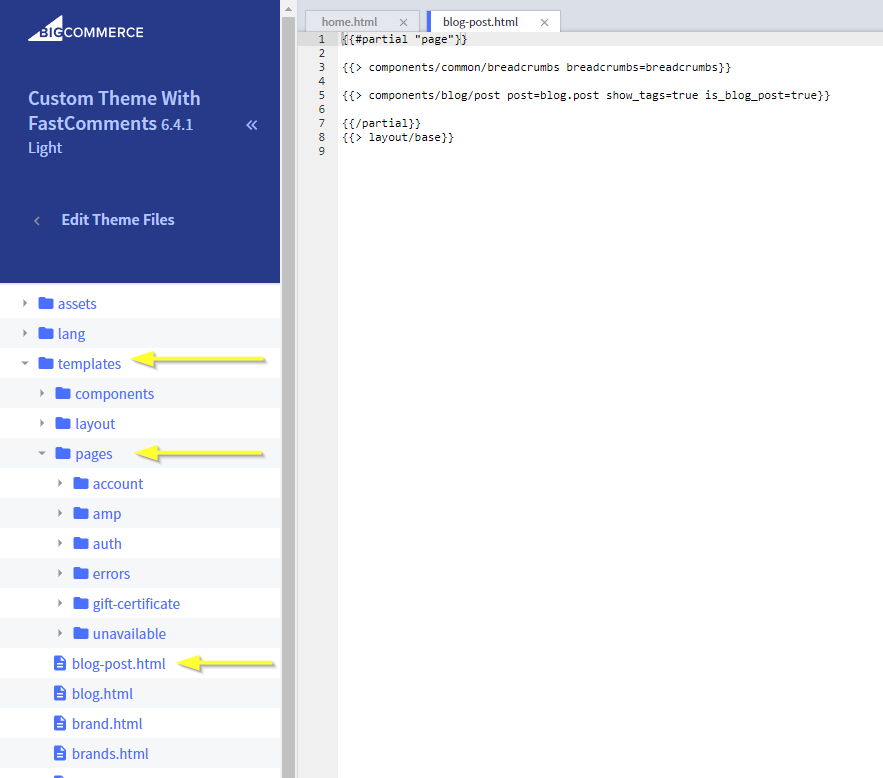
Step Three: Add Widget Code
Next, copy the code we'll be using to install FastComments:

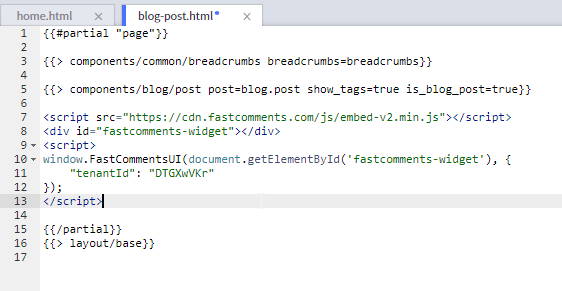
Now we're going to paste the widget code on Line 6. It's important that the code is added before the line with \{{/partial}}.
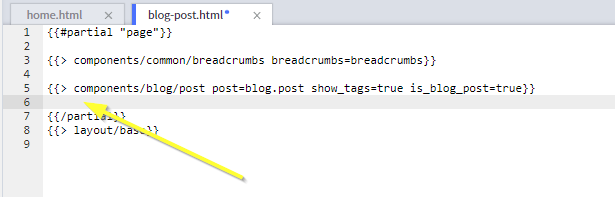
You should end up with something like this:
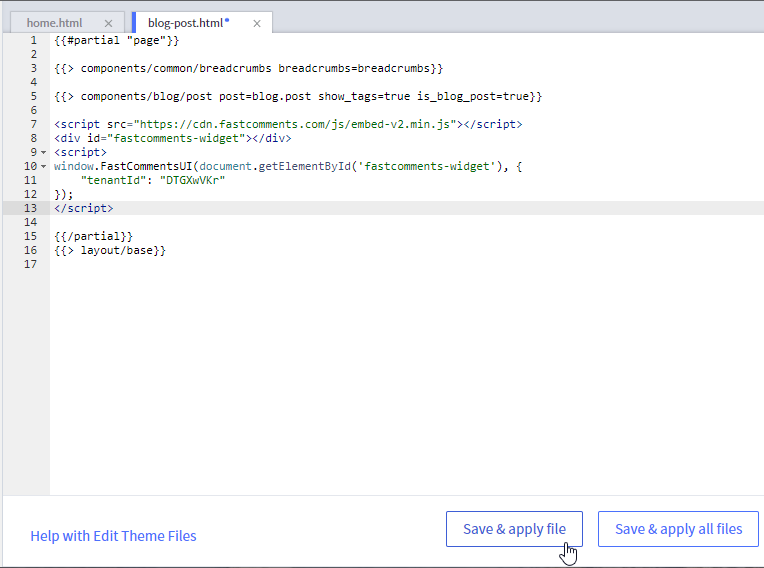
Now save the file:
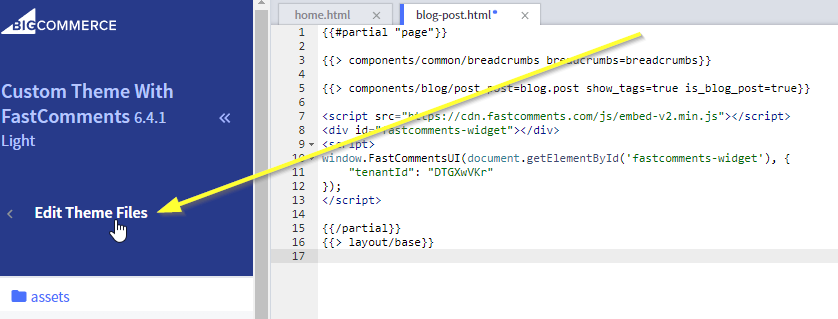
...and exit the editor:
Step Four: Activate New Theme
Our final step is to use the new theme template.
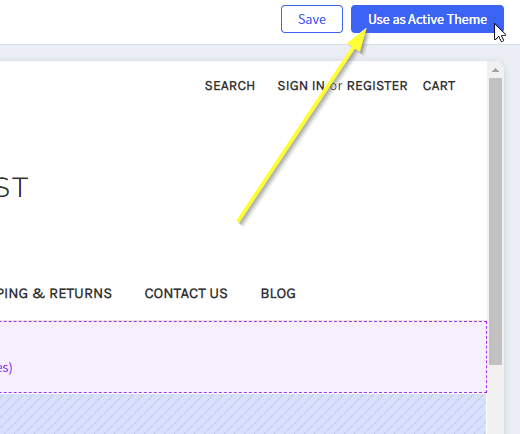
In the top right, you'll now see either Publish or Make Active Theme. Click that to continue and make the changes live:
Now we can check out our site! If you go to a blog post, you should see a comment box at the bottom.
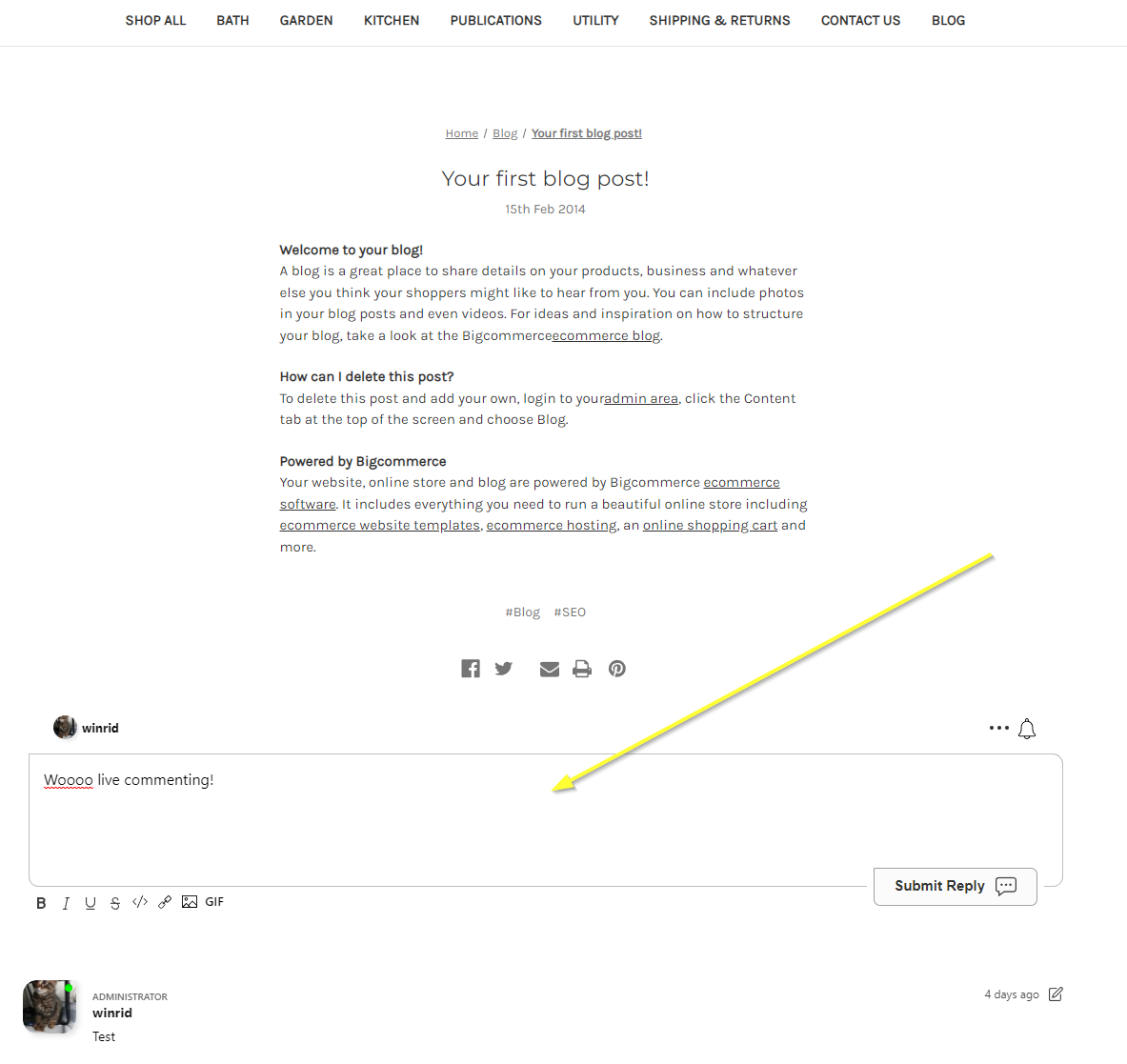
Success
Nice work! You've added live commenting to your BigCommerce site.
If you've run into a permission denied error, or would like to customize FastComments, read on.
Domain Errors
You may receive an authorization error, like the following:

This happens because FastComments doesn't know it should allow your account to be used on this domain.
To fix this, simply add your site to your FastComments.com account.
Go here to add your site to your account.
Customization
FastComments is designed to be customized to match your site.
If you'd like to add custom styling, or tweak configuration, Checkout our Customization Documentation to learn how.
Extra: Code Snippet for the Page Builder
It's not recommended to add FastComments via BigCommerce's Page Builder because the code must be manually added to every desired page.
However, if this is desired, the following code snippet must be used. Code snippets from other tutorials will not work due to the nature of BigCommerce: