
Livechat toevoegen aan ClickFunnels-cursussen
In deze handleiding behandelen we het instellen van FastComments Streaming Chat met een ClickFunnels-cursus. We voegen ook een codefragment toe aan het einde voor Live Commenting als je dat liever wilt gebruiken.
Note that this tutorial is for a Course module but the steps are similar for adding commenting to blog posts and pages (simply edit the corresponding template).
We zullen ook kort behandelen hoe je geautomatiseerde reacties instelt om mensen aan te moedigen om te reageren.
Let op: voor deze handleiding is een FastComments-account vereist. Het wordt aanbevolen dat je je eerst aanmeldt en daarna hier terugkomt. Je kunt hier een account aanmaken.
Stap 1: Vind het sjabloon 
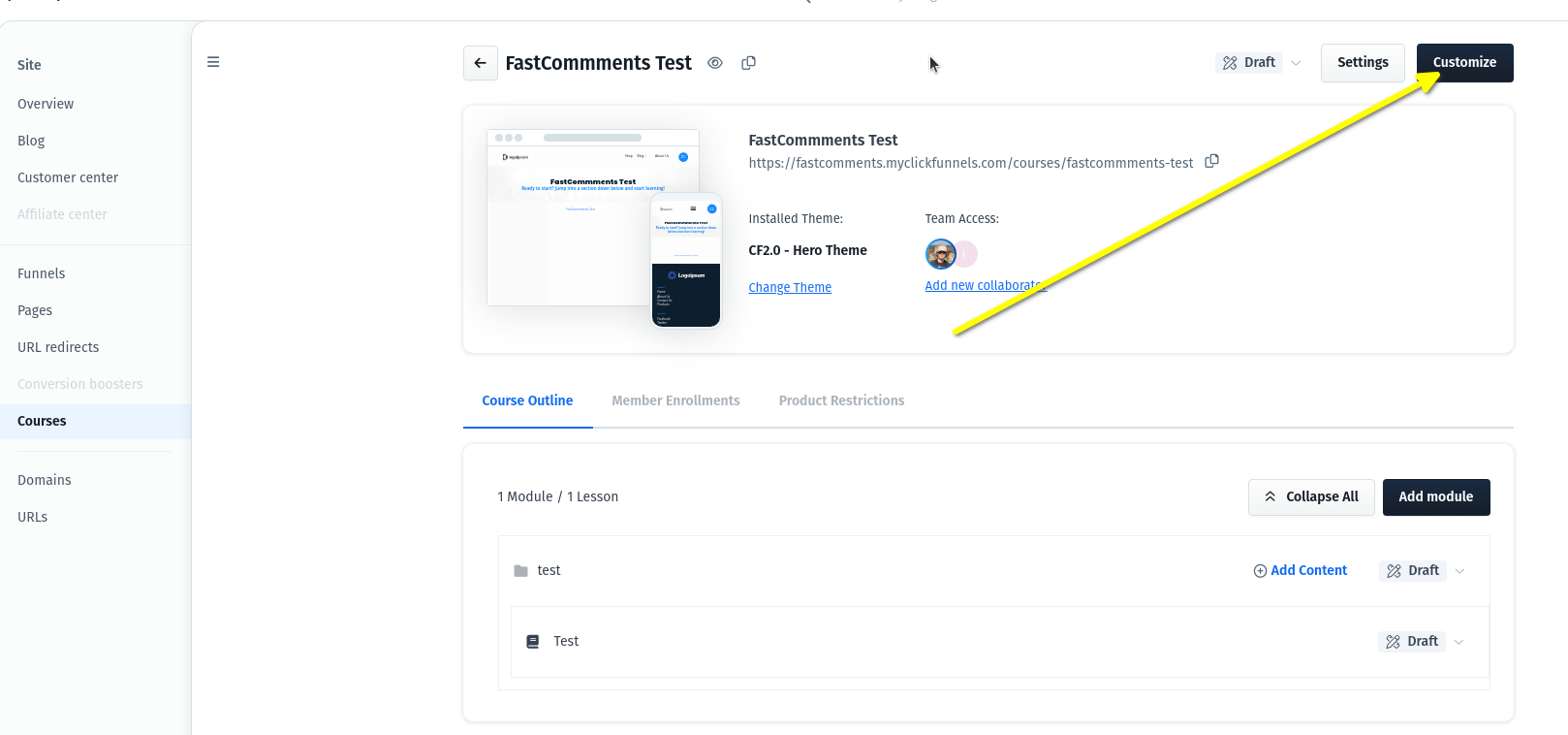
Eerst moeten we de ClickFunnels-sjablooneditor openen. Voor cursussen krijg je hier toegang door de cursus te openen en rechtsboven op Customize te klikken:
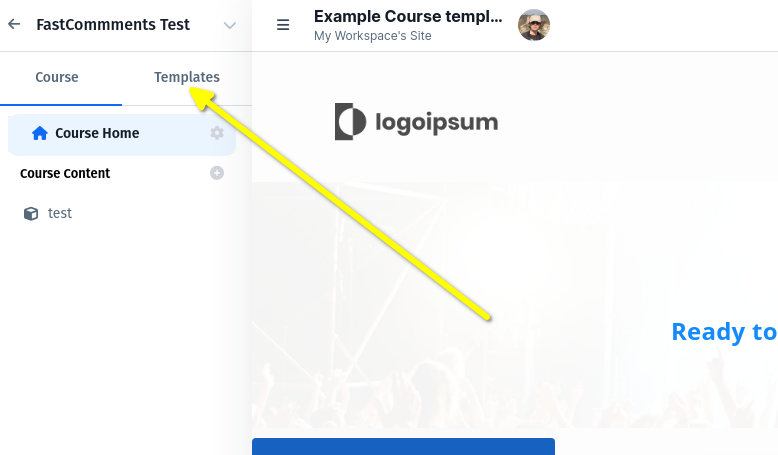
Ga naar Templates:
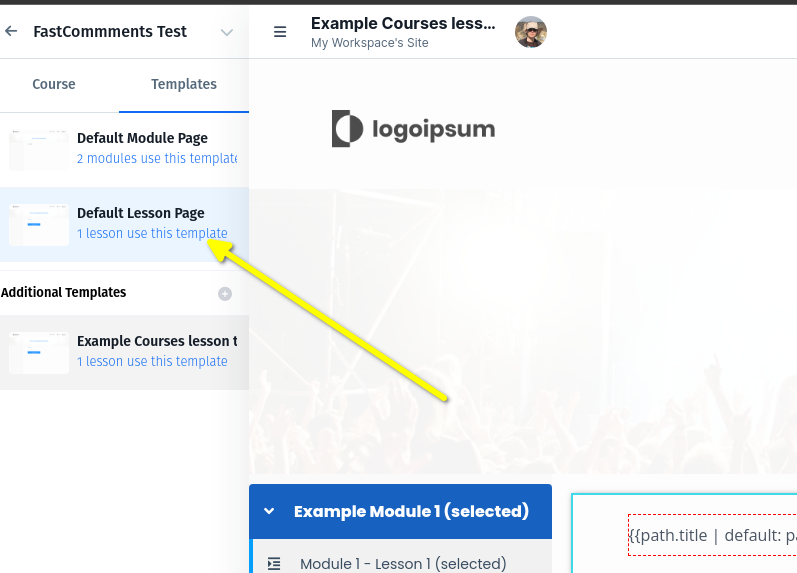
Cursussen bestaan uit verschillende sjablonen. We willen opmerkingen op lessen weergeven, selecteer daarom Default Lesson Page (bijvoorbeeld):
Dat is alles! Nu ben je klaar voor stap twee.
Stap 2: Voeg de code toe
Now that we're in the template editor, we must decide where we want to display the comments, or live chat.
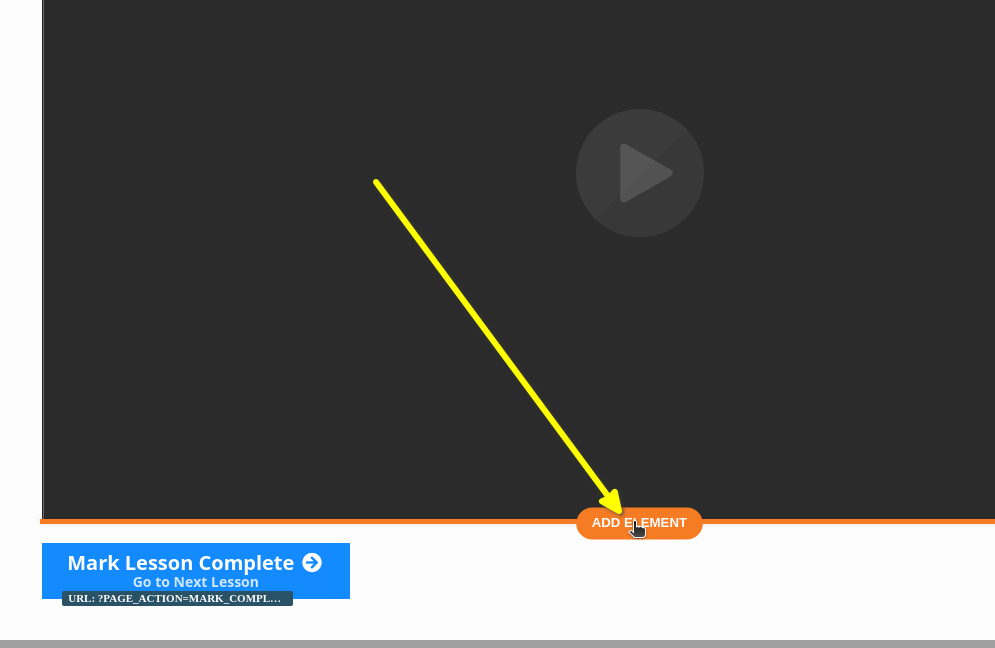
In this example we will add it directly below the video. Hover the element to add the widget to the end of, and click ADD ELEMENT:
Select CUSTOM JS/HTML:
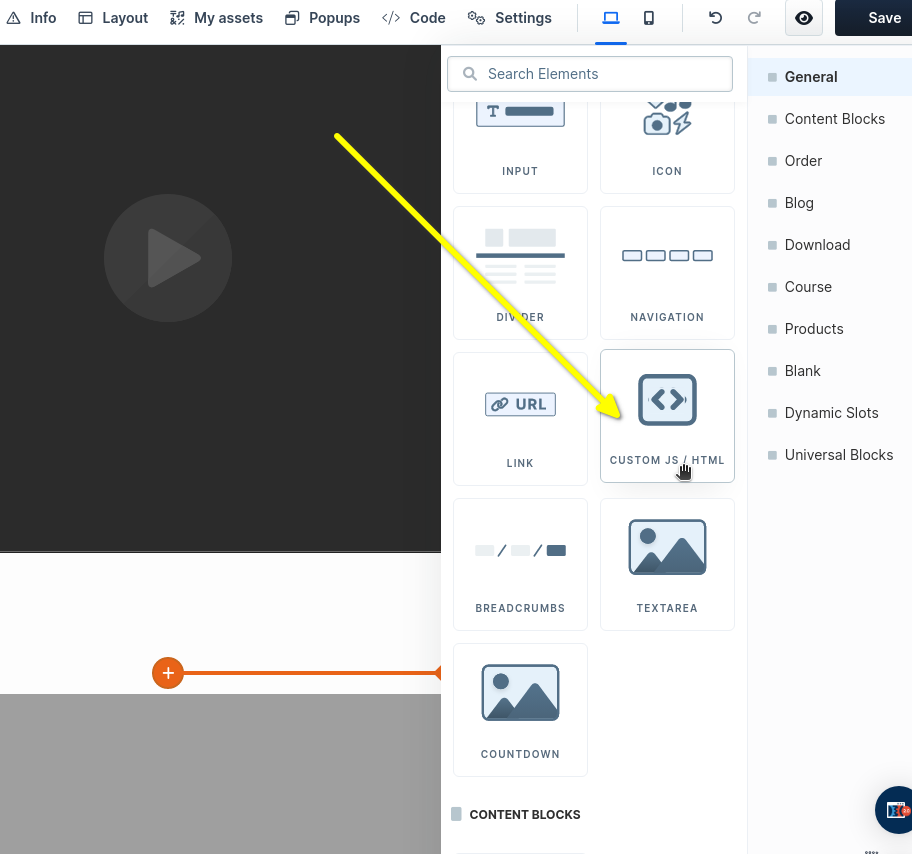
Now let's open the code editor where we'll paste our code.
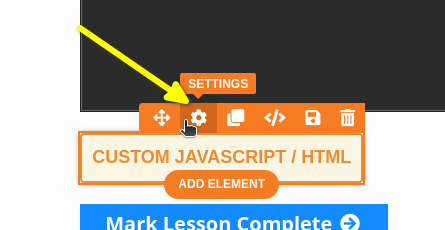
ClickFunnels is a bit confusing on this next step.
It's important that you DO NOT select Code when you hover over the new element. Instead, select SETTINGS:
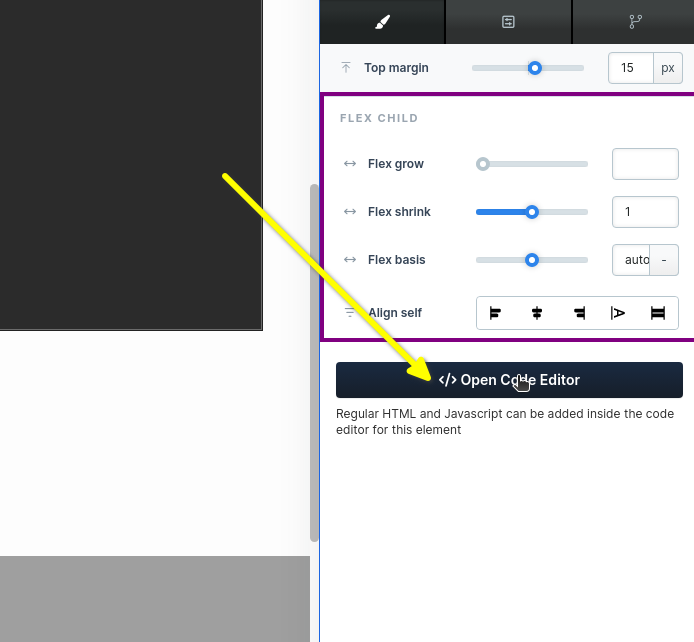
Now on the right hand side we can click Open Code Editor:
You'll see a big square open up. This is where we can paste our code. Copy the following snippet (use the copy button in the top right):

This code snippet is for our Streaming Chat product, which goes well with videos. If you want the Live Commenting widget code snippet instead, which goes best with regular pages or blog posts, it's at the end of this tutorial.
When we paste the code snippet into the window, it should look like this:
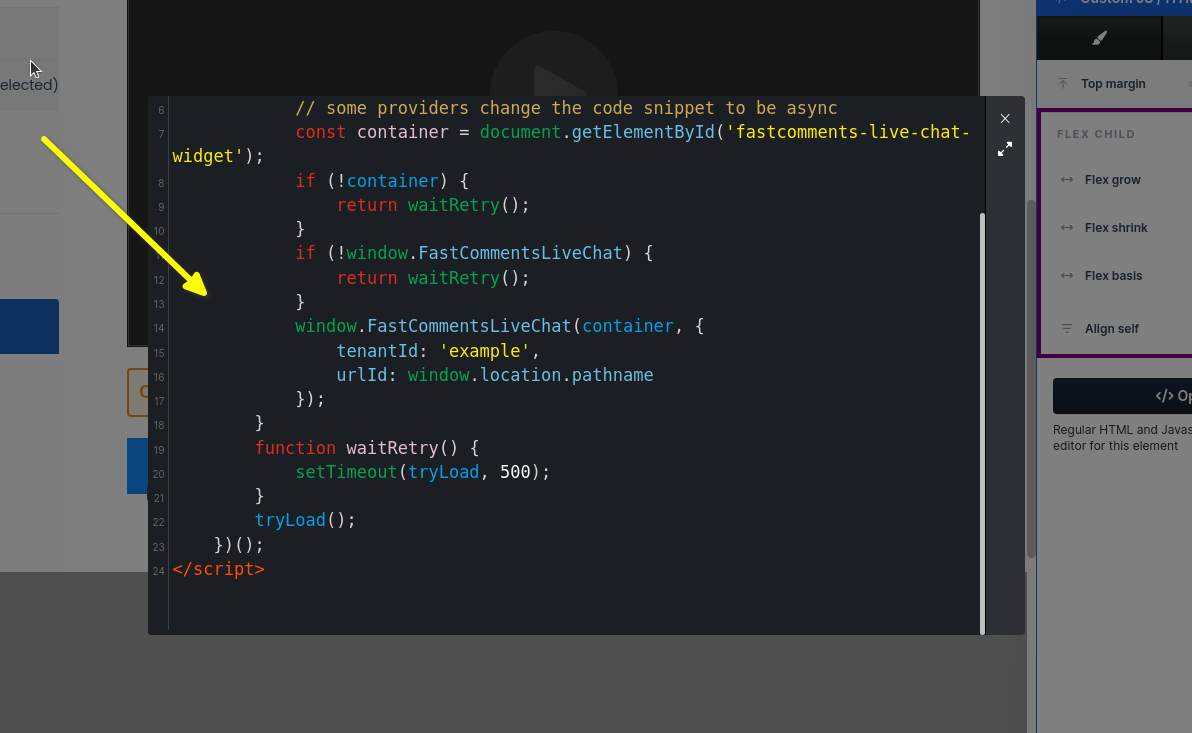
Now we just have to close the box:
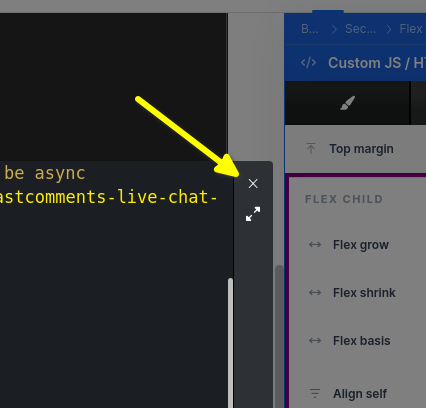
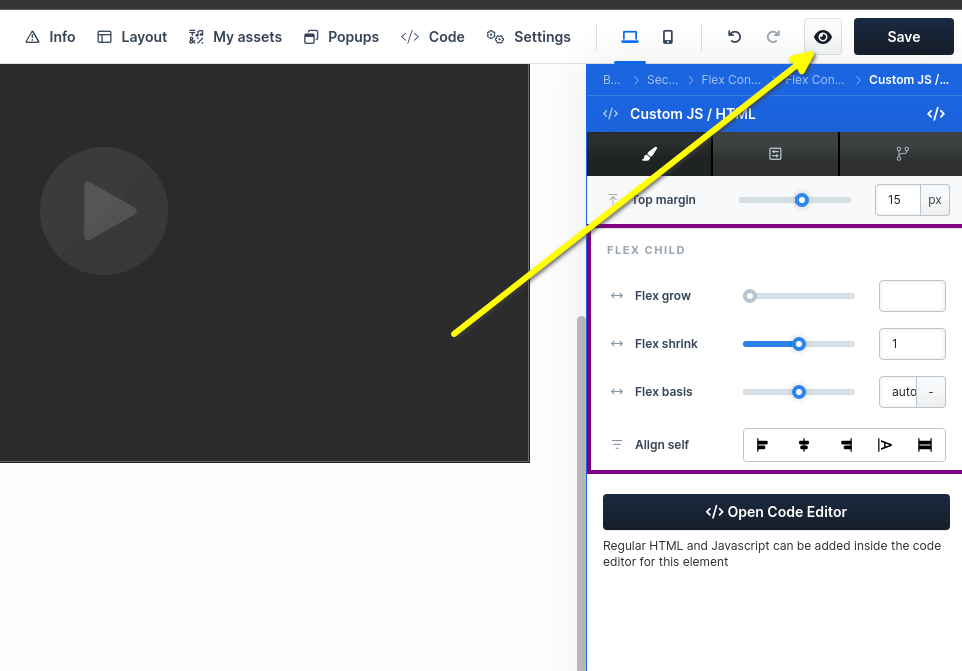
Now you can preview your changes! Feel free to move the widget around and see where you like it best.
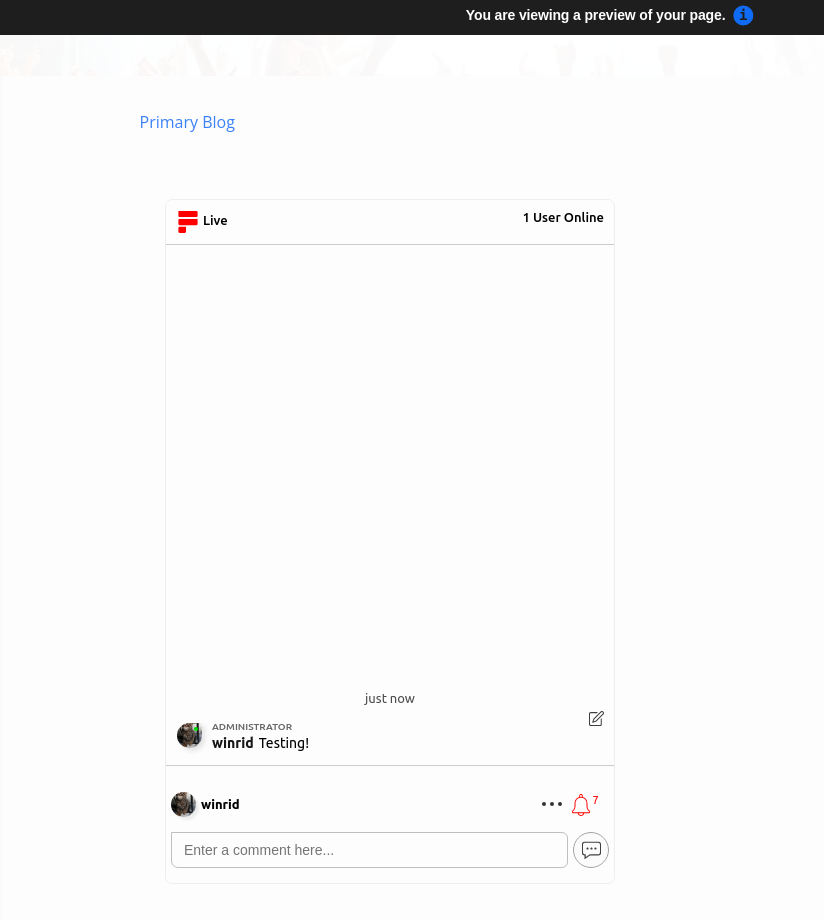
Success! Don't forget to test mobile!
Domeinfouten
U kunt een autorisatiefout krijgen, zoals de volgende:

Dit komt omdat FastComments niet weet dat uw account op dit domein gebruikt mag worden.
In dit geval is de oplossing eenvoudig. U hoeft alleen uw site toe te voegen aan uw FastComments.com-account.
Klik hier om uw site aan uw account toe te voegen.
Aanpassingen
FastComments is ontworpen om aangepast te worden zodat het bij uw site past.
Als u aangepaste styling wilt toevoegen of de configuratie wilt aanpassen, Bekijk onze documentatie over aanpassingen en configuratie om te leren hoe.
Extra: codefragment voor live reacties
Als u op zoek bent naar het ClickFunnels Live Commenting-codefragment, probeer het volgende:
Extra: automatisch afspelen van reacties
FastComments ondersteunt iets dat Auto Play heet. Dit stelt je in staat om een CSV met reacties te importeren en te plannen dat ze worden afgespeeld op bepaalde offsets gebaseerd op uren, minuten en seconden vanaf het moment dat de pagina is geladen.
Het voegt ook automatisch alle geposte reacties terug toe aan het autoplay script, op het juiste tijdstip, zodat je video script met elk webinar groeit zonder handmatig werk.
Dit is momenteel inbegrepen in alle FastComments-abonnementen.
Meer informatie over Geplande reacties vind je hier
Opmerking!
Onthoud dat de URL ID kolom in het CSV-bestand moet overeenkomen met de URL van de cursus/video.