
Add Comments to Moodle Sites
FastComments has a dedicated Moodle plugin that adds live commenting to your courses and activities. SSO is handled automatically - your users can comment with their Moodle accounts without a separate login.
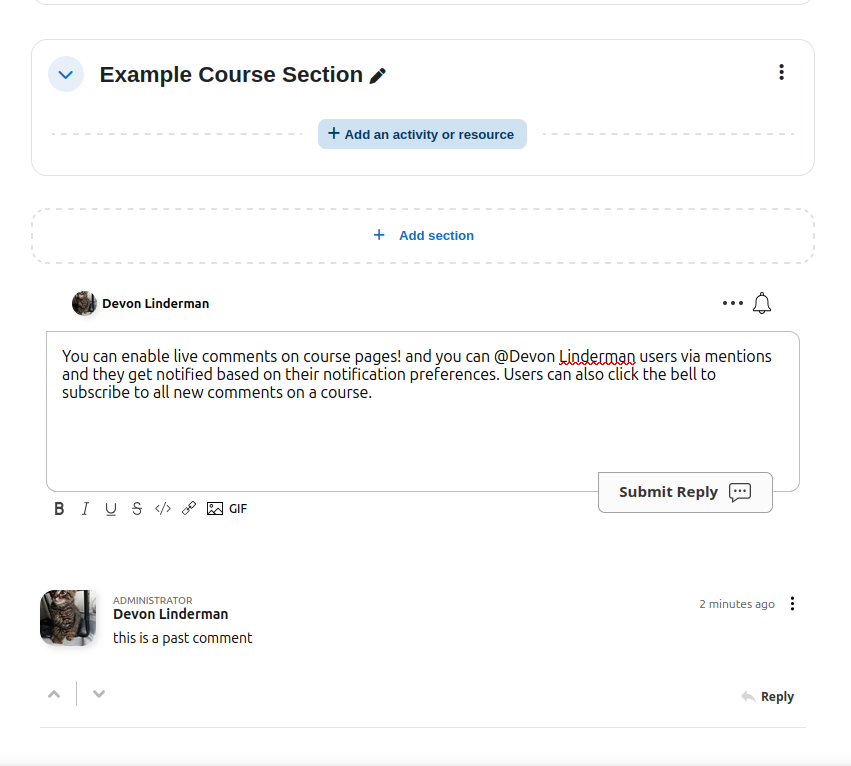
The plugin supports threaded comments, real-time collaborative chat, and multiple SSO modes. Get it from the GitHub repository.
Quick Start 
- Get the plugin from the Moodle Plugin Directory.
- Extract it to
<moodle-root>/local/fastcomments. - Log in as a site admin and visit Site Administration > Notifications. Moodle will detect the plugin and run the install.
- Go to Site Administration > Plugins > Local plugins > FastComments to configure.
- Enter your Tenant ID and API Secret from the FastComments dashboard.
That's it! Comments will appear on your course and activity pages.
Installation
Get the Plugin
Get the plugin from the Moodle Plugin Directory. You can install it directly from within Moodle's plugin installer, or download the ZIP and install manually.
Manual Install: Extract to Your Moodle Directory
If installing manually, extract the ZIP file into your Moodle installation so the plugin resides at <moodle-root>/local/fastcomments. The plugin directory should contain version.php, lib.php, and other plugin files directly (not nested inside a subfolder).
For example:
/var/www/html/moodle/local/fastcomments/version.php
/var/www/html/moodle/local/fastcomments/lib.php
/var/www/html/moodle/local/fastcomments/settings.php
Install via Moodle Admin
Log in as a site administrator and navigate to Site Administration > Notifications. Moodle will detect the new plugin and prompt you to run the installation.
Configure the Plugin
After installation, go to Site Administration > Plugins > Local plugins > FastComments to enter your settings. See the Configuration section for details on each option.
Configuration
The plugin settings page is at Site Administration > Plugins > Local plugins > FastComments. The available options are:
Tenant ID
Your FastComments Tenant ID. Find this in the FastComments dashboard under your account settings.
API Secret
Your API Secret key, required for Secure SSO mode. Find this at My Account > API Secret.
SSO Mode
Choose how users are authenticated. See the SSO Modes section for details on each option.
- Secure (recommended) - server-side HMAC-SHA256 signed authentication
- Simple - client-side user data without signature
- None - anonymous commenting, no Moodle login integration
Page Contexts
Controls where comments appear:
- Course pages - comments on course main pages
- Module/activity pages - comments on individual activities and resources
- Both - comments on all page types
Commenting Style
Choose the commenting experience. See Commenting Styles for screenshots of each mode.
- Comments - standard threaded comment widget below page content
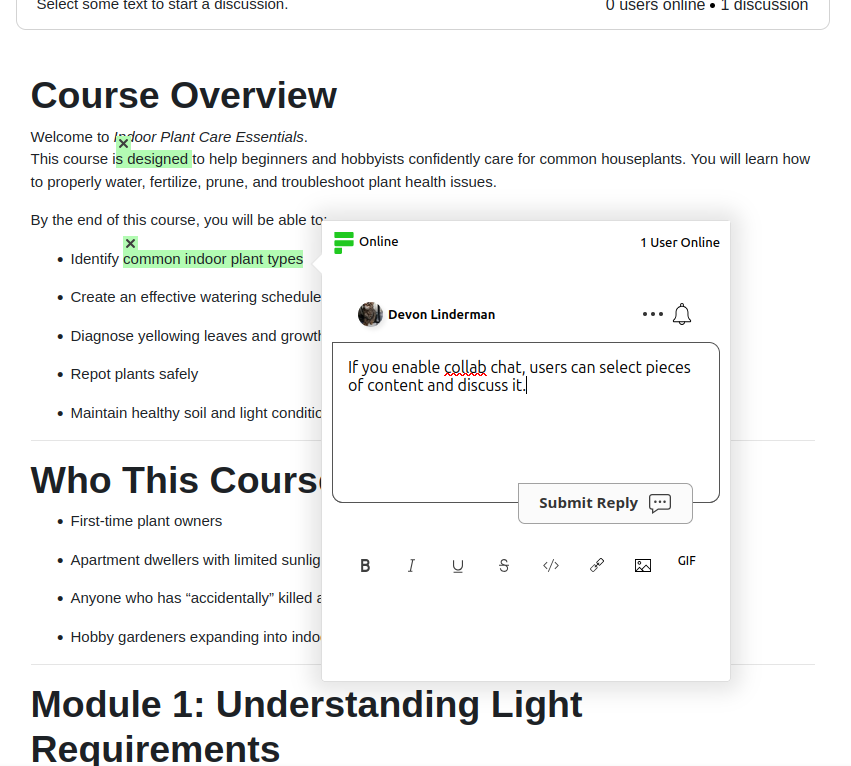
- Collab Chat - inline text selection discussions with presence indicators
- Both - comments and collab chat active together
CDN URL
The FastComments CDN URL. Defaults to https://cdn.fastcomments.com. Change this to the EU CDN URL if your data is hosted in the EU region.
Commenting Styles
The plugin supports three commenting styles. You can configure this in the plugin settings.
Comments
The standard FastComments widget appears below the page content. Users can post threaded comments, reply, vote, and use all standard features.
Collab Chat
With Collab Chat, users select text on the page to start inline discussions. A top bar shows online users and the number of active discussions.
Collab Chat + Comments
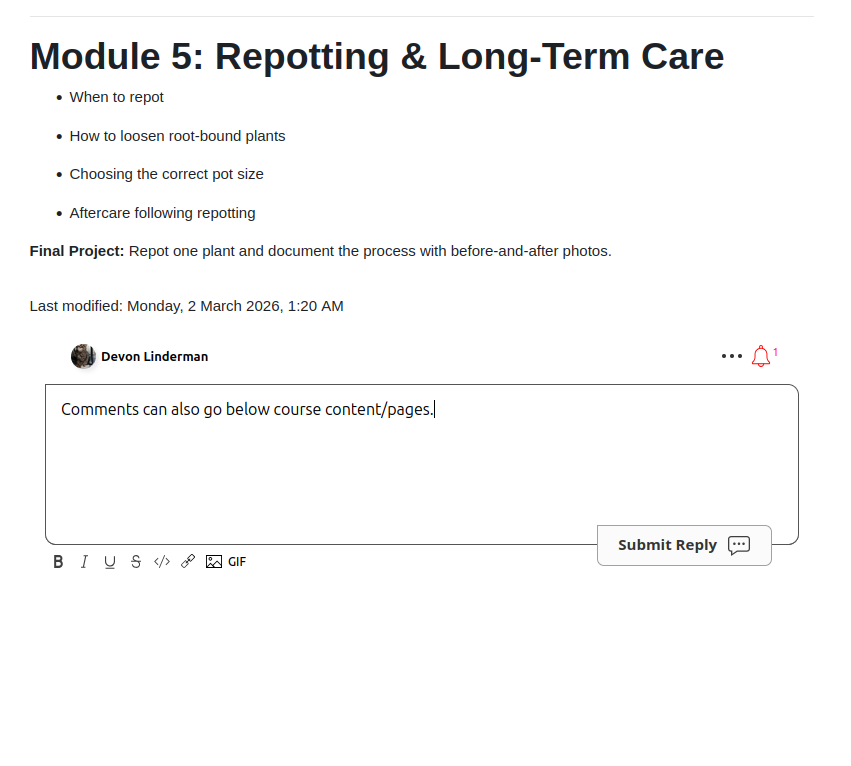
Both modes active together. The comment widget appears below the page content, and users can also select text to start inline discussions.
SSO Modes
The plugin supports three SSO modes for integrating Moodle user accounts with FastComments.
Secure SSO (Recommended)
User data is signed server-side using HMAC-SHA256 with your API Secret. This is the most secure option and is recommended for production use.
With Secure SSO:
- Usernames, email addresses, and avatars are passed securely to FastComments.
- Moodle site administrators are automatically synced as FastComments moderators.
- Users cannot impersonate other accounts.
- Requires the API Secret to be configured in the plugin settings.
Simple SSO
User data (name, email address, avatar) is sent client-side without a cryptographic signature. This is easier to set up since it does not require an API Secret, but it is less secure because user data is not verified server-side.
None
No SSO integration. Users comment anonymously or must log in to FastComments separately. Use this if you do not want Moodle user accounts linked to comments.
User Notification Preferences
The plugin adds a FastComments section to each user's Moodle profile preferences. Users can manage their notification settings without visiting the FastComments website.
Available Preferences
- Reply Notifications - receive notifications when someone replies to their comments.
- Subscription Notifications - receive notifications for threads they are subscribed to.
Users can access these settings from their Moodle profile under the FastComments section.
Customization
FastComments is designed to be customized to match your site.
If you'd like to add custom styling, or tweak configuration, Check out our Customization Documentation to learn how.
Domain Errors
You may get an authorization error, like the following:

This happens because FastComments doesn't know your account is allowed to be used on this domain.
In this case, the fix is simple. You just need to add your site to your FastComments.com account.
Go here to add your site to your account.
Now you should have fast, live commenting added to your site!