
LTI 1.3을 통해 LMS에 댓글 추가하기
FastComments는 IMS LTI 동적 등록 표준을 통해 D2L Brightspace, Moodle, Blackboard Learn, Sakai, Schoology 등 LTI 1.3을 준수하는 모든 LMS와 통합됩니다. LMS의 등록 화면에 붙여넣는 한 개의 URL로 통합 전체: SSO, 과정 컨텍스트, 역할 매핑 및 콘텐츠 배치가 연결됩니다. 서버에 설치할 플러그인이 필요하지 않습니다. (Canvas LMS는 등록 흐름이 다르기 때문에 전용 가이드를 제공합니다.)
등록이 완료되면 FastComments는 과정 내의 학습 도구로 표시됩니다. 학생들은 강의 콘텐츠 옆에서 스레드형 댓글과 협업 채팅을 볼 수 있으며, LMS 계정으로 자동으로 로그인됩니다.
요금 
FastComments LTI 1.3 integration은 추가 비용 없이 Flex 및 Pro 플랜에 포함되어 있습니다.
IMS LTI 1.3 Advantage spec을 지원하는 모든 LMS에서 Dynamic Registration을 포함하여 작동합니다.
빠른 시작
- FastComments에 로그인하고 귀하의 LTI 1.3 구성 페이지로 이동합니다.
- (선택 사항) 연결 중인 플랫폼을 플랫폼 드롭다운에서 선택하세요 - 표시 레이블을 설정하지만, 자동 감지도 잘 작동합니다.
- URL 생성을 클릭하세요. 일회용 등록 URL이 표시됩니다 (30분 동안 유효, 한 번만 사용 가능).
- 귀하의 LMS에서 LTI 1.3 동적 등록 화면을 열고 URL을 도구 시작 등록 엔드포인트 (또는 해당) 필드에 붙여넣습니다. 제출하세요.
- 귀하의 LMS가 FastComments에 콜백을 보내 키를 교환하고 통합을 생성합니다. 완료되면 팝업이 자동으로 닫힙니다.
- FastComments로 돌아가면 새 구성이 기존 구성 표에 나타납니다. 이 도구를 이제 LMS 코스 내에서 사용할 수 있습니다.
지원 플랫폼
FastComments LTI 1.3는 다음 플랫폼에서 테스트되었습니다:
- D2L Brightspace (LTI Advantage를 지원하는 모든 버전)
- Moodle 4.0+ (External Tool 플러그인, LTI Advantage)
- Blackboard Learn (SaaS 및 Ultra)
- Sakai (LTI Advantage를 지원하는 버전)
- Schoology (Enterprise, 가능한 경우 Dynamic Registration)
Dynamic Registration을 사용하는 IMS LTI 1.3 Advantage 사양을 구현한 다른 LMS들도 작동해야 합니다 - 등록 URL을 생성할 때 플랫폼 드롭다운에서 Other LTI 1.3 platform을 선택하세요 (여기에서 가져오세요).
Canvas LMS는 다른 설정 흐름을 사용합니다 (Dynamic Registration 대신 개발자별 키(per-developer-key) 구성 JSON을 사용). 전용 Canvas LMS 설치 가이드를 참조하세요.
등록 URL 생성
LTI 1.3 구성으로 이동
FastComments에 로그인한 다음 LTI 1.3 구성 페이지로 이동합니다.
계정에 아직 LTI 접근 권한이 없으면 "이 계정에 대해 LTI가 활성화되어 있지 않습니다" 메시지가 표시됩니다 - 해당 플랜에 LTI를 활성화하려면 지원팀에 문의하세요.
플랫폼 선택 (선택 사항)
동적 등록 URL 생성 아래에서 플랫폼 드롭다운을 사용하여 연결할 LMS를 FastComments에 알려주세요:
- D2L Brightspace
- Moodle
- Blackboard Learn
- Sakai
- Schoology
- Other LTI 1.3 platform
또는 자동 감지로 둔 상태로 둘 수도 있습니다. 플랫폼 정보는 등록 시 LMS의 openid-configuration에서 읽어오며; 드롭다운은 생성된 구성에 표시될 레이블만 초기값으로 제공합니다.
URL 생성
URL 생성을 클릭합니다. FastComments는 일회성 등록 토큰을 생성하고 다음과 같은 URL을 표시합니다:
https://fastcomments.com/lti/v1p3/register/<long-token>
복사하세요. 이 URL은:
- 단회 사용입니다 - LMS가 성공적으로 호출하면 토큰은 소모됩니다.
- 사용되지 않으면 30분 후에 만료됩니다.
- 비공개로 유지해야 합니다 - 이 URL을 가진 사람은 해당 30분 동안 테넌트에 도구를 등록할 수 있습니다.
기존 구성
등록이 성공적으로 완료되면 새 구성은 동일한 페이지의 기존 구성 테이블에 플랫폼, Issuer, Client ID 및 상태와 함께 표시됩니다. 등록 해제가 필요한 경우 이 테이블에서 구성을 삭제할 수 있습니다.
D2L Brightspace에 등록
D2L Brightspace는 LTI Advantage 관리 인터페이스를 통해 동적 등록(Dynamic Registration)을 제공합니다. 관리자 권한이 필요합니다.
Open the Registration Screen
- Sign in to your Brightspace instance as an admin.
- Navigate to Admin Tools > Manage Extensibility > LTI Advantage.
- Click Register Tool. (The direct URL is
https://<your-brightspace-host>/d2l/le/ltiadvantage/registrations/create.)
Paste the URL
You'll see a registration form. The key field is Tool initiation registration endpoint (some Brightspace versions label it "Tool Initiation Registration URL").
Paste the FastComments registration URL (여기에서 가져오세요) into that field. Leave the other fields blank - they're auto-populated by FastComments during the registration handshake.
Click Register.
Approve the Tool
Brightspace opens a popup that talks to FastComments, exchanges keys, and shows a confirmation screen. The popup closes itself when registration completes.
The new tool appears in your LTI Advantage tool list. By default Brightspace marks new tools as disabled - flip the toggle to enabled so your courses can use it.
Add a Deployment
In Brightspace, LTI tools need a deployment before they can be used in courses:
- Open the newly-registered FastComments tool.
- Click View Deployments > New Deployment.
- Give the deployment a name (e.g. "FastComments - All Courses"), pick the org units it should be available in, and save.
After the first launch through this deployment, FastComments pins the deployment_id to its configuration record - subsequent launches from a different deployment under the same client will be rejected unless you re-register.
Moodle에 등록
Moodle를 사용하고 계신가요? FastComments는 LTI 1.3보다 더 긴밀하게 통합되는 등급 동기화 훅, 더 깊은 활동 보고, 네이티브 Moodle 설정 UI를 제공하는 전용 Moodle 플러그인도 배포합니다. Moodle 플러그인 설치 가이드를 참조하세요. 아래의 LTI 1.3 흐름은 다른 LMS도 포함하는 단일 등록을 원하거나 Moodle 관리자가 타사 플러그인을 설치하지 않을 경우 적합한 선택입니다.
Moodle 4.0+는 External Tool 플러그인을 통해 LTI 1.3 동적 등록을 지원합니다.
도구 관리 화면 열기
- 사이트 관리자 계정으로 Moodle에 로그인합니다.
- 사이트 관리 > 플러그인 > 활동 모듈 > 외부 도구 > 도구 관리로 이동합니다.
URL 붙여넣기
Tool URL이라는 카드가 표시됩니다. 텍스트 필드에 FastComments 등록 URL(여기에서 가져오기)을 붙여넣고 Add LTI Advantage를 클릭합니다.
Moodle은 도구의 식별 정보와 요청된 권한을 보여주는 등록 화면을 엽니다. 검토한 후 활성화(또는 Moodle 버전에 따라 등록)를 클릭하세요.
등록이 완료되면 팝업이 닫히며 새 FastComments 도구가 도구 목록에 활성 상태로 나타납니다.
사용 가능하게 만들기
기본적으로 Moodle은 새 도구를 "강좌 도구" 목록에 추가하지만 활동 선택기에는 표시하지 않습니다. FastComments를 강좌 전체에 노출하려면:
- FastComments 타일에서 톱니바퀴 아이콘을 클릭합니다.
- 도구 구성 사용에서 활동 선택기 및 사전 구성된 도구로 표시를 선택합니다.
- 저장합니다.
이제 강사는 활동 또는 자료 추가 > FastComments를 통해 어떤 강좌든 FastComments를 추가할 수 있습니다.
Blackboard Learn에 등록
Blackboard Learn SaaS 및 Ultra는 LTI 1.3 동적 등록을 지원합니다.
도구 제공자 화면 열기
- 시스템 관리자로 Blackboard에 로그인하세요.
- Administrator Panel > Integrations > LTI Tool Providers로 이동하세요.
- Register LTI 1.3 / LTI Advantage Tool을 클릭하세요.
만약 "Register LTI 1.1 Provider"만 보인다면, 사용 중인 Blackboard 버전은 LTI 1.3을 아직 지원하지 않습니다 — 업그레이드하거나 Blackboard 지원에 문의하세요.
URL 붙여넣기
FastComments 등록 URL (여기에서 가져오기)을 Client ID / Registration URL 필드에 붙여넣으세요 (Blackboard의 표기법은 버전별로 다를 수 있습니다). 제출하세요.
Blackboard가 FastComments와 등록 핸드셰이크를 수행하고 확인 화면을 표시합니다.
승인 및 활성화
Blackboard는 새로 등록된 도구를 기본적으로 Approved but excluded로 표시합니다:
- 도구 제공자 목록에서 FastComments 항목을 찾으세요.
- 메뉴를 열고 Edit를 선택하세요.
- Tool Status를 Approved로 설정하세요.
- Institution Policies에서 전송되는 사용자 데이터(이름, 이메일, 역할)를 검토하세요. 저장하세요.
이제 강사가 코스에 콘텐츠를 추가할 때 해당 도구를 사용할 수 있습니다.
Sakai 또는 Schoology에 등록
Sakai
Sakai는 LTI Advantage가 포함된 릴리스에서 LTI 1.3 동적 등록을 지원합니다. 관리자 워크스페이스에서:
- Sakai 관리자 계정으로 로그인하고 관리자 워크스페이스를 엽니다.
- 외부 도구 > LTI 1.3 도구 설치를 선택합니다.
- FastComments 등록 URL (여기에서 가져오기)을 붙여넣고 제출합니다.
- 핸드셰이크가 완료되면 도구를 승인합니다.
그러면 도구가 외부 도구 아래에 표시되며 해당 사이트의 유지관리자가 사이트에 추가할 수 있습니다.
Schoology
Schoology Enterprise 인스턴스는 LTI 1.3을 지원하지만 동적 등록의 사용 가능 여부는 배포에 따라 다릅니다. Schoology 계정 관리자에게 확인하세요.
동적 등록이 귀하의 Schoology 인스턴스에서 사용 불가능한 경우, 다음 엔드포인트를 사용하여 통합을 수동으로 구성해야 합니다:
- OIDC 로그인 URL:
https://fastcomments.com/lti/v1p3/login - 대상 링크 URL:
https://fastcomments.com/lti/v1p3/launch - 공개 키셋 URL (JWKS):
https://fastcomments.com/lti/v1p3/jwks - 리디렉션 URL:
https://fastcomments.com/lti/v1p3/launch
Schoology가 Client ID 및 Deployment ID를 제공하면, FastComments 지원팀에 연락하여 테넌트에 구성을 등록해 달라고 요청하세요.
Other LTI 1.3 Platforms
IMS LTI 1.3 Advantage 사양을 따르는 모든 LMS는 동일한 등록 URL (여기에서 가져오기)로 작동해야 합니다. "동적 등록", "도구 등록 URL", "도구 시작 등록 엔드포인트" 또는 이와 유사한 레이블이 있는 설정을 찾으십시오.
플랫폼이 수동 LTI 1.3 설정만 지원하는 경우 위 Schoology 섹션에 나열된 네 가지 엔드포인트를 사용하고 최종 구성을 위해 지원팀에 연락하세요.
D2L 코스 콘텐츠에 추가
이 페이지에서는 관리자가 도구를 등록하고 배포(deployment)를 생성한 이후 Brightspace 강좌에 FastComments를 추가하는 방법을 다룹니다. 도구가 아직 등록되지 않았다면 먼저 D2L 등록 가이드를 참조하세요.
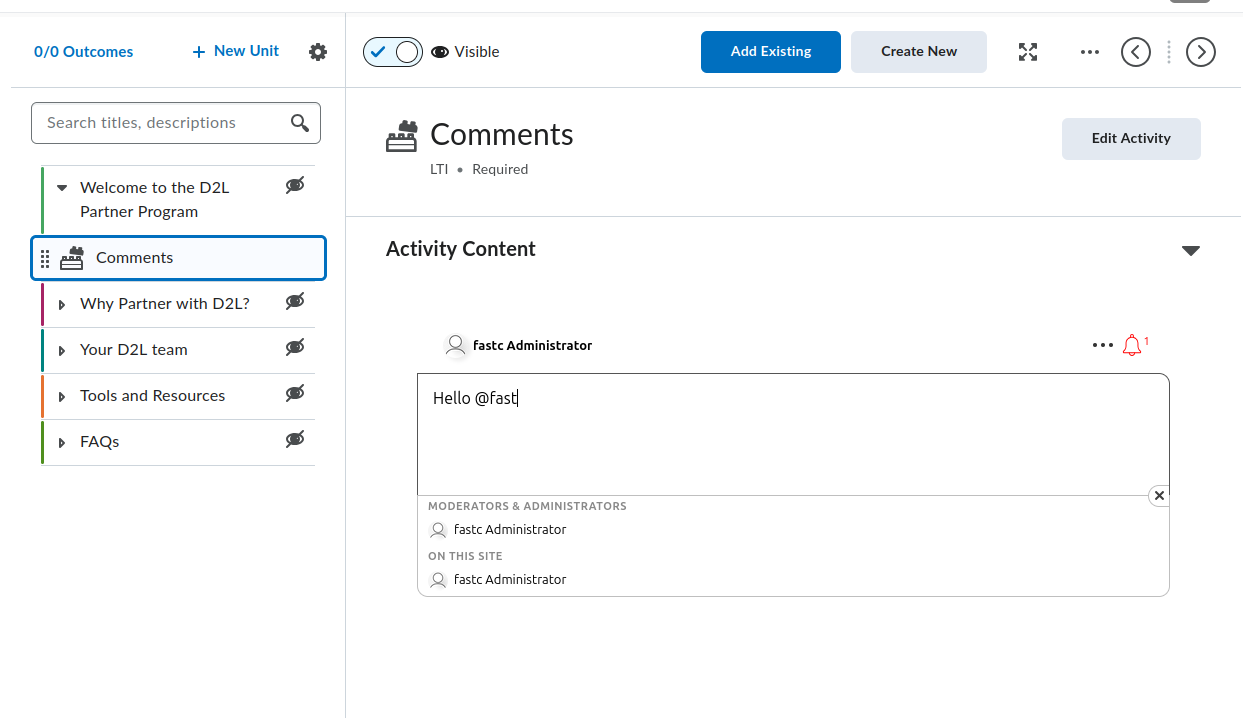
Brightspace는 두 가지 콘텐츠 작성 환경을 제공합니다: Classic Content와 New Content Experience(Lessons라고도 함). 둘 다 FastComments를 노출하지만 메뉴 경로가 다릅니다. 아래 각 섹션은 차이가 있는 부분을 모두 다룹니다.
FastComments 도구 찾기
FastComments 도구는 강좌 콘텐츠 편집기 내에서 두 곳에 나타납니다:
- 모듈/유닛의 Add Existing 버튼(구버전 Brightspace에서는 Add Existing Activities)에서 접근하는 활동 선택기(activity picker). 최신 Brightspace에서는 FastComments가 선택기 목록에 바로 나타나며, 구버전에서는 External Learning Tools 하위메뉴에 중첩되어 있습니다. 어느 경로로든 FastComments를 추가하면 독립적인 토픽으로 생성됩니다.
- HTML 편집기 내의 Insert Stuff 대화상자에서 LTI Advantage 항목. 이는 LTI 딥링크(Deep Linking) 흐름을 통해 HTML 토픽 안에 FastComments를 인라인으로 임베드합니다.
두 선택기 중 어느 쪽에도 FastComments가 보이지 않으면 배포가 해당 강좌를 포함하는 조직 단위(org unit)에 대해 활성화되어 있지 않은 것입니다. Brightspace 관리자에게 요청하여 Admin Tools > Manage Extensibility > LTI Advantage > FastComments tool > View Deployments로 이동해 배포를 열고 Org Units 아래에 강좌의 org unit(또는 상위 org unit)을 추가해 달라고 하세요.
모듈에 FastComments를 토픽으로 추가하기
Classic Content:
- 강좌를 열고 네비게이션 바에서 Content를 클릭합니다.
- 토론을 넣을 모듈을 선택합니다(또는 Add a module로 새 모듈을 만듭니다).
- Add Existing을 클릭합니다(구버전 Brightspace: Add Existing Activities > External Learning Tools).
- 선택기에서 FastComments를 클릭합니다. Brightspace가 모듈에 토픽을 생성하고 콘텐츠 보기로 돌아갑니다.
- 새 토픽을 클릭합니다. 인라인 제목 편집기를 사용하여
FastComments Discussion처럼 설명적인 이름으로 바꿉니다.
New Content Experience (Lessons):
- 강좌를 열고 Content를 클릭합니다.
- 토론을 넣을 유닛과 레슨을 엽니다.
- Add > Existing Activity를 클릭하고 FastComments를 선택합니다(구버전 Brightspace: External Learning Tools 하위에 중첩되어 있음).
- 활동이 레슨에 추가됩니다.
- 활동 제목을 클릭하여 이름을 바꿉니다.
어떤 사용자(강사나 학생이든)가 토픽을 처음 열면 FastComments가 해당 리소스 링크에 대한 스레드를 초기화합니다. 스레드는 리소스 링크 ID에 바인딩되므로 토픽의 이름을 바꾸거나 이동해도 불러오는 스레드는 변경되지 않습니다.
HTML 토픽에 FastComments를 인라인 임베드하기
읽기 자료, 비디오 또는 기타 콘텐츠 아래에 댓글이 동일한 토픽 페이지 안에 나타나길 원할 때 이 흐름을 사용하세요(별도 토픽으로 만들지 않음).
- 모듈/레슨에서 HTML 토픽을 열거나 새로 만듭니다.
- Brightspace HTML 편집기를 열려면 Edit HTML을 클릭합니다.
- 댓글 스레드가 나타나길 원하는 위치에 커서를 둡니다.
- 편집기 툴바의 퍼즐 조각 아이콘인 Insert Stuff 버튼을 클릭합니다.
- Insert Stuff 대화상자에서 LTI Advantage로 스크롤하여 FastComments를 클릭합니다.
- FastComments가 딥링크 선택기를 엽니다. 배치(기본 옵션은 콘텐츠 토론에 적합함)를 확인하고 Insert 또는 Continue를 클릭합니다.
- Brightspace가 플레이스홀더 블록을 포함한 HTML 편집기로 돌아갑니다(이는 LTI 실행을 나타냄). 토픽에서 Save and Close를 클릭합니다.
토픽이 로드될 때 Brightspace는 플레이스홀더를 iframe으로 교체하고 LTI를 통해 FastComments를 자동 실행합니다. 학생들은 인라인으로 토론 스레드를 보게 됩니다.
하나의 HTML 토픽은 여러 개의 딥링크된 FastComments 임베드를 포함할 수 있습니다. 각 임베드는 각기 다른 리소스 링크 ID를 생성하므로 각 임베드는 자체 스레드를 받습니다.
모듈 토픽 대 인라인 퀵링크
다음 경우에는 모듈 토픽 방식을 선택하세요:
- 토론이 해당 모듈 단계의 주요 활동인 경우.
- 토픽이 Brightspace의 목차, 완료 추적 및 Class Progress에 나타나길 원하는 경우.
다음 경우에는 인라인 임베드 방식을 선택하세요:
- 댓글이 동일한 페이지의 다른 콘텐츠 아래에 있어야 하는 경우.
- 목차에 별도의 완료 추적 항목이 나타나면 안 되는 경우.
가시성, 초안(Draft), 공개 조건(Release Conditions)
새 FastComments 토픽은 기본적으로 학생들에게 보입니다. 설정하는 동안 숨기려면:
- 콘텐츠 편집기에서 토픽 제목(클래식) 또는 활동의 점 3개 메뉴(뉴 콘텐츠 경험)를 클릭합니다.
- 상태를 Draft로 설정(클래식)하거나 Visibility를 끕니다(뉴 콘텐츠 경험).
Draft 토픽은 학생에게 보이지 않습니다. 강사와 TA는 "Draft" 배지와 함께 여전히 볼 수 있습니다.
토픽을 특정 그룹이나 섹션으로 제한하려면:
- 토픽을 엽니다.
- 토픽 제목 메뉴 > Edit Properties In-place(클래식) 또는 Edit > Restrictions(뉴 콘텐츠 경험)을 클릭합니다.
- Release Conditions 아래에서 Create를 클릭합니다.
- Group enrollment 또는 Section enrollment를 선택하고 그룹/섹션을 선택한 후 저장합니다.
Release 조건은 FastComments 자체의 역할 매핑과 함께 적용됩니다. 토픽을 볼 수 없는 학생은 LTI 실행도 받지 못합니다.
학생들이 처음 실행할 때 보는 것
학생이 토픽을 클릭하거나 임베드된 HTML 토픽을 로드하면:
- Brightspace가 백그라운드에서 LTI 1.3 런치를 수행합니다.
- FastComments는 학생의 이름, 이메일, 아바타 URL, LMS 역할을 받아 자동으로 로그인시킵니다. FastComments 로그인 프롬프트는 없습니다.
- 해당 리소스 링크의 댓글 스레드가 Brightspace iframe 내에 렌더링됩니다.
런치 시 역할 매핑:
- Brightspace의
Administrator는 스레드에 대한 FastComments의 관리자(admin)가 됩니다(전체 중재, 삭제, 차단 및 구성 접근 권한). - Brightspace의
Instructor는 FastComments의 중재자(moderator)가 됩니다(고정, 숨김, 삭제, 차단). - 그 외 모든 역할(
Learner,TeachingAssistant등)은 일반 댓글 작성자(commenter)가 됩니다.
댓글은 학생의 Brightspace 계정에 귀속됩니다. 학생이 Brightspace에서 이름이나 아바타를 편집하면 다음 LTI 런치에서 변경 사항이 동기화됩니다.
공용 접근 잠금(권장)
기본적으로 FastComments의 댓글 데이터는 공개 읽기 가능(publicly readable)입니다. 스레드의 URL이나 API 엔드포인트를 추측할 수 있는 사람은 Brightspace 외부에서도 댓글을 볼 수 있습니다. 코스 토론의 경우 보통 등록된 학습자만 보도록 제한하는 것이 좋습니다.
귀하의 widget customization page를 열고 Require SSO To View Comments가 활성화된 규칙을 생성한 다음 보안 수준을 Secure SSO로 설정하여 스레드가 서명된 LTI 런치를 통해서만 로드되도록 하세요.
Protecting Comment Threads With Single-Sign-On에서 단일 도메인이나 페이지로 규칙 범위를 한정하는 방법을 포함한 전체 절차를 확인하세요.
iframe 높이 및 리사이즈
FastComments는 모든 스레드 렌더 및 콘텐츠 변경(새 댓글, 답글 확장) 시 org.imsglobal.lti.frameResize postMessage를 발신합니다. Brightspace는 이 메시지를 수신하여 iframe 높이를 조정하므로 스레드가 잘리거나 내부 스크롤바가 표시되지 않습니다.
iframe이 짧은 고정 높이로 남아 있는 경우:
- 코스가 HTTPS로 로드되고 있는지 확인하세요. Brightspace의 postMessage 리스너는 혼합 콘텐츠(mixed-content) 프레임을 거부합니다.
- 브라우저 확장 프로그램이 postMessage 채널을 차단하고 있지 않은지 확인하세요.
- HTML 토픽의 인라인 임베드인 경우, 주변 HTML이 iframe을 고정 높이 컨테이너로 감싸지 않아야 합니다. 상위 요소의
style="height: ..."같은 인라인 스타일을 제거하세요.
Brightspace 관련 주의사항
Add Existing 선택기에 도구가 표시되지 않음. 배포가 해당 강좌의 org unit에 대해 활성화되어 있지 않습니다. 관리자가 배포의 Org Units 목록에 org unit(또는 상위 org unit)을 추가해야 합니다. 도구 등록만으로는 충분하지 않습니다; 배포가 어떤 강좌들이 도구를 보게 될지를 결정합니다.
런치 시 deployment_id 불일치. FastComments는 등록 시 처음 본 deployment_id를 TOFU(Trust On First Use) 방식으로 고정합니다. 관리자가 원래 배포를 삭제하고 새 배포를 만들면 새 배포에서의 런치는 배포 불일치 오류로 거부됩니다. 해결 방법은 FastComments를 다시 등록하는 것입니다(새 등록 URL을 생성하여 (여기에서 가져오기) 동적 등록을 다시 실행하세요); 기존 구성 레코드는 교체됩니다.
툴은 실행되지만 "Invalid LTI launch"가 표시됨. 강좌가 배포가 적용되는 테넌트/조직 구조와 다른 곳에 있거나 배포가 등록 후 비활성화되었을 수 있습니다. Admin Tools > Manage Extensibility > LTI Advantage > FastComments > Enabled 토글과 배포의 org unit 목록을 다시 확인하세요.
FastComments 내부에 이름과 역할이 없음. Brightspace는 Names and Role Provisioning Services(NRPS) 클레임을 포함한 LTI 런치를 제공합니다. 만약 코스가 오래된 LTI 1.1 링크에서 업그레이드된 경우 런치에 name 및 email 클레임이 없을 수 있습니다. FastComments 토픽을 Add Existing로 다시 추가하세요(기존 링크를 마이그레이션하지 마세요). 그래야 런치가 LTI 1.3을 사용합니다.
임베드가 자동 SSO 대신 로그인 화면을 표시함. HTML 토픽이 Insert Stuff > LTI Advantage를 통해 삽입된 것이 아니라 FastComments를 가리키는 일반 <iframe>으로 삽입된 경우입니다. 일반 iframe은 LTI 런치를 건너뛰어 사용자를 공개 FastComments 페이지로 보냅니다. 해당 iframe을 삭제하고 Insert Stuff 흐름을 통해 다시 삽입하세요.
Moodle 코스 콘텐츠에 추가
이 가이드는 사이트 관리자가 도구를 등록하고 활동 선택기에서 표시되도록 설정한 후 Moodle 4.x 코스에 FastComments를 추가하는 방법을 설명합니다. FastComments가 아직 등록되지 않았다면 먼저 Moodle 등록 가이드를 참조하세요.
강좌를 편집 모드로 열기
- 해당 강좌에 대해 편집 권한이 있는 강사(또는 그 이상)로 Moodle에 로그인합니다.
- 강좌를 엽니다.
- 강좌 헤더 오른쪽 상단의 스위치를 사용하여 편집 모드를 켭니다.
Moodle 4.x는 3.x에서 사용하던 레거시 "활동 또는 자원 추가" 드롭다운을 전체 화면 활동 선택기 대화상자로 대체했습니다. Moodle 4.5는 동일한 선택기를 유지하지만 상단에 즐겨찾기/별표 행을 추가하므로 FastComments를 한 번 고정하면 이후 섹션에서 더 빨리 접근할 수 있습니다.
FastComments 활동 추가
- 토론을 배치할 강좌 섹션(주제 또는 주차)으로 스크롤합니다.
- 해당 섹션 하단의 활동 또는 자원 추가를 클릭합니다.
- 선택기 대화상자에서 FastComments를 선택합니다. 보이지 않으면 아래의 주의사항(gotchas) 섹션으로 이동하세요.
활동 설정 폼이 열립니다. 중요한 필드:
- Activity name (필수). 강좌 페이지와 성적부에 표시됩니다. 예:
Week 3 Discussion. - Activity description. 댓글 스레드 위에 렌더링되는 선택적 소개 텍스트입니다.
- Show description on course page. 활동을 클릭하지 않고도 설명을 보이게 하려면 체크하세요.
- Preconfigured tool.
FastComments로 설정합니다(선택기에서 실행하면 자동 선택됨). 변경하지 마세요. - Launch container. New window로 설정합니다. 일부 Moodle 배포판에서 "Same window"가 문제가 되는 이유는 gotchas 섹션을 참조하세요.
- Tool URL, Public key, Shared secret, Custom parameters. 비워 둡니다. 동적 등록(Dynamic Registration)이 사이트 수준에서 이를 처리합니다.
다음으로 스크롤하여 Save and return to course(또는 활동을 바로 열려면 Save and display)를 클릭하세요.
활동은 FastComments 아이콘과 함께 섹션에 행으로 표시됩니다. 학생들은 행을 클릭하여 댓글 스레드를 엽니다.
편집기 내에 FastComments를 인라인으로 삽입
Page, Book 장, Lesson 또는 Atto 또는 TinyMCE 편집기를 사용하는 다른 리소스 안에 스레드를 넣으려면:
- 리소스를 편집 모드로 엽니다.
- 스레드를 배치할 위치에 커서를 둡니다.
- 편집기 툴바에서 LTI / External tool 버튼을 클릭합니다. Atto에서는 "Insert LTI Advantage content"로 표시됩니다. TinyMCE(기본값은 Moodle 4.3+)에서는 More 메뉴 아래의 External tools에 있습니다.
- 도구 목록에서 FastComments를 선택합니다.
- FastComments가 딥링크 선택기를 엽니다. 스레드 제목을 확인하고 Embed를 클릭합니다.
- 편집기는 LTI 자리표시자 블록을 삽입합니다. 리소스를 저장하세요.
각 삽입 인스턴스는 딥링크 콘텐츠 항목 ID를 키로 하는 별개의 스레드이므로, Page에 FastComments 임베드가 세 개 있으면 세 개의 독립된 스레드가 생성됩니다.
접근 제한 및 그룹 설정
표준 Moodle 활동 설정이 FastComments 활동에 적용됩니다:
- Common module settings > Group mode. 이를 Separate groups 또는 Visible groups로 설정해도 FastComments가 자동으로 그룹별 스레드로 분리되지는 않습니다. Moodle의 그룹 모드는 성적부와 구성원 목록을 필터링할 뿐입니다. 그룹별로 별도의 스레드를 운영하려면 그룹마다 하나의 FastComments 활동을 추가하고 Restrict access를 사용하여 각 활동의 범위를 제한하세요.
- Restrict access > Add restriction. 표준 Moodle 조건(Date, Grade, Group, Grouping, User profile, 중첩된 제한 집합)을 지원합니다. FastComments 활동을 단일 그룹에 잠그려면 Group을 사용하세요.
- Activity completion. 완료 추적을 원한다면 Students must view this activity to complete it로 설정하세요. FastComments는 현재 런치 외에는 Moodle에 완료 이벤트를 보고하지 않습니다.
역할 매핑
FastComments는 Moodle이 모든 런치 시 전송하는 LTI roles 클레임을 읽어 다음과 같이 매핑합니다:
- Moodle Manager 또는 Site administrator -> FastComments admin
- Moodle Editing teacher 또는 Non-editing teacher -> FastComments moderator
- Moodle Student -> FastComments commenter
- Moodle Guest -> 읽기 전용
관리자는 모든 댓글을 삭제하고 사용자를 차단하며 스레드 설정을 편집할 수 있습니다. 중재자는 자신이 런치한 스레드 내에서 댓글을 삭제하고 승인할 수 있습니다. 사용자 지정 Moodle 역할은 복제된 원형(archetype)이 상속한 매핑을 따릅니다.
학생들이 보는 것
학생들은 FastComments 활동을 클릭하거나 Page나 Book 안에 삽입된 블록으로 스크롤합니다. Moodle은 LTI 런치를 통해 그들의 정체성을 FastComments로 전송합니다:
- 로그인 화면이 없습니다. FastComments는 Moodle 계정을 사용해 자동으로 로그인시킵니다.
- 표시 이름, 이메일, 아바타는 Moodle에서 가져옵니다.
- 스레드는
(Moodle site, course, resource link ID)로 범위가 지정되므로 동일한 활동을 다른 강좌에 복제하면 새로운 스레드가 생성됩니다. - 스레드형 답글, 투표, 알림은 단독 FastComments 스레드와 동일하게 작동합니다.
공개 접근 제한(권장)
기본적으로 FastComments 댓글 데이터는 공개적으로 읽을 수 있습니다. 스레드의 URL이나 API 엔드포인트를 추측할 수 있는 누구나 Moodle 외부에서도 해당 댓글을 볼 수 있습니다. 강좌 토론의 경우 등록된 학생으로만 보기 권한을 제한하는 것이 거의 항상 필요합니다.
widget customization page를 열고 Require SSO To View Comments가 활성화된 규칙을 생성한 다음 보안 수준을 Secure SSO로 설정하세요. 그러면 서명된 LTI 런치를 통해서만 스레드를 로드할 수 있습니다.
전체 절차(단일 도메인 또는 페이지에 규칙을 범위 지정하는 방법 포함)는 Protecting Comment Threads With Single-Sign-On를 참조하세요.
Moodle 주의사항 (Gotchas)
활동 선택기에 FastComments가 없음. 사이트 관리자가 도구를 등록했지만 Tool configuration usage를 Show in activity chooser and as a preconfigured tool로 설정하지 않았습니다. 이를 수정하려면 Site administration > Plugins > Activity modules > External tool > Manage tools > FastComments 타일의 톱니 아이콘으로 이동하세요.
"Same window"로 설정하면 런치가 실패하거나 빈 프레임이 표시됨. Moodle의 세션 쿠키는 기본적으로 SameSite=Lax를 사용하며 일부 브라우저는 LTI 1.3이 FastComments에서 돌아올 때 사용하는 교차 사이트 POST에서 쿠키를 제거합니다. 활동의 Launch container를 New window로 설정하세요. 편집기에 임베드된 FastComments의 경우 편집기 삽입 런치 경로가 항상 새 창을 팝업하기 때문에 이는 필수 요구사항입니다.
iss 클레임은 테넌트 ID가 아니라 Moodle 사이트 URL입니다. FastComments는 LTI 발급자(issuer)로 Moodle 사이트 URL(wwwroot 구성 값)을 사용합니다. Moodle 인스턴스가 새 도메인으로 이동하거나 wwwroot를 변경하면 기존 FastComments 스레드는 이전 발급자에 연결된 상태로 남아 새 런치와 일치하지 않습니다. 필요하면 새 URL로 도구를 다시 등록하고 FastComments 관리자에서 스레드를 마이그레이션하세요.
활동 백업 및 복원. 코스를 백업하여 새 코스로 복원하면 새로운 리소스 링크 ID가 생성되므로 복원된 FastComments 활동은 빈 스레드로 시작합니다. 원래 강좌는 원래 스레드를 유지합니다. 이는 의도된 동작이며 버그가 아닙니다.
Moodle 4.5의 TinyMCE 기본값. Moodle 4.5는 새 설치에서 TinyMCE를 기본 편집기로 제공합니다. External tool 버튼 위치는 기본 툴바가 아니라 More(...) 메뉴 아래에 있습니다. 4.1에서 업그레이드한 오래된 사이트는 관리자가 기본을 변경하지 않았다면 Atto를 계속 사용합니다.
Blackboard 코스 콘텐츠에 추가
관리자가 FastComments를 LTI 1.3 Advantage 도구로 등록하고 기관 정책을 승인하면, 강사는 표준 Blackboard 배치 지점을 통해 강좌에 추가합니다. 정확한 단계는 Ultra Course View와 Original Course View에 따라 다르므로 아래 두 가지 모두 설명합니다.
Ultra Course View
Ultra Course View는 2026년 현재 Blackboard Learn SaaS의 기본값입니다.
- 강좌를 열고 Course Content 페이지로 이동합니다.
- 개요에서 댓글 스레드를 배치할 위치에 마우스를 올리거나 탭한 다음 보라색 + (콘텐츠 추가) 버튼을 클릭합니다.
- Content Market을 선택합니다. Content Market 패널에는 기관에 승인된 모든 LTI 도구 및 Building Block 배치가 나열됩니다.
- FastComments 타일을 찾아 클릭합니다. Blackboard는 + 메뉴를 연 위치에 콘텐츠 항목을 생성합니다.
- 항목은 기본적으로 개요에 "Visible to students" 항목으로 배치됩니다(개인 기본 설정에서 Hide from students가 꺼져 있는 강사용). 기본값이 Hidden인 경우 항목이 숨김 상태로 생성되며 준비가 되면 항목 행에서 가시성 선택기를 전환합니다.
- 항목의 이름을 바꾸려면 개요에서 제목을 클릭하고 새 레이블을 입력합니다. 학생들이 개요에서 보는 제목은 FastComments 스레드 식별자와 독립적이므로 언제든지 안전하게 이름을 변경할 수 있습니다.
Content Market이 옵션으로 보이지 않으면 기관에서 해당 배치를 숨겼습니다. 동일한 + 메뉴에서 LTI Tools 그룹 아래 More tools를 통해 동일한 선택기를 열 수도 있습니다.
Original Course View
Original Course View는 Learn SaaS에서 여전히 지원되며 Q4 2024 CU 릴리스 라인의 자체 호스팅된 Learn 9.1 사이트에 대한 기본 환경으로 남아 있습니다.
- 강좌를 열고 Content Area에 들어갑니다(예: 강좌 메뉴의 기본 Information 또는 Content 영역).
- 페이지 오른쪽 상단의 토글로 Edit Mode를 켭니다.
- 작업 표시줄에서 Build Content를 클릭합니다.
- Learning Tools 하위 메뉴에서 FastComments를 클릭합니다. Learning Tools 하위 메뉴는 관리자가 도구를 등록한 후 LTI 1.3 도구 배치에서 채워집니다. 보이지 않으면 아래의 문제 해결 섹션을 참조하세요.
- Create FastComments 양식에서 다음을 설정합니다:
- Name: 학생들이 콘텐츠 영역에서 보게 될 레이블.
- Description: 임베드된 스레드 위에 표시되는 선택적 텍스트.
- Permit Users to View this Content: 사용 가능성 토글(예/아니오).
- Track Number of Views: Blackboard의 항목별 조회 통계를 원하면 활성화. FastComments는 자체 분석을 별도로 실행합니다.
- Date and Time Restrictions: 선택적 Display After / Display Until 기간.
- 제출합니다. 도구가 콘텐츠 영역에 클릭 가능한 항목으로 나타납니다.
Embedding Inside an Item or Document
두 강좌 보기 모두에서 강사는 Content Editor의 LTI Advantage 버튼을 통해 Item, Document 또는 모든 리치-텍스트 필드 본문 안에 FastComments를 인라인으로 임베드합니다.
Ultra Course View:
- Document를 생성하거나 편집합니다.
- 스레드를 표시하고 싶은 문서 본문 안에서 Add content를 클릭합니다.
- 편집기 툴바에서 Insert content 메뉴를 열고 Content Market(LTI Advantage / Deep Linking 진입점)을 클릭합니다.
- FastComments를 선택합니다. FastComments는 딥-링크 페이로드를 반환하고 Blackboard는 문서 본문에서 커서 위치에 임베드 블록을 삽입합니다.
- 문서를 저장합니다. 학생들은 스크롤하면서 인라인으로 렌더링된 스레드를 봅니다.
Original Course View:
- 리치-텍스트 본문이 있는 항목을 편집합니다.
- Content Editor 툴바에서 Add Content 더하기 아이콘을 클릭하고 Content Market(오래된 Q4 2024 CU에서는 Add Content from External Tool로 표기됨)을 선택합니다.
- FastComments를 선택합니다. 편집기는 딥-링크된 리소스를 참조하는 플레이스홀더 블록을 삽입합니다.
- 항목을 제출합니다.
각 딥-링크 임베드는 자체 FastComments 스레드를 생성하므로, 하나의 항목에 FastComments 블록이 두 개 임베드되어 있으면 서로 독립적인 두 개의 댓글 스트림이 생성됩니다.
Visibility, Release Conditions, and Group Restrictions
FastComments 콘텐츠 항목은 그 위에 적용되는 액세스 제어 규칙에 대해 다른 Blackboard 콘텐츠 항목과 동일하게 동작합니다.
- Ultra: 행의 가시성 선택기(Visible to students, Hidden from students, Conditional availability)를 클릭합니다. Conditional availability는 날짜/시간 창, 성적 장부 항목에 대한 성과 규칙, 강좌 그룹에 대한 구성원 규칙을 지원합니다.
- Original: 항목의 컨텍스트 메뉴를 열고 Adaptive Release 또는 Adaptive Release: Advanced를 선택하여 날짜, 구성원, 성적 또는 검토 상태로 도구를 제한합니다. 항목에서 Set Group Availability를 사용하여 특정 강좌 그룹으로 제한합니다.
FastComments는 Blackboard의 게이트가 결정한 것을 존중합니다. Blackboard가 학생에게 항목을 숨기면 해당 학생에 대해서는 LTI 런치가 절대 발생하지 않으며 해당 학생은 중재자 보기에도 나타나지 않습니다.
Gradebook Behavior
FastComments는 LTI Advantage Assignment and Grade Services를 통해 성적을 보고하지 않습니다. FastComments 콘텐츠 항목에 대해 자동으로 성적 열이 생성되지 않습니다.
만약 Blackboard 테넌트가 채점 메타데이터와 관계없이 새 콘텐츠 항목마다 성적 장부 열을 자동 생성하도록 구성되어 있으면, 빈 열이 그래도 나타납니다. 숨기려면:
- Ultra: Gradebook을 열고 열 머리글을 클릭한 다음 Edit를 선택하고 Show to students 및 Include in calculations를 끕니다. 또는 기관에서 미채점 항목에 대한 열 삭제를 허용하면 Delete를 사용합니다.
- Original: Grade Center를 열고 열의 쉐브론을 클릭한 다음 **Hide from Users (on/off)**를 선택하고 선택적으로 Column Organization에서 Hide from Instructor View를 설정합니다.
What Students See
학생이 FastComments 항목을 열거나 임베드된 블록으로 스크롤하면:
- Blackboard가 FastComments로 LTI 1.3 메시지를 런치합니다. 학생은 Blackboard 신원(이름, 이메일, 아바타, 역할)을 사용한 SSO로 로그인되며 로그인 폼을 보지 않습니다.
- 댓글 스레드가 iframe에 렌더링됩니다. 스레딩, 답글, 멘션, 리액션은 모두 FastComments의 댓글 위젯 설정에 따라 사용할 수 있습니다.
- 학생의 댓글은 Blackboard 계정에 귀속됩니다. 학생이 나중에 Blackboard에서 이름이나 사진을 수정하면 다음 런치 시 FastComments 프로필이 업데이트됩니다.
Blackboard에서 FastComments로의 역할 매핑:
- System Administrator 및 Course Builder는 FastComments의 admin으로 매핑됩니다.
- Instructor 및 Teaching Assistant는 FastComments의 moderator로 매핑됩니다.
- Student, Guest, 및 Observer는 FastComments의 commenter로 매핑됩니다.
중재자는 스레드의 모든 댓글에 대해 인라인으로 중재 제어(고정, 숨기기, 차단, 삭제)를 봅니다.
Lock Down Public Access (Recommended)
기본적으로 FastComments 댓글 데이터는 공개적으로 읽을 수 있습니다. 스레드의 URL이나 API 엔드포인트를 추측할 수 있는 사람은 Blackboard 외부에서도 댓글을 볼 수 있습니다. 강좌 토론의 경우 거의 확실히 수강생으로만 보기 권한을 제한하고 싶을 것입니다.
위젯 사용자화 페이지를 열고 Require SSO To View Comments가 활성화된 규칙을 생성한 다음 보안 수준을 Secure SSO로 설정하여 스레드가 서명된 LTI 런치를 통해서만 로드되도록 합니다.
도메인 또는 페이지 하나로 규칙의 범위를 지정하는 방법을 포함한 전체 안내는 Protecting Comment Threads With Single-Sign-On를 참조하세요.
Thread Scoping
FastComments는 각 스레드를 **(Blackboard host, course ID, resource link ID)**로 범위 지정합니다. 동일한 강좌에서 두 개의 FastComments 항목은 두 개의 스레드를 생성합니다. 동일한 항목을 두 개의 강좌 쉘에 복사하면(예: 강좌 복사를 통해) 두 개의 스레드가 생성되는데, 이는 복사 과정에서 Blackboard가 새 리소스 링크 ID를 발행하기 때문입니다. 강좌 복사 간에 공유 스레드를 유지하려면, 복사하기 전에 FastComments에서 명시적 스레드 URN을 구성한 상태로 Deep Linking을 사용하세요.
Blackboard-Specific Gotchas
FastComments 타일이 Build Content 메뉴(Original) 또는 Content Market(Ultra)에 없음. 관리자가 도구를 승인했지만 관련 배치를 차단하는 기관 정책을 남겨둔 것입니다. Administrator Panel > Integrations > LTI Tool Providers로 이동하여 FastComments 항목을 편집하고 Course Content Tool(Original) 및 Course Content Tool - allow students / Deep Linking content tool(Ultra) 배치가 모두 활성화되어 있는지 확인하세요. 저장한 뒤 강좌 페이지를 새로고침합니다.
런치 시 "Tool not configured for this context" 또는 "Tool is not deployed" 오류. 동적 등록 중에 등록된 배포 범위가 강좌가 속한 기관 컨텍스트와 일치하지 않습니다. Blackboard의 도구 제공자 항목에서 Deployment ID가 이 테넌트에 대한 FastComments의 LTI 1.3 Configuration 페이지에 표시된 것과 일치하는지 확인하세요. 다르다면 배치를 삭제하고 새 등록 URL(여기에서 가져오기)로 동적 등록을 다시 실행하세요.
Iframe 높이가 고정되어 보이거나 콘텐츠가 잘림. 일부 Blackboard 테넌트는 기본 LTI iframe-resize postMessage를 차단하는 엄격한 Content Security Policy를 적용하여 이 문제가 발생합니다. FastComments는 호환성을 극대화하기 위해 Canvas 스타일의 lti.frameResize 메시지와 IMS 사양 형식의 org.imsglobal.lti.frameResize 메시지를 모두 전송하지만, 테넌트 수준의 CSP 오버라이드가 부모 리스너를 차단할 수 있습니다. 관리자에게 *.fastcomments.com이 LTI 도구 허용 목록에 포함되어 있는지, 그리고 사용자 정의 CSP 헤더가 postMessage 이벤트를 제거하고 있지 않은지 확인해 달라고 요청하세요. 그러면 추가 구성 없이 크기 조정이 작동합니다.
강좌 복사는 스레드를 복제함. Blackboard 강좌 복사는 LTI 배치에 대해 새 리소스 링크 ID를 발행하므로 복사된 강좌는 빈 스레드로 시작합니다. 이는 예상된 동작입니다. 복사된 강좌가 원본 스레드를 상속해야 하면, 복사 전에 명시적 스레드 URN으로 Deep Linking을 설정하거나 FastComments 지원팀에 연락하여 대량으로 스레드 ID를 재매핑해 달라고 요청하세요.
학생이 런치 시 일반적인 Blackboard 오류를 봄. 원인은 누락되었거나 오래된 email 클레임입니다. FastComments에 대한 기관 정책에서 User Fields to Send 아래에 Role, Name, Email Address가 활성화되어 있는지 확인하세요. 저장한 다음 새 브라우저 세션에서 다시 런치합니다.
Sakai 또는 Schoology 코스 콘텐츠에 추가
FastComments가 플랫폼에 등록되면 강사는 플랫폼의 표준 외부 도구 흐름을 사용하여 강좌 콘텐츠에 추가합니다. 이 페이지는 Sakai 23.x 및 Schoology Enterprise를 다룹니다.
공개 액세스 차단 (권장)
기본적으로 FastComments의 댓글 데이터는 두 플랫폼 모두에서 공개적으로 읽을 수 있습니다. 스레드의 URL이나 API 엔드포인트를 추측할 수 있는 사람은 Sakai 또는 Schoology 외부에서도 해당 스레드의 댓글을 볼 수 있습니다. 강좌 토론의 경우 수강 등록된 학생만 보도록 보기 권한을 제한하는 것이 거의 확실히 필요합니다.
위젯 사용자화 페이지를 열고 Require SSO To View Comments가 활성화된 규칙을 생성한 다음 보안 수준을 Secure SSO로 설정하여 서명된 LTI 런치를 통해서만 스레드를 로드할 수 있게 하세요.
전체 워크스루(특정 도메인 또는 페이지로 규칙 범위를 제한하는 방법 포함)는 Protecting Comment Threads With Single-Sign-On를 참조하세요.
Sakai
1. 사이트에 FastComments 추가
사이트 유지 관리자가 사이트별로 도구를 활성화합니다:
- 사이트를 열고 왼쪽 네비게이션에서 Site Info를 클릭합니다.
- Manage Tools를 클릭합니다.
- External Tools 목록으로 스크롤하여 FastComments를 토글하여 켭니다.
- Continue를 클릭하고 도구 목록을 검토한 다음 Finish를 클릭합니다.
이제 FastComments가 사이트의 왼쪽 네비게이션 항목으로 표시됩니다.
2. 왼쪽 네비게이션 항목 순서 변경
Site Info > Tool Order로 이동합니다. FastComments를 원하는 위치로 드래그한 다음 Save를 클릭합니다. 이 화면에서 네비게이션 레이블을 변경하거나 학생에게 보이지 않도록 숨길 수도 있습니다.
3. Lessons 페이지에 인라인으로 임베드
FastComments를 별도의 왼쪽 네비게이션 도구로 두지 않고 Lessons 페이지 내에 직접 배치하려면:
- 사이트에서 Lessons 도구를 엽니다.
- Add Content > Add External Tool을 클릭합니다.
- 목록에서 FastComments를 선택합니다.
- 등록 중 FastComments가 Deep Linking을 광고했다면 Sakai는 도구의 콘텐츠 선택기를 열어 스레드를 선택하거나 라벨을 지정할 수 있게 합니다. Deep Linking이 광고되지 않았다면 Sakai는 기본 런치 링크를 삽입합니다.
- Lessons 항목을 저장합니다.
각 임베드 인스턴스는 해당 리소스 링크에 범위가 지정된 자체 스레드를 가집니다.
4. 학생 액세스를 위한 권한 조정
Sakai는 Realms를 통해 외부 도구 런치를 제어합니다. 학생이 FastComments를 런치할 수 있는지 확인하려면:
- Sakai 관리자 계정으로 로그인하고 Administration Workspace > Realms를 엽니다.
- 해당 realm을 엽니다(예:
!site.template.course또는 특정 사이트 realm). access역할에lti.launch가 활성화되어 있고 external.tools 그룹의 역할 권한이 부여되어 있는지 확인합니다.- realm을 저장합니다.
사이트 수준 재정의의 경우, 유지 관리자는 Site Info > Tool Order에서 역할별로 FastComments의 가시성을 숨기거나 표시하여 조정할 수 있습니다.
5. 학생이 보는 것
학생은 FastComments 왼쪽 네비 항목을 클릭하거나(또는 임베드된 Lessons 블록으로 스크롤하여) 스레드형 댓글 뷰로 바로 이동합니다. SSO는 자동으로 처리됩니다: Sakai는 LTI 런치에서 사용자의 신원을 전송하고 FastComments는 해당 Sakai 계정으로 사용자를 로그인시킵니다.
역할 매핑:
- Sakai
Instructor-> FastComments 모더레이터 - Sakai
Admin(Administration Workspace의 admin) -> FastComments 관리자 - Sakai
Student/access-> FastComments 댓글 작성자
6. Sakai 유의사항
- Manage Tools에 도구가 보이지 않음. FastComments가 External Tools 목록에 표시되지 않으면 Sakai 관리자가 도구 레지스트리(Administration Workspace > External Tools > FastComments)를 열고 Stealthed를
false로 설정해야 합니다. Stealthed된 도구는 사이트별 Manage Tools 선택기에서 숨겨집니다. - 공유 세션 브라우저에서 런치가 실패함. Sakai의 포털 CSRF 토큰은 브라우저 세션에 바인딩됩니다. 학생이 다른 탭에서 두 개의 Sakai 사이트에 로그인되어 있거나 세션이 오래된 경우 런치가 403을 반환할 수 있습니다. 해결 방법: 다른 Sakai 탭을 닫고 로그아웃한 다음 다시 로그인하고 런치하세요. 클러스터 전반에서 이런 문제가 발생하면 관리자가
sakai.csrf.token.cache.ttl을 높일 수 있습니다. - 프레임 임베딩. 댓글 스레드가 Lessons 페이지 내에서 잘리지 않도록
sakai.properties에서lti.frameheight가 충분히 큰지(600 이상 권장) 확인하세요.
Schoology
Schoology Enterprise는 두 가지 설치 시나리오가 있습니다. 도구를 강좌에 추가하기 전에 어느 시나리오에 해당하는지 확인하세요.
1. 두 가지 설치 시나리오
- (a) 엔터프라이즈 수준 설치. Schoology 시스템 관리자가 조직 수준에서 FastComments를 설치하고 모든 강좌 또는 특정 강좌 템플릿에 할당했습니다. 강사는 설치를 건너뛰고 "Add Materials"로 바로 이동합니다.
- (b) 강사 자체 설치. 강사가 Course Options > External Tools > Install LTI Apps에서 도구를 단일 강좌에 설치합니다. 자체 설치는 시스템 관리자가 먼저 조직 수준에서 FastComments 앱을 승인했어야 합니다.
2. FastComments를 강좌 자료로 추가
강좌 내에서:
- 강좌를 열고 Materials로 이동합니다.
- Add Materials > Add File/Link/External Tool을 클릭합니다.
- External Tool을 선택합니다.
- 등록된 도구 목록에서 FastComments를 선택합니다.
- Name을 설정합니다(학생이 자료 목록에서 보게 되는 이름) 및 선택적 Description을 입력합니다.
- Enable Grading(성적 전달)은 OFF로 유지합니다. FastComments는 Schoology로 성적을 보고하지 않으므로 성적 전달을 켜면 빈 성적표 열이 생성됩니다.
- Submit을 클릭합니다.
이제 자료가 강좌 자료 목록에 표시되며 클릭하면 FastComments 스레드가 열립니다.
3. 리치 텍스트 편집기를 통한 인라인 임베드
시스템 관리자가 등록 중 FastComments에 대해 Deep Linking 배치를 활성화한 경우, 강사는 리치 텍스트 필드(과제 지시문, 페이지 본문, 토론 프롬프트 등) 안에 댓글 스레드를 임베드할 수 있습니다:
- 대상 페이지에서 리치 텍스트 편집기를 엽니다.
- 툴바에서 External Tool(퍼즐 조각) 아이콘을 클릭합니다.
- FastComments를 선택합니다.
- 딥링크 대화상자에서 임베드를 구성하고 Insert를 클릭합니다.
- 페이지를 저장합니다.
리치 텍스트 편집기에 External Tool 버튼이 나타나지 않으면 해당 테넌트에서 이 도구의 Deep Linking이 비활성화된 것입니다. 아래의 유의사항을 참조하세요.
4. 가시성 및 섹션 할당
Schoology는 Course Options를 통해 섹션별로 도구 가용성을 범위 지정합니다:
- 강좌에서 Course Options > External Tools를 클릭합니다.
- 설치된 각 LTI 앱에 대해 강좌의 모든 섹션에 사용 가능할지 또는 특정 섹션에만 사용할지 제어합니다.
- FastComments를 특정 섹션으로 제한하려면 도구를 볼 수 없어야 하는 섹션의 체크를 해제합니다.
- 섹션 수준 액세스는 또한 어떤 섹션이 Add Materials > External Tool 항목을 볼 수 있는지를 제어합니다.
5. 학생이 보는 것
학생은 FastComments 자료를 클릭하거나(또는 인라인 임베드로 스크롤하여) 스레드형 토론으로 이동합니다. SSO는 Schoology LTI 런치를 통해 자동으로 처리되어 학생의 Schoology 계정으로 로그인됩니다.
역할 매핑:
- Schoology
Administrator-> FastComments 관리자 - Schoology
Instructor-> FastComments 모더레이터 - Schoology
Student-> FastComments 댓글 작성자
6. Schoology 유의사항
- 엔터프라이즈 전용. 개인 및 무료 Schoology 계정에서는 LTI 1.3 도구를 설치할 수 없습니다. 테넌트가 무료 등급인 경우 Course Options에 External Tools 옵션이 없습니다. FastComments를 사용하려면 Schoology Enterprise로 업그레이드하세요.
- 테넌트 기본값으로 Deep Linking 비활성화. 일부 Schoology 테넌트는 조직 수준에서 Deep Linking 배치를 제한합니다. 이 경우 강사는 Add Materials > External Tool 흐름만 보고 리치 텍스트 편집기의 External Tool 버튼은 보지 못합니다. 인라인 임베딩을 가능하게 하려면 시스템 관리자가 System Settings > Integration > LTI 1.3 > FastComments로 가서 Content Item / Deep Linking 배치를 활성화한 다음 저장해야 합니다.
- 섹션별 할당 재정의. FastComments가 엔터프라이즈 수준에서 할당되었지만 강사가 Add Materials에서 볼 수 없다면 해당 강좌의 섹션이 조직 수준의 할당에서 제외된 것입니다. 시스템 관리자에게 섹션을 FastComments 앱 할당에 추가해 달라고 요청하세요.
- 자료 이름 vs 스레드 정체성. Schoology에서 자료 이름을 바꿔도 댓글 스레드는 이동하지 않습니다. 스레드는 LTI 리소스 링크 ID로 키가 지정되므로 이름을 바꿔도 동일한 스레드가 유지됩니다; 자료를 삭제하고 다시 만들면 새롭고 빈 스레드가 생성됩니다.
문제 해결
"등록 토큰을 찾을 수 없거나, 만료되었거나, 이미 사용됨"
등록 URL (여기에서 확인하세요)의 토큰은 30분 동안만 유효하며 한 번만 사용할 수 있습니다. LMS에서 그보다 오래 걸렸거나 등록이 성공한 뒤 재시도된 경우 토큰이 거부됩니다. FastComments LTI 1.3 구성 페이지에서 새 URL을 생성하고 처음부터 다시 시작하세요.
"플랫폼이 등록을 거부함"
LMS가 등록 핸드셰이크를 거부했습니다. 가장 흔한 원인:
- 동일한 클라이언트 이름으로 이미 도구가 등록되어 있음. 일부 플랫폼(특히 D2L)은 이전 항목을 삭제할 때까지 "FastComments"를 두 번째로 등록하는 것을 거부합니다. LMS에서 이전 도구를 제거한 다음 다시 시도하세요.
- LMS의 잘못된 필드. URL을 런치 URL이나 로그인 URL 필드가 아닌 registration / tool initiation registration endpoint 필드에 붙여넣었는지 확인하세요.
- LMS가 실제로 Dynamic Registration을 지원하지 않음. 이전 버전의 Moodle 및 Blackboard는 LTI 1.3을 광고하지만 수동 구성만 허용합니다. 플랫폼 설명서를 확인하세요.
"플랫폼 구성 가져오기 실패"
FastComments가 LMS의 openid-configuration 문서를 읽지 못했습니다. 이는 드물며 일반적으로 LMS가 잘못되었거나 접근할 수 없는 discovery URL을 제공했음을 의미합니다. LMS 지원팀에 문의하세요.
런치에 "구성을 찾을 수 없음" 표시
FastComments의 구성이 삭제되었거나, 런치가 우리가 인식하지 못하는 iss/client_id 쌍에서 왔을 수 있습니다. 삭제 후 다시 등록했다면, LMS에 FastComments 도구를 제거했다가 다시 추가하도록 지시하여 새 client_id를 받도록 하세요.
런치에 "배포가 등록되지 않음" 표시
FastComments를 처음 런치한 것과 다른 Brightspace/Moodle/Blackboard 배포에서 FastComments를 실행했습니다. FastComments는 첫 런치 시 보안 확인을 위해 deployment_id를 고정합니다. 동일한 클라이언트 아래에 새 배포를 추가하려면 지원팀에 문의하세요 — 저희가 구성에 해당 deployment ID를 추가해 드립니다.
런치에 "지원되지 않는 message_type" 표시
LMS가 FastComments가 처리하지 않는 LTI 메시지(예: LtiSubmissionReviewRequest)를 보냈습니다. FastComments는 표준 resource-link 런치 및 deep-linking 흐름만 지원합니다. 특정 메시지 타입 추가가 필요하면 문의하세요.
Iframe 크기 조정이 되지 않음
대부분의 LMS는 LTI iframe을 자동으로 크기 조정합니다. 귀하의 LMS가 자동 조정하지 않는 경우, LMS의 런치 설정이 도구가 부모 프레임으로 postMessage 이벤트를 보낼 수 있도록 허용하는지 확인하세요. FastComments는 Canvas-style (lti.frameResize) 및 IMS-spec (org.imsglobal.lti.frameResize) 리사이즈 메시지 둘 다를 전송합니다.
최소 권한 및 데이터 최소화
FastComments LTI 1.3 통합은 최소 권한 원칙을 따릅니다: 사용자 식별, 댓글을 올바른 코스와 리소스에 연결, 역할 기반 권한 적용에 필요한 런치 클레임만 사용합니다.
나머지 내용은 통합이 사용하는 모든 클레임, 요청하지 않는 모든 LTI Advantage 서비스, 수집하지 않는 모든 데이터 범주를 매핑합니다. 보안 및 조달 검토자는 아래 표에서 직접 답변을 발췌할 수 있습니다.
LMS로부터 수신되는 데이터 요소
모든 LTI 1.3 런치는 LMS에서 서명된 JWT를 전달합니다. FastComments는 해당 JWT에서 다음 클레임을 추출하며 그 외의 것은 사용하지 않습니다:
| Field | LTI claim | Purpose | Required | Stored |
|---|---|---|---|---|
| User identifier | sub | 런치 간에 사용자를 일관되게 식별하여 동일한 사용자가 동일한 FastComments SSO 사용자로 해석되도록 함 | 예 | 예, 안정적인 내부 SSO ID의 일부로 저장 |
| Display name | name | 사용자의 댓글 옆에 표시되는 표기명 | 예 (부재 시 "LMS 사용자"로 대체) | 예 |
email | 계정 매칭, 알림, 중재, 지원 연락 | 선택사항 (이메일 없이도 통합 작동) | 제공된 경우 예 | |
| Avatar URL | picture | 사용자의 댓글에 표시되는 이미지 | 선택사항 | URL만 저장; FastComments는 이미지를 다운로드하거나 재호스팅하지 않음 |
| Roles | https://purl.imsglobal.org/spec/lti/claim/roles | 사용자가 관리자, 강사(중재자), 학습자인지 결정 | 예 | SSO 세션에서 파생된 isAdmin / isModerator 플래그 |
| Course context | https://purl.imsglobal.org/spec/lti/claim/context (id, title) | 댓글 스레드를 올바른 LMS 코스에 연결 | 예 | 예, 해결된 페이지 식별자의 일부로 저장 |
| Resource link | https://purl.imsglobal.org/spec/lti/claim/resource_link (id) | 코스 내의 올바른 활동 또는 도구 배치와 댓글을 연관시킴 | 존재하는 경우 예 | 예, 해결된 페이지 식별자의 일부로 저장 |
| Deployment ID | https://purl.imsglobal.org/spec/lti/claim/deployment_id | 런치를 올바른 FastComments 테넌트 구성으로 라우팅 | 예 | 예, FastComments LTI 구성 레코드에 저장 |
등록 시 선언된 클레임 및 범위
LTI 1.3 동적 등록 중에, FastComments는 scope: "" (추가 OAuth 범위 없음)로 자체를 등록하고 다음 OpenID Connect 클레임만 선언합니다:
iss, sub, name, email, picture
두 가지 메시지 유형을 등록합니다:
- LtiResourceLinkRequest - FastComments로의 표준 코스 런치입니다.
- LtiDeepLinkingRequest - 강사가 코스 내에 FastComments 도구를 배치할 수 있게 합니다.
LMS로부터 추가 액세스 토큰은 요청하지 않습니다.
요청하지 않는 LTI Advantage 서비스
| Service / scope | Requested? | Reason |
|---|---|---|
| Names and Role Provisioning Services (NRPS) | 아니요 | 통합은 코스 로스터를 필요로 하지 않음; 사용자 신원은 각 런치에 포함되어 도착함 |
| Assignment and Grade Services (AGS) - lineitem, score, result scopes | 아니요 | 통합은 성적부(gradebook)를 인식하지 않음 |
| Deep Linking beyond the standard placement return | 추가 데이터 없음 | 딥링킹은 강사가 도구를 배치할 때만 사용됨; 코스 콘텐츠를 나열하지 않음 |
수집하지 않는 데이터
LTI 자체를 제외하고, FastComments는 LMS나 사용자로부터 다음을 요청하거나 수신하지 않습니다:
| Category | Collected? |
|---|---|
| Student grades | 아니요 |
| Assignment submissions | 아니요 |
| Attendance records | 아니요 |
| Full course rosters | 아니요 |
| Government identifiers | 아니요 |
| Date of birth | 아니요 |
| Postal address or phone number | 아니요 |
| Financial information | 아니요 |
| LMS administrator credentials | 아니요 |
접근 경계
- FastComments는 LMS의 등록된 키로 서명된 권한 있는 LTI 1.3 런치 내부의 데이터만 수신합니다. 통합은 추가 정보를 위해 LMS로 콜백 호출을 하지 않습니다.
- 런치 토큰은 일회용이며 수명이 짧습니다. 재생된 토큰이나 만료된 토큰은 거부됩니다.
- LMS 관리자는 도구가 플랫폼 내 어디에 배포되는지를 제어합니다. 예를 들어 D2L Brightspace는 배포별 조직 단위 범위 지정 및 배포별 보안 설정을 지원하여 관리자가 도구를 전체적으로 사용 가능하게 하는 대신 특정 코스나 조직 단위로 제한할 수 있게 합니다. Moodle, Blackboard, Sakai 및 Schoology도 그들의 LTI 1.3 구현에서 동등한 배포별 제어를 제공합니다.
저장 및 보존
FastComments는 활성 댓글 서비스 기간 동안 및 고객이 구성한 보존 설정에 따라 LTI에서 파생된 데이터를 보관합니다. 댓글 데이터는 저장 시 암호화된 상태의 프로덕션 스토리지에 저장됩니다. 계정 종료 또는 서면 삭제 요청 시, FastComments는 해당 계약에 따라 고객 데이터를 삭제하거나 익명화합니다.
저장 및 데이터 처리에 대한 전체 세부 정보는 FastComments 개인정보 처리방침을 참조하십시오.
검토 주기
추가 클레임, 범위 또는 LTI Advantage 서비스가 필요한 새로운 LTI 기능은 출시 전에 요청된 접근이 기능에 비례하고 필요한지 확인하기 위해 검토됩니다.
보안 설문용 간단 문구
FastComments는 LTI 1.3 통합에 최소 권한 및 데이터 최소화를 적용합니다. 통합은 사용자 인증에 필요한 LTI 런치 클레임(
sub,name,picture), 사용자의 역할을 판단하는 정보, 그리고 댓글이 속한 코스와 리소스를 식별하는 정보만 사용합니다. FastComments는 Names and Role Provisioning Services, Assignment and Grade Services, 성적부 데이터, 출석, 전체 로스터 또는 LMS 관리자 접근을 요청하지 않습니다. LMS 관리자는 도구가 사용 가능한 조직 단위, 코스 및 배포를 계속 제어합니다.