
Tilføj kommentarer til dit LMS via LTI 1.3
FastComments integrerer med ethvert LTI 1.3-kompatibelt LMS - D2L Brightspace, Moodle, Blackboard Learn, Sakai, Schoology, og andre - via IMS LTI Dynamic Registration-standarden. En URL, indsat i dit LMS' registreringsskærm, opsætter hele integrationen: SSO, kursuskontekst, kortlægning af roller og placering af indhold. Intet plugin at installere på din server. (Canvas LMS har sin egen dedikerede vejledning, fordi dets registreringsflow er anderledes.)
Når det er registreret, vises FastComments som et læringsværktøj i dine kurser. Studerende ser trådede kommentarer og samarbejdschat ved siden af kursusindholdet, og de er automatisk logget ind med deres LMS-konto.
Priser 
FastComments LTI 1.3-integration er inkluderet i Flex- og Pro-planerne uden ekstra omkostninger. Den fungerer med ethvert LMS, der understøtter IMS LTI 1.3 Advantage-specifikationen, inklusive Dynamic Registration.
Kom godt i gang
- Log ind på FastComments og gå til din LTI 1.3-konfigurationsside.
- (Valgfrit) Vælg den platform, du forbinder fra i rullemenuen Platform - den angiver visningsetiketten, men Auto-detect fungerer fint.
- Klik på Generate URL. En engangs Registration URL vises (gyldig i 30 minutter, til enkelt brug).
- I dit LMS skal du åbne skærmen LTI 1.3 Dynamic Registration og indsætte URL'en i feltet Tool initiation registration endpoint (eller tilsvarende). Indsend.
- Dit LMS ringer tilbage til FastComments, udveksler nøgler og opretter integrationen. Popup'en lukker sig selv, når det er færdigt.
- Tilbage i FastComments vises den nye konfiguration i tabellen Existing Configurations. Værktøjet er nu tilgængeligt i dine LMS-kurser.
Understøttede platforme
FastComments LTI 1.3 er blevet testet mod:
- D2L Brightspace (enhver version med LTI Advantage)
- Moodle 4.0+ (External Tool-plugin, LTI Advantage)
- Blackboard Learn (SaaS og Ultra)
- Sakai (versioner med understøttelse af LTI Advantage)
- Schoology (Enterprise, Dynamic Registration hvor tilgængelig)
Enhver anden LMS, der implementerer IMS LTI 1.3 Advantage-specifikationen med Dynamic Registration, bør også fungere - vælg Other LTI 1.3 platform fra platform-rullelisten når du genererer din registrerings-URL (få den her).
Canvas LMS bruger en anden opsætningsflow (per-developer-key configuration JSON i stedet for Dynamic Registration). Se den dedikerede Canvas LMS installationsvejledning.
Generer registrerings-URL
Gå til LTI 1.3-konfiguration
Log ind på FastComments og gå til din LTI 1.3-konfigurationsside.
Hvis din konto endnu ikke har LTI-adgang, vil du se "LTI not enabled for this account" - kontakt support for at få det aktiveret på din plan.
Vælg en platform (valgfrit)
Under Generer en dynamisk registrerings-URL, brug Platform-rullemenuen til at fortælle FastComments, hvilket LMS du forbinder:
- D2L Brightspace
- Moodle
- Blackboard Learn
- Sakai
- Schoology
- Anden LTI 1.3-platform
Du kan også lade den stå på Auto-detect. Platformen hentes fra dit LMS's openid-configuration under registreringen; rullemenuen sætter kun display-etiketten for den resulterende konfiguration.
Generer URL
Klik på Generer URL. FastComments opretter et engangs-registreringstoken og viser dig en URL, der ser sådan ud:
https://fastcomments.com/lti/v1p3/register/<long-token>
Kopiér den. Denne URL:
- Er til engangsbrug - når dit LMS kalder den med succes, forbruges tokenet.
- Udløber efter 30 minutter, hvis den ikke bruges.
- Bør holdes privat - enhver med URL'en kan registrere et værktøj på din tenant inden for de 30 minutter.
Eksisterende konfigurationer
Når en registrering er gennemført med succes, vises den nye konfiguration i tabellen Existing Configurations på samme side, med dens Platform, Udsteder, Client ID og Status. Du kan slette konfigurationer fra denne tabel, hvis du nogensinde får brug for at afregistrere.
Registrer i D2L Brightspace
D2L Brightspace udstiller Dynamisk Registrering gennem LTI Advantage administrationsgrænsefladen. Du skal have administratoradgang.
Open the Registration Screen
- Log ind på din Brightspace-instans som administrator.
- Gå til Admin Tools > Manage Extensibility > LTI Advantage.
- Klik Register Tool. (Den direkte URL er
https://<your-brightspace-host>/d2l/le/ltiadvantage/registrations/create.)
Paste the URL
Du vil se en registreringsformular. Nøglen er feltet Tool initiation registration endpoint (some Brightspace versions label it "Tool Initiation Registration URL").
Indsæt FastComments-registrerings-URL'en (hent den her) i det felt. Lad de andre felter stå tomme - de udfyldes automatisk af FastComments under registreringshåndtrykket.
Klik Register.
Approve the Tool
Brightspace åbner en popup, som kommunikerer med FastComments, udveksler nøgler og viser en bekræftelsesskærm. Popuppen lukker sig selv, når registreringen er fuldført.
Det nye værktøj vises i din LTI Advantage værktøjsliste. Som standard markerer Brightspace nye værktøjer som disabled - slå toggle-knappen om til enabled, så dine kurser kan bruge det.
Add a Deployment
I Brightspace skal LTI-værktøjer have en deployment, før de kan bruges i kurser:
- Åbn det nyregistrerede FastComments-værktøj.
- Klik View Deployments > New Deployment.
- Giv deploymenten et navn (f.eks. "FastComments - All Courses"), vælg de organisationsenheder, den skal være tilgængelig i, og gem.
Efter den første start via denne deployment, binder FastComments deployment_id til sin konfigurationspost - efterfølgende starter fra en anden deployment under samme klient vil blive afvist, medmindre du registrerer igen.
Registrer i Moodle
Using Moodle? Vi udgiver også et dedikeret Moodle-plugin for FastComments med en tættere integration end LTI 1.3 (grade sync hooks, dybere aktivitetsrapportering, indbygget Moodle-indstillings-UI). Se Moodle plugin installation guide. LTI 1.3-flowet nedenfor er det rigtige valg, hvis du ønsker en enkelt registrering, der også dækker andre LMS'er, eller hvis din Moodle-admin ikke vil installere tredjeparts-plugins.
Moodle 4.0+ understøtter LTI 1.3 Dynamic Registration gennem External Tool-plugin'et.
Open the Tool Management Screen
- Sign in to Moodle as a site administrator.
- Navigate to Site administration > Plugins > Activity modules > External tool > Manage tools.
Paste the URL
You'll see a card labeled Tool URL. Paste the FastComments registration URL (get it here) into the text field and click Add LTI Advantage.
Moodle opens a registration screen showing the tool's identity and the permissions it's requesting. Review and click Activate (or Register, depending on Moodle version).
The popup closes when registration completes; the new FastComments tool appears in the Tools list with the status Active.
Make It Available
By default Moodle adds new tools to the "Course tools" list but doesn't show them in the activity picker. To expose FastComments course-wide:
- Click the gear icon on the FastComments tile.
- Under Tool configuration usage, choose Show in activity chooser and as a preconfigured tool.
- Save.
Instructors can now add FastComments to any course through Add an activity or resource > FastComments.
Registrer i Blackboard Learn
Blackboard Learn SaaS og Ultra understøtter LTI 1.3 dynamisk registrering.
Åbn skærmen for værktøjsudbyderen
- Log ind på Blackboard som systemadministrator.
- Gå til Administratorpanel > Integrationer > LTI-værktøjsudbydere.
- Klik på Registrer LTI 1.3 / LTI Advantage Tool.
Hvis du kun ser "Register LTI 1.1 Provider", understøtter din Blackboard-version ikke LTI 1.3 endnu - opgrader eller kontakt Blackboard-support.
Indsæt URL'en
Indsæt FastComments-registrerings-URL'en (hent den her) i feltet Client ID / Registration URL (Blackboards betegnelse varierer efter version). Indsend.
Blackboard udfører registreringshåndtrykket med FastComments og viser en bekræftelsesskærm.
Godkend og aktiver
Blackboard markerer nyligt registrerede værktøjer som Approved but excluded som standard:
- Find FastComments-posten i listen over værktøjsudbydere.
- Åbn menuen og vælg Rediger.
- Indstil Værktøjsstatus til Godkendt.
- Under Institutionspolitikker, gennemgå hvilke brugerdata der sendes (navn, e-mail, rolle). Gem.
Værktøjet er nu tilgængeligt for undervisere, når de tilføjer indhold til kurser.
Registrer i Sakai eller Schoology
Sakai
Sakai understøtter LTI 1.3 dynamisk registrering på udgivelser med LTI Advantage. Fra administrationsarbejdsområdet:
- Log ind som Sakai-administrator og åbn Administrationsarbejdsområdet.
- Vælg Eksterne værktøjer > Installer LTI 1.3-værktøj.
- Indsæt FastComments-registrerings-URL'en (hent den her) og indsend.
- Godkend værktøjet, når håndtrykket er fuldført.
Værktøjet vises derefter under Eksterne værktøjer og kan tilføjes til sites af deres vedligeholdere.
Schoology
Schoology Enterprise-instanser understøtter LTI 1.3, men tilgængeligheden af dynamisk registrering varierer efter udrulning. Kontakt din Schoology-kontoansvarlige.
Hvis dynamisk registrering ikke er tilgængelig på din Schoology-instans, skal du konfigurere integrationen manuelt ved hjælp af disse endepunkter:
- OIDC-login-URL:
https://fastcomments.com/lti/v1p3/login - Target Link URL:
https://fastcomments.com/lti/v1p3/launch - Public Keyset URL (JWKS):
https://fastcomments.com/lti/v1p3/jwks - Redirect URLs:
https://fastcomments.com/lti/v1p3/launch
Efter at Schoology giver dig et Client ID og Deployment ID, kontakt FastComments-support for at registrere konfigurationen på din tenant.
Other LTI 1.3 Platforms
Enhver LMS, der følger IMS LTI 1.3 Advantage-specifikationen, bør fungere med den samme registrerings-URL (hent den her). Kig efter en indstilling mærket "Dynamisk registrering", "Tool Registration URL", "Tool initiation registration endpoint" eller lignende.
Hvis din platform kun understøtter manuel LTI 1.3-opsætning, skal du bruge de fire endepunkter, der er angivet i Schoology-afsnittet ovenfor, og kontakte support for at afslutte.
Tilføj til D2L-kursusindhold
Denne side dækker tilføjelse af FastComments til et Brightspace-kursus efter en administrator har registreret værktøjet og oprettet en deployment. Hvis værktøjet ikke er registreret endnu, se først D2L-registreringsguiden.
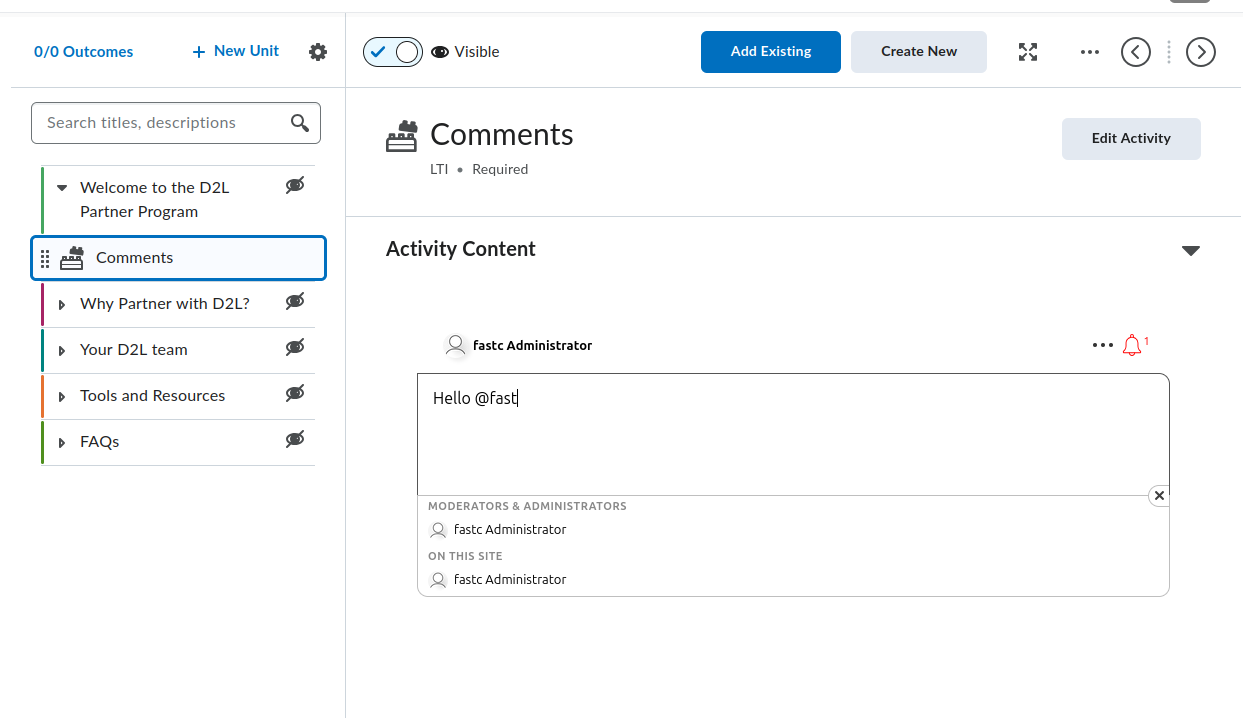
Brightspace leverer to indholdsoprettelsesoplevelser: Classic Content og New Content Experience (også kaldet Lessons). Begge gør FastComments tilgængeligt, men menupunkterne adskiller sig. Hvert afsnit nedenfor dækker begge, hvor de divergerer.
Find FastComments-værktøjet
FastComments-værktøjet vises to steder inde i en kursusindholdseditor:
- Aktivitetspickeret, som nås fra et modul/units Add Existing-knap (mærket Add Existing Activities i ældre Brightspace-versioner). FastComments vises direkte i pickeret i nyere Brightspace-builds; ældre versioner ligger det under en External Learning Tools-undermenu. Begge stier tilføjer FastComments som et separat emne.
- Insert Stuff-dialogen inde i HTML-editoren, under LTI Advantage. Dette indlejrer FastComments inline i et HTML-emne via LTI deep linking-flowet.
Hvis FastComments ikke vises i nogen af pickerne, er deployment ikke aktiveret for den organisatoriske enhed (org unit), der holder kurset. Bed din Brightspace-administrator om at åbne Admin Tools > Manage Extensibility > LTI Advantage > FastComments tool > View Deployments, åbne deploymenten og tilføje kursets org unit (eller en overordnet org unit) under Org Units.
Tilføj FastComments som et emne i et modul
Classic Content:
- Åbn kurset og klik på Content i navigationsbaren.
- Vælg det modul, der skal indeholde diskussionen (eller opret et via Add a module).
- Klik på Add Existing (ældre Brightspace: Add Existing Activities > External Learning Tools).
- I pickeret, klik på FastComments. Brightspace opretter et emne i modulet og returnerer dig til indholdsvisningen.
- Klik på det nye emne. Omdøb det til noget beskrivende som
FastComments Discussionved hjælp af den inline titelditor.
New Content Experience (Lessons):
- Åbn kurset og klik på Content.
- Åbn unit og lesson, som skal indeholde diskussionen.
- Klik Add > Existing Activity og vælg FastComments (ældre Brightspace: indlejret under External Learning Tools).
- Aktiviteten bliver tilføjet til lesson.
- Klik på aktivitetstitlen for at omdøbe den.
Første gang en bruger (underviser eller studerende) åbner emnet, initialiserer FastComments tråden for det resource link. Tråden er bundet til resource link ID, så omdøbning eller flytning af emnet ændrer ikke hvilken tråd der indlæses.
Indlejr FastComments inline i et HTML-emne
Brug dette flow når du ønsker, at kommentarer skal vises under en læsning, video eller andet indhold inde på samme emneside i stedet for som et separat emne.
- Åbn eller opret et HTML-emne i modulet/lesson.
- Klik Edit HTML for at åbne Brightspace HTML-editoren.
- Placér cursor hvor kommentartråden skal vises.
- Klik på Insert Stuff-knappen (puslespilsikonet i editorens værktøjslinje).
- I Insert Stuff-dialogen, rul til LTI Advantage og klik FastComments.
- FastComments åbner en deep linking-picker. Bekræft placeringen (standardindstillingerne fungerer til indholdsdiskussioner); klik Insert eller Continue.
- Brightspace vender tilbage til HTML-editoren med en pladsholderblok, der repræsenterer LTI-launch. Klik Save and Close på emnet.
Når emnet indlæses, erstatter Brightspace pladsholderen med en iframe, der automatisk starter FastComments via LTI. Studerende ser diskussionstråden inline.
Et enkelt HTML-emne kan indeholde flere deep-linked FastComments-indsættelser. Hver indlejring får sin egen tråd, fordi hvert deep link genererer et særskilt resource link ID.
Modul-emne vs Inline Quicklink
Vælg tilgangen med et modul-emne når:
- Diskussionen er den primære aktivitet for det trin i modulet.
- Du ønsker, at emnet skal vises i Brightspace' indholdsfortegnelse, fuldførelsessporing og Class Progress.
Vælg inline embed-tilgangen når:
- Kommentarer skal stå under andet indhold på samme side.
- Du ikke ønsker et separat punkt i indholdsfortegnelsen, der kan spores for fuldførelse.
Synlighed, kladde og frigivelsesbetingelser
Et nyt FastComments-emne er som standard synligt for studerende. For at skjule det mens du opsætter det:
- I indholdseditoren, klik emnets titel (Classic) eller de tre prikker på aktiviteten (New Content Experience).
- Sæt status til Draft (Classic) eller slå Visibility fra (New Content Experience).
Kladde-emner er usynlige for studerende. Undervisere og TA'er ser dem stadig med et "Draft"-mærke.
For at begrænse emnet til en specifik gruppe eller sektion:
- Åbn emnet.
- Klik emnets titelmenu > Edit Properties In-place (Classic) eller Edit > Restrictions (New Content Experience).
- Under Release Conditions, klik Create.
- Vælg Group enrollment eller Section enrollment, vælg gruppen/sektionen, og gem.
Frigivelsesbetingelser stables oven i FastComments' egen rolle-mapping. Studerende som ikke kan se emnet får ikke en LTI-launch.
Hvad studerende ser ved første launch
Når en studerende klikker emnet (eller indlæser et HTML-emne med en indlejring):
- Brightspace udfører LTI 1.3-launch i baggrunden.
- FastComments modtager den studerendes navn, e-mail, avatar-URL og LMS-rolle, og logger dem automatisk ind. Der er ingen FastComments-loginprompt.
- Kommentartråden for det resource link gengives inde i Brightspace-iframe'en.
Rolle-mapping ved launch:
- Brightspace
Administratorbliver en FastComments admin for tråden (fuld moderation, sletning, udelukkelse og konfigurationsadgang). - Brightspace
Instructorbliver en FastComments moderator (pin, skjul, slet, udeluk). - Alle andre roller (
Learner,TeachingAssistant, osv.) bliver almindelige kommentatorer.
Kommentarer tilskrives den studerendes Brightspace-konto. Hvis den studerende ændrer deres navn eller avatar i Brightspace, synkroniserer næste LTI-launch ændringen.
Luk offentlig adgang (anbefalet)
Som standard er FastComments-kommentardata offentligt læsbare. Enhver, der kan gætte en tråds URL eller API-endpoint, kan se dens kommentarer, også uden for Brightspace. For kursusdiskussioner vil du næsten helt sikkert begrænse visningen til kun indskrevne deltagere.
Åbn din widget-tilpasningsside og opret en regel med Require SSO To View Comments aktiveret, og sæt sikkerhedsniveauet til Secure SSO, så tråde kun kan indlæses gennem den signerede LTI-launch.
Se Protecting Comment Threads With Single-Sign-On for den fulde gennemgang, inklusive hvordan du afgrænser reglen til et enkelt domæne eller en side.
Iframe-højde og resize
FastComments udsender org.imsglobal.lti.frameResize postMessage ved hver trådgengivelse og ved indholdsændringer (ny kommentar, udvid svar). Brightspace lytter efter denne besked og justerer iframe-højden, så tråden ikke bliver klippet og ikke viser en indre scrollbar.
Hvis iframe'en forbliver på en fast lav højde:
- Bekræft at kurset indlæses over HTTPS. Brightspace' postMessage-listener afviser mixed-content frames.
- Bekræft at ingen browserudvidelse blokerer postMessage-kanalen.
- For inline-indlejringer i et HTML-emne må den omgivende HTML ikke pakke iframe'en ind i en container med fast højde. Fjern enhver inline
style="height: ..."fra parent-elementet.
Brightspace-specifikke problemer
Værktøj vises ikke i Add Existing-pickeret. Deployment er ikke aktiveret for dette kursus' org unit. En administrator skal tilføje org unit (eller en overordnet) til deploymentens Org Units-liste. Værktøjsregistrering alene er ikke nok; deployment bestemmer hvilke kurser der ser værktøjet.
deployment_id mismatch ved launch. FastComments TOFU-pinner det første deployment_id det ser for en registrering. Hvis en administrator sletter den oprindelige deployment og opretter en ny, afvises launches fra den nye deployment med en deployment mismatch-fejl. Løsningen er at genregistrere FastComments (generer en ny registrerings-URL (hent den her) og kør Dynamic Registration igen); den gamle konfigurationspost bliver erstattet.
Værktøjet starter men viser "Invalid LTI launch". Kurset er i en anden tenant/org-struktur end deploymenten dækker, eller deploymenten blev deaktiveret efter registrering. Tjek igen Admin Tools > Manage Extensibility > LTI Advantage > FastComments > Enabled-toggle og deploymentens org unit-liste.
Navne og roller mangler i FastComments. Brightspace sender LTI-launches med Names and Role Provisioning Services (NRPS) claims. Hvis et kursus blev opgraderet fra et ældre LTI 1.1-link, mangler launch name og email claims. Tilføj FastComments-emnet igen via Add Existing (migrer ikke det gamle link), så launch bruger LTI 1.3.
Indlejringen viser en login-skærm i stedet for auto-SSO. HTML-emnet blev indsat som en almindelig