
透過 LTI 1.3 將評論新增至您的 LMS
FastComments 可與任何符合 LTI 1.3 的 LMS 整合 — D2L Brightspace、Moodle、Blackboard Learn、Sakai、Schoology 等 — 透過 IMS LTI Dynamic Registration 標準。只要將一個 URL 貼到您 LMS 的註冊畫面,就能完成整個整合:SSO、課程情境、角色對應,以及內容放置。無需在您的伺服器上安裝任何外掛。 (Canvas LMS 有其專屬指南,因為其註冊流程不同。)
註冊後,FastComments 會以 Learning Tool 的身份出現在您的課程中。學生會在課程內容旁看到主題式留言與協作聊天,並會自動使用其 LMS 帳戶登入。
定價 
FastComments 的 LTI 1.3 整合已包含在 Flex 與 Pro 方案中,無需額外費用。它可與任何支援 IMS LTI 1.3 Advantage spec 的 LMS 一起運作,包括 Dynamic Registration。
快速開始
- Sign in to FastComments and go to 你的 LTI 1.3 設定頁面.
- (選填) 從 平台 下拉選單選擇您要連線的平台 - 它會設定顯示標籤,但自動偵測也能正常運作。
- 按一下 產生 URL. 會出現一次性 註冊 URL(有效 30 分鐘,僅限一次使用)。
- 在您的 LMS 中,打開 LTI 1.3 動態註冊畫面,將 URL 貼到 工具啟動註冊端點(或相等)欄位。提交。
- 您的 LMS 會回呼 FastComments、交換金鑰,並建立整合。完成後彈出視窗會自行關閉。
- 回到 FastComments,新的設定會出現在 現有設定 表格中。該工具現在已可在您的 LMS 課程中使用。
支援平台
FastComments LTI 1.3 已經在以下平台上進行測試:
- D2L Brightspace(任何支援 LTI Advantage 的版本)
- Moodle 4.0+(External Tool plugin,LTI Advantage)
- Blackboard Learn(SaaS 與 Ultra)
- Sakai(支援 LTI Advantage 的版本)
- Schoology(Enterprise,若有提供則使用 Dynamic Registration)
任何其他實作 IMS LTI 1.3 Advantage 規格並支援 Dynamic Registration 的 LMS 也應該能正常運作 - 在產生您的註冊 URL 時,從平台下拉選單中選擇 Other LTI 1.3 platform(在此取得)。
Canvas LMS 使用不同的設定流程(每位開發者金鑰的 configuration JSON,而非 Dynamic Registration)。請參閱專門的 Canvas LMS 安裝指南。
產生註冊 URL
Navigate to LTI 1.3 Configuration
Sign in to FastComments and go to 您的 LTI 1.3 設定頁面。
If your account doesn't yet have LTI access, you'll see "LTI not enabled for this account" - contact support to enable it on your plan.
Pick a Platform (Optional)
Under Generate a Dynamic Registration URL, use the Platform dropdown to tell FastComments which LMS you're connecting:
- D2L Brightspace
- Moodle
- Blackboard Learn
- Sakai
- Schoology
- 其他 LTI 1.3 平台
You can also leave it on Auto-detect. The platform is read out of your LMS's openid-configuration during registration; the dropdown only seeds the display label for the resulting configuration.
Generate the URL
Click Generate URL. FastComments creates a one-time registration token and shows you a URL that looks like:
https://fastcomments.com/lti/v1p3/register/<long-token>
Copy it. This URL:
- Is single-use - once your LMS calls it successfully, the token is consumed.
- Expires after 30 minutes if not used.
- Should be kept private - anyone with the URL can register a tool against your tenant within those 30 minutes.
Existing Configurations
Once a registration completes successfully, the new configuration shows up in the Existing Configurations table on the same page, with its Platform, Issuer, Client ID, and Status. You can delete configurations from this table if you ever need to unregister.
在 D2L Brightspace 註冊
D2L Brightspace 透過 LTI Advantage 管理介面提供動態註冊(Dynamic Registration)。您需要管理員存取權限。
開啟註冊畫面
- 以管理員身份登入您的 Brightspace 實例。
- 前往 Admin Tools > Manage Extensibility > LTI Advantage。
- 點選 Register Tool。 (直接 URL 為
https://<your-brightspace-host>/d2l/le/ltiadvantage/registrations/create。)
貼上 URL
您會看到一個註冊表單。關鍵欄位是 Tool initiation registration endpoint(某些 Brightspace 版本會標示為 "Tool Initiation Registration URL")。
將 FastComments 註冊 URL (在此取得) 貼到該欄位。其餘欄位留空 - 在註冊握手期間會由 FastComments 自動填入。
點選 Register。
核准該工具
Brightspace 會開一個彈出視窗與 FastComments 進行通訊、交換金鑰,並顯示確認畫面。註冊完成後該彈出視窗會自動關閉。
新的工具會出現在您的 LTI Advantage 工具清單中。預設 Brightspace 會將新工具標記為 disabled - 將切換按鈕切換為 enabled,讓課程可以使用它。
新增部署
在 Brightspace 中,LTI 工具在能夠於課程中使用前需要先有一個 deployment:
- 開啟剛註冊完成的 FastComments 工具。
- 點選 View Deployments > New Deployment。
- 為該部署命名(例如 "FastComments - All Courses")、選擇該部署應可用的組織單位,然後儲存。
透過此部署首次啟動後,FastComments 會將 deployment_id 鎖定到其設定紀錄 - 在相同 client 底下,來自不同部署的後續啟動將會被拒絕,除非您重新註冊。
在 Moodle 註冊
使用 Moodle 嗎? 我們也提供專用的 FastComments Moodle 外掛,比 LTI 1.3 提供更緊密的整合(成績同步掛鉤、更深度的活動報告、原生的 Moodle 設定介面)。請參閱 Moodle 外掛安裝指南。如果您想要一次註冊同時涵蓋其他 LMS,或是您的 Moodle 管理員不會安裝第三方外掛,下列的 LTI 1.3 流程會是正確的選擇。
Moodle 4.0+ 支援透過 External Tool 外掛進行 LTI 1.3 動態註冊。
開啟工具管理畫面
- 以網站管理員身分登入 Moodle。
- 前往 Site administration > Plugins > Activity modules > External tool > Manage tools。
貼上 URL
您會看到一個標示為 Tool URL 的卡片。將 FastComments 註冊 URL(在此取得)貼到文字欄位,然後點選 Add LTI Advantage。
Moodle 會開啟一個註冊畫面,顯示此工具的身分以及它要求的權限。檢查後點選 Activate(或視 Moodle 版本為 Register)。
註冊完成後彈出視窗會關閉;新的 FastComments 工具會出現在 Tools 清單中,狀態為 Active。
使其可用
預設情況下 Moodle 會將新工具加入「Course tools」清單,但不會在活動選擇器中顯示。要在整個課程中顯示 FastComments:
- 點選 FastComments 欄位上的齒輪圖示。
- 在 Tool configuration usage 下,選擇 Show in activity chooser and as a preconfigured tool。
- 儲存。
教師現在可以透過 Add an activity or resource > FastComments 將 FastComments 新增到任何課程中。
在 Blackboard Learn 註冊
Blackboard Learn SaaS 與 Ultra 支援 LTI 1.3 的動態註冊。
開啟工具提供者畫面
- 以系統管理員身份登入 Blackboard。
- 前往 管理員面板 > 整合 > LTI 工具提供者。
- 點選 Register LTI 1.3 / LTI Advantage Tool。
如果您只看到「Register LTI 1.1 Provider」,表示您的 Blackboard 版本尚未支援 LTI 1.3 — 請升級或聯絡 Blackboard 支援團隊。
貼上 URL
將 FastComments 註冊 URL (在此取得) 貼到 Client ID / Registration URL 欄位(Blackboard 在不同版本的標示可能有所不同)。提交。
Blackboard 會與 FastComments 執行註冊握手並顯示確認畫面。
核准並啟用
Blackboard 預設會將新註冊的工具標示為 已核准但被排除:
- 在工具提供者清單中尋找 FastComments 條目。
- 打開選單並選擇 編輯。
- 將 工具狀態 設為 核准。
- 在 機構政策 下,檢視會傳送哪些使用者資料(姓名、電子郵件、角色)。儲存。
該工具現已可供教師在課程新增內容時使用。
在 Sakai 或 Schoology 註冊
Sakai
Sakai 在包含 LTI Advantage 的發行版本中支援 LTI 1.3 的動態註冊。從 管理工作區:
- 以 Sakai 管理員身分登入並開啟 管理工作區。
- 選擇 External Tools > Install LTI 1.3 Tool。
- 貼上 FastComments 的註冊 URL (在此取得) 並提交。
- 在握手完成後核准該工具。
該工具會出現在 External Tools 下,網站維護者即可將其新增至網站。
Schoology
Schoology Enterprise 實例支援 LTI 1.3,但是否提供動態註冊取決於部署。請向您的 Schoology 客戶經理確認。
如果您的 Schoology 實例不提供動態註冊,您需要使用以下端點手動設定整合:
- OIDC 登入 URL:
https://fastcomments.com/lti/v1p3/login - 目標連結 URL:
https://fastcomments.com/lti/v1p3/launch - 公開金鑰集 URL (JWKS):
https://fastcomments.com/lti/v1p3/jwks - 重新導向 URL:
https://fastcomments.com/lti/v1p3/launch
在 Schoology 提供您 Client ID 和 Deployment ID 後,請聯絡 FastComments 支援以在您的租戶上註冊此設定。
Other LTI 1.3 Platforms
任何遵循 IMS LTI 1.3 Advantage 規範的 LMS 應該都能使用相同的註冊 URL (在此取得)。請尋找標示為「Dynamic Registration」、「Tool Registration URL」、「Tool initiation registration endpoint」或類似名稱的設定。
如果您的平台僅支援手動 LTI 1.3 設定,請使用上面 Schoology 區段列出的四個端點,並聯絡支援以完成設定。
加入至 D2L 課程內容
本頁說明在管理員註冊工具並建立部署後,如何將 FastComments 新增至 Brightspace 課程。如果尚未註冊工具,請先參閱 D2L 註冊指南。
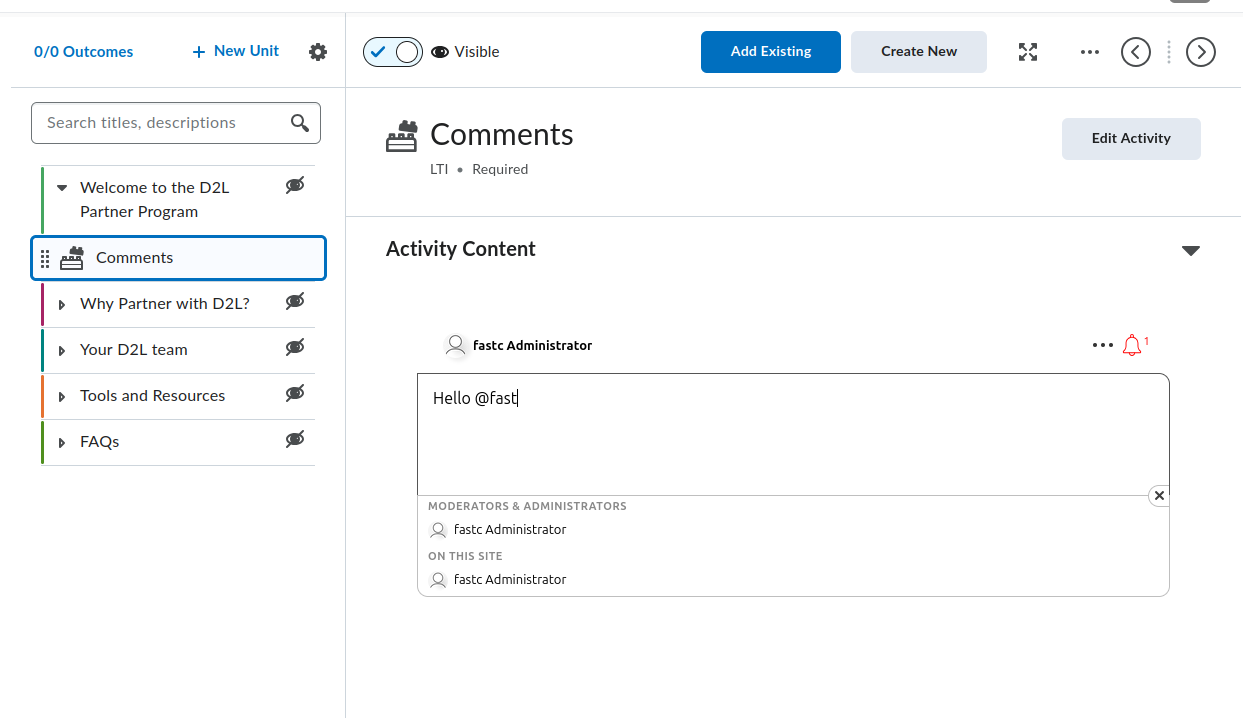
Brightspace 提供兩種內容撰寫體驗:Classic Content 與 New Content Experience(也稱為 Lessons)。兩者都支援 FastComments,但選單路徑不同。以下每個章節在差異處都會同時涵蓋兩者。
Locate the FastComments Tool
FastComments 工具會出現在課程內容編輯器內的兩個位置:
- 活動挑選器,可從模組/單元的 Add Existing 按鈕進入(舊版 Brightspace 標示為 Add Existing Activities)。在目前的 Brightspace 版本中 FastComments 會直接出現在挑選器中;舊版本則會將它置於 External Learning Tools 子選單下。任一路徑都會將 FastComments 新增為獨立主題。
- HTML 編輯器內的 Insert Stuff 對話框下的 LTI Advantage。這會透過 LTI 深度連結流程將 FastComments 內嵌在 HTML 主題中。
如果 FastComments 在任一挑選器中都未出現,表示部署尚未對包含該課程的組織單元啟用。請要求您的 Brightspace 管理員開啟 Admin Tools > Manage Extensibility > LTI Advantage > FastComments tool > View Deployments,打開該部署,並在 Org Units 下新增課程所屬的組織單元(或其上層組織單元)。
Add FastComments as a Topic in a Module
Classic Content:
- 開啟課程並在導覽列點選 Content。
- 選取應包含討論的模組(或透過 Add a module 建立一個)。
- 點選 Add Existing(舊版 Brightspace:Add Existing Activities > External Learning Tools)。
- 在挑選器中,點選 FastComments。Brightspace 會在模組中建立一個主題並帶您回到內容檢視。
- 點選新的主題。使用內嵌標題編輯器將其重新命名為具描述性的名稱,例如
FastComments Discussion。
New Content Experience (Lessons):
- 開啟課程並點選 Content。
- 開啟應包含討論的單元與 lesson。
- 點選 Add > Existing Activity 並選擇 FastComments(舊版 Brightspace:位於 External Learning Tools 之下)。
- 該活動會被加入到 lesson 中。
- 點選活動標題以重新命名。
任何使用者(講師或學生)第一次打開該主題時,FastComments 會為該資源連結初始化留言串。留言串綁定到資源連結 ID,因此重新命名或移動主題不會改變載入的留言串。
Embed FastComments Inline in an HTML Topic
當您想要讓留言出現在同一主題頁面內的一篇閱讀、影片或其他內容下方,而不是作為獨立主題時,請使用此流程。
- 在模組/lesson 中開啟或建立一個 HTML 主題。
- 點選 Edit HTML 以開啟 Brightspace 的 HTML 編輯器。
- 將游標放在留言串應出現的位置。
- 點選 Insert Stuff 按鈕(編輯器工具列中的拼圖圖示)。
- 在 Insert Stuff 對話框中,滾動到 LTI Advantage 並點選 FastComments。
- FastComments 會開啟深度連結挑選器。確認放置位置(預設選項適用於內容討論);點選 Insert 或 Continue。
- Brightspace 會帶您回到 HTML 編輯器,畫面會顯示代表 LTI 啟動的占位區塊。點選主題上的 Save and Close。
當主題載入時,Brightspace 會將占位區塊替換為一個自動透過 LTI 啟動 FastComments 的 iframe。學生會在行內看到討論串。
單一 HTML 主題可以包含多個深度連結的 FastComments 嵌入。每個嵌入都會獲得自己的留言串,因為每個深度連結會產生不同的資源連結 ID。
Module Topic vs Inline Quicklink
何時選擇 module topic 方式:
- 討論是該模組步驟的主要活動。
- 您希望該主題出現在 Brightspace 的目錄、完成追蹤和 Class Progress 中。
何時選擇 inline embed 方式:
- 留言應該位於同一頁面上的其他內容下方。
- 您不希望在目錄中有一個單獨可追蹤完成狀態的項目。
Visibility, Draft, and Release Conditions
新的 FastComments 主題預設對學生可見。若要在設定期間將其隱藏:
- 在內容編輯器中,點選主題標題(Classic)或活動上的三點選單(New Content Experience)。
- 將狀態設為 Draft(Classic)或關閉 Visibility(New Content Experience)。
草稿主題對學生不可見。講師和助教仍會看見帶有「Draft」徽章的主題。
要將主題限制為特定群組或班級部分:
- 開啟該主題。
- 點選主題標題選單 > Edit Properties In-place(Classic)或 Edit > Restrictions(New Content Experience)。
- 在 Release Conditions 下,點選 Create。
- 選擇 Group enrollment 或 Section enrollment,選取群組/班級部分,然後儲存。
發布條件會與 FastComments 自身的角色對應共同生效。無法看到該主題的學生不會取得 LTI 啟動。
What Students See on First Launch
當學生點選主題(或載入含嵌入的 HTML 主題)時:
- Brightspace 背後會執行 LTI 1.3 啟動。
- FastComments 會接收學生的名稱、電子郵件、頭像 URL 與 LMS 角色,並自動為其登入。使用者不會看到 FastComments 的登入提示。
- 該資源連結的留言串會在 Brightspace iframe 內呈現。
啟動時的角色對應:
- Brightspace 的
Administrator會成為該留言串的 FastComments 管理員(admin),具備完整的版主權限、刪除、封鎖與設定存取。 - Brightspace 的
Instructor會成為 FastComments 的 moderator(可釘選、隱藏、刪除、封鎖)。 - 其他所有角色(
Learner、TeachingAssistant等)會成為一般留言者。
留言會歸屬於學生的 Brightspace 帳號。如果學生在 Brightspace 編輯了他們的名稱或頭像,下一次 LTI 啟動會同步變更。
Lock Down Public Access (Recommended)
預設情況下,FastComments 的留言資料是公開可讀的。任何能猜到留言串的 URL 或 API 端點的人都能檢視其留言,即使在 Brightspace 之外也是如此。對於課程討論,您幾乎肯定會希望將檢視權限限制為僅限已註冊的學員。
打開您的 widget customization page 並建立一個啟用 Require SSO To View Comments 的規則,然後將安全層級設為 Secure SSO,讓留言串只能透過簽名的 LTI 啟動載入。
請參閱 Protecting Comment Threads With Single-Sign-On 取得完整操作說明,包括如何將規則限定到單一網域或頁面。
Iframe Height and Resize
FastComments 在每次留言串呈現及內容變更(新增留言、展開回覆)時,都會發出 org.imsglobal.lti.frameResize postMessage。Brightspace 會監聽此訊息並調整 iframe 高度,以避免留言串被裁切或出現內部捲軸。
若 iframe 持續固定為較短高度:
- 確認課程是透過 HTTPS 載入。Brightspace 的 postMessage 監聽器會拒絕混合內容的框架。
- 確認沒有瀏覽器擴充套件阻擋 postMessage 通道。
- 對於 HTML 主題中的內嵌嵌入,外層 HTML 不得將 iframe 包在固定高度的容器內。請移除父元素上的任何內聯
style="height: ..."。
Brightspace-Specific Gotchas
Tool not showing in the Add Existing picker. 該部署尚未對此課程所屬的組織單元啟用。管理員需要將組織單元(或其上層)新增到部署的 Org Units 清單中。僅註冊工具並不足以讓課程看見該工具;部署決定哪些課程能見到該工具。
deployment_id mismatch on launch. FastComments 會將它第一次看到的註冊 deployment_id 視為可信(TOFU)。如果管理員刪除了原始部署並建立新部署,來自新部署的啟動會因部署不匹配而被拒絕。解法是重新註冊 FastComments(產生新的註冊 URL(在此取得)並再次執行動態註冊);舊的設定紀錄會被取代。
Tool launches but shows "Invalid LTI launch". 課程位於與部署覆蓋範圍不同的租戶/組織結構中,或是在註冊後部署被停用。請重新檢查 Admin Tools > Manage Extensibility > LTI Advantage > FastComments > Enabled 切換與該部署的組織單元清單。
Names and roles missing inside FastComments. Brightspace 的 LTI 啟動會包含 Names and Role Provisioning Services (NRPS) 聲明。如果某個課程是從較舊的 LTI 1.1 連結升級而來,啟動可能缺少 name 與 email 聲明。請透過 Add Existing 重新新增 FastComments 主題(不要遷移舊連結),以便啟動使用 LTI 1.3。
Embed shows a login screen instead of auto-SSO. 該 HTML 主題是以指向 FastComments 的純 <iframe> 插入,而非透過 Insert Stuff > LTI Advantage。純 iframe 會跳過 LTI 啟動,使用者會被帶到面向公眾的 FastComments 頁面。刪除該 iframe 並透過 Insert Stuff 流程重新插入。
加入至 Moodle 課程內容
本指南涵蓋在網站管理員已註冊該工具並設定為在活動選擇器中顯示後,如何將 FastComments 新增到 Moodle 4.x 課程。如果 FastComments 尚未註冊,請先參閱 Moodle 註冊指南。
以編輯模式開啟課程
- 以該課程的「編輯教師(或更高權限)」身分登入 Moodle。
- 開啟課程。
- 在課程標頭右上角使用切換開關將 編輯模式 開啟。
Moodle 4.x 用全螢幕的活動選擇器對話框取代了 3.x 的舊式「新增活動或資源」下拉式選單。Moodle 4.5 保留相同的選擇器,但在頂部新增了一列星號/我的最愛,因此將 FastComments 釘選後在之後的章節中會更容易存取。
新增 FastComments 活動
- 捲動到該討論所屬的課程章節(主題或週別)。
- 點選該章節底部的 新增活動或資源。
- 在選擇器對話框中,選擇 FastComments。如果看不到,請跳到下方的注意事項章節。
活動設定表單會開啟。重要的欄位:
- Activity name (required). 顯示在課程頁面和成績冊中。範例:
Week 3 Discussion. - Activity description。可選的介紹文字,呈現在留言串上方。
- Show description on course page。如果希望在不點入活動的情況下也能看到描述,請勾選此項。
- Preconfigured tool。設為
FastComments(從選擇器啟動時會自動選取)。請勿更改。 - Launch container。設為 New window。請參閱注意事項章節,了解為何在某些 Moodle 部署中選擇「Same window」會造成問題。
- Tool URL, Public key, Shared secret, Custom parameters。保持空白。動態註冊已在網站層級處理這些設定。
捲動到底部並點選 Save and return to course(或 Save and display 以立即開啟該活動)。
該活動會以 FastComments 圖示的列出現在章節中。學生點選該列即可開啟留言串。
在編輯器中內嵌 FastComments
若要在 Page、Book 章節、Lesson,或任何使用 Atto 或 TinyMCE 編輯器的資源內建立留言串:
- 以編輯模式開啟該資源。
- 將游標放在要顯示留言串的位置。
- 在編輯器工具列中,點選 LTI / External tool 按鈕。在 Atto 中標示為「Insert LTI Advantage content」。在 TinyMCE(Moodle 4.3+ 的預設)中則位於 More 選單下的 External tools。
- 從工具清單中選擇 FastComments。
- FastComments 會開啟一個深度連結選擇器。確認留言串標題後點選 Embed。
- 編輯器會插入一個 LTI 佔位區塊。儲存資源。
每個內嵌實例都是以深度連結的 content item ID 作為鍵的獨立留言串,因此在同一個 Page 中插入三個 FastComments 會有三個互不干涉的留言串。
限制存取與群組設定
FastComments 活動適用標準 Moodle 的活動設定:
- Common module settings > Group mode。將此設為 Separate groups 或 Visible groups 不會自動把 FastComments 分割成每群組各自的留言串。Moodle 的群組模式只會過濾成績冊與成員清單。若要讓每個群組有各自的留言串,請為每個群組新增一個 FastComments 活動,並使用 Restrict access 來限制範圍。
- Restrict access > Add restriction。支援標準的 Moodle 條件:Date、Grade、Group、Grouping、User profile,以及巢狀的限制組合。使用 Group 可以將 FastComments 活動鎖定給單一群組。
- Activity completion。若想要完成度追蹤,請設為 Students must view this activity to complete it。FastComments 目前除了啟動時的 launch 外,並不會回報其他完成事件給 Moodle。
角色對應
FastComments 會讀取 Moodle 在每次啟動時傳送的 LTI roles 宣告,並依下列方式對應:
- Moodle Manager 或 Site administrator -> FastComments admin
- Moodle Editing teacher 或 Non-editing teacher -> FastComments moderator
- Moodle Student -> FastComments commenter
- Moodle Guest -> 僅可閱讀
管理者可以刪除任何評論、封鎖使用者,以及編輯留言串設定。版主可以在其啟動進入的留言串內刪除及核准評論。自訂的 Moodle 角色會繼承其被複製來源原型的對應。
學生會看到的內容
學生點選 FastComments 活動(或捲動到 Page 或 Book 內的內嵌區塊)。Moodle 透過 LTI 啟動將其身分傳送給 FastComments:
- 不會有登入畫面。FastComments 會使用 Moodle 帳號為他們登入。
- 他們的顯示名稱、電子郵件與大頭照會從 Moodle 取得。
- 留言串的範圍為「(Moodle site, course, resource link ID)」,因此相同活動若複製到另一門課程會得到新的留言串。
- 線性回覆、投票與通知等功能與獨立的 FastComments 留言串相同。
鎖定公開存取(建議)
預設情況下,FastComments 的留言資料為公開可讀。任何能猜到留言串 URL 或 API 端點的人都可以查看其評論,即便是在 Moodle 之外。對於課程討論,你幾乎肯定會希望將檢視權限限制為僅限已註冊的學生。
開啟你的 widget customization page 並建立一個規則,啟用 Require SSO To View Comments,然後將安全等級設為 Secure SSO,如此留言串就只能透過簽章的 LTI 啟動來載入。
完整的逐步說明(包含如何將規則限縮到單一網域或頁面)請參閱 Protecting Comment Threads With Single-Sign-On。
Moodle 注意事項
活動選擇器中看不到 FastComments。 代表網站管理員已註冊該工具,但未將 Tool configuration usage 設為 Show in activity chooser and as a preconfigured tool。可在 Site administration > Plugins > Activity modules > External tool > Manage tools > 在 FastComments 欄位點擊齒輪圖示來修正此設定。
啟動失敗或在設定為「Same window」時顯示空白框架。 Moodle 的 session cookies 預設使用 SameSite=Lax,某些瀏覽器會在 LTI 1.3 用於從 FastComments 返回的跨站 POST 時移除這些 cookies。請在活動中將 Launch container 設為 New window。對於內嵌在 Page 或 Book 的 FastComments 這是強制需求,因為經由編輯器內嵌的啟動路徑總是會彈出新視窗。
iss 宣告是 Moodle 網站 URL,而非租戶 ID。 FastComments 使用 Moodle 網站 URL(即 wwwroot 設定值)作為 LTI 的 issuer。如果你的 Moodle 實例搬到新網域或你變更了 wwwroot,既有的 FastComments 留言串仍會綁定到舊的 issuer,並不會與新的啟動相符。如有需要,請對新 URL 重新註冊該工具,並透過 FastComments 管理介面遷移留言串。
活動備份與還原。 備份課程並將其還原到新課程會產生新的 resource link ID,因此還原後的 FastComments 活動會從空的留言串開始。原課程會保留原始留言串。這是預期行為,非錯誤。
Moodle 4.5 的 TinyMCE 預設。 Moodle 4.5 在新安裝時以 TinyMCE 當作預設編輯器。External tool 按鈕位置在 More (...) 選單下,而非主工具列。較舊從 4.1 升級的網站若未經管理員更改預設,會保留 Atto。
加入至 Blackboard 課程內容
一旦管理員已將 FastComments 註冊為 LTI 1.3 Advantage 工具並核准機構政策,講師便可透過 Blackboard 的標準放置點將其加入課程。Ultra Course View 和 Original Course View 的具體步驟不同,所以下文兩種情形皆有說明。
Ultra Course View
Ultra Course View 自 2026 年起為 Blackboard Learn SaaS 的預設。
- 開啟課程並前往 Course Content 頁面。
- 將滑鼠移到或點選大綱中你希望留言串出現的位置,然後點擊紫色的 +(新增內容)按鈕。
- 選擇 Content Market。Content Market 面板會列出機構核准的所有 LTI 工具與 Building Block 放置點。
- 找到 FastComments 磚塊並點擊。Blackboard 會在你打開 + 選單的位置建立一個內容項目。
- 該項目預設會以「對學生可見」的條目出現在大綱中,假如講師的個人預設沒有啟用 Hide from students。如果你的預設為 Hidden,項目會以隱藏狀態建立,等你準備好時可在項目列上切換可見性選取器。
- 若要重新命名項目,請點擊大綱中的標題並輸入新標籤。學生在大綱中看到的標題與 FastComments 線程識別碼是獨立的,所以隨時重新命名都是安全的。
如果你沒看到 Content Market 選項,代表機構已將該放置點隱藏。你也可以在同一個 + 選單下的 More tools 中,於 LTI Tools 群組找到相同的選取器。
Original Course View
Original Course View 在 Learn SaaS 中仍受支援,並且在 Q4 2024 CU 發行線上的自我架設 Learn 9.1 站點仍是主要體驗。
- 開啟課程並進入一個 Content Area(例如課程選單中的預設 Information 或 Content 區域)。
- 在頁面右上方用切換開啟 Edit Mode。
- 在動作列中點擊 Build Content。
- 在 Learning Tools 子選單下點擊 FastComments。Learning Tools 子選單會在管理員註冊工具後,從 LTI 1.3 工具放置中填充。如果你沒看到它,請參閱下方的注意事項章節。
- 在 Create FastComments 表單上設定:
- Name:學生在內容區看到的標籤。
- Description:顯示在嵌入討論串上方的選用文字。
- Permit Users to View this Content:是/否 的可用性切換。
- Track Number of Views:若想要 Blackboard 的每項目檢視統計,請啟用。本身 FastComments 會獨立執行分析。
- Date and Time Restrictions:選用的 Display After / Display Until 時間窗。
- 送出。該工具會以可點擊項目的形式出現在內容區。
嵌入在項目或文件內
在兩種課程檢視中,講師都可以透過內容編輯器的 LTI Advantage 按鈕,將 FastComments 內嵌於項目、文件或任何富文本欄位的主體內。
Ultra Course View:
- 建立或編輯一個 Document。
- 在文件主體內想要留言串出現的位置點擊 Add content。
- 在編輯器工具列中打開 Insert content 選單並點擊 Content Market(LTI Advantage / Deep Linking 的進入點)。
- 選取 FastComments。FastComments 回傳 deep-link 載荷,Blackboard 會在游標位置於文件主體中插入一個嵌入區塊。
- 儲存文件。學生在捲動經過時會看到內嵌呈現的留言串。
Original Course View:
- 編輯任何具有富文本主體的項目。
- 在內容編輯器工具列中,點擊 Add Content 的加號圖示並選擇 Content Market(在較舊的 Q4 2024 CU 中標示為 Add Content from External Tool)。
- 選取 FastComments。編輯器會插入一個參考 deep-linked 資源的佔位區塊。
- 送出該項目。
每次 deep-link 嵌入都會產生自己的 FastComments 線程,因此一個項目若有兩個嵌入的 FastComments 區塊,就會有兩個獨立的留言串。
可見性、發布條件與群組限制
FastComments 的內容項目在其上所套用的存取控制規則方面,行為與 Blackboard 的其他內容項目相同。
- Ultra:在列上點擊可見性選取器(Visible to students、Hidden from students、Conditional availability)。Conditional availability 支援日期/時間窗、針對成績簿項目的表現規則,以及針對課程群組的成員規則。
- Original:開啟項目的內容選單並選擇 Adaptive Release 或 Adaptive Release: Advanced,以依日期、成員資格、成績或審閱狀態限制工具。使用項目的 Set Group Availability 可限制至特定課程群組。
FastComments 會尊重 Blackboard 的任何限制決定。如果 Blackboard 對某學生隱藏該項目,該學生就不會進行 LTI 啟動,且不會出現在管理者檢視中。
成績簿行為
FastComments 不會透過 LTI Advantage Assignment and Grade Services 回報成績。FastComments 內容項目不會自動建立成績欄位。
如果你的 Blackboard 租戶設定為對每個新內容項目自動建立成績欄(不論是否含分數元資料),則仍會出現一個空白欄。要將其隱藏:
- Ultra:打開 Gradebook,點擊欄位標題,選擇 Edit,然後關閉 Show to students 與 Include in calculations。或者在你的機構允許對非評分項目刪除欄位時使用 Delete。
- Original:打開 Grade Center,點擊欄位的下拉箭頭,選擇 Hide from Users (on/off),並可在 Column Organization 下選擇 Hide from Instructor View。
學生會看到什麼
當學生開啟 FastComments 項目或捲動到內嵌區塊時:
- Blackboard 會發送 LTI 1.3 訊息給 FastComments。學生會使用其 Blackboard 身份(名稱、電子郵件、頭像、角色)透過 SSO 登入,而不會看到登入表單。
- 討論串會在 iframe 中呈現。依據在 FastComments 中配置的留言小工具設定,會提供分線、回覆、提及與表情等功能。
- 他們的留言會歸屬於其 Blackboard 帳戶。如果學生日後在 Blackboard 編輯其名稱或照片,下一次啟動時會更新 FastComments 個人檔案。
從 Blackboard 到 FastComments 的角色對應:
- System Administrator 與 Course Builder 對應為 FastComments 的 admin。
- Instructor 與 Teaching Assistant 對應為 FastComments 的 moderator。
- Student、Guest 與 Observer 對應為 FastComments 的 commenter。
管理者(moderator)會在每則留言內看到內嵌的審查控制(置頂、隱藏、封鎖、刪除)。
鎖定公開存取(建議)
預設情況下,FastComments 的留言資料是公開可讀的。任何能猜到線程 URL 或 API 端點的人都能查看其留言,即使是在 Blackboard 之外。對於課堂討論,你幾乎肯定會希望將檢視限制為僅限已註冊的學生。
開啟你的 widget customization page,建立一個規則並啟用 Require SSO To View Comments,然後將安全等級設為 Secure SSO,使線程只能透過已簽署的 LTI 啟動載入。
完整操作步驟請參見 保護留言串使用單一登入。
線程範圍設定
FastComments 會以 (Blackboard host, course ID, resource link ID) 來範圍化每個線程。同一課程中的兩個 FastComments 項目會產生兩個線程。相同項目若被複製到兩個課程外殼(例如透過課程複製),會產生兩個線程,因為 Blackboard 在複製時會發出新的 resource link ID。若要在課程複製間保留共用線程,請在複製前使用 Deep Linking 並在 FastComments 中為該線程設定明確的 thread URN。
Blackboard 專屬注意事項
Build Content 選單(Original)或 Content Market(Ultra)中缺少 FastComments 磚塊。 管理員核准了工具,但在機構政策中遺漏了相關放置點。前往 Administrator Panel > Integrations > LTI Tool Providers,編輯 FastComments 條目,確認已啟用 Course Content Tool(Original)以及 Course Content Tool - allow students / Deep Linking content tool(Ultra)放置。儲存並重新整理課程頁面。
啟動時出現「Tool not configured for this context」或「Tool is not deployed」錯誤。 在動態註冊時登記的部署範圍與課程所屬的機構情境不符。於 Blackboard 的工具提供者條目中,確認 Deployment ID 與 FastComments 在此租戶的 LTI 1.3 Configuration 頁面顯示的值相符。如果兩者不同,刪除該放置點並從新的註冊 URL 重新執行動態註冊(在此取得)。
Iframe 高度看起來固定或內容被截斷。 有些 Blackboard 租戶會帶有嚴格的 Content Security Policy,阻擋預設的 LTI iframe-resize postMessage。為了最大相容性,FastComments 同時發送 Canvas 風格的 lti.frameResize 訊息與 IMS 規範形式的 org.imsglobal.lti.frameResize 訊息,但租戶層級的 CSP 覆蓋會阻擋父視窗的監聽器。請要求你的管理員確認 *.fastcomments.com 已在 LTI 工具的允許清單上,並且沒有自訂 CSP 標頭剝除 postMessage 事件。確認後調整大小功能即可在無需其他設定的情況下運作。
課程複製會造成線程重複。 Blackboard 在課程複製時會為 LTI 放置發出新的 resource link ID,因此複製後的課程會以空白線程開始。這是預期行為。若你需要複製後的課程繼承原始線程,請在複製前設定帶有明確線程 URN 的 Deep Linking,或聯絡 FastComments 支援以大量重映射線程 ID。
學生在啟動時看到 Blackboard 的一般錯誤。 原因通常是缺少或過期的 email claim。確認機構對 FastComments 的政策在 User Fields to Send 下已啟用 Role、Name 與 Email Address。儲存後在新的瀏覽器分頁中重新啟動即可。
加入至 Sakai 或 Schoology 課程內容
一旦 FastComments 在平台上註冊完成,教師即可使用平台的標準外部工具流程將其新增到課程內容。本頁涵蓋 Sakai 23.x 與 Schoology Enterprise 的說明。
鎖定公開存取(建議)
預設情況下,FastComments 的留言資料在任一平台上皆可公開讀取。任何能猜到討論串 URL 或 API 端點的人都可以查看其留言,即使不在 Sakai 或 Schoology 內也能看到。對於課程討論,你幾乎肯定會希望將檢視權限限制為僅限已註冊的學生。
打開你的 widget 自訂頁面,建立一個規則並啟用 Require SSO To View Comments,然後將安全等級設為 Secure SSO,使討論串只能透過簽名的 LTI 啟動來載入。
請參閱 Protecting Comment Threads With Single-Sign-On 取得完整的操作說明,包括如何將規則限定到單一網域或頁面。
Sakai
1. 將 FastComments 新增到站台
站台維護者可針對每個站台啟用此工具:
- 開啟該站台並在左側導覽中點選 Site Info。
- 點選 Manage Tools。
- 捲動到 External Tools 清單並切換 FastComments 為啟用。
- 點選 Continue,檢查工具清單,然後點選 Finish。
FastComments 現在會出現在站台的左側導覽項目中。
2. 重新排序左側導覽項目
前往 Site Info > Tool Order。拖動 FastComments 到想要的位置,然後點選 Save。你也可以在此畫面重新命名導覽標籤並將其對學生隱藏。
3. 在 Lessons 頁面內嵌入(inline)
若要將 FastComments 直接放在 Lessons 頁面內,而非獨立的左側工具:
- 在站台中打開 Lessons 工具。
- 點選 Add Content > Add External Tool。
- 從清單中選擇 FastComments。
- 如果 FastComments 在註冊期間宣告了 Deep Linking,Sakai 會開啟工具內容選擇器以便你可以選擇或標記討論串。若未宣告 Deep Linking,Sakai 則會插入預設的啟動連結。
- 儲存 Lessons 項目。
每個內嵌的實例都會擁有自己的討論串,其範圍綁定在該資源連結上。
4. 調整學生存取權限
Sakai 透過 Realms 管理外部工具的啟動。要確認學生可以啟動 FastComments:
- 以 Sakai 管理員身份登入並打開 Administration Workspace > Realms。
- 開啟相關的 realm(例如
!site.template.course或特定的站台 realm)。 - 確認
access角色已啟用lti.launch,並且在 external.tools 群組中的角色權限已被授予。 - 儲存該 realm。
若要在站台層級進行覆寫,維護者可以從 Site Info > Tool Order 調整每個角色的工具可見性,透過隱藏或顯示 FastComments 來達成。
5. 學生會看到的內容
學生點選 FastComments 左側導覽項目(或捲動到內嵌的 Lessons 區塊)後會直接進入有階層的留言檢視。SSO 是自動的:Sakai 在 LTI 啟動時傳送使用者身分,FastComments 會使用其 Sakai 帳戶為其登入。
角色對應:
- Sakai
Instructor-> FastComments moderator - Sakai
Admin(admin in Administration Workspace) -> FastComments admin - Sakai
Student/access-> FastComments commenter
6. Sakai 注意事項
- Manage Tools 中看不到工具。 若 FastComments 未出現在 External Tools 清單中,Sakai 管理員需要開啟工具登錄(Administration Workspace > External Tools > FastComments)並將 Stealthed 設為
false。被 stealth 的工具會從每站台的 Manage Tools 選擇器中隱藏。 - 在共用會話瀏覽器中啟動會失敗。 Sakai 的入口網站 CSRF 令牌綁定於瀏覽器會話。如果學生在不同分頁中登入兩個 Sakai 站台或有過期的會話,啟動會返回 403。解決方法:關閉其他 Sakai 分頁,登出,重新登入,然後重新啟動。若在整個叢集普遍發生,管理員也可以提高
sakai.csrf.token.cache.ttl。 - 嵌入到框架內。 請確認
lti.frameheight在sakai.properties中足夠大(600 或更高),以免討論串在 Lessons 頁面內被截斷。
Schoology
Schoology Enterprise 有兩種安裝情境。新增工具到課程前請先確認適用哪一種。
1. 兩種安裝情境
- (a) 企業層級安裝。 Schoology 系統管理員已在組織層級安裝 FastComments,並指派到所有課程或特定的課程範本。此情況下教師可略過安裝步驟,直接前往「Add Materials」。
- (b) 教師自行安裝。 教師可從 Course Options > External Tools > Install LTI Apps 將工具安裝到單一課程中。自行安裝前提是系統管理員已先在組織層級核准 FastComments 應用。
2. 將 FastComments 新增為課程資源(Materials)
在課程內:
- 開啟課程並前往 Materials。
- 點選 Add Materials > Add File/Link/External Tool。
- 選擇 External Tool。
- 從已註冊的工具清單中選擇 FastComments。
- 設定 Name(學生在資源清單中看到的名稱)以及選填的 Description。
- 保持 Enable Grading(成績回傳)為 OFF。FastComments 不會將成績回報給 Schoology,因此啟用成績回傳會建立一個空的成績欄位。
- 點選 Submit。
該資源現在會出現在課程的資源清單中,點擊時會開啟 FastComments 討論串。
3. 透過富文字編輯器內嵌(inline)
若系統管理員在註冊期間為 FastComments 啟用了 Deep Linking 放置位置,教師可以在任何富文字欄位(作業說明、頁面內容、討論提示)內嵌留言討論串:
- 在目標頁面打開富文字編輯器。
- 在工具列上點選 External Tool(拼圖圖示)按鈕。
- 選擇 FastComments。
- 在深度連結對話框中設定嵌入,然後點選 Insert。
- 儲存頁面。
若富文字編輯器中未顯示 External Tool 按鈕,表示此租戶對該工具關閉了 Deep Linking。請參閱下方的注意事項。
4. 可見性與分組(section)指派
Schoology 透過 Course Options 以分組為單位控制工具可用性:
- 在課程內,點選 Course Options > External Tools。
- 對於每個已安裝的 LTI 應用,你可以控制它是對課程中所有分組可用,或僅對特定分組可用。
- 若要將 FastComments 限定給某些分組,取消勾選不應看到該工具的分組。
- 分組層級的存取也會決定哪些分組會在 Add Materials > External Tool 中看到 FastComments 的項目。
5. 學生會看到的內容
學生點選 FastComments 資源(或捲動到內嵌內容)後會進入有階層的討論檢視。SSO 會自動透過 Schoology 的 LTI 啟動並使用他們的 Schoology 帳戶登入。
角色對應:
- Schoology
Administrator-> FastComments admin - Schoology
Instructor-> FastComments moderator - Schoology
Student-> FastComments commenter
6. Schoology 注意事項
- 僅限企業版。 個人與免費的 Schoology 帳戶無法安裝 LTI 1.3 工具。如果你的租戶使用免費方案,Course Options 中將不會有 External Tools 選項。請升級到 Schoology Enterprise 以使用 FastComments。
- 租戶預設關閉 Deep Linking。 部分 Schoology 租戶在組織層級限制 Deep Linking 放置。若發生此情況,教師只會看到 Add Materials > External Tool 的流程,而不會在富文字編輯器中看到 External Tool 按鈕。要啟用內嵌嵌入,系統管理員需前往 System Settings > Integration > LTI 1.3 > FastComments 並啟用 Content Item / Deep Linking 放置,然後儲存。
- 分組指派的覆寫。 如果 FastComments 在企業層級已指派但教師在 Add Materials 看不到該工具,可能是該課程的分組在組織層級指派中被排除。請系統管理員將該分組加入 FastComments 應用指派。
- 資源名稱與討論串識別。 在 Schoology 中重新命名資源不會移動討論串。討論串是以 LTI resource link ID 作為鍵值,因此重新命名會保留相同的討論串;刪除並重新建立資源會建立新的空討論串。
疑難排解
"註冊令牌未找到、已過期或已被使用"
您註冊 URL 中的令牌 (在此取得) 有效期為 30 分鐘且只能使用一次。如果您的 LMS 花了比較久的時間,或是在註冊成功後又重試,該令牌會被拒絕。請在 FastComments LTI 1.3 Configuration 頁面產生新的 URL 並重新開始。
"Platform rejected registration"
您的 LMS 拒絕了註冊握手。最常見的原因:
- Tool already registered with the same client name. 有些平台(尤其是 D2L)會拒絕再次註冊名稱為 "FastComments" 的工具,除非先刪除先前的設定。請在您的 LMS 中移除舊的工具,然後重試。
- Wrong field in the LMS. 確認您是把 URL 貼到 registration / tool initiation registration endpoint 欄位,而不是 launch URL 或 login URL 欄位。
- The LMS doesn't actually support Dynamic Registration. 舊版的 Moodle 和 Blackboard 會宣稱支援 LTI 1.3,但只允許手動設定。請檢查您平台的文件。
"Failed to fetch platform configuration"
FastComments 無法讀取您 LMS 的 openid-configuration 文件。這種情況少見,通常表示 LMS 提供了格式錯誤或無法存取的 discovery URL。請聯絡您的 LMS 支援人員。
Launch shows "Configuration not found"
要麼是 FastComments 的設定被刪除,要麼是啟動來自我們不認得的 iss/client_id 組合。如果您刪除並重新註冊過,請指示 LMS 移除並重新加入 FastComments 工具,以便取得新的 client_id。
Launch shows "Deployment not registered"
您是從與最初啟動不同的 Brightspace/Moodle/Blackboard 部署啟動 FastComments。FastComments 會在首次啟動時把 deployment_id 鎖定作為安全檢查。要在同一 client 底下新增部署,請聯絡支援 — 我們會把該部署 ID 加到設定中。
Launch shows "Unsupported message_type"
LMS 傳送了 FastComments 不處理的 LTI 訊息(例如 LtiSubmissionReviewRequest)。FastComments 僅支援標準的 resource-link 啟動與 deep-linking 流程。如需加入特定的訊息類型,請與我們聯絡。
Iframe doesn't resize
大多數 LMS 會自動調整 LTI iframe 的大小。如果您的 LMS 沒有這麼做,請確認 LMS 的啟動設定允許工具向父框架傳送 postMessage 事件。FastComments 會發出 Canvas-style(lti.frameResize)和 IMS-spec(org.imsglobal.lti.frameResize)兩種調整大小的訊息。
最小權限與資料最小化
FastComments LTI 1.3 整合遵循最小權限原則:它僅使用識別使用者、將評論附加到正確課程與資源,以及套用基於角色的權限所需的啟動宣告(launch claims)。
本頁其餘部分對照表列出整合所使用的每個宣告、沒有請求的每項 LTI Advantage 服務,以及不會收集的每類資料。資安與採購審查人員可以直接從下表擷取答案。
從 LMS 接收的資料元素
每次 LTI 1.3 啟動都會攜帶 LMS 簽署的 JWT。FastComments 從該 JWT 擷取下列宣告,且不使用其他資料:
| Field | LTI claim | Purpose | Required | Stored |
|---|---|---|---|---|
| User identifier | sub | 在多次啟動中一致地識別使用者,確保同一個人會對應到相同的 FastComments SSO 使用者 | 是 | 是,作為穩定的內部 SSO ID 的一部分 |
| Display name | name | 顯示於使用者評論旁的署名 | 是(若缺少則退回為 "LMS User") | 是 |
email | 帳戶比對、通知、審核、支援對應 | 選填(整合在沒有電子郵件的情況下仍可運作) | 若提供則會儲存 | |
| Avatar URL | picture | 顯示在使用者的評論上 | 選填 | 僅儲存 URL;FastComments 不會下載或重新托管圖片 |
| Roles | https://purl.imsglobal.org/spec/lti/claim/roles | 決定使用者是管理員、講師(審核者)或學習者 | 是 | 在 SSO session 上為衍生的 isAdmin / isModerator 標記 |
| Course context | https://purl.imsglobal.org/spec/lti/claim/context (id, title) | 將評論串連結到正確的 LMS 課程 | 是 | 是,作為解析後頁面識別器的一部分 |
| Resource link | https://purl.imsglobal.org/spec/lti/claim/resource_link (id) | 將評論與課程內正確的活動或工具位置關聯 | 若存在則為必要 | 是,作為解析後頁面識別器的一部分 |
| Deployment ID | https://purl.imsglobal.org/spec/lti/claim/deployment_id | 將啟動路由到正確的 FastComments 租戶設定 | 是 | 是,儲存在 FastComments 的 LTI 設定紀錄上 |
註冊時宣告的宣告與範圍
在 LTI 1.3 動態註冊期間,FastComments 以 scope: ""(無額外 OAuth 範圍)註冊,並僅宣告下列 OpenID Connect 宣告:
iss, sub, name, email, picture
它註冊了兩種訊息類型:
LtiResourceLinkRequest- 標準的課程啟動以進入 FastComments。LtiDeepLinkingRequest- 允許講師將 FastComments 工具放置到課程中。
不會向 LMS 請求其他的存取權杖。
未請求的 LTI Advantage 服務
| Service / scope | Requested? | Reason |
|---|---|---|
| Names and Role Provisioning Services (NRPS) | 否 | 整合不需要課程名冊;使用者身份會隨每次啟動一併傳來 |
| Assignment and Grade Services (AGS) - lineitem, score, result scopes | 否 | 此整合不會與成績簿整合 |
| Deep Linking beyond the standard placement return | 無額外資料 | Deep linking 僅用於講師放置工具;不會列舉課程內容 |
未收集的資料
除了 LTI 本身之外,FastComments 不會向 LMS 或使用者請求或接收下列資料:
| Category | Collected? |
|---|---|
| Student grades | 否 |
| Assignment submissions | 否 |
| Attendance records | 否 |
| Full course rosters | 否 |
| Government identifiers | 否 |
| Date of birth | 否 |
| Postal address or phone number | 否 |
| Financial information | 否 |
| LMS administrator credentials | 否 |
存取邊界
- FastComments 僅接收由 LMS 註冊金鑰簽署的授權 LTI 1.3 啟動中的資料。整合不會回呼 LMS 以取得額外資訊。
- 啟動權杖為一次性且短時效。重放或過期的權杖會被拒絕。
- LMS 管理員控制工具在其平台內的部署位置。例如 D2L Brightspace 支援每一部署的 org-unit 範圍設定與每一部署的安全性設定,允許管理員將工具限制在特定課程或組織單位,而不是在全域中開放。Moodle、Blackboard、Sakai 與 Schoology 在其 LTI 1.3 實作中提供相當的每部署控制。
儲存與保留
FastComments 會在評論服務有效期間以及根據客戶所設定的保留政策保留 LTI 衍生資料。評論資料儲存在靜態加密(encrypted-at-rest)的生產儲存中。於帳戶終止或收到書面刪除請求時,FastComments 會依適用協議刪除或匿名化客戶資料。
完整的儲存與資料處理細節,請參閱 FastComments 隱私政策。
審查頻率
任何需要額外宣告、範圍或 LTI Advantage 服務的新 LTI 功能,在發布前都會進行審查,以確認所請求的存取權與將提供的功能之間是必要且相稱的。
作答資安問卷的簡短說明
FastComments 在其 LTI 1.3 整合中採用最小權限與資料最小化原則。整合僅使用驗證使用者所需的 LTI 啟動宣告(
sub,name,picture)、判定其角色,以及識別評論所屬課程與資源。FastComments 不會請求 Names and Role Provisioning Services、Assignment and Grade Services、成績簿資料、出席資料、完整名冊或 LMS 管理存取權。LMS 管理員保有控制工具可用於哪些組織單位、課程與部署的權限。