
Add Comments to Your LMS via LTI 1.3
FastComments integrates with any LTI 1.3-compliant LMS - D2L Brightspace, Moodle, Blackboard Learn, Sakai, Schoology, and others - via the IMS LTI Dynamic Registration standard. One URL, pasted into your LMS's registration screen, wires up the entire integration: SSO, course context, role mapping, and content placement. No plugin to install on your server. (Canvas LMS has its own dedicated guide because its registration flow is different.)
Once registered, FastComments shows up as a Learning Tool inside your courses. Students see threaded comments and collaborative chat next to course content, and they're signed in automatically with their LMS account.
Pricing 
The FastComments LTI 1.3 integration is included on the Flex and Pro plans at no additional cost. It works with any LMS that supports the IMS LTI 1.3 Advantage spec, including Dynamic Registration.
Quick Start
- Sign in to FastComments and go to your LTI 1.3 Configuration page.
- (Optional) Pick the platform you're connecting from the Platform dropdown - it sets the display label, but Auto-detect works fine.
- Click Generate URL. A one-time Registration URL appears (valid for 30 minutes, single-use).
- In your LMS, open the LTI 1.3 Dynamic Registration screen and paste the URL into the Tool initiation registration endpoint (or equivalent) field. Submit.
- Your LMS calls back to FastComments, exchanges keys, and creates the integration. The popup closes itself when done.
- Back in FastComments, the new configuration appears in the Existing Configurations table. The tool is now available inside your LMS courses.
Supported Platforms
FastComments LTI 1.3 has been tested against:
- D2L Brightspace (any version with LTI Advantage)
- Moodle 4.0+ (External Tool plugin, LTI Advantage)
- Blackboard Learn (SaaS and Ultra)
- Sakai (versions with LTI Advantage support)
- Schoology (Enterprise, Dynamic Registration where available)
Any other LMS that implements the IMS LTI 1.3 Advantage spec with Dynamic Registration should also work - select Other LTI 1.3 platform from the platform dropdown when generating your registration URL (get it here).
Canvas LMS uses a different setup flow (per-developer-key configuration JSON instead of Dynamic Registration). See the dedicated Canvas LMS installation guide.
Generate Registration URL
Navigate to LTI 1.3 Configuration
Sign in to FastComments and go to your LTI 1.3 Configuration page.
If your account doesn't yet have LTI access, you'll see "LTI not enabled for this account" - contact support to enable it on your plan.
Pick a Platform (Optional)
Under Generate a Dynamic Registration URL, use the Platform dropdown to tell FastComments which LMS you're connecting:
- D2L Brightspace
- Moodle
- Blackboard Learn
- Sakai
- Schoology
- Other LTI 1.3 platform
You can also leave it on Auto-detect. The platform is read out of your LMS's openid-configuration during registration; the dropdown only seeds the display label for the resulting configuration.
Generate the URL
Click Generate URL. FastComments creates a one-time registration token and shows you a URL that looks like:
https://fastcomments.com/lti/v1p3/register/<long-token>
Copy it. This URL:
- Is single-use - once your LMS calls it successfully, the token is consumed.
- Expires after 30 minutes if not used.
- Should be kept private - anyone with the URL can register a tool against your tenant within those 30 minutes.
Existing Configurations
Once a registration completes successfully, the new configuration shows up in the Existing Configurations table on the same page, with its Platform, Issuer, Client ID, and Status. You can delete configurations from this table if you ever need to unregister.
Register in D2L Brightspace
D2L Brightspace exposes Dynamic Registration through the LTI Advantage admin interface. You will need administrator access.
Open the Registration Screen
- Sign in to your Brightspace instance as an admin.
- Navigate to Admin Tools > Manage Extensibility > LTI Advantage.
- Click Register Tool. (The direct URL is
https://<your-brightspace-host>/d2l/le/ltiadvantage/registrations/create.)
Paste the URL
You'll see a registration form. The key field is Tool initiation registration endpoint (some Brightspace versions label it "Tool Initiation Registration URL").
Paste the FastComments registration URL (get it here) into that field. Leave the other fields blank - they're auto-populated by FastComments during the registration handshake.
Click Register.
Approve the Tool
Brightspace opens a popup that talks to FastComments, exchanges keys, and shows a confirmation screen. The popup closes itself when registration completes.
The new tool appears in your LTI Advantage tool list. By default Brightspace marks new tools as disabled - flip the toggle to enabled so your courses can use it.
Add a Deployment
In Brightspace, LTI tools need a deployment before they can be used in courses:
- Open the newly-registered FastComments tool.
- Click View Deployments > New Deployment.
- Give the deployment a name (e.g. "FastComments - All Courses"), pick the org units it should be available in, and save.
After the first launch through this deployment, FastComments pins the deployment_id to its configuration record - subsequent launches from a different deployment under the same client will be rejected unless you re-register.
Register in Moodle
Using Moodle? We also publish a dedicated Moodle plugin for FastComments with a tighter integration than LTI 1.3 (grade sync hooks, deeper activity reporting, native Moodle settings UI). See the Moodle plugin installation guide. The LTI 1.3 flow below is the right choice if you want a single registration that also covers other LMSes, or if your Moodle admin won't install third-party plugins.
Moodle 4.0+ supports LTI 1.3 Dynamic Registration through the External Tool plugin.
Open the Tool Management Screen
- Sign in to Moodle as a site administrator.
- Navigate to Site administration > Plugins > Activity modules > External tool > Manage tools.
Paste the URL
You'll see a card labeled Tool URL. Paste the FastComments registration URL (get it here) into the text field and click Add LTI Advantage.
Moodle opens a registration screen showing the tool's identity and the permissions it's requesting. Review and click Activate (or Register, depending on Moodle version).
The popup closes when registration completes; the new FastComments tool appears in the Tools list with the status Active.
Make It Available
By default Moodle adds new tools to the "Course tools" list but doesn't show them in the activity picker. To expose FastComments course-wide:
- Click the gear icon on the FastComments tile.
- Under Tool configuration usage, choose Show in activity chooser and as a preconfigured tool.
- Save.
Instructors can now add FastComments to any course through Add an activity or resource > FastComments.
Register in Blackboard Learn
Blackboard Learn SaaS and Ultra support LTI 1.3 Dynamic Registration.
Open the Tool Provider Screen
- Sign in to Blackboard as a system administrator.
- Navigate to Administrator Panel > Integrations > LTI Tool Providers.
- Click Register LTI 1.3 / LTI Advantage Tool.
If you only see "Register LTI 1.1 Provider", your Blackboard version doesn't support LTI 1.3 yet - upgrade or contact Blackboard support.
Paste the URL
Paste the FastComments registration URL (get it here) into the Client ID / Registration URL field (Blackboard's labeling varies by version). Submit.
Blackboard performs the registration handshake with FastComments and shows you a confirmation screen.
Approve and Enable
Blackboard marks newly-registered tools as Approved but excluded by default:
- Find the FastComments entry in the tool provider list.
- Open the menu and choose Edit.
- Set Tool Status to Approved.
- Under Institution Policies, review what user data is sent (name, email, role). Save.
The tool is now available to instructors when they add content to courses.
Register in Sakai or Schoology
Sakai
Sakai supports LTI 1.3 Dynamic Registration on releases with LTI Advantage. From the Administration Workspace:
- Sign in as a Sakai admin and open the Administration Workspace.
- Choose External Tools > Install LTI 1.3 Tool.
- Paste the FastComments registration URL (get it here) and submit.
- Approve the tool when the handshake completes.
The tool then appears under External Tools and can be added to sites by their maintainers.
Schoology
Schoology Enterprise instances support LTI 1.3 but Dynamic Registration availability varies by deployment. Check with your Schoology account manager.
If Dynamic Registration isn't available on your Schoology instance, you'll need to configure the integration manually using these endpoints:
- OIDC Login URL:
https://fastcomments.com/lti/v1p3/login - Target Link URL:
https://fastcomments.com/lti/v1p3/launch - Public Keyset URL (JWKS):
https://fastcomments.com/lti/v1p3/jwks - Redirect URLs:
https://fastcomments.com/lti/v1p3/launch
After Schoology gives you a Client ID and Deployment ID, contact FastComments support to register the configuration on your tenant.
Other LTI 1.3 Platforms
Any LMS that follows the IMS LTI 1.3 Advantage spec should work with the same registration URL (get it here). Look for a setting labeled "Dynamic Registration", "Tool Registration URL", "Tool initiation registration endpoint", or similar.
If your platform only supports manual LTI 1.3 setup, use the four endpoints listed in the Schoology section above and contact support to finalize.
Add to D2L Course Content
This page covers adding FastComments to a Brightspace course after an administrator has registered the tool and created a deployment. If the tool is not registered yet, see the D2L registration guide first.
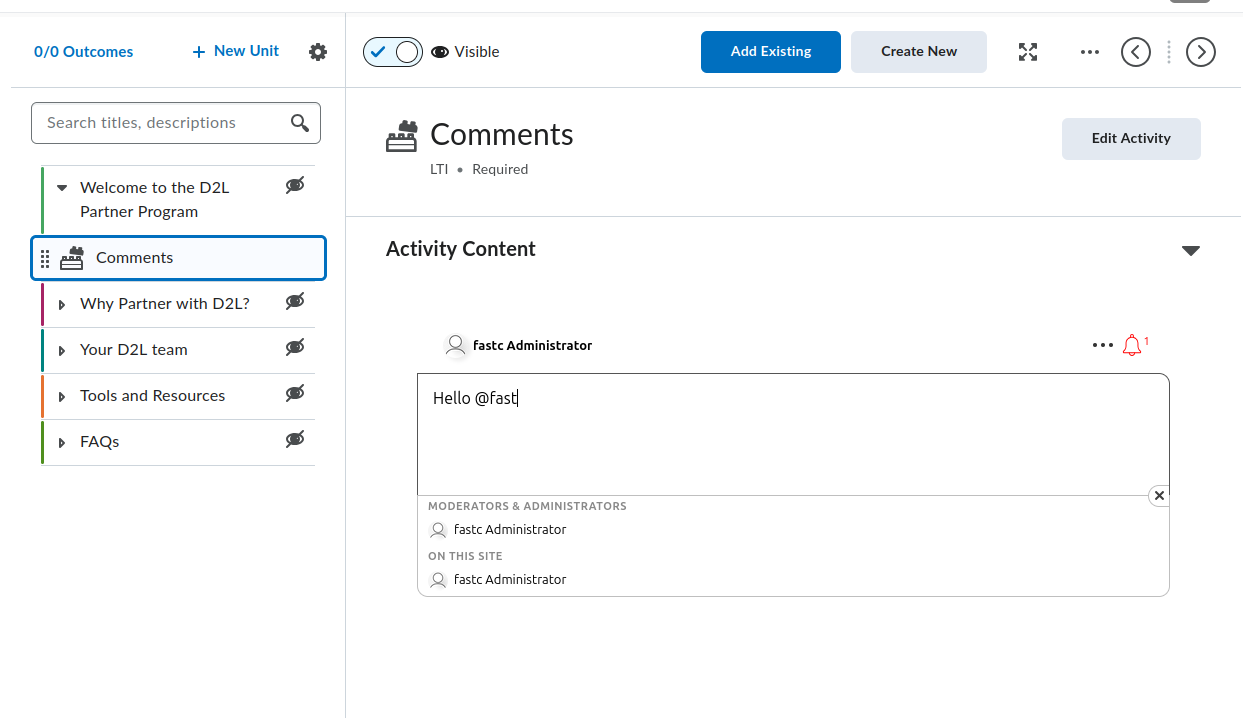
Brightspace ships two content authoring experiences: Classic Content and the New Content Experience (also called Lessons). Both expose FastComments, but the menu paths differ. Each section below covers both where they diverge.
Locate the FastComments Tool
The FastComments tool appears in two places inside a course content editor:
- The activity picker, reached from a module/unit's Add Existing button (labeled Add Existing Activities in older Brightspace versions). FastComments shows up directly in the picker in current Brightspace builds; older versions nest it under an External Learning Tools submenu. Either path adds FastComments as a standalone topic.
- The Insert Stuff dialog inside the HTML editor, under LTI Advantage. This embeds FastComments inline in an HTML topic via the LTI deep linking flow.
If FastComments does not appear in either picker, the deployment is not enabled for the org unit holding the course. Ask your Brightspace administrator to open Admin Tools > Manage Extensibility > LTI Advantage > FastComments tool > View Deployments, open the deployment, and add the course's org unit (or a parent org unit) under Org Units.
Add FastComments as a Topic in a Module
Classic Content:
- Open the course and click Content in the navbar.
- Select the module that should hold the discussion (or create one via Add a module).
- Click Add Existing (older Brightspace: Add Existing Activities > External Learning Tools).
- In the picker, click FastComments. Brightspace creates a topic in the module and returns you to the content view.
- Click the new topic. Rename it to something descriptive like
FastComments Discussionusing the inline title editor.
New Content Experience (Lessons):
- Open the course and click Content.
- Open the unit and lesson that should hold the discussion.
- Click Add > Existing Activity and select FastComments (older Brightspace: nested under External Learning Tools).
- The activity is added to the lesson.
- Click the activity title to rename it.
The first time any user (instructor or student) opens the topic, FastComments initializes the thread for that resource link. The thread is bound to the resource link ID, so renaming or moving the topic does not change which thread is loaded.
Embed FastComments Inline in an HTML Topic
Use this flow when you want comments to appear below a reading, video, or other content inside the same topic page rather than as a separate topic.
- Open or create an HTML topic in the module/lesson.
- Click Edit HTML to open the Brightspace HTML editor.
- Place the cursor where the comment thread should appear.
- Click the Insert Stuff button (puzzle-piece icon in the editor toolbar).
- In the Insert Stuff dialog, scroll to LTI Advantage and click FastComments.
- FastComments opens a deep linking picker. Confirm the placement (the default options work for content discussions); click Insert or Continue.
- Brightspace returns to the HTML editor with a placeholder block representing the LTI launch. Click Save and Close on the topic.
When the topic loads, Brightspace replaces the placeholder with an iframe that auto-launches FastComments via LTI. Students see the discussion thread inline.
A single HTML topic holds multiple deep-linked FastComments embeds. Each embed gets its own thread because each deep link produces a distinct resource link ID.
Module Topic vs Inline Quicklink
Pick the module topic approach when:
- The discussion is the primary activity for that step in the module.
- You want the topic to appear in Brightspace's table of contents, completion tracking, and Class Progress.
Pick the inline embed approach when:
- Comments should sit below other content on the same page.
- You do not want a separate completion-trackable item in the table of contents.
Visibility, Draft, and Release Conditions
A new FastComments topic is visible to students by default. To hide it while you set it up:
- In the content editor, click the topic title (Classic) or the three-dot menu on the activity (New Content Experience).
- Set status to Draft (Classic) or toggle Visibility off (New Content Experience).
Draft topics are invisible to students. Instructors and TAs still see them with a "Draft" badge.
To restrict the topic to a specific group or section:
- Open the topic.
- Click the topic title menu > Edit Properties In-place (Classic) or Edit > Restrictions (New Content Experience).
- Under Release Conditions, click Create.
- Pick Group enrollment or Section enrollment, select the group/section, and save.
Release conditions stack with FastComments's own role mapping. Students who cannot see the topic do not get an LTI launch.
What Students See on First Launch
When a student clicks the topic (or loads an HTML topic with an embed):
- Brightspace performs the LTI 1.3 launch in the background.
- FastComments receives the student's name, email, avatar URL, and LMS role, and signs them in automatically. There is no FastComments login prompt.
- The comment thread for that resource link renders inside the Brightspace iframe.
Role mapping at launch:
- Brightspace
Administratorbecomes a FastComments admin for the thread (full moderation, delete, ban, and configuration access). - Brightspace
Instructorbecomes a FastComments moderator (pin, hide, delete, ban). - All other roles (
Learner,TeachingAssistant, etc.) become standard commenters.
Comments are attributed to the student's Brightspace account. If the student edits their name or avatar in Brightspace, the next LTI launch syncs the change.
Lock Down Public Access (Recommended)
By default, FastComments comment data is publicly readable. Anyone who can guess a thread's URL or API endpoint can view its comments, even outside Brightspace. For course discussions you almost certainly want to restrict viewing to enrolled learners only.
Open your widget customization page and create a rule with Require SSO To View Comments enabled, then set the security level to Secure SSO so threads can only be loaded through the signed LTI launch.
See Protecting Comment Threads With Single-Sign-On for the full walkthrough, including how to scope the rule to a single domain or page.
Iframe Height and Resize
FastComments emits the org.imsglobal.lti.frameResize postMessage on every thread render and on content changes (new comment, expand replies). Brightspace listens for this message and adjusts the iframe height so the thread is not clipped and does not show an inner scrollbar.
If the iframe stays at a fixed short height:
- Confirm the course is loaded over HTTPS. Brightspace's postMessage listener rejects mixed-content frames.
- Confirm no browser extension is blocking the postMessage channel.
- For inline embeds in an HTML topic, the surrounding HTML must not wrap the iframe in a fixed-height container. Remove any inline
style="height: ..."from the parent element.
Brightspace-Specific Gotchas
Tool not showing in the Add Existing picker. The deployment is not enabled for this course's org unit. An administrator needs to add the org unit (or a parent) to the deployment's Org Units list. Tool registration alone is not enough; the deployment scopes which courses see the tool.
deployment_id mismatch on launch. FastComments TOFU-pins the first deployment_id it sees for a registration. If an administrator deletes the original deployment and creates a new one, launches from the new deployment are rejected with a deployment mismatch error. The fix is to re-register FastComments (generate a new registration URL (get it here) and run Dynamic Registration again); the old configuration record is replaced.
Tool launches but shows "Invalid LTI launch". The course is in a different tenant/org structure than the deployment covers, or the deployment was disabled after registration. Re-check Admin Tools > Manage Extensibility > LTI Advantage > FastComments > Enabled toggle and the deployment's org unit list.
Names and roles missing inside FastComments. Brightspace ships LTI launches with Names and Role Provisioning Services (NRPS) claims. If a course was upgraded from an older LTI 1.1 link, the launch lacks name and email claims. Re-add the FastComments topic via Add Existing (do not migrate the old link) so the launch uses LTI 1.3.
Embed shows a login screen instead of auto-SSO. The HTML topic was inserted as a plain <iframe> pointing at FastComments rather than via Insert Stuff > LTI Advantage. Plain iframes skip the LTI launch and land users on the public-facing FastComments page. Delete the iframe and re-insert via the Insert Stuff flow.
Add to Moodle Course Content
This guide covers adding FastComments to a Moodle 4.x course after a site administrator has registered the tool and set it to show in the activity chooser. If FastComments is not yet registered, see the Moodle registration guide first.
Open the Course in Edit Mode
- Sign in to Moodle as an Editing Teacher (or higher) for the course.
- Open the course.
- Toggle Edit mode on using the switch in the top-right corner of the course header.
Moodle 4.x replaced the legacy "Add an activity or resource" dropdown that 3.x used with a full-screen activity chooser dialog. Moodle 4.5 keeps the same chooser but adds a starred/favorites row at the top, so pinning FastComments once makes it faster to reach in later sections.
Add the FastComments Activity
- Scroll to the course section (topic or week) where the discussion belongs.
- Click Add an activity or resource at the bottom of that section.
- In the chooser dialog, select FastComments. If you don't see it, jump to the gotchas section below.
The activity settings form opens. The fields that matter:
- Activity name (required). Shown on the course page and in the gradebook. Example:
Week 3 Discussion. - Activity description. Optional intro text rendered above the comment thread.
- Show description on course page. Tick this if you want the description visible without clicking into the activity.
- Preconfigured tool. Set to
FastComments(auto-selected when launched from the chooser). Do not change. - Launch container. Set to New window. See the gotchas section for why "Same window" breaks in some Moodle deployments.
- Tool URL, Public key, Shared secret, Custom parameters. Leave blank. Dynamic Registration handled these at the site level.
Scroll to the bottom and click Save and return to course (or Save and display to open the activity right away).
The activity appears as a row in the section with the FastComments icon. Students click the row to open the comment thread.
Embed FastComments Inline with the Editor
For a thread inside a Page, Book chapter, Lesson, or any other resource that uses the Atto or TinyMCE editor:
- Open the resource in edit mode.
- Place the cursor where the thread should appear.
- In the editor toolbar, click the LTI / External tool button. In Atto it's labeled "Insert LTI Advantage content". In TinyMCE (default in Moodle 4.3+) it's under the More menu as External tools.
- Pick FastComments from the tool list.
- FastComments opens a deep-linking picker. Confirm the thread title and click Embed.
- The editor inserts an LTI placeholder block. Save the resource.
Each embedded instance is a distinct thread keyed on the deep-link content item ID, so a Page with three FastComments embeds gets three independent threads.
Restrict Access and Group Settings
The standard Moodle activity settings apply to FastComments activities:
- Common module settings > Group mode. Setting this to Separate groups or Visible groups does not split FastComments into per-group threads on its own. Moodle's group mode only filters the gradebook and member list. To run a separate thread per group, add one FastComments activity per group and use Restrict access to scope each one.
- Restrict access > Add restriction. Supports the standard Moodle conditions: Date, Grade, Group, Grouping, User profile, and nested restriction sets. Use Group to lock a FastComments activity to a single group.
- Activity completion. Set to Students must view this activity to complete it if you want completion tracking. FastComments does not currently report a completion event back to Moodle beyond the launch.
Role Mapping
FastComments reads the LTI roles claim that Moodle sends on every launch and maps it as follows:
- Moodle Manager or Site administrator -> FastComments admin
- Moodle Editing teacher or Non-editing teacher -> FastComments moderator
- Moodle Student -> FastComments commenter
- Moodle Guest -> read-only
Admins can delete any comment, ban users, and edit thread settings. Moderators can delete and approve comments inside the thread they launched into. Custom Moodle roles inherit the mapping of the archetype they were cloned from.
What Students See
Students click the FastComments activity (or scroll to the embedded block inside a Page or Book). Moodle sends their identity to FastComments via the LTI launch:
- No login screen. FastComments signs them in using the Moodle account.
- Their display name, email, and avatar come from Moodle.
- The thread is scoped to
(Moodle site, course, resource link ID), so the same activity duplicated into another course gets a fresh thread. - Threaded replies, voting, and notifications work the same as a standalone FastComments thread.
Lock Down Public Access (Recommended)
By default, FastComments comment data is publicly readable. Anyone who can guess a thread's URL or API endpoint can view its comments, even outside Moodle. For course discussions you almost certainly want to restrict viewing to enrolled students only.
Open your widget customization page and create a rule with Require SSO To View Comments enabled, then set the security level to Secure SSO so threads can only be loaded through the signed LTI launch.
See Protecting Comment Threads With Single-Sign-On for the full walkthrough, including how to scope the rule to a single domain or page.
Moodle Gotchas
FastComments missing from the activity chooser. The site administrator registered the tool but didn't set Tool configuration usage to Show in activity chooser and as a preconfigured tool. Fix this under Site administration > Plugins > Activity modules > External tool > Manage tools > gear icon on the FastComments tile.
Launch fails or shows a blank frame when set to "Same window". Moodle's session cookies use SameSite=Lax by default, and some browsers strip them on the cross-site POST that LTI 1.3 uses to return from FastComments. Set Launch container to New window on the activity. This is a hard requirement for embedded FastComments inside a Page or Book, since the editor-embedded launch path always pops a new window.
The iss claim is the Moodle site URL, not a tenant ID. FastComments uses the Moodle site URL (the wwwroot config value) as the LTI issuer. If your Moodle instance moves to a new domain or you change wwwroot, existing FastComments threads stay tied to the old issuer and won't match new launches. Re-register the tool against the new URL and migrate threads through the FastComments admin if needed.
Activity backup and restore. Backing up a course and restoring it into a new course creates new resource link IDs, so the restored FastComments activities start with empty threads. The original course retains the original threads. This is intended behavior, not a bug.
Moodle 4.5 TinyMCE default. Moodle 4.5 ships with TinyMCE as the default editor for new installs. The External tool button location is under the More (...) menu rather than the main toolbar. Older sites that upgraded from 4.1 keep Atto unless an admin switched the default.
Add to Blackboard Course Content
Once an administrator has registered FastComments as an LTI 1.3 Advantage tool and approved the institution policies, instructors add it to courses through the standard Blackboard placement points. The exact steps differ between Ultra Course View and Original Course View, so both are covered below.
Ultra Course View
Ultra Course View is the default in Blackboard Learn SaaS as of 2026.
- Open the course and go to the Course Content page.
- Hover or tap where you want the comment thread to land in the outline and click the purple + (Add content) button.
- Choose Content Market. The Content Market panel lists every approved LTI tool and Building Block placement for your institution.
- Find the FastComments tile and click it. Blackboard creates a content item at the position where you opened the + menu.
- The item lands in the outline as a "Visible to students" entry by default for instructors who have Hide from students off as their personal default. If your default is Hidden, the item is created hidden and you flip the visibility selector on the item row when you're ready.
- To rename the item, click the title in the outline and type a new label. The title students see in the outline is independent of the FastComments thread identifier, so renaming is safe at any time.
If you don't see Content Market as an option, your institution has the placement hidden. You also reach the same picker through More tools in the same + menu under the LTI Tools group.
Original Course View
Original Course View is still supported in Learn SaaS and remains the primary experience for self-hosted Learn 9.1 sites on the Q4 2024 CU release line.
- Open the course and enter a Content Area (for example, the default Information or Content area in the course menu).
- Turn Edit Mode on with the toggle in the top-right of the page.
- Click Build Content in the action bar.
- Under the Learning Tools submenu, click FastComments. The Learning Tools submenu is populated from LTI 1.3 tool placements after an administrator registers the tool. If you don't see it, see the gotchas section below.
- On the Create FastComments form, set:
- Name: the label students see in the content area.
- Description: optional text shown above the embedded thread.
- Permit Users to View this Content: Yes/No availability toggle.
- Track Number of Views: enable if you want Blackboard's per-item view statistics. FastComments runs its own analytics independently.
- Date and Time Restrictions: optional Display After / Display Until windows.
- Submit. The tool appears as a clickable item in the content area.
Embedding Inside an Item or Document
In both course views, instructors embed FastComments inline inside the body of an Item, Document, or any rich-text field through the Content Editor's LTI Advantage button.
Ultra Course View:
- Create or edit a Document.
- Click Add content inside the document body where you want the thread to appear.
- In the editor toolbar, open the Insert content menu and click Content Market (the LTI Advantage / Deep Linking entry point).
- Pick FastComments. FastComments returns a deep-link payload and Blackboard inserts an embedded block in the document body at the cursor position.
- Save the document. Students see the thread rendered inline as they scroll past it.
Original Course View:
- Edit any item with a rich-text body.
- In the Content Editor toolbar, click the Add Content plus icon and choose Content Market (labeled Add Content from External Tool in older Q4 2024 CUs).
- Pick FastComments. The editor inserts a placeholder block referencing the deep-linked resource.
- Submit the item.
Each deep-link embed produces its own FastComments thread, so an Item with two embedded FastComments blocks has two independent comment streams.
Visibility, Release Conditions, and Group Restrictions
FastComments content items behave like any other Blackboard content item for the access control rules layered on top of them.
- Ultra: click the visibility selector on the row (Visible to students, Hidden from students, Conditional availability). Conditional availability supports date/time windows, performance rules against gradebook items, and member rules against course groups.
- Original: open the item's context menu and choose Adaptive Release or Adaptive Release: Advanced to gate the tool by date, membership, grade, or review status. Use Set Group Availability on the item to restrict to specific course groups.
FastComments respects whatever Blackboard's gate decides. If Blackboard hides the item from a student, the LTI launch never happens for that student and they don't appear in the moderator view.
Gradebook Behavior
FastComments does not report grades back over LTI Advantage Assignment and Grade Services. No grade column is auto-created for FastComments content items.
If your Blackboard tenant is configured to auto-create a gradebook column for every new content item regardless of grading metadata, an empty column appears anyway. To hide it:
- Ultra: open the Gradebook, click the column header, choose Edit, and turn off Show to students plus Include in calculations. Or use Delete if your institution permits column deletion for ungraded items.
- Original: open the Grade Center, click the column's chevron, choose Hide from Users (on/off), and optionally Hide from Instructor View under Column Organization.
What Students See
When a student opens the FastComments item or scrolls to an embedded block:
- Blackboard launches the LTI 1.3 message to FastComments. The student is signed in via SSO using their Blackboard identity (name, email, avatar, role) without seeing a login form.
- The comment thread renders in the iframe. Threading, replies, mentions, and reactions are all available based on the comment widget settings configured in FastComments.
- Their comments are attributed to their Blackboard account. If the student edits their name or photo in Blackboard later, the next launch updates the FastComments profile.
Role mapping from Blackboard to FastComments:
- System Administrator and Course Builder map to FastComments admin.
- Instructor and Teaching Assistant map to FastComments moderator.
- Student, Guest, and Observer map to FastComments commenter.
Moderators see moderation controls (pin, hide, ban, delete) inline on every comment in the thread.
Lock Down Public Access (Recommended)
By default, FastComments comment data is publicly readable. Anyone who can guess a thread's URL or API endpoint can view its comments, even outside Blackboard. For course discussions you almost certainly want to restrict viewing to enrolled students only.
Open your widget customization page and create a rule with Require SSO To View Comments enabled, then set the security level to Secure SSO so threads can only be loaded through the signed LTI launch.
See Protecting Comment Threads With Single-Sign-On for the full walkthrough, including how to scope the rule to a single domain or page.
Thread Scoping
FastComments scopes each thread by (Blackboard host, course ID, resource link ID). Two FastComments items in the same course produce two threads. The same item copied across two course shells (for example, through course copy) produces two threads, because Blackboard issues a fresh resource link ID during the copy. To keep a shared thread across course copies, use Deep Linking with an explicit thread URN configured in FastComments before launching the copy.
Blackboard-Specific Gotchas
FastComments tile missing from the Build Content menu (Original) or Content Market (Ultra). The administrator approved the tool but left an institution policy blocking the relevant placement. Go to Administrator Panel > Integrations > LTI Tool Providers, edit the FastComments entry, and confirm both Course Content Tool (Original) and Course Content Tool - allow students / Deep Linking content tool (Ultra) placements are enabled. Save and refresh the course page.
"Tool not configured for this context" or "Tool is not deployed" error on launch. The deployment scope registered during dynamic registration doesn't match the institution context the course belongs to. In Blackboard's tool provider entry, verify the Deployment ID matches what FastComments shows on its LTI 1.3 Configuration page for this tenant. If they differ, delete the placement and re-run dynamic registration from a fresh registration URL (get it here).
Iframe height looks fixed or content gets cut off. Some Blackboard tenants ship with a strict Content Security Policy that blocks the default LTI iframe-resize postMessage. FastComments emits both the Canvas-style lti.frameResize message and the IMS spec-form org.imsglobal.lti.frameResize message to maximize compatibility, but a tenant-level CSP override blocks the parent listener. Ask your administrator to confirm that *.fastcomments.com is on the LTI tool allowlist and that no custom CSP header is stripping postMessage events. Resize then works without further configuration.
Course copy duplicates threads. Blackboard course copy issues new resource link IDs for LTI placements, so copied courses start with empty threads. This is expected. If you need the copied course to inherit the original thread, set up Deep Linking with an explicit thread URN before copying, or contact FastComments support to remap thread IDs in bulk.
Student sees a generic Blackboard error on launch. The cause is a missing or stale email claim. Confirm the institution policy for FastComments has Role, Name, and Email Address enabled under User Fields to Send. Save, then launch again in a fresh browser session.
Add to Sakai or Schoology Course Content
Once FastComments is registered with the platform, instructors add it to course content using the platform's standard external tool flows. This page covers Sakai 23.x and Schoology Enterprise.
Lock Down Public Access (Recommended)
By default, FastComments comment data is publicly readable on either platform. Anyone who can guess a thread's URL or API endpoint can view its comments, even outside Sakai or Schoology. For course discussions you almost certainly want to restrict viewing to enrolled students only.
Open your widget customization page and create a rule with Require SSO To View Comments enabled, then set the security level to Secure SSO so threads can only be loaded through the signed LTI launch.
See Protecting Comment Threads With Single-Sign-On for the full walkthrough, including how to scope the rule to a single domain or page.
Sakai
1. Add FastComments to a site
The site maintainer enables the tool on a per-site basis:
- Open the site and click Site Info in the left navigation.
- Click Manage Tools.
- Scroll to the External Tools list and toggle FastComments on.
- Click Continue, review the tool list, then click Finish.
FastComments now appears as a left-nav item in the site.
2. Reorder the left-nav entry
Go to Site Info > Tool Order. Drag FastComments to the desired position and click Save. You can also rename the nav label and hide it from students from this screen.
3. Embed inline in a Lessons page
To place FastComments directly inside a Lessons page rather than as a standalone left-nav tool:
- Open the Lessons tool in the site.
- Click Add Content > Add External Tool.
- Select FastComments from the list.
- If FastComments advertised Deep Linking during registration, Sakai opens the tool's content selector so you can pick or label the thread. If Deep Linking wasn't advertised, Sakai inserts a default launch link.
- Save the Lessons item.
Each embedded instance gets its own thread, scoped to that resource link.
4. Permission tweaks for student access
Sakai gates external tool launches through Realms. To confirm students can launch FastComments:
- Sign in as a Sakai admin and open Administration Workspace > Realms.
- Open the relevant realm (for example,
!site.template.courseor the specific site realm). - Confirm the
accessrole haslti.launchenabled and that the role permissions in the external.tools group are granted. - Save the realm.
For site-level overrides, the maintainer can adjust per-role tool visibility from Site Info > Tool Order by hiding or showing FastComments per role.
5. What students see
Students click the FastComments left-nav item (or scroll to the embedded Lessons block) and land directly in the threaded comment view. SSO is automatic: Sakai sends the user's identity in the LTI launch and FastComments signs them in under their Sakai account.
Role mapping:
- Sakai
Instructor-> FastComments moderator - Sakai
Admin(admin in Administration Workspace) -> FastComments admin - Sakai
Student/access-> FastComments commenter
6. Sakai gotchas
- Tool not visible in Manage Tools. If FastComments doesn't appear in the External Tools list, the Sakai admin needs to open the tool registry (Administration Workspace > External Tools > FastComments) and set Stealthed to
false. Stealthed tools are hidden from the per-site Manage Tools picker. - Launches breaking in shared-session browsers. Sakai's portal CSRF token is bound to the browser session. If a student is signed in to two Sakai sites in different tabs or has a stale session, the launch returns a 403. Fix: close other Sakai tabs, sign out, sign back in, and relaunch. Admins can also raise
sakai.csrf.token.cache.ttlif this happens cluster-wide. - Frame embedding. Confirm
lti.frameheightinsakai.propertiesis large enough (600 or higher) so the comment thread isn't clipped inside a Lessons page.
Schoology
Schoology Enterprise has two installation scenarios. Confirm which one applies before adding the tool to a course.
1. Two installation scenarios
- (a) Enterprise-level install. The Schoology System Administrator installed FastComments at the organization level and assigned it to all courses or to specific course templates. Instructors skip installation and go straight to "Add Materials".
- (b) Instructor self-install. The instructor installs the tool into a single course from Course Options > External Tools > Install LTI Apps. Self-install requires the System Administrator to have approved the FastComments app at the org level first.
2. Add FastComments as a course material
Inside the course:
- Open the course and go to Materials.
- Click Add Materials > Add File/Link/External Tool.
- Choose External Tool.
- Select FastComments from the registered tools list.
- Set a Name (this is what students see in the materials list) and an optional Description.
- Leave Enable Grading (grade passback) OFF. FastComments does not report grades back to Schoology, so enabling grade passback creates an empty gradebook column.
- Click Submit.
The material now appears in the course materials list and opens the FastComments thread when clicked.
3. Inline embedding via the Rich Text editor
If the System Administrator enabled Deep Linking placement for FastComments during registration, instructors can embed the comment thread inside any Rich Text field (assignment instructions, page bodies, discussion prompts):
- Open the Rich Text editor on the target page.
- Click the External Tool (puzzle piece) icon in the toolbar.
- Choose FastComments.
- Configure the embed in the deep-linking dialog and click Insert.
- Save the page.
If the External Tool button doesn't appear in the Rich Text editor, Deep Linking is disabled for this tool on this tenant. See the gotchas below.
4. Visibility and section assignments
Schoology scopes tool availability per section through Course Options:
- From the course, click Course Options > External Tools.
- For each installed LTI app, you control whether it's available to all sections in the course or to specific sections.
- To restrict FastComments to certain sections, uncheck the sections that should not see the tool.
- Section-level access also gates which sections see the Add Materials > External Tool entry for FastComments.
5. What students see
Students click the FastComments material (or scroll to the inline embed) and land in the threaded discussion. SSO is automatic via the Schoology LTI launch under their Schoology account.
Role mapping:
- Schoology
Administrator-> FastComments admin - Schoology
Instructor-> FastComments moderator - Schoology
Student-> FastComments commenter
6. Schoology gotchas
- Enterprise-only. Personal and free Schoology accounts cannot install LTI 1.3 tools. If your tenant is on the free tier, the External Tools option is absent from Course Options. Upgrade to Schoology Enterprise to use FastComments.
- Deep Linking disabled by tenant default. Some Schoology tenants restrict Deep Linking placement at the org level. When this is the case, instructors see only the Add Materials > External Tool flow and not the External Tool button in the Rich Text editor. To enable inline embedding, the System Administrator goes to System Settings > Integration > LTI 1.3 > FastComments and enables the Content Item / Deep Linking placement, then saves.
- Per-section assignment override. If FastComments is assigned at the enterprise level but the instructor cannot see it in Add Materials, the course's section is excluded in the org-level assignment. Ask the System Administrator to add the section to the FastComments app assignment.
- Material name vs. thread identity. Renaming the material in Schoology does not move the comment thread. Threads are keyed on the LTI resource link ID, so a rename keeps the same thread; deleting and recreating the material creates a new, empty thread.
Troubleshooting
"Registration token not found, expired, or already used"
The token in your registration URL (get it here) is valid for 30 minutes and can only be used once. If your LMS took longer than that, or if the registration was retried after succeeding, the token will be rejected. Generate a fresh URL in the FastComments LTI 1.3 Configuration page and start over.
"Platform rejected registration"
Your LMS refused the registration handshake. The most common causes:
- Tool already registered with the same client name. Some platforms (notably D2L) reject a second registration of "FastComments" until the previous one is deleted. Remove the old tool in your LMS, then retry.
- Wrong field in the LMS. Make sure you pasted the URL into the registration / tool initiation registration endpoint field, not the launch URL or login URL field.
- The LMS doesn't actually support Dynamic Registration. Older Moodle and Blackboard versions advertise LTI 1.3 but only allow manual configuration. Check your platform's docs.
"Failed to fetch platform configuration"
FastComments was unable to read your LMS's openid-configuration document. This is rare and usually means the LMS provided a malformed or unreachable discovery URL. Contact your LMS support.
Launch shows "Configuration not found"
Either the configuration in FastComments was deleted, or the launch came from an iss/client_id pair we don't recognize. If you deleted and re-registered, instruct your LMS to remove and re-add the FastComments tool so it gets the new client_id.
Launch shows "Deployment not registered"
You launched FastComments from a Brightspace/Moodle/Blackboard deployment different from the one it was first launched in. FastComments pins the deployment_id on first launch as a security check. To add a new deployment under the same client, contact support - we'll add the deployment ID to the configuration.
Launch shows "Unsupported message_type"
The LMS sent an LTI message FastComments doesn't handle (e.g. LtiSubmissionReviewRequest). FastComments supports the standard resource-link launch and deep-linking flows only. Reach out if you need a specific message type added.
Iframe doesn't resize
Most LMSes auto-size LTI iframes. If yours doesn't, check that the LMS's launch settings allow the tool to send postMessage events to the parent frame. FastComments emits both Canvas-style (lti.frameResize) and IMS-spec (org.imsglobal.lti.frameResize) resize messages.
Least Privilege & Data Minimization
The FastComments LTI 1.3 integration follows the principle of least privilege: it uses only the launch claims required to identify the user, attach comments to the correct course and resource, and apply role-based permissions.
The rest of this page maps every claim the integration consumes, every LTI Advantage service it does not request, and every category of data it does not collect. Security and procurement reviewers can lift answers directly from the tables below.
Data Elements Received From the LMS
Every LTI 1.3 launch carries a signed JWT from the LMS. FastComments extracts the following claims from that JWT and uses nothing else:
| Field | LTI claim | Purpose | Required | Stored |
|---|---|---|---|---|
| User identifier | sub | Identifies the user consistently across launches so the same person resolves to the same FastComments SSO user | Yes | Yes, as part of a stable internal SSO ID |
| Display name | name | Attribution shown next to the user's comments | Yes (falls back to "LMS User" if absent) | Yes |
email | Account matching, notifications, moderation, support correspondence | Optional (the integration works without it) | Yes when provided | |
| Avatar URL | picture | Displayed on the user's comments | Optional | URL only; FastComments does not download or rehost the image |
| Roles | https://purl.imsglobal.org/spec/lti/claim/roles | Determines whether the user is administrator, instructor (moderator), or learner | Yes | Derived isAdmin / isModerator flags on the SSO session |
| Course context | https://purl.imsglobal.org/spec/lti/claim/context (id, title) | Associates the comment thread with the correct LMS course | Yes | Yes, as part of the resolved page identifier |
| Resource link | https://purl.imsglobal.org/spec/lti/claim/resource_link (id) | Associates comments with the correct activity or tool placement inside the course | Yes when present | Yes, as part of the resolved page identifier |
| Deployment ID | https://purl.imsglobal.org/spec/lti/claim/deployment_id | Routes the launch to the correct FastComments tenant configuration | Yes | Yes, on the FastComments LTI configuration record |
Claims and Scopes Declared at Registration
During LTI 1.3 Dynamic Registration, FastComments registers itself with scope: "" (no additional OAuth scopes) and declares only these OpenID Connect claims:
iss, sub, name, email, picture
It registers two message types:
LtiResourceLinkRequest- the standard course launch into FastComments.LtiDeepLinkingRequest- allows instructors to place the FastComments tool inside a course.
No additional access tokens are requested from the LMS.
LTI Advantage Services Not Requested
| Service / scope | Requested? | Reason |
|---|---|---|
| Names and Role Provisioning Services (NRPS) | No | The integration does not need a course roster; user identity arrives with each launch |
| Assignment and Grade Services (AGS) - lineitem, score, result scopes | No | The integration is not gradebook-aware |
| Deep Linking beyond the standard placement return | No additional data | Deep linking is used only for instructor placement of the tool; no course content is enumerated |
Data Not Collected
Beyond LTI itself, FastComments does not request or receive the following from the LMS or user:
| Category | Collected? |
|---|---|
| Student grades | No |
| Assignment submissions | No |
| Attendance records | No |
| Full course rosters | No |
| Government identifiers | No |
| Date of birth | No |
| Postal address or phone number | No |
| Financial information | No |
| LMS administrator credentials | No |
Access Boundaries
- FastComments only receives data inside an authorized LTI 1.3 launch signed by the LMS's registered keys. The integration does not call back into the LMS for additional information.
- Launch tokens are single-use and short-lived. Replayed or expired tokens are rejected.
- LMS administrators control where the tool is deployed inside their platform. D2L Brightspace, for example, supports per-deployment org-unit scoping and per-deployment security settings, which allows administrators to restrict the tool to specific courses or org units rather than making it available globally. Moodle, Blackboard, Sakai, and Schoology offer equivalent per-deployment controls in their LTI 1.3 implementations.
Storage and Retention
FastComments retains LTI-derived data for the duration of the active commenting service and according to customer-configured retention settings. Comment data is stored in encrypted-at-rest production storage. On account termination or written deletion request, FastComments deletes or anonymizes customer data per the applicable agreement.
For full storage and data-handling details, see the FastComments Privacy Policy.
Review Cadence
Any new LTI feature that would require additional claims, scopes, or LTI Advantage services is reviewed before release to confirm the requested access is necessary and proportionate to the feature being shipped.
Short Statement for Security Questionnaires
FastComments applies least privilege and data minimization to its LTI 1.3 integration. The integration uses only the LTI launch claims required to authenticate the user (
sub,name,picture), determine their role, and identify the course and resource that comments belong to. FastComments does not request Names and Role Provisioning Services, Assignment and Grade Services, gradebook data, attendance, full rosters, or LMS administrative access. LMS administrators retain control over which org units, courses, and deployments the tool is available in.