
Moderation
FastComments provides a powerful suite of features for discussion moderation for all available product plans.
This guide will start with an introduction to the various tools, and then go into detail for common use cases and gotchas.
The Moderate Comments Page 
The place where most moderation takes place is the Comment Moderation page. For example, here's a screenshot of our current demo account:

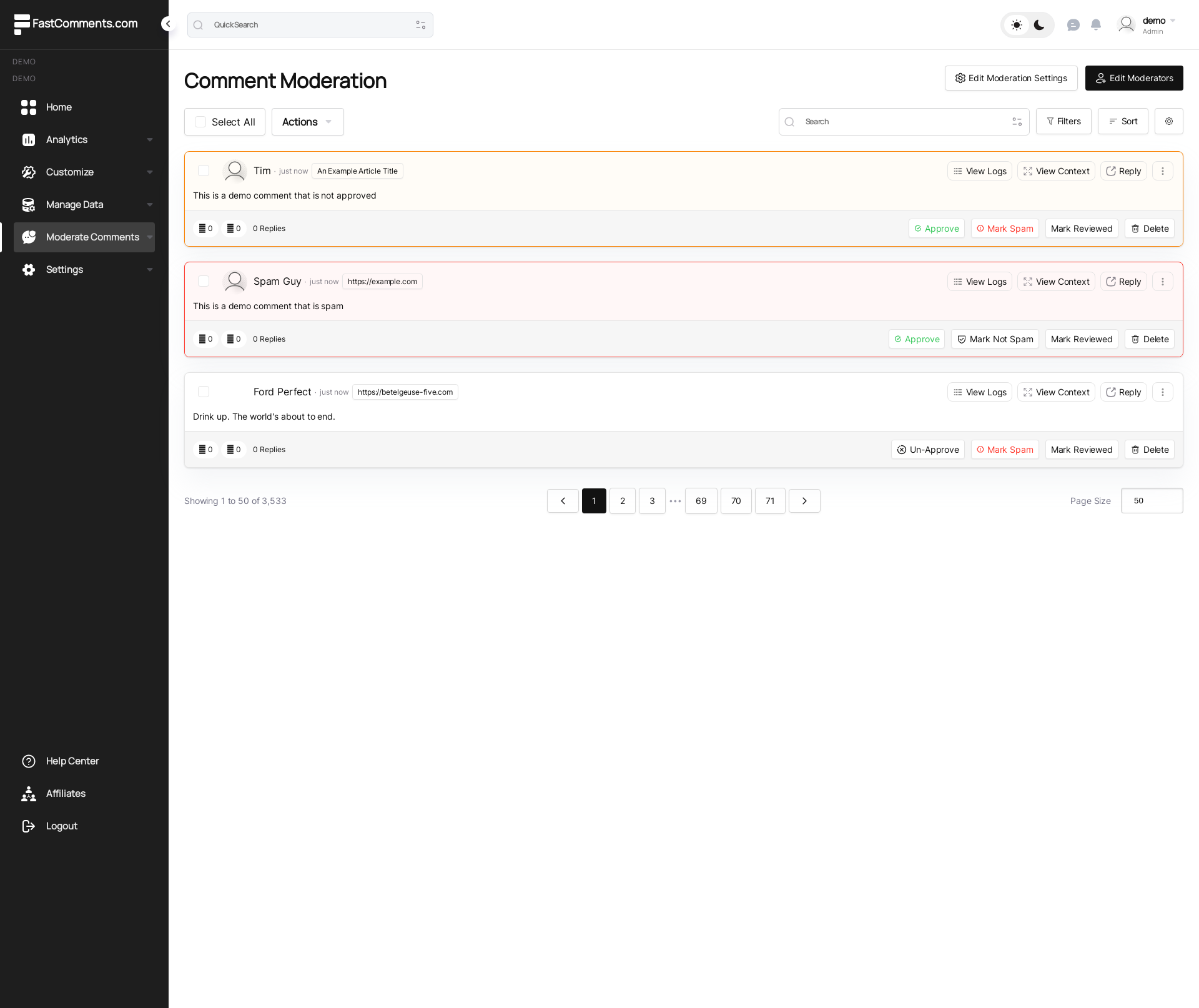
We've set the count per page to three to make this screenshot a reasonable size. In practice, you would be working with 50 comments per page by default.
The moderation page also supports Keyboard Shortcuts for navigating between comments and performing actions without using the mouse. Press ? on the moderation page to see all available shortcuts.
The page is also live — when new comments arrive that match your current filters, a banner appears at the top alerting you. See Live Moderating for details.
Let's go into the features shown here.
Moderators
Moderators are special users that only have access to the Moderate Comments page of your FastComments account.
They cannot add or remove other moderators or edit moderation settings. They do however have full control over the comment data shown in the Moderate Comments page and can take all actions that an admin can on an individual comment basis. They can also execute bulk actions.
They do not have access to the data management tools (importing/exporting/migrating comments).
Adding Moderators
For administrators, at the top of the Comment Moderation page is an Add Moderators button.

If you already have moderators, this button will say "Edit Moderators".
Let's take a look at the "Add a Moderator" page.
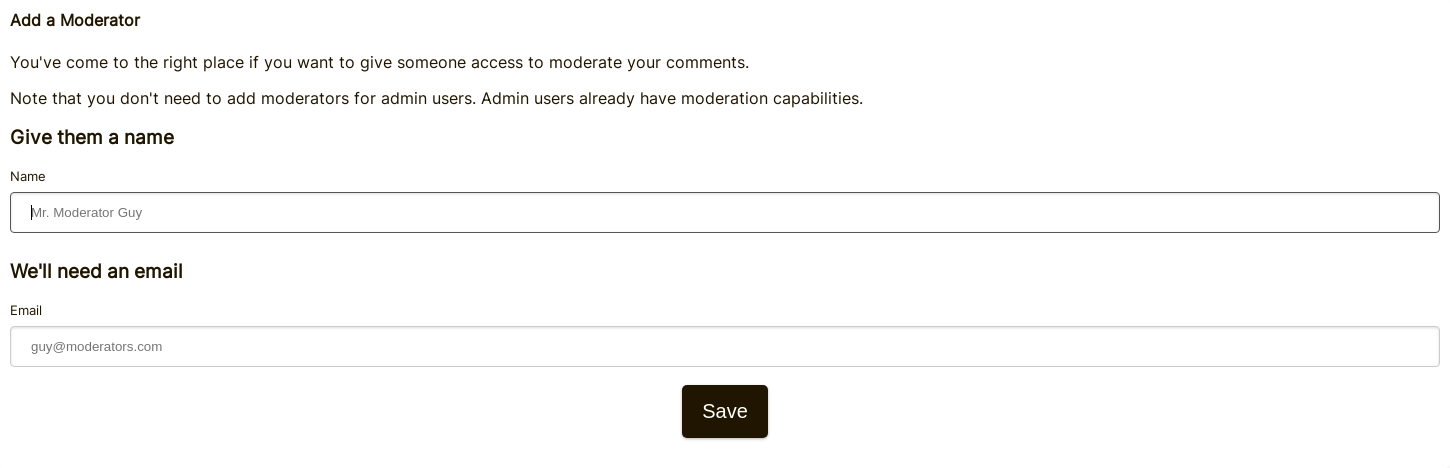
To add a moderator all that is needed is a name and an email.
If the email is associated with an existing FastComments account, they will be invited via email to join your account as a moderator.
If the given email is not associated with an existing FastComments account, a new one will be created for them.
An invite link will be sent to the moderator, which can automatically log them in. In the future if they wish to login, they can simply visit the login page and enter the name/email that you provided earlier. This will send them a link to login.
Unless they log out, they will be logged in for thirty days.
Moderator Stats
The work that moderators do is tracked and can be viewed by coming back to the "Edit Moderators" page.
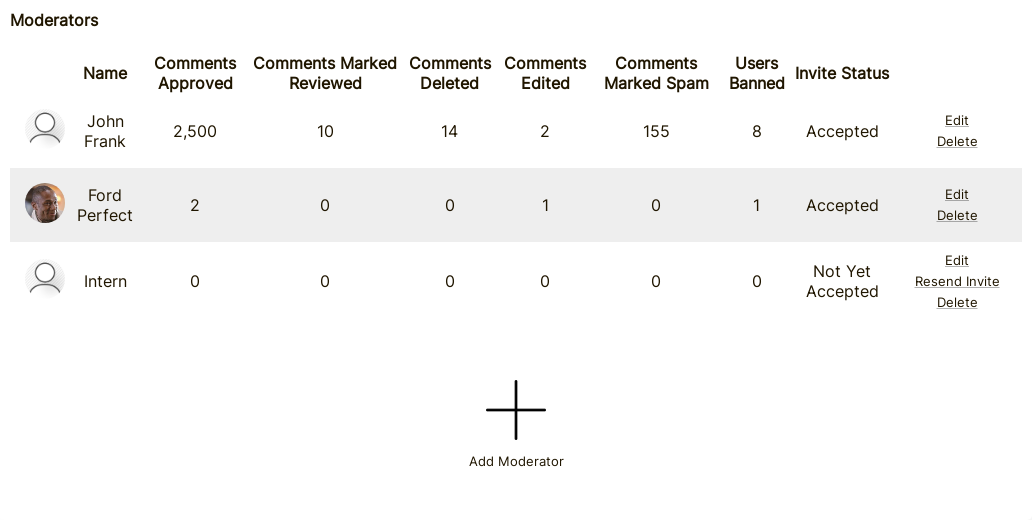
This page will track various statistics:
- Comments Approved
- Comments Marked Reviewed
- Comments Deleted
- Comments Edited
- Comments Marked Spam
- Users Banned
- Their Invite Status (Accepted or Pending)
Removing Moderators
To remove a moderator, in the Edit Moderators page, simply click "delete".
They will immediately no longer have access to moderating your comments, and will receive an email notifying them that they have been removed.
Note that if you simply want to update their email, you can do that by clicking "edit". This is preferred as their statistics won't be erased.
How Approvals Work
With FastComments, an Approved comment is a visible comment. To hide a comment, you would un-approve it.
Comments can be automatically approved, or moderators can manually approve each comment. There is also the option to only require approval of a user's first comment - in which case subsequent comments are automatically approved and do not require moderation.
FastComments has the concept of Verified vs Unverified. Verified comments are either posted in a session verified via email (user is fully logged in, or using SSO) or were posted in an Unverified state and then later verified manually via email.
The notion of Verified can be completely hidden if desired via customization rules.
Requiring the manual approval of unverified comments can help with spam, as bots will rarely verify their comments via email. In this case
you would want to enable automatic comment approval but enable Only Auto Approve Verified Comments.
This can all be configured by administrators from Moderation Settings.
Moderation Via Email
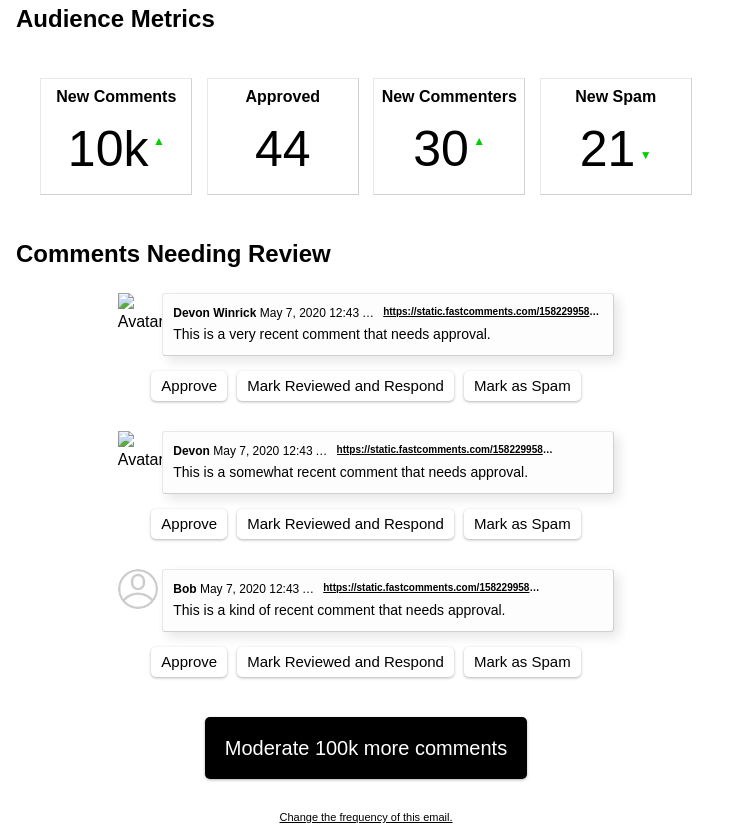
FastComments supports a Daily, Weekly, or Monthly email digest for Moderators and Administrators.
The frequency of which can be configured here.
While including overall statistics around your comments, it will also list the three most recent comments needing review.
For each of said comments, direct magic links are provided to:
- Approve the comment.
- Mark the comment reviewed and go to the respond page.
- Mark the comment as spam.
These links for each comment will automatically authenticate you and take the action from your email.
Additionally, a Moderate Comments button is located in the Digest which will perform the same authentication and take you to the Moderate Comments page.
Please note that these magic links do expire after some time.
Notification Types
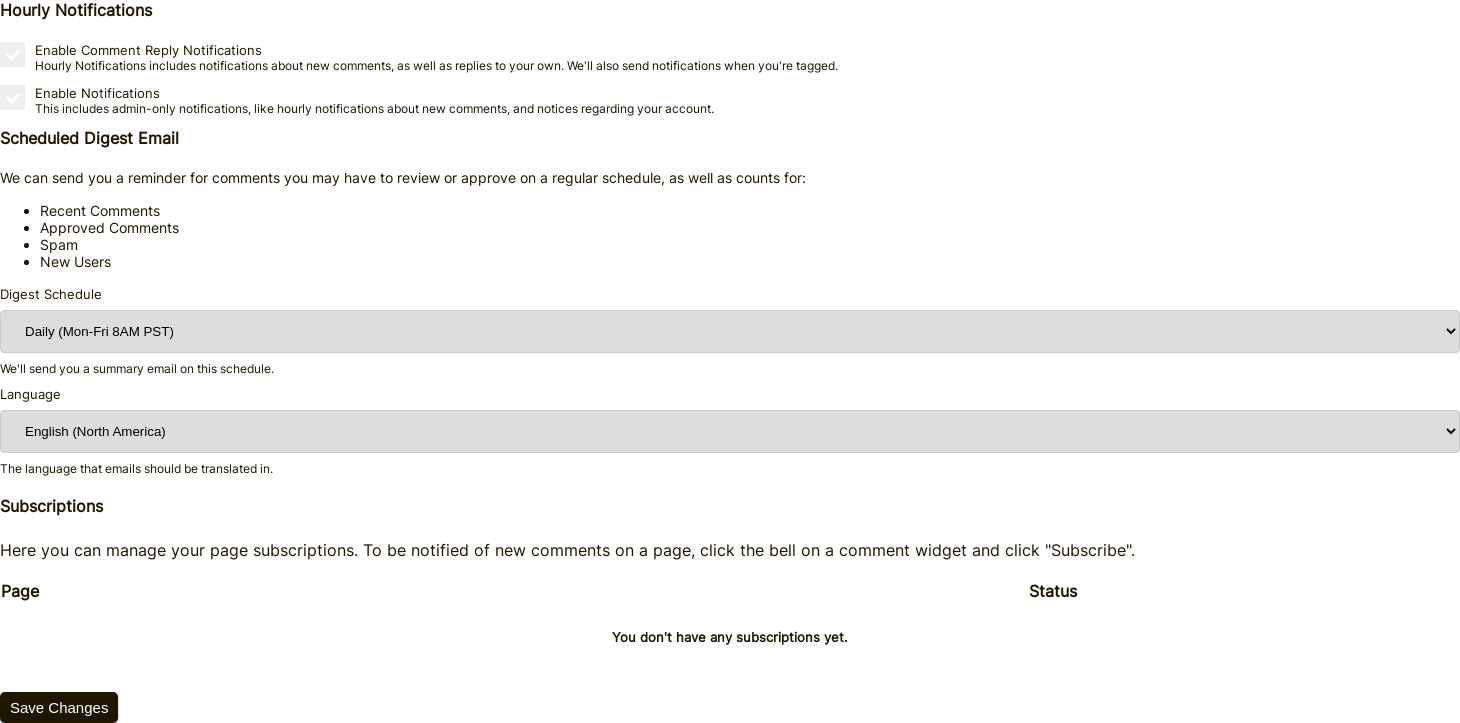
FastComments sends multiple types of emails to Moderators and Administrators. If desired, it is possible to opt out of Comment Reply notifications, while
still getting New Comment notifications by choosing the appropriate options in the Edit Notifications page shown above.
Filtering
By default, the moderation page shows all comments, but we can filter comments in many ways:
- Needing Review
- Needing Approval
- Flagged as Spam
- Flagged as Not Spam
- Flagged
- Already Reviewed
- Approved
- From Banned Users
Reviewed vs Approved
With FastComments, only approved comments will ever be able to show. This does not mean that you need to manually approve every comment. By default, comments are automatically approved. This can be configured here.
So, Approved means the comment can be viewed by other users on your site.
Reviewed is simply a tool for administrators and moderators, and has no impact on the visibility of a comment.
The Reviewed flag makes it easier to find comments that you have reviewed.
Searching
Comments can be searched with the following example syntax:
- Fuzzy word search:
cats love - Exact phrase match:
I love cats. - Exact full-comment match:
exact="I love cats."- Matches only comments whose entire text is exactly this value (case-sensitive), rather than comments that merely contain it.
- By Page Title:
page:"Page Title"- Supports autocomplete.
- By Page URL:
page:"https://example.com/some-page"- Supports autocomplete.
- By Site/Domain:
site:mysite.comordomain:othersite.com - By User:
user:"Bob"- Supports autocomplete.
You can share search results with other moderators or administrators by sharing the page URL from the moderation page. The search field value will be included in the URL in your browser after you hit "Go".
Sharing Moderation Links
With FastComments, it's possible for moderators to share links to the moderator dashboard that go directly to a certain page with some filters.
For example, the following use case:
- Moderator A goes to the Comment Moderation dashboard
- Moderator A filters by Comments Needing Review
- Moderator A searches for a comment with the text "My Company Name"
- Moderator A finds something interesting on the second page of the resulting searched comments.
- Moderator A can share the link of this page directly with Moderator B.
- Moderator B can see what Moderator A did.
The Comment Thread Viewer
When moderating and viewing comment threads it is desirable to be able to jump directly to a thread to get context during moderating.
This means that the user's flow starts in the Comment Moderation page, and would then have to go from an individual comment to the page containing that comment, wait for that page to load, wait for the comments to load, and then scroll to that comment.
However, FastComments provides a faster way. In the Moderate Comments page, next to each comment, there is a "View Comment" button in the bottom right.

If this comment has replies, the button text will instead say the number of replies, but clicking it takes the same action.
This button will take you to the Comment Thread Viewer.
The Comment Thread Viewer is a small, fast loading application hosted by FastComments that renders the comment thread for the page that the comment is on, and scrolls to that comment.
This allows moderators to gather the context they need to, quickly, without having to wait for another page to load.
Moderation Actions
With FastComments, there are a number of actions that Admins and Moderators can take on each comment, namely:
- Deleting that comment
- Delete that comment + Ban the user (Permanent or Shadow, more details later)
- Edit that comment
- Adjust the votes of that comment
- Mark that comment Reviewed or Not Reviewed
- Mark that comment Approved or Not Approved
- Mark that comment as Spam or Not Spam
- View all comments from the same IP address *1.
- Reset the Flag Count on a comment.
For example, to keep a comment around but hide it, we can simply mark it as Not Approved.
Additionally, Admins and Moderators can pin comments, but this can only be done from the comment thread itself.
All of the above actions are also available via keyboard shortcuts. See the Keyboard Shortcuts section for details.
*1 We do not store raw ip addresses for this feature.
Deleting Comments
There are a few things to consider when removing comments.
- What the user that originally wrote the comment sees.
- What happens to any replies of that comment.
When you delete a comment, that comment is also gone for the user that wrote it originally.
Additionally, that comment is removed from the screens of any users reading that comment.
If this comment has replies, and replies of those replies, they will be immediately deleted as well. Parent comments in the thread are retained.
Moderation Actions From Comment Widget
A subset of moderation actions can be taken directly from the comment thread itself, without having to go to the Comment Moderation page.
When you are logged in, click the edit button in the top right of a comment. You should have the following options as a moderator:
- Pin that comment
- Delete that comment
- Delete that comment + Ban the user (Permanent or Shadow, more details later)
- Edit that comment
- Lock or Unlock that comment (more details below)
- Mark that comment Approved (show it) or Not Approved (hide it)
- Mark that comment as Spam or Not Spam
Locking a Comment
Locking an individual comment prevents any new replies to it, and also prevents the comment itself from being edited or deleted until it is unlocked. This applies to everyone, including admins and moderators. If you need to edit or remove a locked comment, unlock it first, make the change, and re-lock it if desired.
A padlock icon appears in the top-right corner of a locked comment so readers can see at a glance that the thread is closed. The Edit and Delete menu entries are hidden for locked comments in both the comment widget and the public API (PATCH and DELETE return code: 'locked' if called against a locked comment).
Two intentional exceptions bypass the lock, because they would otherwise leave orphaned data behind: when a user deletes their entire account (their comments are cleaned up regardless of lock state), and when a moderator bans a user with the "delete all comments from this user" option (the sweep clears locks).
Closing Comment Threads
Moderators and administrators can lock, or close, comment threads, by selecting Close Thread in the three-dot menu in the top
of the comment area, if they are logged in. They can select Re-Open Thread later, at any time, to re-open commenting.
Closing a comment thread prevents new comments, but still allows voting, and for users to delete their comments if desired.
Closing and re-opening comment threads instantly affects all users viewing the thread.
You can also mark a thread read-only which removes vote and delete options as well, by creating a customization rule specifically for that page.
Updated Live
All of these actions will update the comment threads of other users right away without them having to reload the page. However, the moderator actions like hiding a comment or marking it as spam, do not remove the comment from the moderator's screen so that if needed they can quickly undo the action. To indicate that comment is hidden it will be highlighted in comparison to the other comments (the highlighting color depending on the reason for removal).
For example, given users A (commenter), B (Moderator 1), and C (Moderator 2).
...and the following scenario:
User B (Moderator 1)hides a comment.- For
User A (commenter)that comment is immediately hidden. - For
User C (Moderator 2)that comment is immediately hidden. - For the user that made the change,
User B (Moderator 1), the comment remains on their screen, but is highlighted as removed. They have the option to undo their action, in which case the other users will see the update, live, again.
Live Moderating
All actions taken on the moderation page are live.
If someone is viewing the comment thread, and you approve a previously unapproved comment, it will automatically appear for them.
The same goes for editing, deleting, and marking as spam.
Live New Comment Notifications
The moderation page will also alert you when new comments arrive that match your current filters. A banner appears at the top of the comment list showing how many new comments are waiting. Clicking the banner loads them inline without a full page refresh.
This works with all filters — if you're viewing only spam comments, you'll only be notified about new spam. If you're searching for comments containing a specific phrase, only matching comments trigger the notification.
If your connection is temporarily interrupted, the system automatically catches up on any comments you missed when it reconnects.
Banning Users
There are two ways to ban users from commenting on your site with FastComments.
The first is if you already know their email, you can enter it on the banned users page.
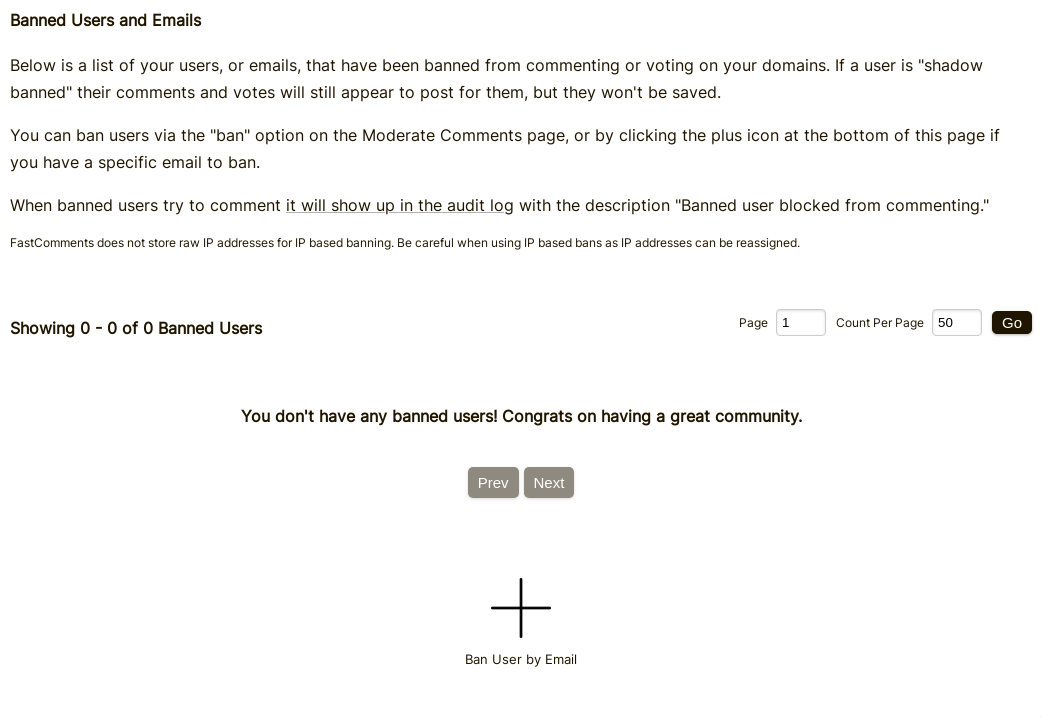
This page can be accessed via Moderate Comments -> Banned Users
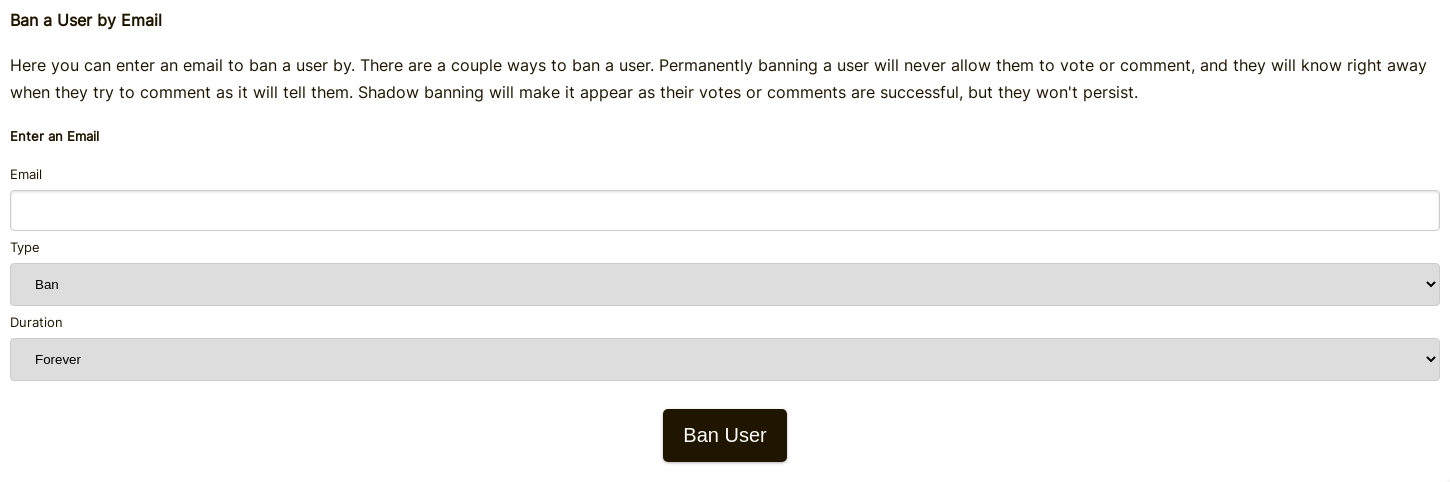
When we go to ban a user, we can pick a type, either Permanent or Permanent Shadow Ban:
The second way to ban a user is by clicking the ban button that is placed on each comment on the Comment Moderation page.
When we click the ban button, you'll be presented with some options, where we can specify the ban type and duration.
Email Aliases
When banning a user by email, FastComments automatically ignores + aliases. For example, banning user+alias@gmail.com will
also ban user@gmail.com and any other + variation of that address, such as user+other@gmail.com.
Shadow Bans
A shadow-ban is a type of ban that makes it appear that the user's comment or vote was saved successfully, when in fact it was not. This may be desirable in certain situations.
Banning Via IP Address
Unless a tenant wishes to opt out, FastComments supports banning via IP by storing a hashed version of the commenter's IP address.
Banning Users With Wildcards
It is possible to ban users using certain email providers using wildcards.
For example, if you find that all comments from @bademail.com are spam, you can simply ban that whole email provider by entering "*@bademail.com" in the email input field when adding a banned user.
Note the "*" before the @ in the email.
Flagging
With FastComments, users can flag comments which increases an internal count associated with that comment.
Moderators can view flagged comments, and the comment's corresponding Flag Count, via the Moderate Comments page by using the Flagged filter.
Auto Hide Flagged Comments
Comments can be hidden based on the number of times they are flagged. This threshold can be configured under the Comment Moderation Settings page.
See the "Automatically Un-Approve Flagged Comments" setting.
For example, with a threshold of 5, the comment will be un-approved and hidden after it is flagged by five users.
Un-Flagging Comments
From the Comment Moderation page, moderators can un-flag comments which resets the flag count associated with that comment.
If the comment was hidden due to the number of times it was flagged, then un-flagging will cause the comment to re-appear.
Re-Approving a comment that was un-approved (hidden) due to being flagged, will also reset the flag count associated with that comment.
Bulk Actions
When moderating, sometimes there is a series of actions that we want to take all at once. For example maybe you find a series of comments you want to delete, mark as spam, un-approve, or simply mark as reviewed. Instead of clicking "delete" and "confirm" on each comment, there's a better way.
Next to each comment is a checkbox, which we can click to start a bulk action. From there we can pick a bulk action and confirm it.
You will see the progress as your bulk actions are taken, and you can ctrl+z to undo any bulk action. Bulk actions can also be paused, stopped, or resumed.
Selecting Beyond Visible Comments
If you select the "Select All" checkbox it'll by default only select the visible comments on the page, but it will present you with an option to select all comments on the server that match your filters. So even if you need to approve, delete, etc millions of comments, you can do it with a few clicks.
Moderation Groups
Moderators can be placed into groups to moderate different pages or categories of content.
When a Moderator belongs to one or more groups, they will only see comments from those groups in the Moderate Comments page.
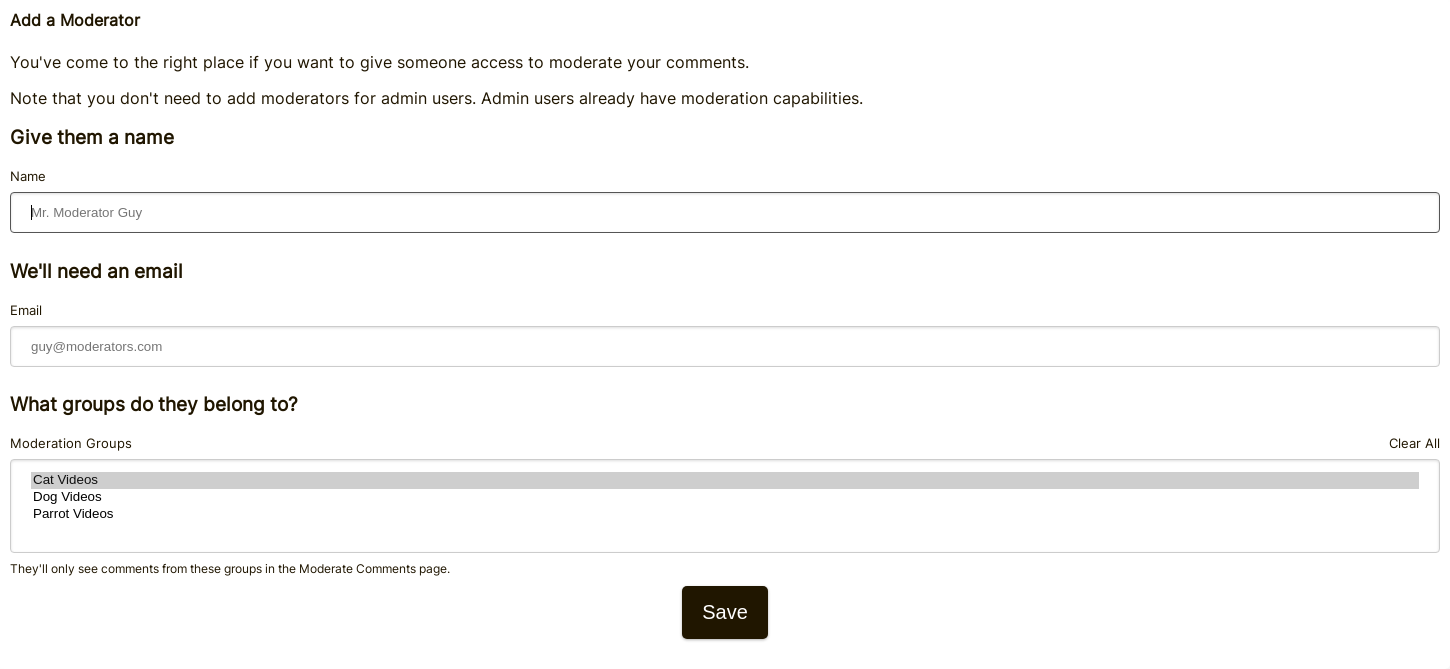
For example, let's say we run a site that displays videos by category. We may want to have different moderators for Cat, Dog, and Parrot videos, so let's add those groups.
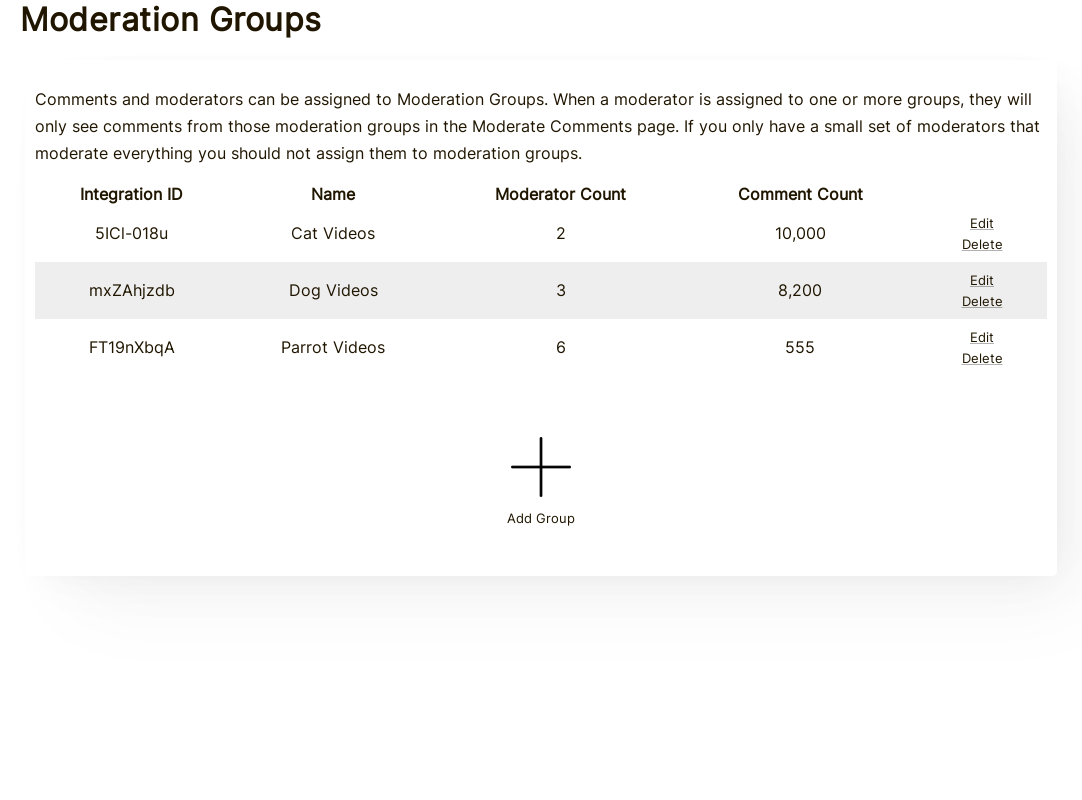
When we add a moderator, we now have the option to select one or more groups the moderator will belong to:
Finally, comments need to be tied to one or more groups so that the correct moderators see them.
This can be setup by adding some groups and then specifying the corresponding Moderation Group ids in the comment widget,
as instructed here.
Moderation Settings
While FastComments supports profanity and spam detection, it can be customized. Profanity or Spam Detection can be turned off individually via the Comment Moderation Settings page.
This is also the page where you will find the configuration for comment auto approval, or configuring the expiration of unverified comments.
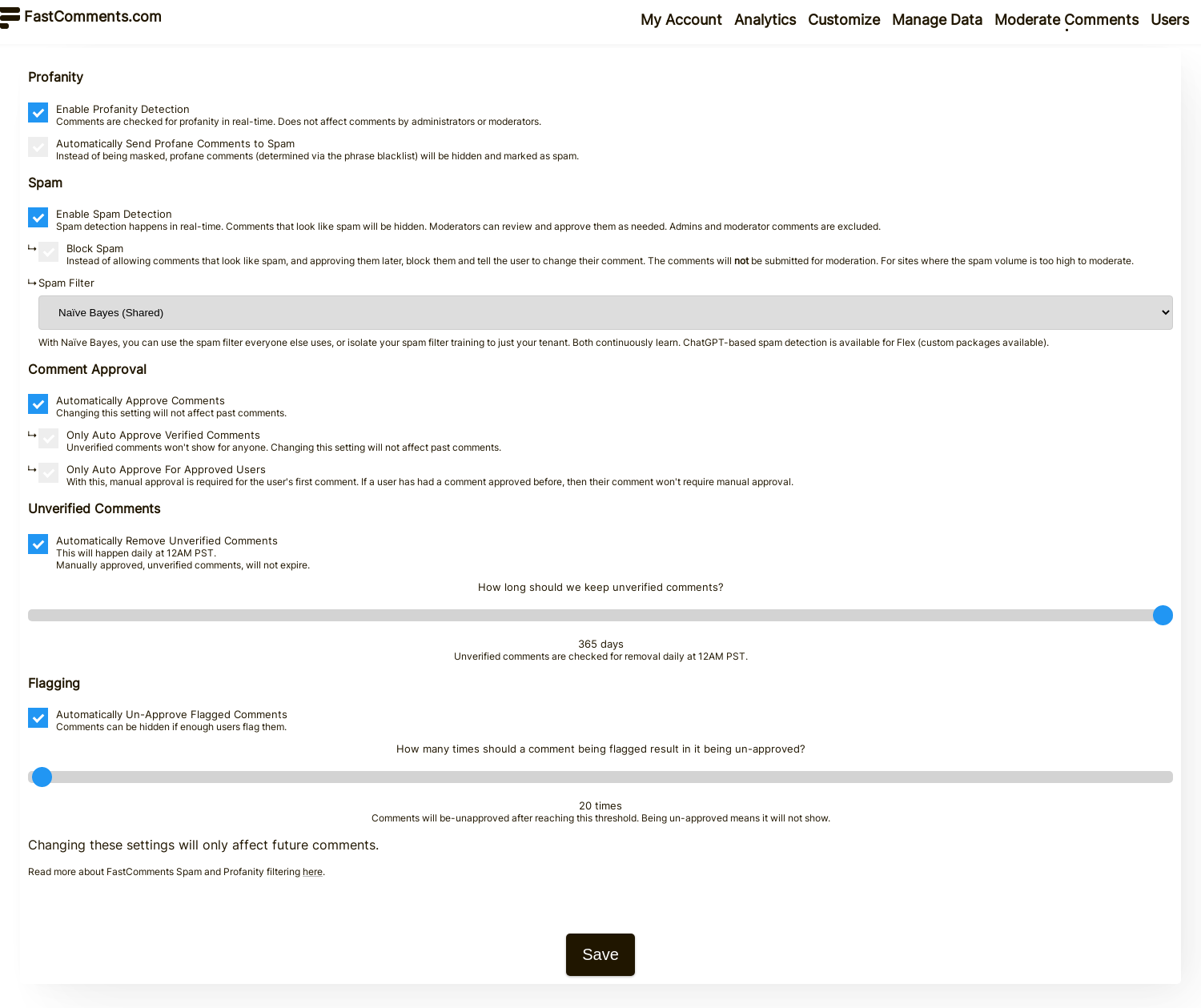
Additionally, the word blacklist can be customized from a button on this page.
Spam Detection
By default, FastComments comes with trainable spam detection.
As you moderate comments, and mark them as Spam, or mark comments automatically found as Spam as Not Spam, the spam detection system will learn from these actions to more accurately determine what you want to be spam.
Comments marked as Spam will not be automatically approved, so they will not show until explicitly marked as Not Spam.
Spam Detection can be disabled via the Comment Moderation Settings page.
Different Spam Detectors
FastComments supports three ways of detecting spam:
- A traditional Naïve-Bayes classifier that is continuously trained, which is shared across all FastComments.com tenants.
- A traditional Naïve-Bayes classifier that is continuously trained, which is isolated to your tenant.
- Using ChatGPT 4.
Everyone has access to the shared and isolated Naïve-Bayes classifiers.
The ChatGPT 4 option is selectable in the Comment Moderation Settings page if you are on Flex billing, since it bills based on tokens used.
Trust Factor
FastComments adjusts the spam filter for a user based on how much they are trusted for the given site.
For example, if administrators have pinned lots of their comments, then probably they are a very trustworthy user. Or, if they have been a member of the site for a long time and have a lot of comments, then their trust factor may be high as well.
SSO
Comments posted by SSO users can be considered spam, and will be checked as such. The exception is if the SSO user has the same email as a tenant user who has one or more of the following permissions:
- Account Owner
- Super Admin
- Comment Moderator Admin
SSO users with these permissions will not have their comments checked for spam.
Repeated Messages
FastComments will detect and prevent repeated messages. It will also detect repeated message that are very similar to help prevent spam. This cannot be disabled as it prevents our platform from being used for abuse. If you have a high trust factor, this is taken into account when doing repeated message prevention.
Masking Profanity
By default, FastComments comes with a word blacklist of ~450 phrases and words.
If text in the word blacklist is found in a new comment that text will be replaced with asterisks (***).
The page to customize the blacklist can be found via Moderate Comments -> Edit Moderation Settings -> Edit Word Blacklist, or by going directly here.
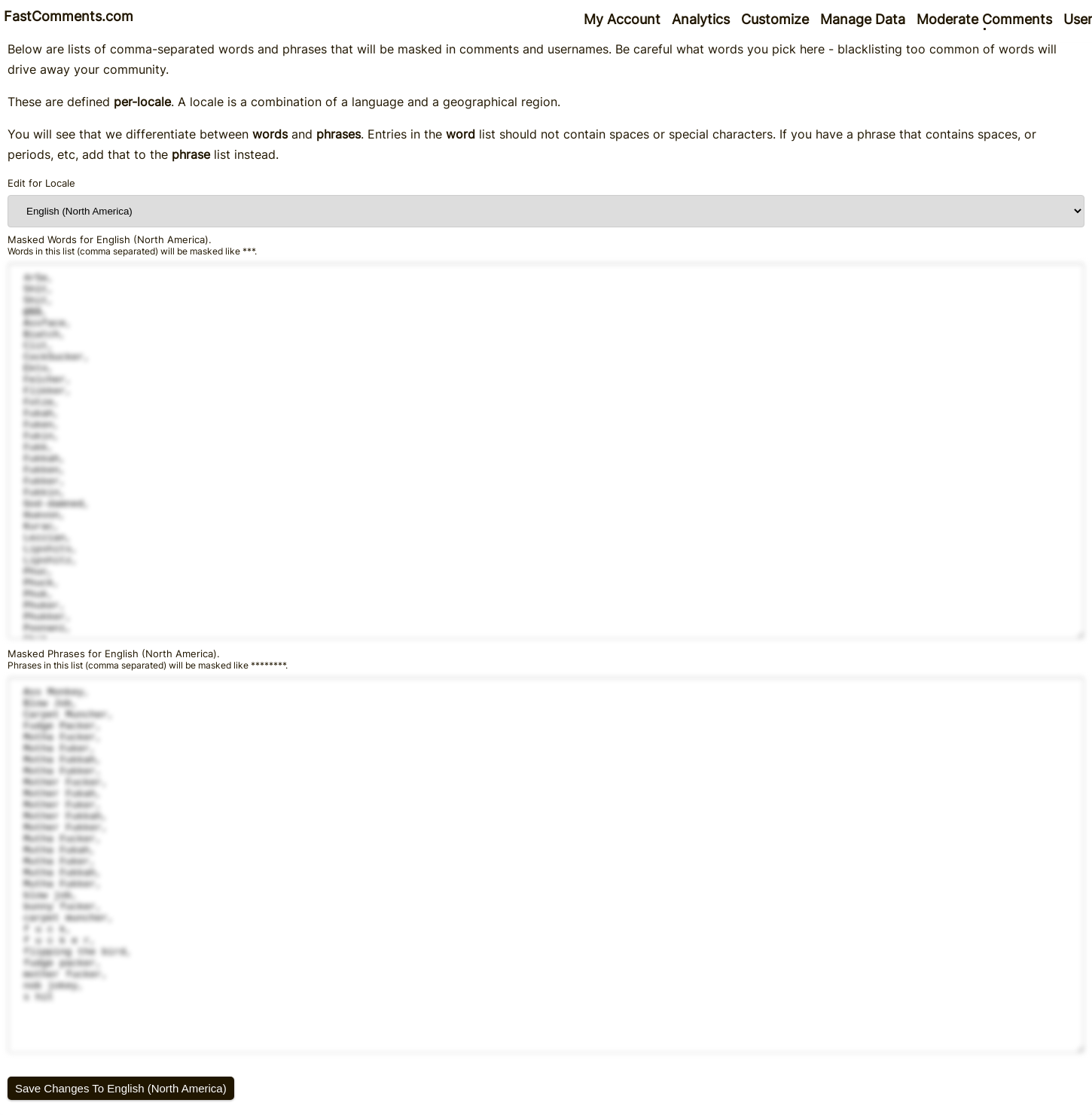
Additionally, you can disable Profanity Detection on the Edit Moderation Settings page.
Comment Logs
FastComments automatically tracks detailed events for each comment to provide transparency into moderation decisions and system actions. These logs help you understand why a comment was approved, flagged as spam, or had its status changed.
Accessing Comment Logs
To view the logs for a specific comment:
- Navigate to the Moderate Comments page in your FastComments dashboard
- Find the comment you want to inspect
- Click the View Logs button (clock icon) in the comment's action bar
- A dialog will appear showing the complete history of events for that comment
Each log entry displays:
- When - The timestamp of the event
- Who - The user or system that triggered the event (when applicable)
- What - The type of action or event
- Details - Additional context such as before/after values, engine names, or related data
Comment Log Events
Each comment maintains a log of events that occur during its lifecycle. Below are the types of events that are tracked:
Anonymization Events
- Anonymized - Comment content was cleared and user marked as deleted
- RestoredFromAnonymized - Comment was restored from anonymized state
Approval Events
- ApprovedDueToPastComment - Comment approved because user has previously approved comments (includes reference to the past comment)
- ApprovedIsAdmin - Comment approved because user is an admin
- NotApprovedRequiresApproval - Comment requires manual approval
- NotApprovedLowTrustFactor - Comment not approved due to low user trust factor (includes the trust factor value)
Profile Comment Approval Events
These events apply specifically to comments on user profiles:
- ApprovedProfileAutoApproveAll - Profile comment auto-approved because the profile owner has enabled auto-approve for all comments
- ApprovedProfileTrusted - Profile comment approved because the commenter is trusted (includes reference to the comment that established trust)
- NotApprovedProfileManualApproveAll - Profile comment requires manual approval because the profile owner has enabled manual approval
- NotApprovedProfileNotTrusted - Profile comment not approved because the commenter is not trusted
- NotApprovedProfileNewUser - Profile comment not approved because the commenter is a new user
Spam Detection Events
- IsSpam - Comment flagged as spam by detection engine (includes which engine made the decision)
- IsSpamDueToBadWords - Comment flagged as spam due to profanity filter
- IsSpamFromLLM - Comment flagged as spam by AI/LLM engine (includes engine name, response, and token count)
- IsSpamRepeatComment - Comment flagged as spam for being repetitive (includes which engine detected it)
- NotSpamIsOnlyImage - Comment not flagged as spam because it only contains images
- NotSpamIsOnlyReacts - Comment not flagged as spam because it only contains reactions
- NotSpamNoLinkOrMention - Comment not flagged as spam due to no suspicious links or mentions
- NotSpamPerfectTrustFactor - Comment not flagged as spam due to high user trust
- NotSpamTooShort - Comment not flagged as spam because it's too short to analyze
- NotSpamSkipped - Spam check was skipped
- NotSpamFromEngine - Comment determined not spam by detection engine (includes engine name and trust factor)
Bad Words/Profanity Events
- BadWordsCheckFailed - Profanity filter check encountered an error
- BadWordsFoundBadPhrase - Profanity filter detected inappropriate phrase (includes the phrase)
- BadWordsFoundBadWord - Profanity filter detected inappropriate word (includes the word)
- BadWordsNoDefinitionForLocale - No profanity definitions available for comment language (includes the locale)
User Verification Events
- CommentMustBeVerifiedToApproveNotInVerifiedSession - Comment requires verification but user not in verified session
- CommentMustBeVerifiedToApproveNotVerifiedYet - Comment requires verification but user not yet verified
- InVerifiedSession - User posting comment is in a verified session
- SentVerificationEmailNoSession - Verification email sent to unverified user
- SentWelcomeEmail - Welcome email sent to new user
Trust and Security Events
- TrustFactorChanged - User's trust factor was modified (includes before and after values)
- SpamFilterDisabledBecauseAdmin - Spam filtering bypassed for admin user
- TenantSpamFilterDisabled - Spam filtering disabled for entire tenant
- RepeatCommentCheckIgnored - Repeat comment check was bypassed (includes the reason)
- UserIsAdmin - User identified as admin
- UserIsAdminParentTenant - User identified as parent tenant admin
- UserIsAdminViaSSO - User identified as admin via SSO
- UserIsMod - User identified as moderator
Comment Status Changes
Status change events include before and after values, plus the user who made the change:
- ExpireStatusChanged - Comment expiration status was modified
- ReviewStatusChanged - Comment review status was changed
- SpamStatusChanged - Comment spam status was updated
- ApproveStatusChanged - Comment approval status was changed
- TextChanged - Comment text content was edited (includes before and after text)
- VotesChanged - Comment vote counts were updated (includes detailed vote breakdown)
- Flagged - Comment was flagged by users
- UnFlagged - Comment flags were removed
Moderation Actions
- Pinned - Comment was pinned by moderator (includes who pinned it)
- UnPinned - Comment was unpinned by moderator (includes who unpinned it)
Notification Events
- CreatedNotifications - Notifications were created for comment (includes notification count)
- NotificationCreateFailure - Failed to create notifications
- BadgeAwarded - User badge was awarded for comment (includes badge name)
Publishing Events
- PublishedLive - Comment was published to live subscribers (includes subscriber count)
Integration Events
- WebhookSynced - Comment was synchronized via webhook
Spam Rule Events
- SpamRuleMatch - Comment matched a custom spam rule (includes rule details)
Localization Events
- LocaleDetectedFromText - Language locale was automatically detected from comment text (includes detected language and locale)
Use Cases for Comment Logs
Comment logs are automatically generated and stored with each comment. They provide valuable insights for:
- Understanding moderation decisions - See exactly why a comment was approved, held for review, or marked as spam
- Debugging approval/spam issues - Trace through the decision logic when comments aren't behaving as expected
- Tracking user behavior patterns - Monitor trust factor changes and verification status
- Auditing moderator actions - Review what actions moderators have taken on specific comments
- Investigating spam filter effectiveness - See which detection engines are catching spam and which are not
- Troubleshooting integrations - Verify webhook syncs and notification delivery
These logs help maintain transparency in the moderation process and assist in fine-tuning your comment system's behavior.
Keyboard Shortcuts
The Comment Moderation page supports keyboard shortcuts for navigating between comments, performing actions, and paginating - all without using the mouse.
Press ? at any time on the moderation page to open a help dialog listing all available shortcuts.
Navigation
| Key | Action |
|---|---|
j | Focus next comment |
k | Focus previous comment |
x or Enter | Toggle select on focused comment |
Shift+j | Select focused comment & move to next |
Shift+k | Select focused comment & move to previous |
The focused comment is highlighted with a blue outline. This is separate from "selected" (checked) comments.
Actions on Focused Comment
| Key | Action |
|---|---|
a | Toggle approve / unapprove |
s | Toggle spam / not spam |
d | Delete |
u | Undelete |
r | Toggle reviewed / not reviewed |
e | Edit |
b | Ban / manage ban |
p | Toggle pin / unpin |
f | Unflag |
i | View all comments from IP |
t | Set trust factor |
m | Manage badges |
l | View logs |
c | Toggle context |
These shortcuts only apply when a comment is focused. If no comment is focused, press j or k first.
Global Shortcuts
| Key | Action |
|---|---|
Ctrl+a | Select all comments |
Ctrl+z | Undo last action |
? | Show keyboard shortcuts help |
g | Toggle shortcut guiders overlay |
/ | Focus search input |
Pagination
| Key | Action |
|---|---|
[ | Previous page |
] | Next page |
Shortcut Guiders
Press g to toggle guiders mode. When active, small badges appear on the focused comment's action buttons showing the keyboard shortcut for each button. This is useful while learning the shortcuts. Press g again to hide them.
Input Suppression
Shortcuts are automatically suppressed when:
- The cursor is in the search box, a text input, or a content-editable field. Press
Escapeto blur the field and return to shortcuts. - A dialog is open. Close the dialog first.
AI Agents
FastComments supports running AI Agents alongside human moderators. Agents watch for events (new comment, flag thresholds, votes, moderator actions, and more) and take action using a configurable allowlist of tools - including marking spam, banning, warning users via DM, awarding badges, pinning, locking, and writing replies.
Every agent starts in Dry Run so you can watch what it would do against real traffic before flipping it on, sensitive actions can be gated behind human approval, and per-agent and per-account budgets cap spend.
For the full reference, see the AI Agents guide. To create your first agent, head to AI Agents in your account.
In Conclusion
You've reached the end of our Moderation documentation. Let us know what further comments or questions you have below - you may also reach out to us via the Support Page.